
Create your own courses
How your own courses get into Campus: check Studio, create and publish in Studio, then assign the course to a learning path.
Requires: Campus Full
You do not create your own courses in Campus but in Studio. Campus then shows them as a content source, and there you assign them to learning paths.
Before you start
- Your own Studio is part of Campus Full. It is not included with Campus Light.
- Even with Studio in the workspace, authors need personal access to the app and an assigned place. Under Subscription & requests it says: “Studio is included in the workspace. Personal app access and an assigned place are still required.” See “Roles and permissions”.
- Department leads also see the Studio tab, but read-only. Requesting an offer and assigning courses to learning paths are tasks for Campus managers.
How an own course gets into your learning paths
-
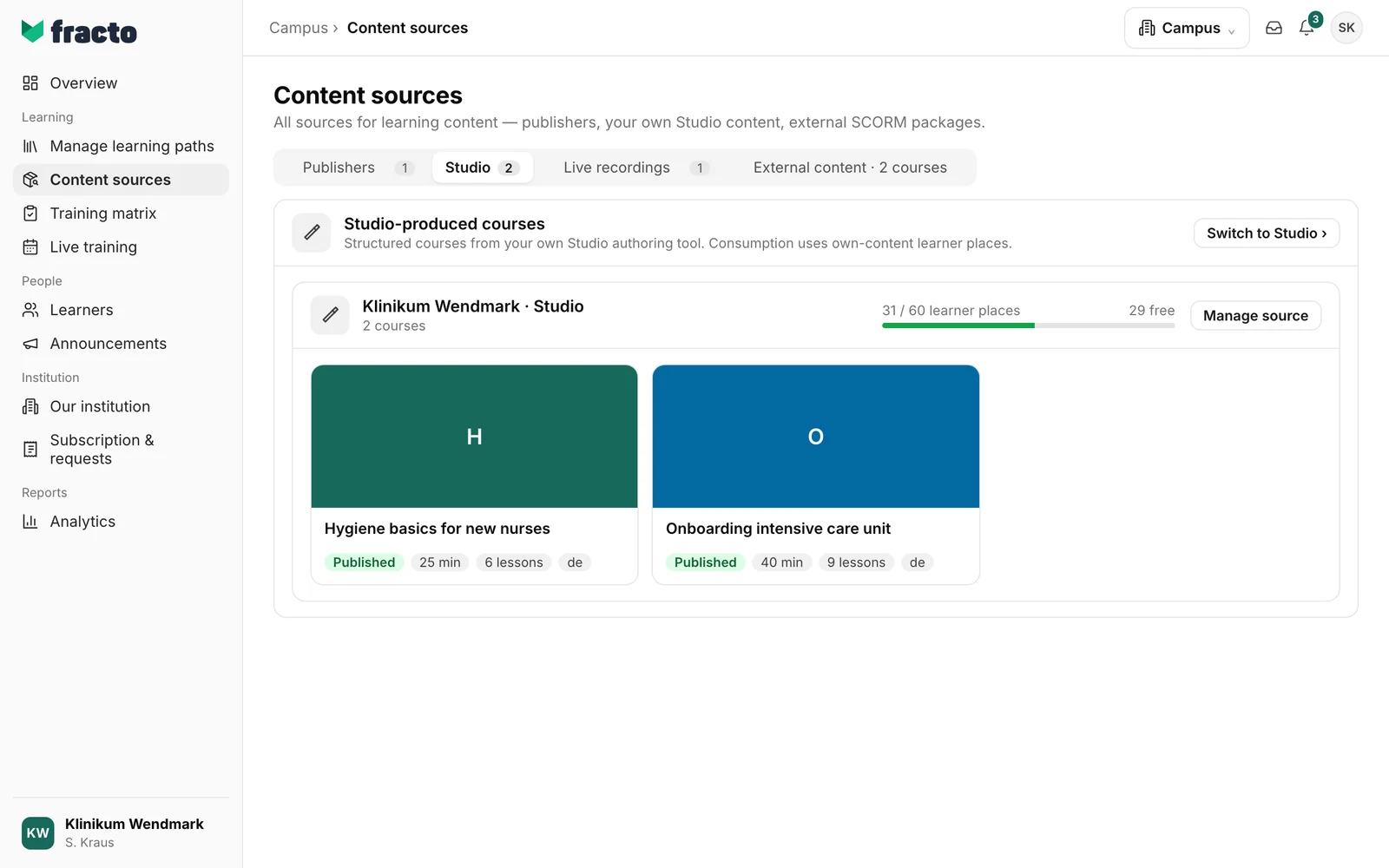
In Campus, open Content sources and choose the Studio tab. If Studio is there, it says “No published Studio courses yet. Publish a course in Studio to make it available as a content source here.” or shows the courses themselves. Click Switch to Studio. Studio opens in a new tab. If the tab shows the “Not booked” card instead, read on under “If Studio is missing”.
-
Create the course in Studio, for example with the AI assistant from a manual or from a PDF or PowerPoint, and edit the lessons. See “Create a course from a manual with the AI assistant”, “Import a PDF or PowerPoint as a course” and “Edit a lesson with blocks”.
-
Publish the course in Studio. See “Publish a course”. Only a published course appears in Campus.
-
Go back to Campus and open Content sources, tab Studio. The course is there with the state Published, with duration, number of lessons and language.
-
Open Manage learning paths. Own courses are marked “Own” there. Assign the course to a learning path. See “Create a learning path”.
You can tell it worked: the course appears in the Studio tab and in the course list under Manage learning paths.
What happens next
- Learners use a learner place for own content for Studio courses. The app says: “Learner places for own content cover internally produced content, live recordings and Studio courses.” Manage source shows how many learner places are used and free.
- Instead of assigning the course, you can offer it voluntarily in the catalog. See “Offer a course in the catalog”.
- The course and its content stay in Studio. Lessons cannot be edited in Campus.
If Studio is missing
If the Studio tab shows the “Studio authoring tool” card with “Not booked”, Studio is not enabled for your institution. The card lists what would be included, among others “Block editor with AI wizard”, and: “Activation is done by Fracto sales.”
- As a Campus manager, click Request quote. The Request Studio authoring tool dialog opens.
- Enter the name of the contact person under Contact. The field is required. Preferred date (optional) and Note (optional) (up to 1,000 characters) are optional.
- Click Open email draft. Your mail program opens a draft to sales. The dialog says: “We prepare an email to sales@fracto.health — you send it yourself.” The draft is always in German, even with an English interface. After it opens, the card says “Email draft opened · please send it”.
Fracto sales clarify the next steps and the activation with you. With Campus Light, Campus managers also find Request Campus Full and a dedicated Studio under Subscription & requests.
Checked on 6 November 2026 against the current Fracto release.
