
Make a course available to a partner
How to make a published course available to a partner in Channel: assign the course to a product, then add its product group to the partner's assortment.
In Channel, a course never belongs directly to a partner. It becomes available in two steps: you assign the course to a product, which belongs to a product group, and you add that product group to the partner’s assortment. If the partner already received the right product group when you created it, you need only step 1.
Before you start
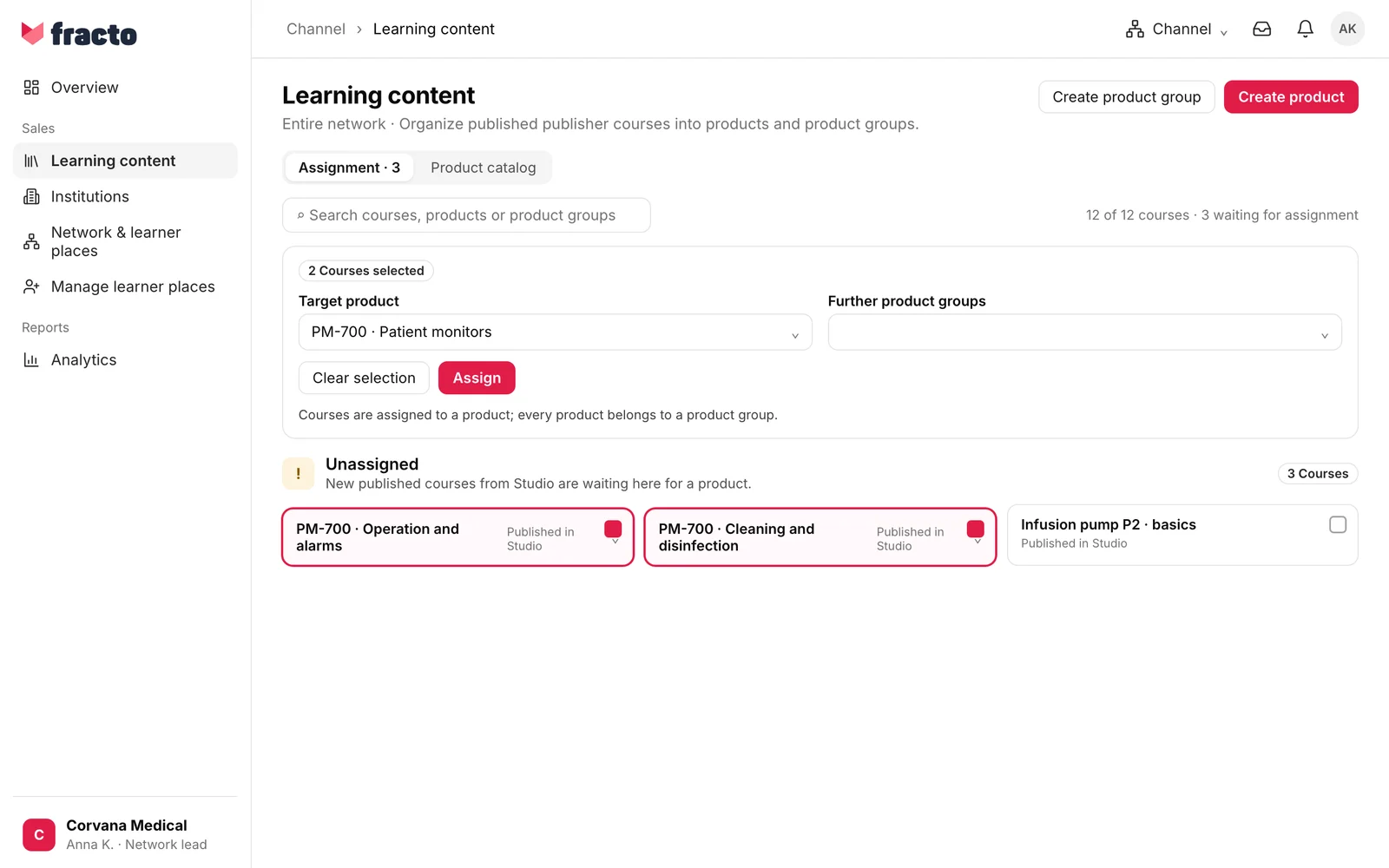
- The course is published in Studio. New courses appear in Learning content on the Assignment tab under Unassigned: “New published courses from Studio are waiting here for a product.”
- Only the network lead changes the catalogue. Everyone else can only view it, with the note Read-only access.
- A product and a product group exist for it. Courses hang on products. If a product group has no product yet, first create one in the Product catalog.
- The partner is created in the network, see “Add a partner”.
- Whoever stands above the partner changes its assortment: the network lead or the region lead. A partner lead can change it only within the manufacturer range ceiling. If you may only read, you see View range instead of Set catalog.
Step 1: assign the course to a product
-
In Channel, open Learning content. On the Assignment tab, the number next to the name shows how many courses are waiting for an assignment.
-
Tick the courses. The search and the Product group filter help you find them. A bar with “2 Courses selected” appears.
-
Choose the Target product. If all chosen courses already have a product, Keep current product is preselected.
-
Under Further product groups you can attach additional product groups to the course. These are tags: they do not change access. Saving replaces the further product groups of all chosen courses.
-
Click Assign. Before saving, Fracto checks the consequences. If institutions lose courses as a result, or courses move to another product group, “Reassign courses?” appears with the affected institutions and learners. Confirm with Reassign anyway or, for a plain move, with Assign. If institutions lose courses, their open obligations for them are ended (“Open obligations are cancelled: … direct, … from the matrix”); progress and certificates stay. The preview names only institutions, not partners. If a course changes product group, it can drop out for partners whose assortment does not contain the new product group. Check that afterwards in step 2.
You know it worked when a green message names the number and the product of the assigned courses. Courses that were under Unassigned before disappear there. Undo restores the assignment; direct obligations that were ended are not recreated.
Step 2: set the partner’s assortment
-
Open Network & learner places and click the partner. In the partner profile, the Set catalog button is under Partner management.
-
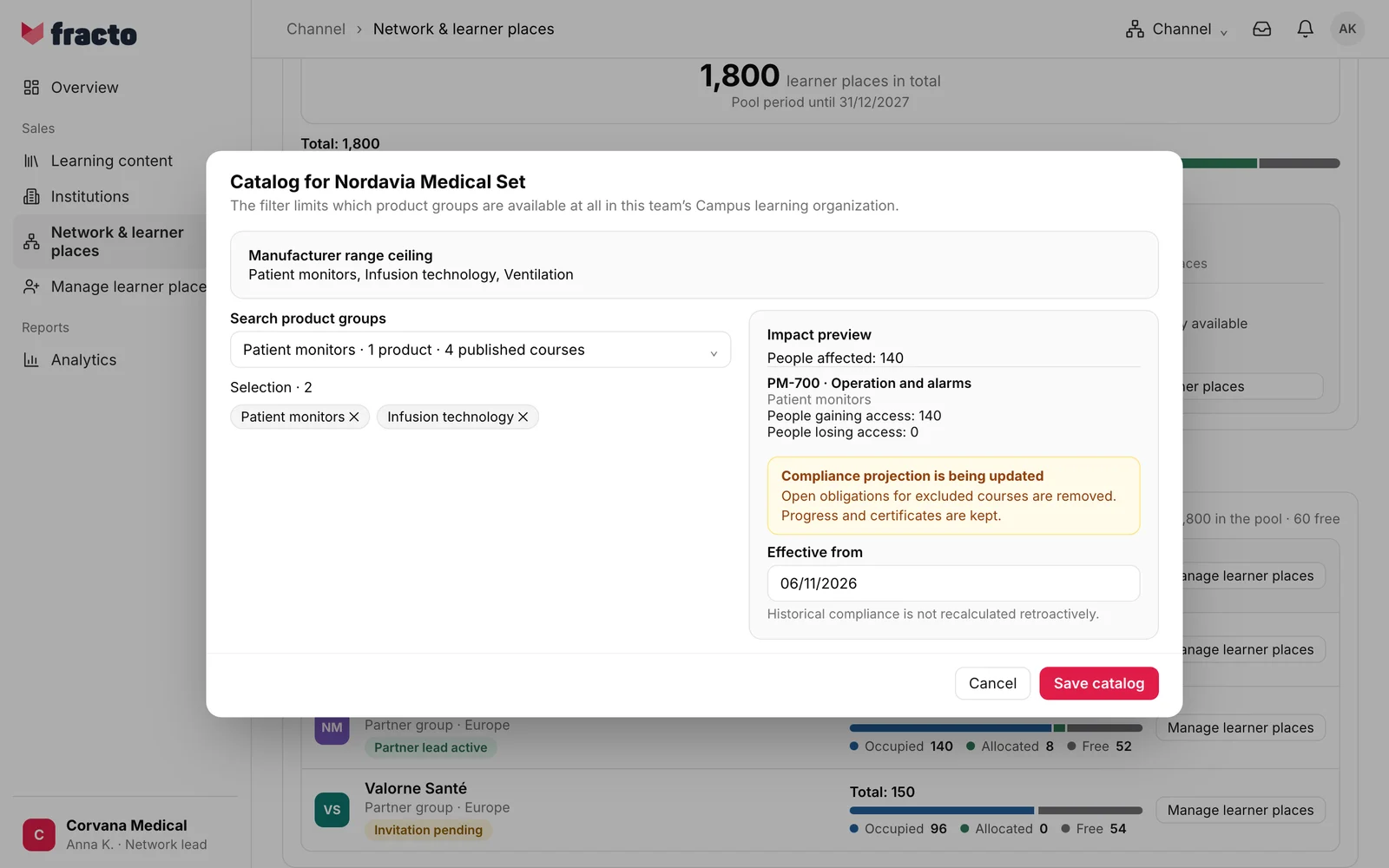
In the “Catalog for … Set” dialog, Manufacturer range ceiling, if there is one, shows which product groups the partner may receive at all. Choose the partner’s product groups under Search product groups. Product groups outside the ceiling are disabled, marked “Outside the manufacturer range ceiling”. At least one product group is required.
-
The Impact preview shows “People affected” and, per course, “People gaining access” and “People losing access”. The preview counts only people in the partner’s active Campus team and only courses from its Campus trainings. If there is no active Campus team, it says “People affected: 0” and “No changes to courses from Campus team trainings.” It also says: “Open obligations for excluded courses are removed. Progress and certificates are kept.”
-
Effective from is preset to today. Today is the earliest possible date; a later date schedules the change. “Historical compliance is not recalculated retroactively.”
-
Click Save catalog. The button is active only once the preview has loaded.
You know it worked when “The assortment for … was updated.” appears.
If the partner should receive a product group that is not in the ceiling, widen the ceiling first: the partner profile has Set manufacturer ceiling for that, if a ceiling exists and you stand above the partner. The “Set range ceiling for …” window works like the catalogue window.
What happens next
- The assortment limits which product groups are available at all in the partner’s Campus learning organisation. Available does not mean assigned: members, learner profiles and requirements stay in Campus. The Campus leads decide which courses someone has to learn.
- The change takes effect from the effective date. The preview names the people who gain or lose access.
- A course without a product belongs to no product group. The preview says about it: “This course has no product and is available to all team members.”
- The assortment of an institution is set separately. Assigning a course to another product changes which institutions receive it through their assortment.
If it does not work
| Message | What it means |
|---|---|
| The selected courses already belong to this product. | There is nothing to change. Choose another target product. |
| The catalog was changed in the meantime. Your entries are kept. Review the updated state and then save again. | Someone changed the catalogue. Check the state and click Assign again. |
| The effects changed since you opened the overview. Nothing was saved. Check the current overview. | The affected institutions changed. Read the new overview and confirm again. |
| The action could not be saved. Please try again. | General error when assigning. |
| The last assignment was undone. | This is the confirmation after Undo, not an error. |
| Assortment changes cannot take effect in the past. Choose today or a future date. | The date under Effective from is before today. |
| Outside the manufacturer range ceiling: … | A chosen product group is not in the manufacturer range ceiling. Widen the manufacturer range ceiling first. |
| Narrow these teams’ ranges first: … | You wanted to narrow the ceiling, but teams of the partner still have the product group. |
| At least one selected product group is no longer available. Reload the page and check your selection. | A product group was archived. |
| The team was changed in the meantime. Please reload the page. | Someone changed the entry. |
| You do not have permission to perform this network action. | You lack the permission for this partner. |
| The preview could not be loaded. Please try again. | Try again loads the preview again. Without a preview you cannot save. |
Checked on 6 November 2026 against the current Fracto release.
