
Generate knowledge checks and quizzes with AI
How to generate questions from the knowledge base with AI in Studio: a whole quiz lesson or a knowledge check as a block in a lesson.
Studio can generate questions from a course’s knowledge base. There are two ways. A quiz lesson has up to 50 questions and is created through the AI assistant in the course. A knowledge check is a block with 3 to 5 questions that you insert into a lesson. The AI always delivers a draft: you review and change it before anything lands in the course.
Before you start
- You have the Create courses task in Hub. It unlocks Create quiz and the AI blocks category.
- The course’s knowledge base has content. The quiz lesson needs at least one document. Without a document, Create quiz is disabled, with the note “At least one document in the knowledge base is required”. The knowledge check with the Lesson source needs no document.
- The AI is supposed to use only facts from your knowledge base. Still, check every question for accuracy.
- Generating uses your workspace’s AI credit.
How to generate a quiz lesson
-
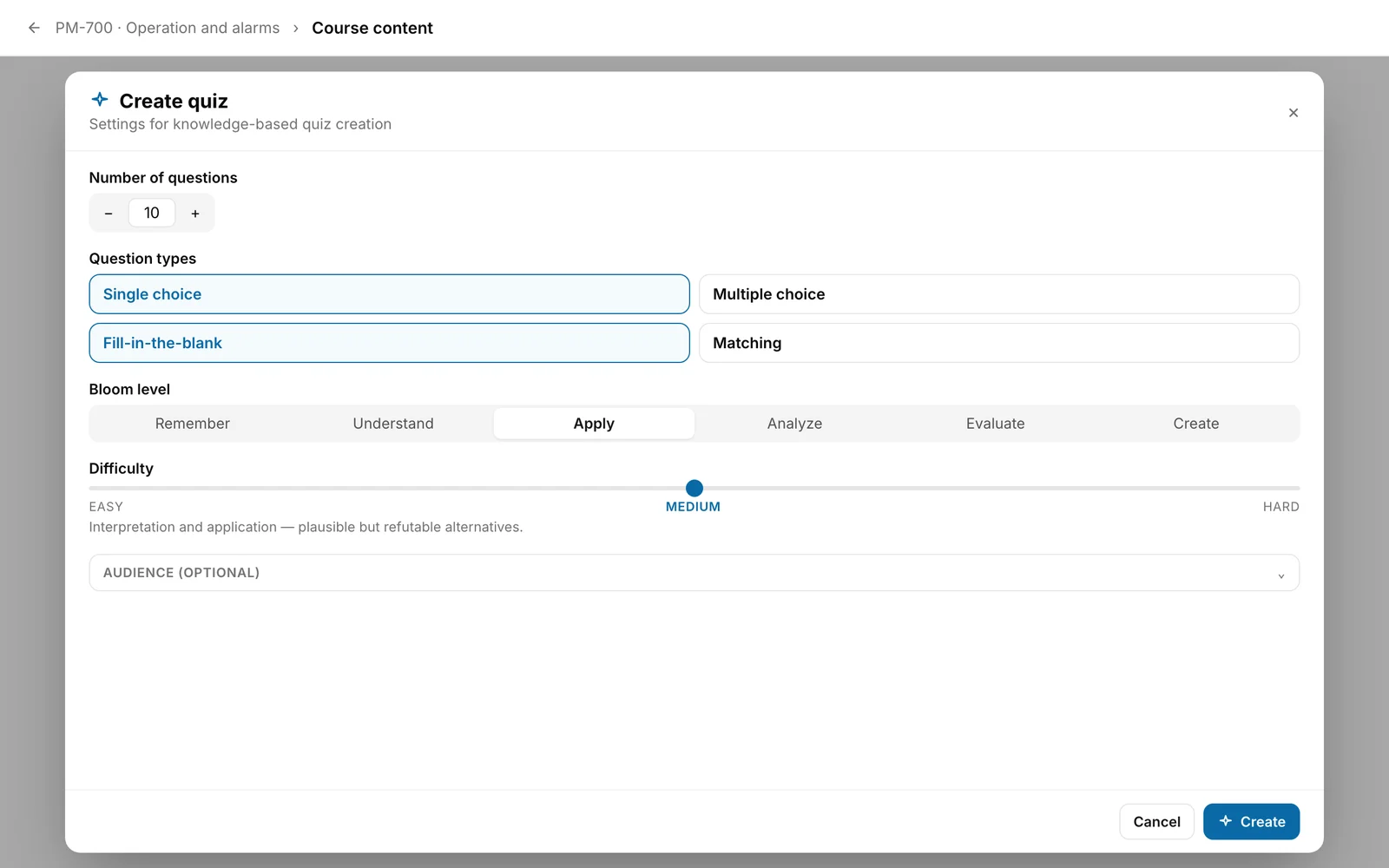
Open the Course content area and click AI assistant → Create quiz. The Create quiz dialog opens.
-
Set:
- Number of questions: 1 to 50, preset 10. Fracto spreads them as evenly as possible across the chosen question types.
- Question types: Single choice, Multiple choice, Fill-in-the-blank, Matching. Single choice and Fill-in-the-blank are preselected. At least one type must be chosen.
- Bloom level: Remember, Understand, Apply (preselected), Analyze, Evaluate, Create. Point at a level to see its explanation.
- Difficulty: Easy, Medium (preselected) or Hard. Below it, a text says what the level means.
- Audience (optional): expand the field and describe the learners, for example “anesthesia nursing, 1st year of practice”.
-
Click Create. The button shows “Creating quiz”, and a card says “Course knowledge is being evaluated and 10 questions created.” with a stopwatch. Leave the dialog open. The result appears automatically. With many questions it takes longer.
-
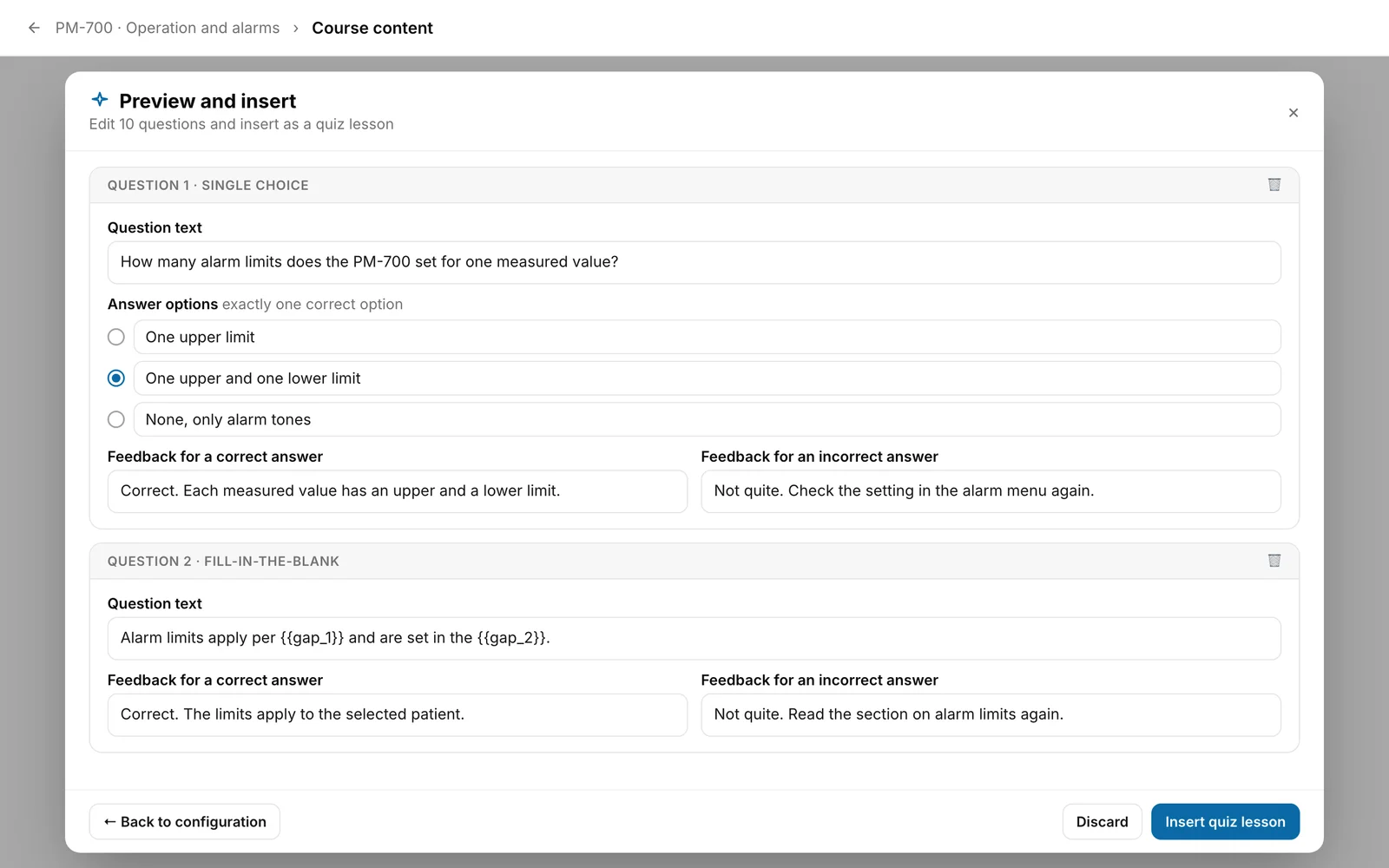
Review the preview (“Preview and insert”). Each question is in a card:
- You can change the Question text, the Feedback for a correct answer and the Feedback for an incorrect answer.
- For Single choice, you choose the one correct option under Answer options with the radio button. For Multiple choice, you mark all correct options with the checkboxes. You change the text of each option in its field. You cannot add or remove options here.
- For Fill-in-the-blank and Matching, the preview shows only the question text (for fill-in-the-blank with placeholders such as {{gap_1}}) and the feedback. You check the gaps and pairs after inserting, in the lesson editor.
- With Delete question (trash icon) you take a question out.
- The Technical run details card names the provider, model and time of the generation.
-
Click Insert quiz lesson. With ← Back to configuration you change the settings, with Discard you close the dialog without anything happening in the course.
You know it worked when: the outline contains a new lesson “Knowledge check (10 questions)” as the last lesson of the last section, with the Quiz badge. The title depends on the course language and the number of questions. You change it in the outline (see “Structure a course: sections and lessons”).
How to generate a knowledge check as a block
-
Open the lesson in the lesson editor. At the place you want, open the block library, choose AI blocks and then Knowledge check. The Knowledge check dialog opens with the lesson title below.
-
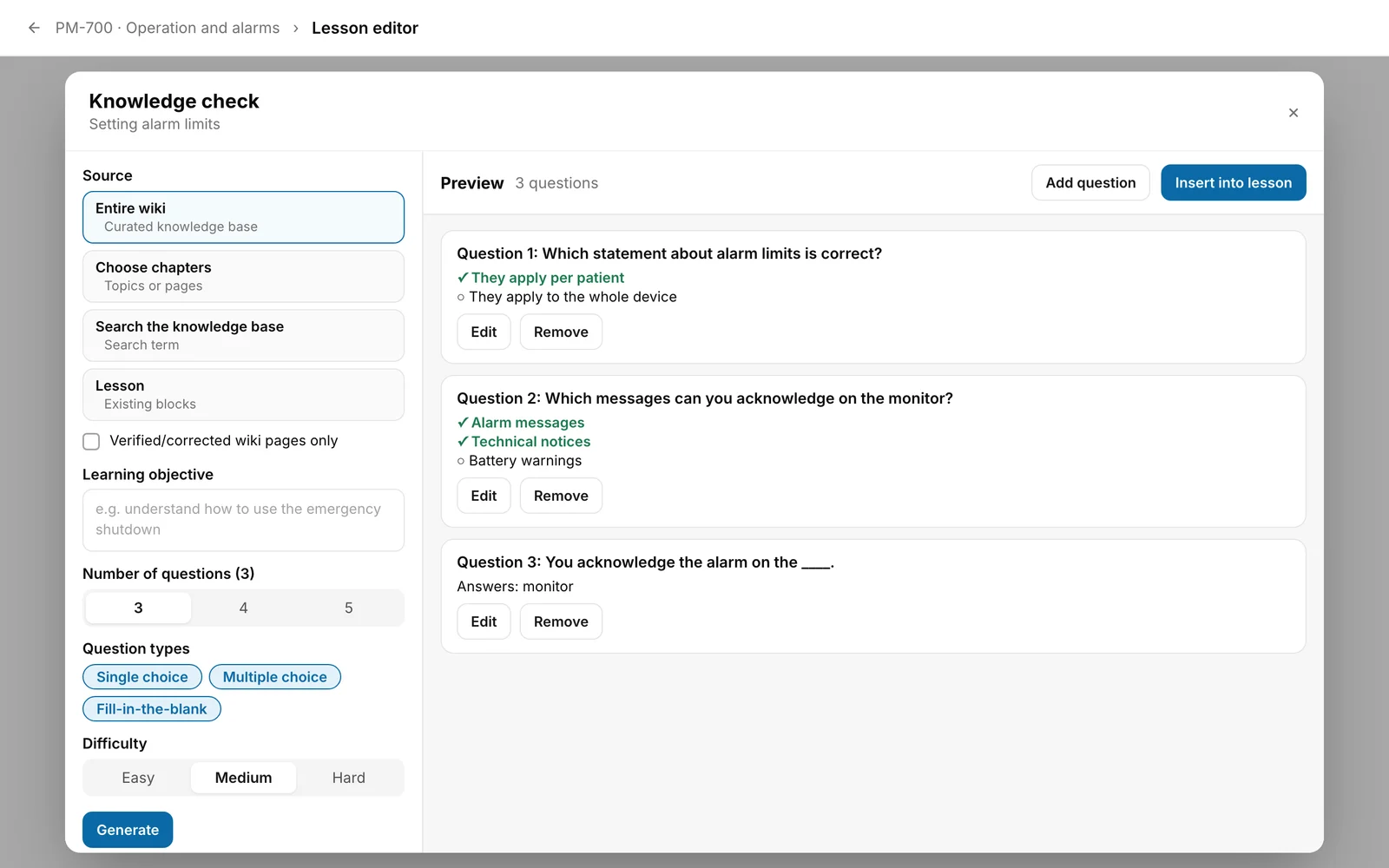
Choose the Source:
- Entire wiki (Curated knowledge base), preselected
- Choose chapters (Topics or pages): choose at least one topic or page from the list. Below it says how many you chose.
- Search the knowledge base (Search term): enter the search term.
- Lesson (Existing blocks): the questions are created from the lesson’s texts.
For Entire wiki and Choose chapters you can tick Verified/corrected wiki pages only. If there is no wiki yet, it says “No wiki yet. Use search or the lesson for now.”
-
Enter the Learning objective. For Entire wiki and Choose chapters it is optional. For Search the knowledge base you need a search term or a learning objective, and for Lesson the learning objective is required. Generate stays disabled otherwise. If you leave the learning objective empty, Fracto uses the lesson title.
-
Choose Number of questions (3, 4 or 5, preset 3), Question types (Single choice, Multiple choice, Fill-in-the-blank, all preselected, at least one stays) and Difficulty (Easy, Medium, Hard).
-
Click Generate. On the right is the Preview with the number of questions. With Edit you change a question (type, question, options or Accepted answers, Feedback (correct), Feedback (incorrect)) and confirm with Save or Cancel. Remove takes a question out, the last one stays. Add question creates an empty question. If you change the source, number, types or difficulty after generating, the app discards the preview and you have to generate again.
-
Click Insert into lesson. The block is placed where you opened the library. The button is disabled while there is no question.
What happens next
- A quiz lesson contains one question block per question. The blocks carry the AI badge, and a click shows the sources from the knowledge base. The presets are: unlimited retries, the correct answer is shown after checking, the correct answer is not required. You change this per block in the lesson editor (see “Edit a lesson with blocks”).
- The knowledge check is a single, collapsible block with all questions. It carries no AI badge.
- Learners have to answer the questions for the lesson to count as finished (see “Finish a lesson: what is still open”).
- Everything you insert is a draft. Learners only see it after publishing. You create questions for the final assessment in the Final assessment tab (see “Create a final assessment”).
- If the course is already published, a new quiz lesson is a change to the lesson structure. Fracto then requires a new version when you publish (see “Structure a course: sections and lessons”).
If it does not work
| Message | What it means |
|---|---|
| Select at least one question type. | No question type is chosen in the Create quiz dialog. Create stays disabled. |
| Little material in the knowledge base — quality may drop. Fewer questions or more sources recommended. | A note, not an error. It appears when you ask for many questions in relation to the material (more than three per document, or more than half as many as knowledge entries). Generating runs anyway. |
| There is not enough content in the knowledge base for this knowledge check yet. | Only in the Create quiz dialog. The knowledge base has no usable content yet. Upload manuals and wait until they are processed. |
| The knowledge check could not be created. Please try again. | Catch-all message for everything else, in the Create quiz and Knowledge check dialogs. Reasons can be used-up AI credit, an unreachable AI or, for the knowledge check, a source without content. The message does not name the reason. For the knowledge check, choose another source or try later. If the error stays, ask a person with the Administer workspace task. |
| The knowledge check was created with limitations. Please review the questions. | The AI delivered fewer valid questions than requested. The preview names the actual number. You see the note when you go back to the configuration. Generate again if needed or ask for fewer questions. |
| Knowledge base wiki could not be loaded. | The list of topics for Choose chapters could not be loaded. Use the search or the lesson. |
Checked on 6 November 2026 against the current Fracto release.
