
Read compliance and analytics
How to see in Campus who has fulfilled their obligations, narrow the analytics down and remind people whose obligations are overdue.
Under Analytics you see who has fulfilled their obligations and where something is open or overdue. An obligation is a course a person is meant to complete, for example through the training matrix or a direct assignment.
Before you start
- With the task Manage Campus (Campus manager) you see the whole institution. With Manage department (department head) you see only people in your departments; the page then shows Analytics for your area. With Run training (lecturer) you get your own view with your events, without compliance. What the tasks allow is described in Roles and permissions.
- The page is called Detailed analytics and has up to five tabs: Compliance, Content quality, Live training, Exam results and Team comparison. Which tabs you see depends on your role and your institution. Live training exists only with Campus Full, Content quality only if your institution produces its own courses.
- The figures are a snapshot of the moment you open them. The date of the data is shown below the table.
How to read compliance
-
In Campus, open Analytics and choose the Compliance tab.
-
The key figures are at the top. Obligations fulfilled shows the share of fulfilled obligations in per cent and as “X of Y”. Next to it are the numbers for Open, Overdue and Without a learner place. If people take part voluntarily, a tile Voluntary participation is added. It shows how many voluntary participations there are and how many of them are completed.
-
The table has one row per department with the columns Obligations fulfilled, Open, Partial, Overdue and Without a learner place. The arrow on the left opens the department and shows the people. Click a person to see their obligations as cards with status and due date.
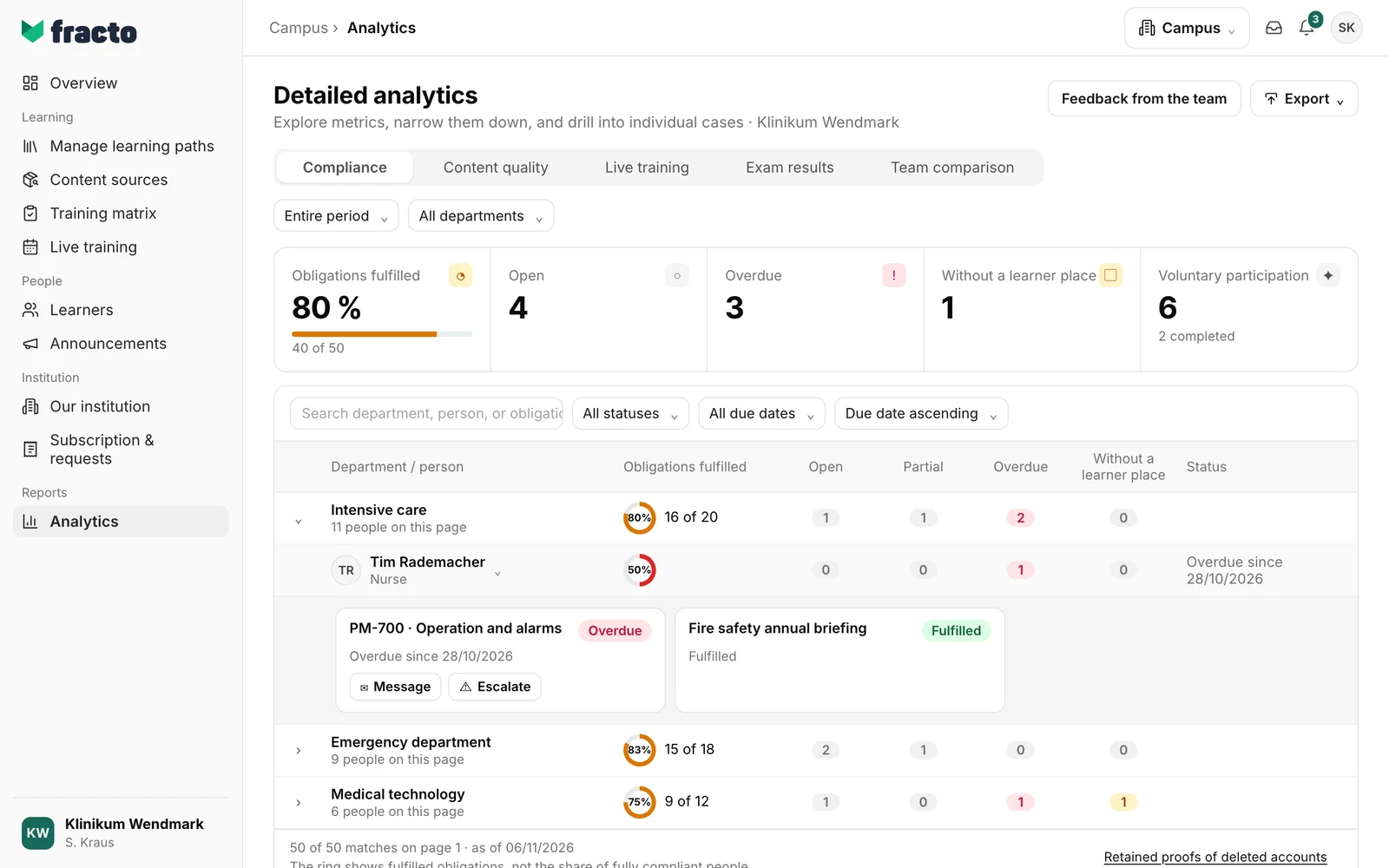
The ring shows fulfilled obligations, not the share of people who have fulfilled everything. A person with two obligations, one of them open, counts as 50%.
What the statuses mean
| Status | Meaning |
|---|---|
| Fulfilled | There is a recognised proof for the obligation (or it does not come from the matrix and is stored as fulfilled). |
| Open | There is no proof yet, the person has not started, and the obligation is not overdue. |
| Partial | The person has started the course but not completed it, and the due date has not passed. |
| Overdue | The due date has passed and the obligation is not fulfilled. This also applies to obligations that were started. An obligation due today is not overdue yet; it becomes overdue at the end of the due day. |
| Without a learner place | The person has no free learner place for the course. The obligation waits until a place is free. This also applies if the due date has passed; you cannot send a reminder then. |
How to narrow the analytics down
- Entire period (the default): the last 7, 30 or 90 days or 12 months. The period never hides open obligations. Fulfilled obligations count only if they were completed within the period.
- All departments and All teams: only people with Manage Campus can pick the department; with Manage department your own department is shown as a note. The team filter appears only if there are teams.
- The search field Search department, person, or obligation searches name, department, role and obligation. The search starts with the Enter key.
- Status (for example only Overdue), Due date (Next 30 days, Later, No due date) and the sort order (Due date ascending, Due date descending, Person A–Z). With the status Overdue, the due date filter is locked.
- Reset appears as soon as a filter or the sort order is changed and resets search, status, due date and sort order.
A page shows up to 50 obligations. The department row counts all matching obligations of the department; the list below it shows only the people on the current page. “More results · Page 2” loads the next page.
Remind people about overdue obligations
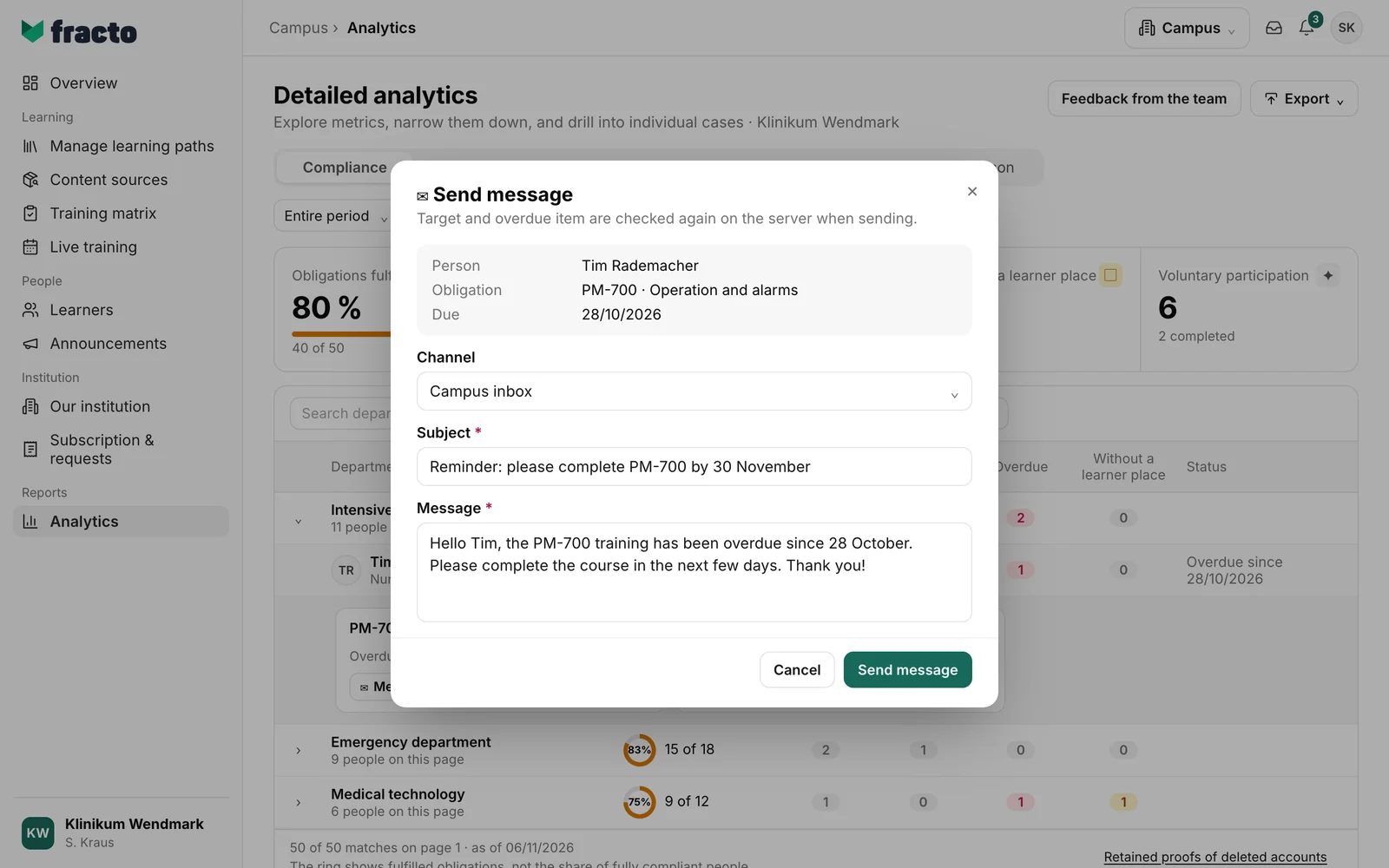
For an overdue obligation the card shows two buttons. You see them for no other status, not even Without a learner place. When you send, the server checks again that the person is still in your area and that the obligation is overdue.
-
Click Message. Under Channel choose Campus inbox or Email, enter Subject (up to 160 characters) and Message (up to 5,000 characters) and click Send message. Both are required.
-
Or click Escalate. The dialog Escalate overdue item does not allow your own text: Fracto drafts a fixed, neutral message that is delivered to the person’s Campus inbox. The message is in German, whatever the person’s language. The subject is “Pflicht überfällig”; the text names the learning path of the matrix rule (otherwise the technical key of the course) and the number of days. Click Send escalation.
You can tell it worked: the dialog shows Action saved and below it “Delivery was scheduled.” Action saved alone is not enough: if “Delivery could not be scheduled.” appears below, nothing was sent (see below).
More tabs
- Exam results shows the stored history per person and course edition with result, graded attempts and certificate. The period does not apply here. For exams in Fracto courses, the first passed attempt counts, otherwise the last graded one; cancellations and technical errors do not count. For SCORM courses, the reported value is shown without counting attempts.
- Live training (Campus Full only) lists events or lecturer activity. Attendance and impact count only for events that have ended.
- Content quality shows learning records, completion rate and feedback for each course you created yourself. Courses without usage are not counted as 0%.
- Team comparison compares teams or regions by Started, Completed, Pass rate and Ø best score.
- Below the compliance table, the link Retained proofs of deleted accounts leads to certificates that are kept after an account is deleted: with the columns Name, Course, Certificate, Issued on and Department. The status (Valid, Expired, Superseded, Revoked) is in the Certificate column.
- Exporting an analysis is described in Export analytics.
What happens next
- A message in the Campus inbox goes to the person and appears there. By Email it goes only to people with a verified address.
- The obligation stays overdue until the person completes the course. The message does not change the status.
If it does not work
| Message | What it means |
|---|---|
| No matching compliance data. | Nothing matches the filters you set. Click Reset or change the period. |
| Compliance could not be loaded. | Reload the page. |
| “Delivery could not be scheduled.” together with the yellow note “No verified email is available; nothing was sent.” | You chose the channel Email, but the person has no confirmed address. The action is saved, but nothing was sent. Close the dialog and send the message through the Campus inbox. |
| The action could not be confirmed. Please try again with the same request. | A general error. It can also mean the obligation is no longer overdue, because the server checks target and overdue item again when sending. Try again; the dialog sends the same request again. If that does not work either, close the dialog and reload the page. |
| This request conflicts with an action that is already saved. Close the dialog and reopen the current overdue row. | Something else was already saved under the same request. Close the dialog and reopen the row. |
Checked on 6 November 2026 against the current Fracto release.
