
Fracto at a glance: apps and roles
Which five apps Fracto has, who they are for, and how workspace, tasks and seats decide what a person sees and may do.
Fracto has five apps. Which of them you see, and what you may do in them, depends on your workspace and on the tasks a workspace admin has given you. The Platform page shows every function.
The five apps
| App | What it is for | Who works with it |
|---|---|---|
| Hub | “Workspace and access”: people, organisation, contract and usage | Workspace admins |
| Studio | “Create and translate courses” | Course authors and reviewers |
| Channel | “Sales, partners, distribution” | A manufacturer’s sales and partner enablement |
| Campus | “Train your own staff” | Training teams in institutions and at manufacturers |
| Player | “Learner view” | Learners |
A course is written in Studio, passed on through Channel to markets and partners, assigned in Campus and learned in the Player. Hub holds the workspaces together: that is where you invite people and give them tasks. This applies to workspaces that have Hub, see below.
Workspace, person and task
- Every organisation works in its own workspace. There are manufacturer workspaces and institution workspaces. Partners also work in the context of a manufacturer (partner workspace). This article covers manufacturers and institutions. A person has one Fracto account and can work in several workspaces. You switch workspace with the button Workspaces (see “Switch workspace”).
- Someone who learns needs only the Player and a learner place. The app puts it like this: “Learns in Player. A learner place provides a personal learning year.”
- Someone who works gets an access type and tasks from a workspace admin. A task decides what a person may do in which app, for example “Create courses” in Studio or “Manage Campus” in Campus.
- The access type is Operator (“Works across apps and tasks in the workspace.”) or Contributor (“Works in one app with a limited task. …”). Both use a seat of the workspace.
Roles and permissions lists the tasks and what they allow. Invite a person with a role and tasks shows how one invitation sets the access type and the tasks in a single step.
Which apps you see
The button in the page header with the name of the current app opens the list of apps.
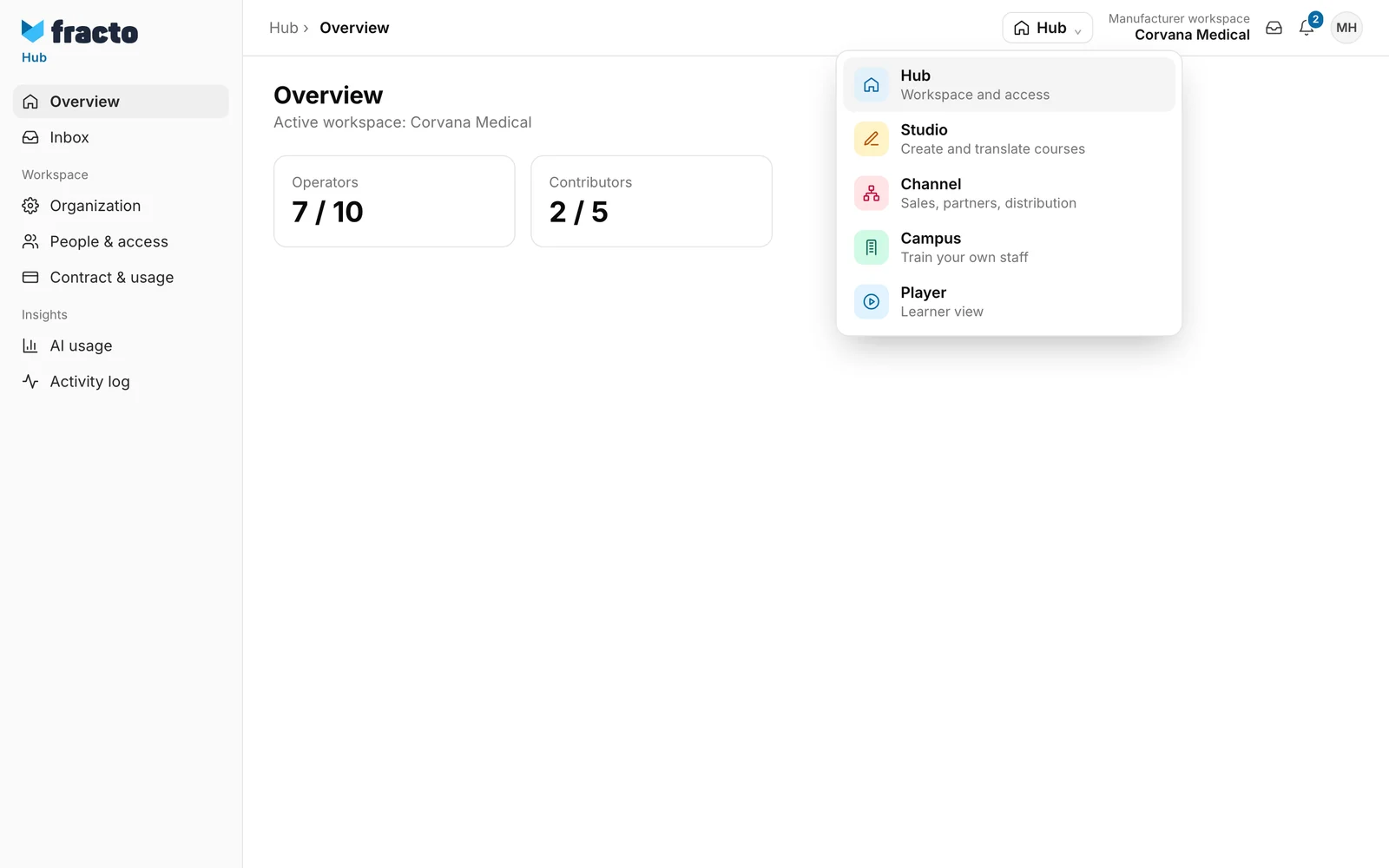
- Studio, Channel or Campus without access appear greyed out with the note Not enabled.
- Hub is in the list only if you may manage people or settings. For that you need the task Administer workspace. If you have no work app or several, Fracto opens Hub as the start page anyway. Without this task you see only Overview and Inbox there, and Hub is missing from the app switcher.
- If you have at most one work app and no Hub, there is no app switcher.
- When the app switcher exists, the Player is always in it.
- Channel exists only in manufacturer workspaces. In an institution workspace, Channel is missing from the list.
- In an institution, Hub and Studio are available only with Campus Full. Without Campus Full, institutions work in Campus and the Player.
- After you sign in, Fracto opens the app if you have exactly one work app, otherwise Hub. Someone who has only Review courses in Studio lands directly in the review tasks.
Why an app is locked
The Overview in Hub gives the reason for a locked app:
| Message | What it means |
|---|---|
| App access missing. Contact the workspace admin. | You have no task in this app. |
| Operator place missing. No Operator place is free – the workspace admin must request more places. | No Operator seat is booked for your task. The workspace admin must assign one or request more seats. |
| Contributor place missing. No Contributor place is free – the workspace admin must request more places. | No Contributor seat is booked for your task. The workspace admin must assign one or request more seats. |
| Workspace membership missing. Contact the workspace admin. | You have no work access in this workspace yet. |
| App context missing. The workspace admin must check the setup. | You have a task in this app, but it is not in effect at the moment, for example because your work access is paused. |
If an app does not belong to your workspace type, the overview does not show it at all, for example Channel in an institution. If an app you need is missing, contact a workspace admin of your workspace.
Checked on 6 November 2026 against the current Fracto release.
