
Set up two-factor authentication
How to turn two-factor authentication on or off in your profile, keep the recovery codes safe and sign in afterwards.
With two-factor authentication, signing in also needs a code from an authenticator app. The exception is a device you trust when you sign in with a password. Two-factor authentication is optional. Fracto requires it only from its own staff with platform access.
Before you start
- You need an authenticator app on your phone or computer. Any app that shows time-based six-digit codes works.
- You set up two-factor authentication in the Profile of the app, that is, in Hub, Studio, Channel or Campus. In the Player you can only see the state: under My Fracto account, tab Sign-in, Extra confirmation (2FA) says “Set up and confirmed.” or “Not set up.” You cannot turn it on or off in the Player. Someone who only learns can also reach the app’s profile: sign in to the app with a password. If you do not have a password yet, set one in the Player under My Fracto account, tab Sign-in, with Set password. When you accept an invitation, you can start the setup straight away with the tick box “Set up two-factor authentication after activation”.
- During setup, Fracto shows ten recovery codes. You see them only now. Afterwards, the profile shows only how many are left.
- To turn it off, you need your password. If you never set a password and always signed in with a sign-in code, set one first. You can do that through the password reset, see Sign in and reset your password.
Set it up
-
At the top right, open the account menu and choose Profile.
-
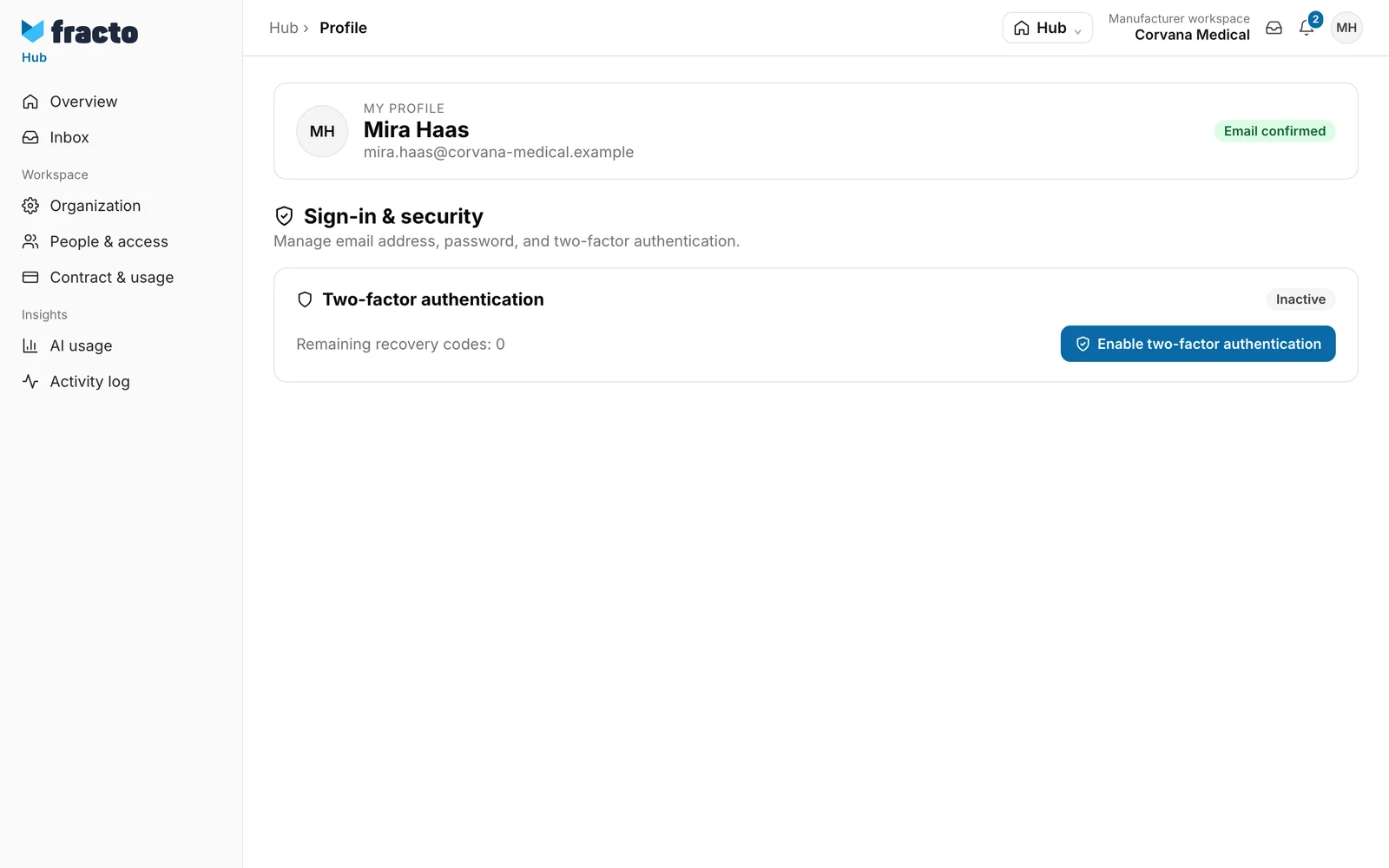
Go to the section Sign-in & security. The Two-factor authentication card shows the status Inactive. It is further down the page, below the cards for Email address and Password. The picture shows only the detail. If a number appears for the recovery codes while the status is Inactive, it comes from an abandoned attempt. These codes do not apply. During setup, Fracto creates new ones.
-
Click Enable two-factor authentication. Fracto shows Set up two-factor authentication with a QR code and ten recovery codes.
-
Scan the QR code with your authenticator app. The entry is called “Fracto” and carries your email address.
-
Keep the recovery codes safe. Download codes saves them as a text file
fracto-backup-codes-<date>.txt. The text inside the file is always German (“Fracto Platform Wiederherstellungscodes”), even if your app is in English. Each code has eight characters and works only once. -
Enter the six-digit code your app shows now under Confirmation code. Digits only.
-
Click Confirm and enable.
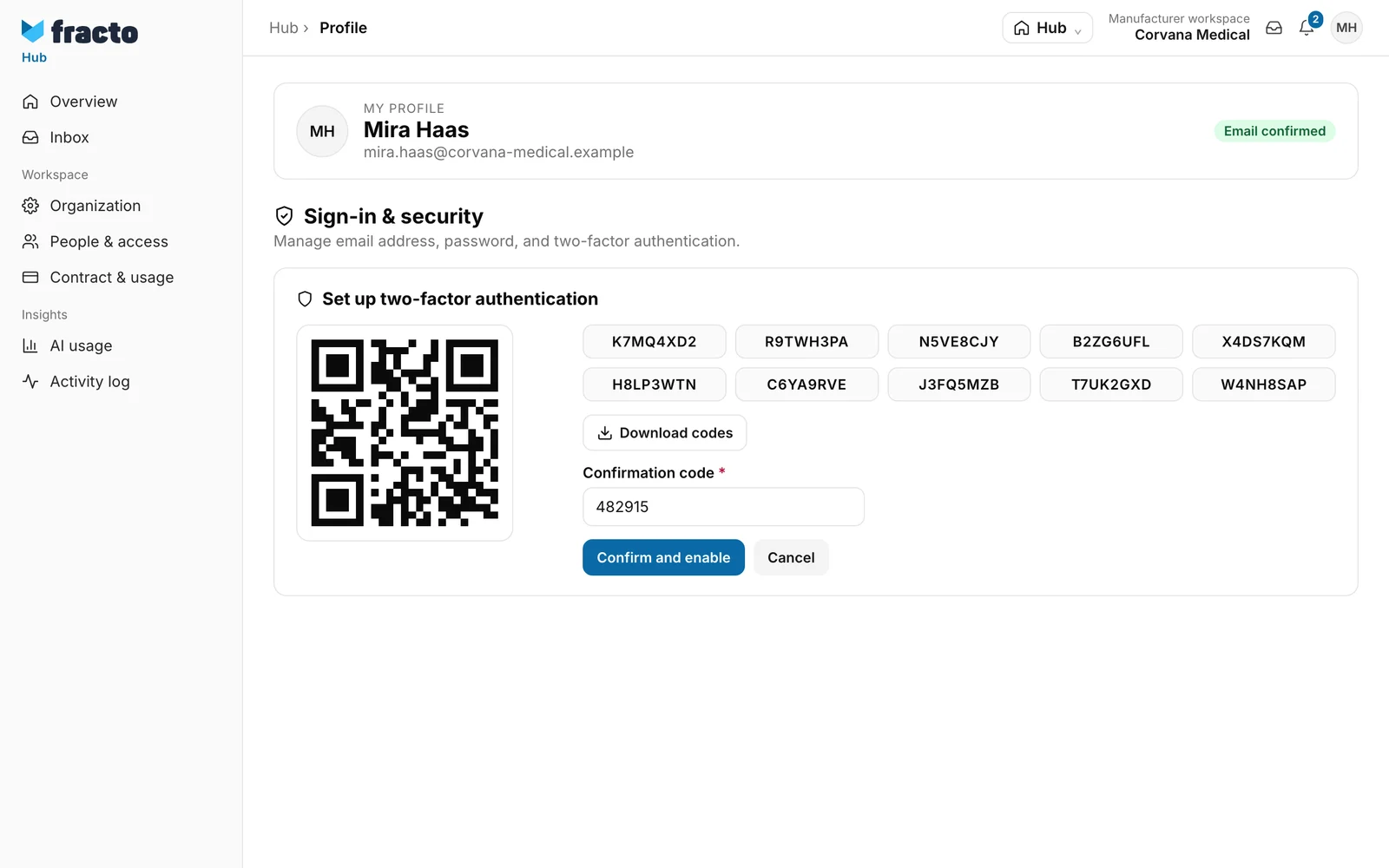
How you can tell it worked: the status is Active, and “Remaining recovery codes: 10” appears.
Cancel ends the setup. Nothing is turned on then. On the next attempt, Fracto creates a new QR code and new recovery codes.
What happens next
- Fracto ends all other sessions of your account, including in the Player. You sign in again there. Only the session in which you finish the setup stays. Open links for resetting the password become invalid.
- You get an email with the subject “Account security notice” and the text “Two-factor authentication for your account was changed. If this was not you, secure your account.” It comes in the language of your account.
- In Hub, Studio, Channel and Campus, after the password or the sign-in code, Fracto also asks for the Two-factor confirmation. If you signed in with a password and left Trust this device ticked, Fracto does not ask for the code on this device for 30 days when you sign in with a password again. If you sign out, Fracto asks again. When you sign in with a sign-in code, Fracto always asks.
- The Player asks for the code too. The page there is called Two-factor authentication and has the fields Authentication code and Backup code. The Player has no tick box to trust a device.
- If you do not have the device with the app, click Use recovery code when you sign in to the app. Enter the code in the app and in the Player exactly as it appears in the list, in capital letters. Each recovery code works once. The card in the profile shows how many are left.
- If you have neither the device nor recovery codes, you cannot sign in any more. Contact the administration of your institution or workspace, or Fracto at hello@fracto.de. Only Fracto administrators can reset two-factor sign-in.
Turn it off
- Open the Profile and the section Sign-in & security.
- Click Disable two-factor authentication.
- Enter your Password and click Confirm deactivation.
Fracto again ends all other sessions and sends you the security email.
If it does not work
| Message | What it means |
|---|---|
| The confirmation code is incorrect. | The code you entered is wrong. The app’s code changes every 30 seconds. Also check that your device’s date and time are correct. |
| Two-factor setup could not be started. | Fracto could not begin the setup. Reload the page and try again. |
| The two-factor status could not be loaded. | The card could not load the state. Reload the page. |
| Two-factor authentication could not be disabled. | The password is wrong, or turning it off failed. Try again. |
Checked on 6 November 2026 against the current Fracto release.
