
Assign training directly
How to assign a training to one or more people in Campus directly, without the training matrix: choose training, priority and due date, and read the result.
A person should take a training that does not come through their role in the training matrix, for example a refresher after an incident. For that you assign the training directly. This works for one person or for several at once. If the person has already completed the course, see “Reset a learner’s course”.
Before you start
- In Campus you have the task Manage Campus (Campus manager). With Manage department, the row button and the bar are missing, and Assign is disabled in the person record.
- The person is active in the institution. For inactive people there is no row button.
- The training is available in your institution, for example a licensed course from your manufacturer, your own package or a live training you created. Live trainings and own Studio courses exist only with Campus Full.
- Courses from your manufacturers and some own courses need a learner place for the person. Own SCORM packages and recordings do not. If none is free, the assignment waits (see below).
Assign a training
-
In Campus, open Learners. There are three ways:
- In the person’s row, click the icon with a book and a plus (tooltip “Assign training: Name”).
- Tick several people. A bar appears with the number selected (“… selected”) and the button Assign training.
- Open the person record, then the Compliance tab, and click Assign in the Assigned directly group.
-
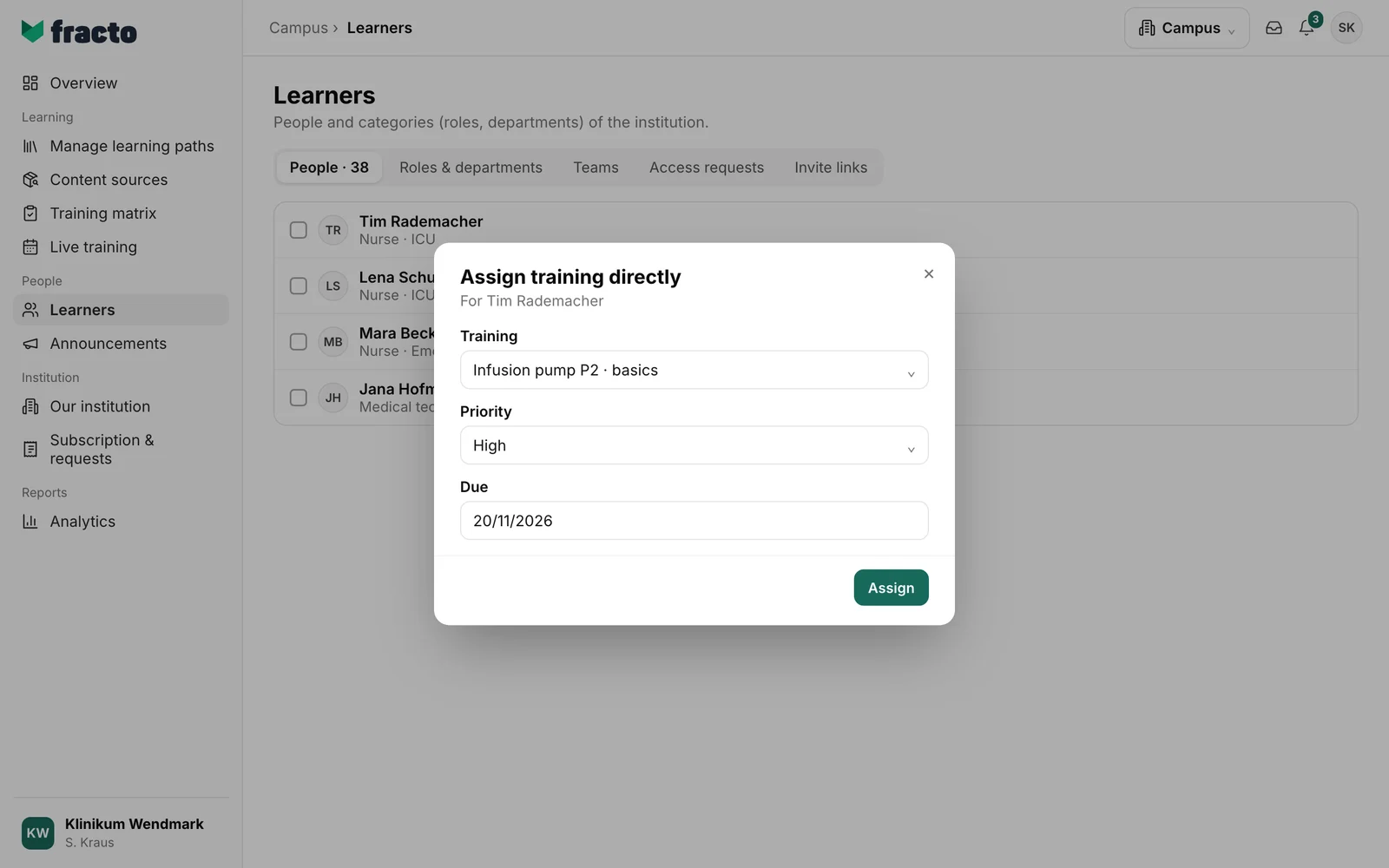
The Assign training directly dialog says at the top for whom you are assigning (“For …” or “For 3 people”). This applies to the route via the list; from the person record it only says “Training”. Under Training, choose the training. Live trainings come first (“Live training: …”), then the courses.
-
Choose the Priority: Normal (default), High or urgent. The priority later appears in the person record.
-
If needed, enter a day under Due. It applies in your institution’s time zone. A date in the past is possible; the assignment is then overdue at once. Without a date, it has no deadline.
-
If the dialog shows the note “No new course places are available for this course. …”, that is a note, not an error. If the person already has a valid place, it is used. Otherwise the assignment waits until a place is free.
-
Click Assign. The button only becomes active once a training is chosen.
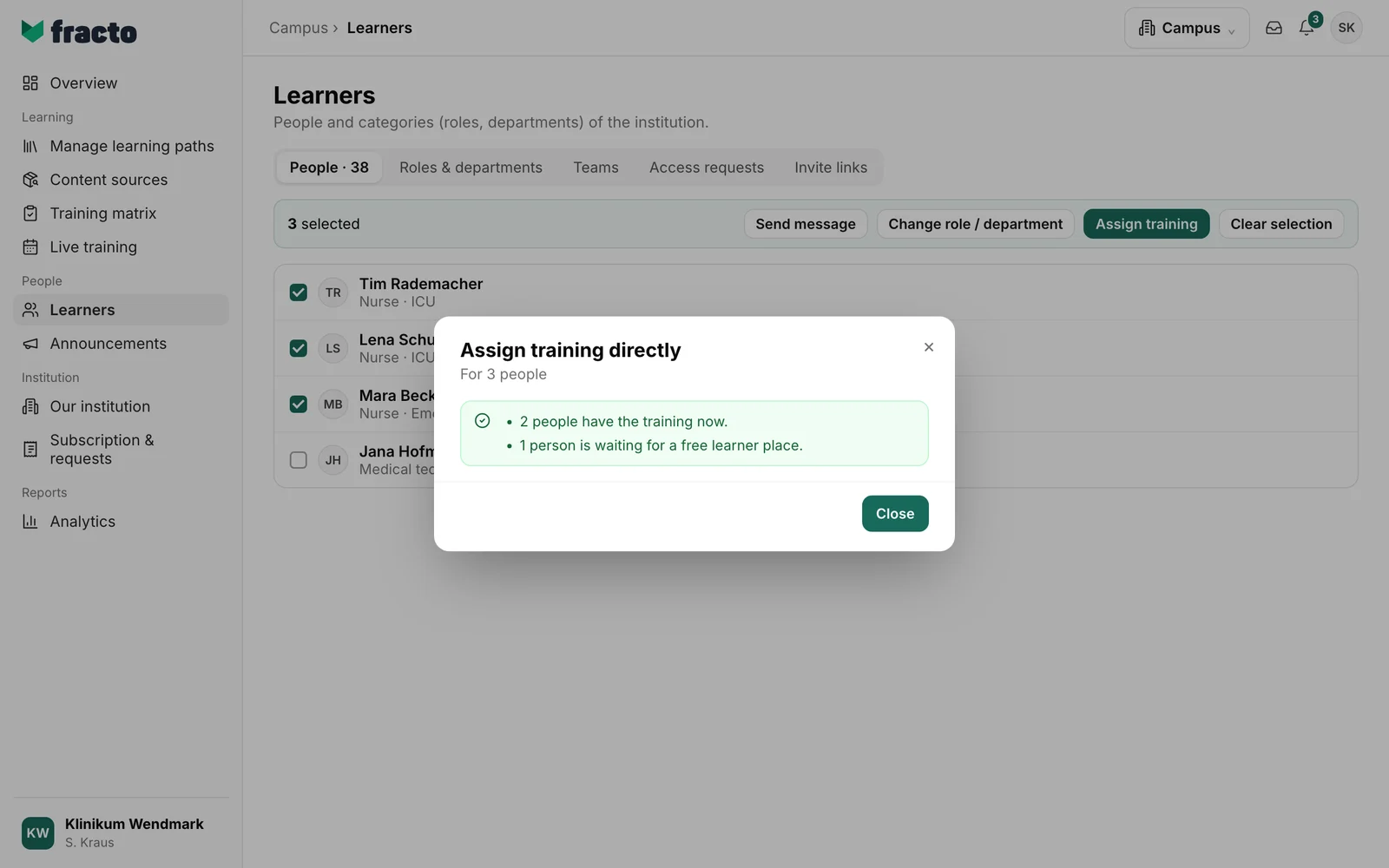
You can tell it worked when, for one person, it says “The training is assigned.” The same message appears if the person already had the training. For several people, a list summarises how many people have the training now. Click Close to finish.
What happens next
- If the person has a learner place, the training appears in their Player. The assignment is in the person record under Compliance in the Assigned directly group, with status, due date and priority. It stays when the role changes.
- By default, the person gets the message “New training assigned” in the Player. They only get an email if their preferences allow it and the institution has not switched the email off. You can adjust text and delivery under Our institution on the Message templates tab. If the assignment waits for a learner place, the message “Waiting for a learner place” goes out instead.
- If the person already has the training, active or waiting, Fracto does not create a second assignment. For several people, it then says “… already had the training.” or, for a waiting assignment, “… waiting for a free learner place.” If the earlier assignment is already fulfilled, Fracto creates a new one.
- If a Due date is set, the person gets deadline reminders (“Training deadline approaching” from seven days before, then “exceeded”). The person cannot switch off the message “Waiting for a learner place”; only your institution can change it.
- If a person waits for a learner place, the result says “WAITING_LICENSE: The course is waiting for a free learner place.” As soon as a place is free, the assignment becomes active.
- If the training is outside the partner teams’ contracted range, it says “Assignment recorded. The course is currently unavailable because it is outside the partner teams’ contracted range.” For several people: “… assignments recorded, but currently unavailable outside the partner teams’ contracted range.”
Withdraw an assignment
- Open the person record and the Compliance tab, and click the training in the Assigned directly group. The Assignment details show status, due date and priority.
- Enter a reason under Reason for withdrawal (at most 120 characters, required).
- Click Withdraw assignment.
Withdrawing works only while the assignment is Open or Waiting for learner place. For Fulfilled and Partially fulfilled, the field is missing. If this removes the training from the Player, the person is notified (“Training withdrawn”). Other training requirements remain in place.
If it does not work
| Message | What it means |
|---|---|
| The assignment could not be saved. | For one person: the assignment was not saved, or the list of trainings could not be loaded. Often the person is no longer active, their access has expired or the training is no longer available. |
| The assignment could not be saved for … people. Assigning again only retries those. | It did not work for some of the people. Click Assign again. |
| The assignment could not be withdrawn. Please try again. | Withdrawing was not saved. The assignment remains. |
Checked on 6 November 2026 against the current Fracto release.
