
Export Channel analytics
How to download an analysis in Channel with your current filters as a CSV package, an Excel file or a PDF report, and what the files contain.
You can download an analysis as a file with the same filters as on screen: as a CSV package, as an Excel file, or as a PDF report across all tabs.
Before you start
- You may export: you are the network lead, appointed in Channel as region, team or partner lead, or you have the Hub task “Channel reporting”. Without the right, which is rare, it says “You do not have export permission for this scope.” and nothing is created.
- You have set the tab and the filters the way the file should be. The file follows Network scope, period, type of care, product group and product, as far as the tab has them. Hidden rows and the metric filters of the view do not apply. The file contains all rows of the tab. See “Track progress by region and partner”.
- The tab is Training status, Capacity & blocks or Network. There is no export on Content & feedback.
Export
-
In Channel, open Analytics and set the tab and the filters.
-
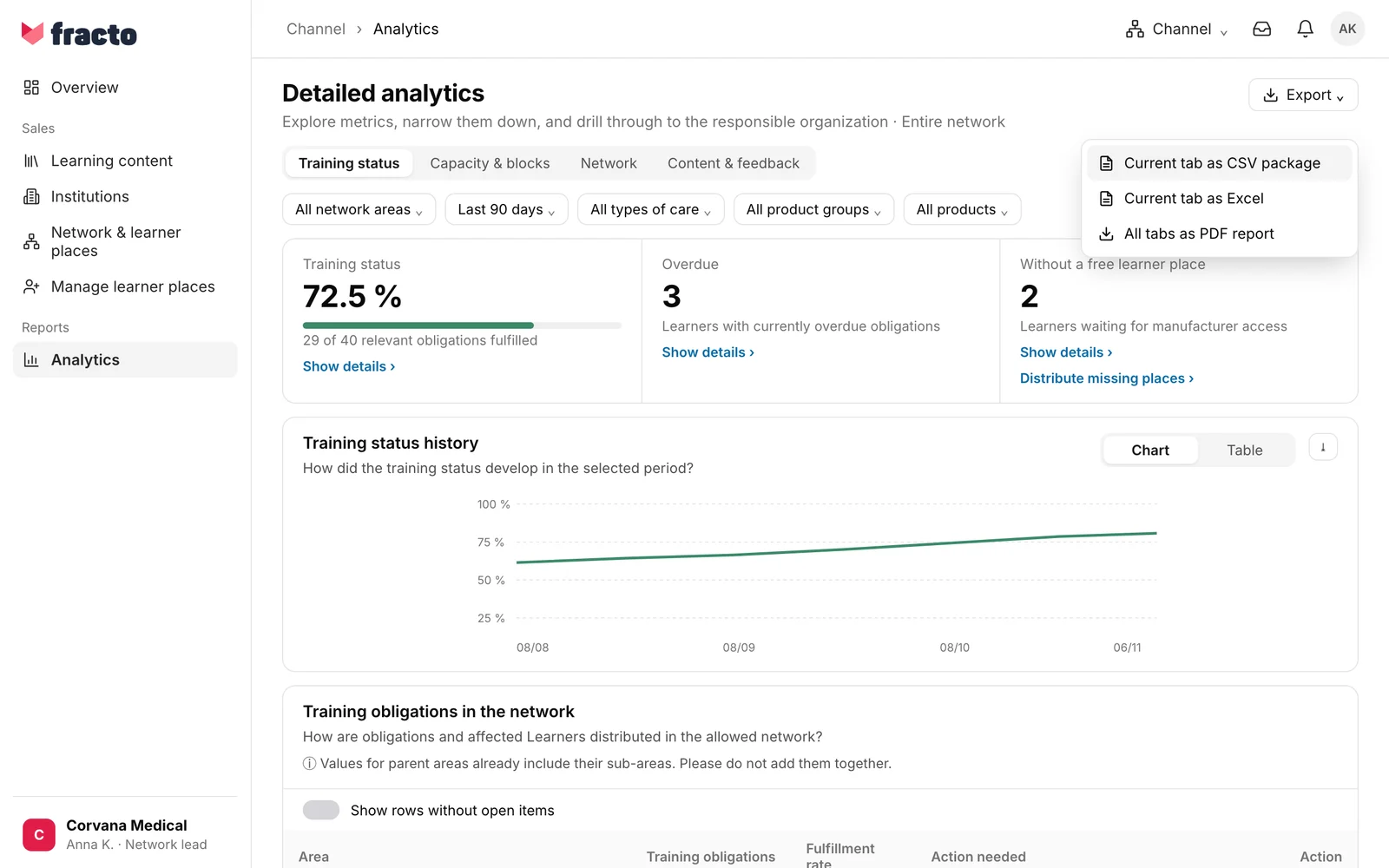
Click Export in the page header and choose:
- Current tab as CSV package: a ZIP file with an overview file and one CSV file per table of the tab.
- Current tab as Excel: an Excel file with the sheet Overview & filters and one sheet per table.
- All tabs as PDF report: the Channel full report as a PDF with all four tabs. With a filter on product group or product, this entry is disabled. It then says: “Remove product filters to export all tabs. Capacity and network do not have a product link.”
-
If you only want one table, click the Export icon in the header of that table. You get that table as a single CSV file.
-
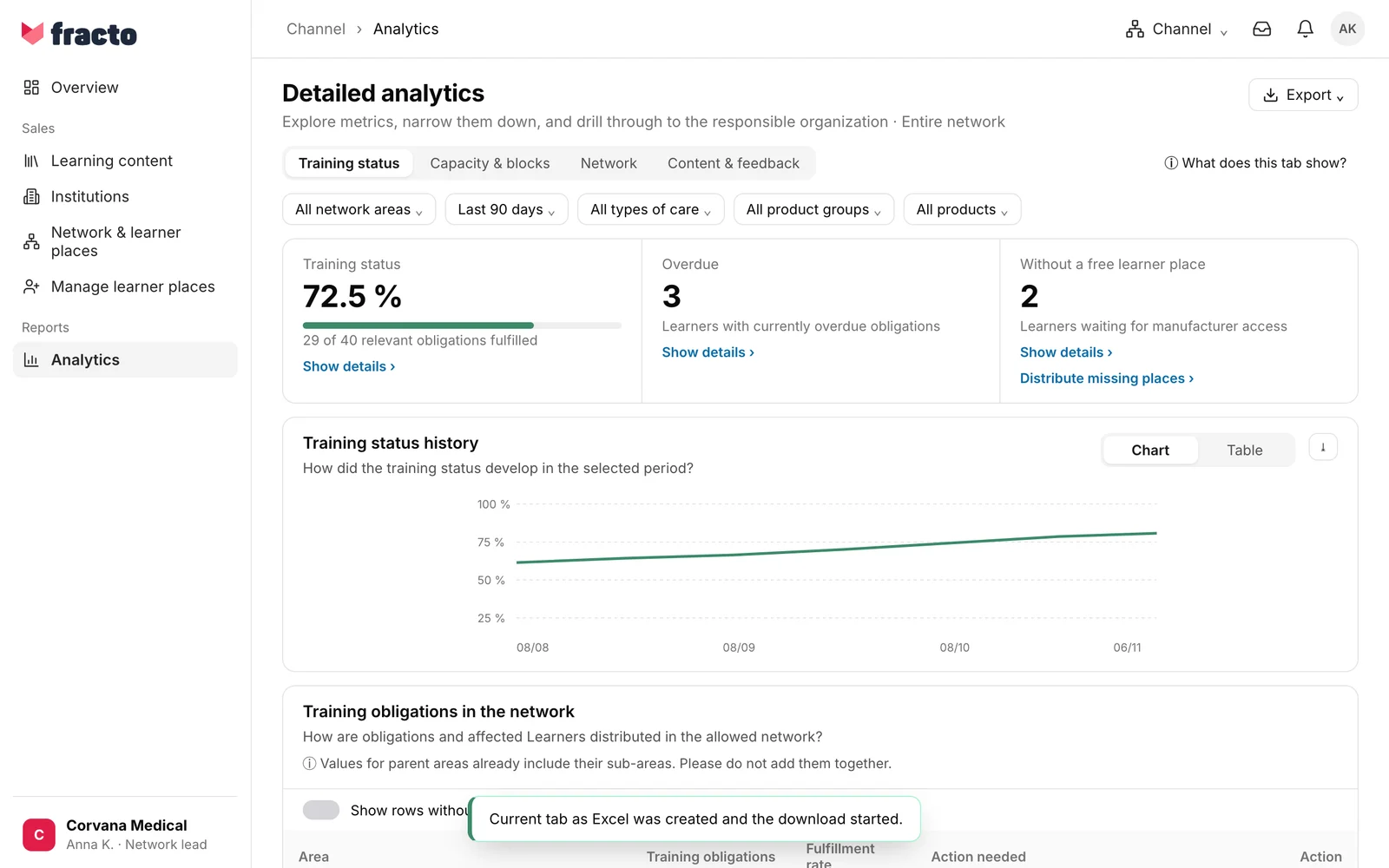
Wait a moment. First it says “… is being prepared with the current filters.” Close hides the notice. Then the download starts by itself.
You know it worked when “… was created and the download started.” appears at the bottom, for example “Current tab as Excel was created and the download started.”
What the file contains
- Header: Every file and every Excel sheet Overview & filters starts with the note that trainings with fewer than 5 learners per institution or team are not included in the figures. It is followed by the report title, manufacturer, area, the chosen filters and the data status, and the metrics with value, explanation and status.
- Tables: They have the columns of the view. Training tables get a status column in addition. Tables with a tree structure also have Level, Path, Object ID and Parent ID. In CSV and Excel, numbers and rates are stored as numbers, with “(%)” in the column header for rates. The PDF shows the texts as in the view instead, including “Protected”.
- Language: The files follow the language of your interface.
- CSV: UTF-8 with a byte-order mark. With a German number format, a semicolon separates the columns and a comma the decimals. Otherwise a comma separates the columns.
- File name: Workspace, tab or table and the date of the day, for example
corvana-medical-channel-training-tab-2026-11-06.zip. The full report is called…-channel-full-report-….pdf.
What happens next
- The export is recorded in your workspace’s log when it is requested and when it is downloaded.
- If creating it takes longer than about 15 seconds, the page stops waiting and the file can no longer be fetched there. Start the export again.
- After it is created, the file is available for download for 30 minutes and is then deleted. So pick it up right away or export again.
- The file contains only what your area may see. It does not contain individual learners or their learning history.
If it does not work
| Message | What it means |
|---|---|
| You do not have export permission for this scope. | You lack the right to export. |
| The export is being processed. It will be ready to download shortly. | The file was not ready after about 15 seconds. The page does not keep waiting. Start the export again in a few minutes. Close hides the notice. |
| The export could not be created. | The export failed. Possible reasons: the file would have more than 50,000 rows, in which case narrow the filters further. Or your right has changed, the export service is not set up for the workspace, or there was an error. Try again. Close hides the notice. |
Checked on 6 November 2026 against the current Fracto release.
