
Have a credential verified
How to pass a credential on for checking and what an employer or auditor reads on the verification page, with no account.
Every credential with a certificate has a public verification page. An employer or auditor can use it to check that the credential is genuine, with no account and no sign-in.
Before you start
- You need a credential with a certificate under Credentials. “View and share credentials” explains how to get there. A Completion without a certificate has no verification page.
- Anyone who has the address of the verification page can open it. You cannot withdraw the link individually.
How to pass a credential on for checking
-
Open Credentials.
-
Choose a way:
- PDF downloads the certificate. The button exists only for Valid and Replaced by reset. The QR code on it leads to the verification page. The same address also works for certificates that were printed long ago.
- Share, then Copy verification link, copies the address. “Link copied” appears. Send the link by email or message.
- Verify authenticity opens the verification page for you, so you can see what the other person sees.
-
The other person opens the link or scans the QR code. They see the Credential verification page.
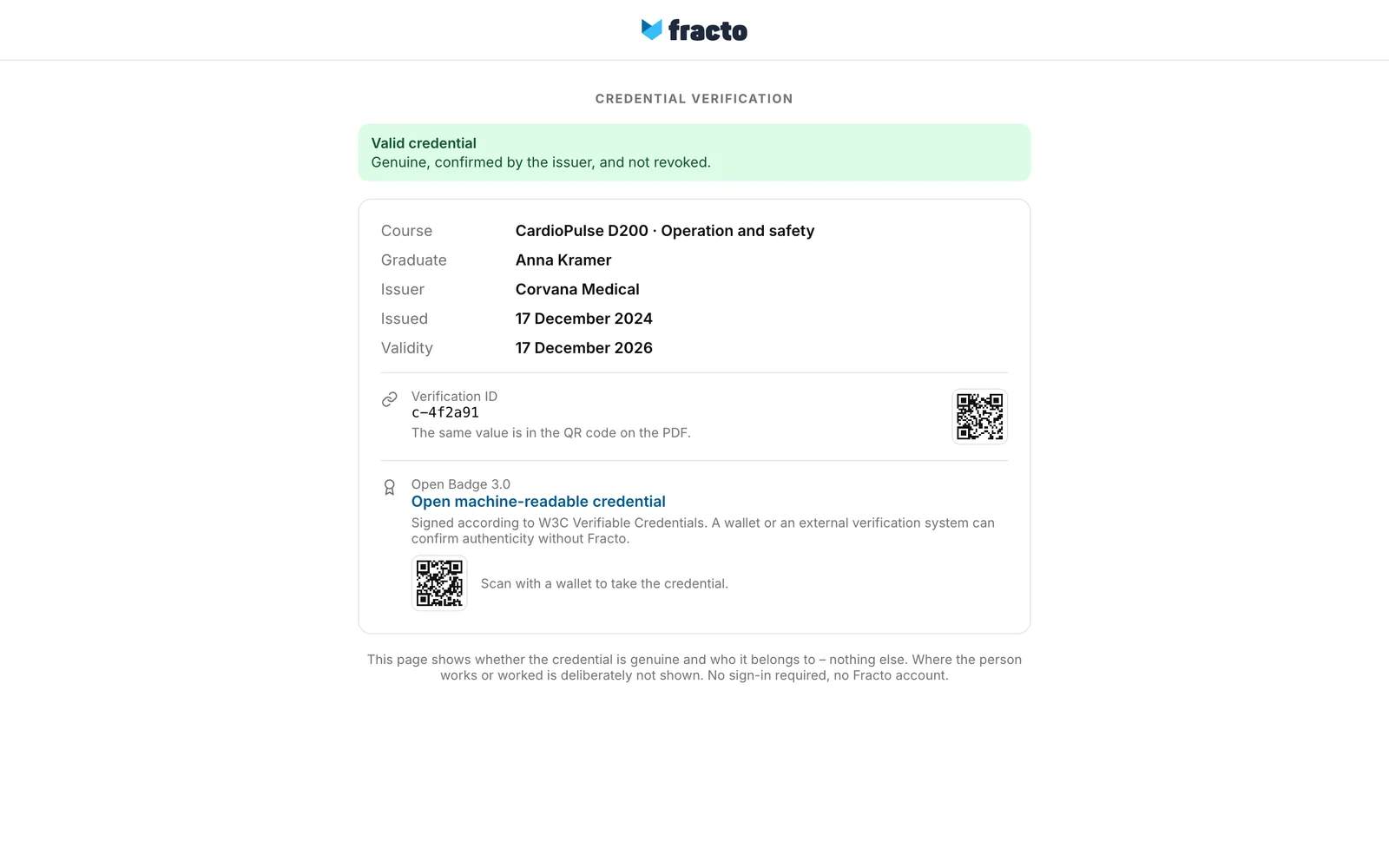
You can tell it worked when the verification page shows your name and the course, and the top says whether the credential is valid.
What the verification page shows
- The top shows the state of the credential, below it Course, Graduate, Issuer, Issued and Validity (a date or “unlimited”). A credential with an expiry date is valid until the end of the day shown as validity. Name and course title are the ones from the day of issue.
- Verification ID is the credential’s identifier. Next to it is a QR code of the verification page, for handing on.
- If an Open Badge is available, Open machine-readable credential appears there with a QR code for wallets. This exists only for valid credentials. For others it says “No badge is issued for this credential anymore.”
- Not on the page: your memberships, your email address and your score in points. If your institution issued the credential itself, it appears as the Issuer.
| State | Meaning |
|---|---|
| Valid credential | Genuine, confirmed by the issuer, and not revoked. |
| Expired | Genuine and not revoked – but validity has passed. |
| Replaced by a newer credential | Genuine. There is a more recent refresh of the same qualification. The link Check the newer credential leads to it. |
| Replaced by reset | Genuine, but no longer current. The course was reset; a new certificate is issued only after finishing again. |
| Revoked | The issuer withdrew this credential. It is not valid. |
If several states apply, this order wins: revoked, replaced, expired.
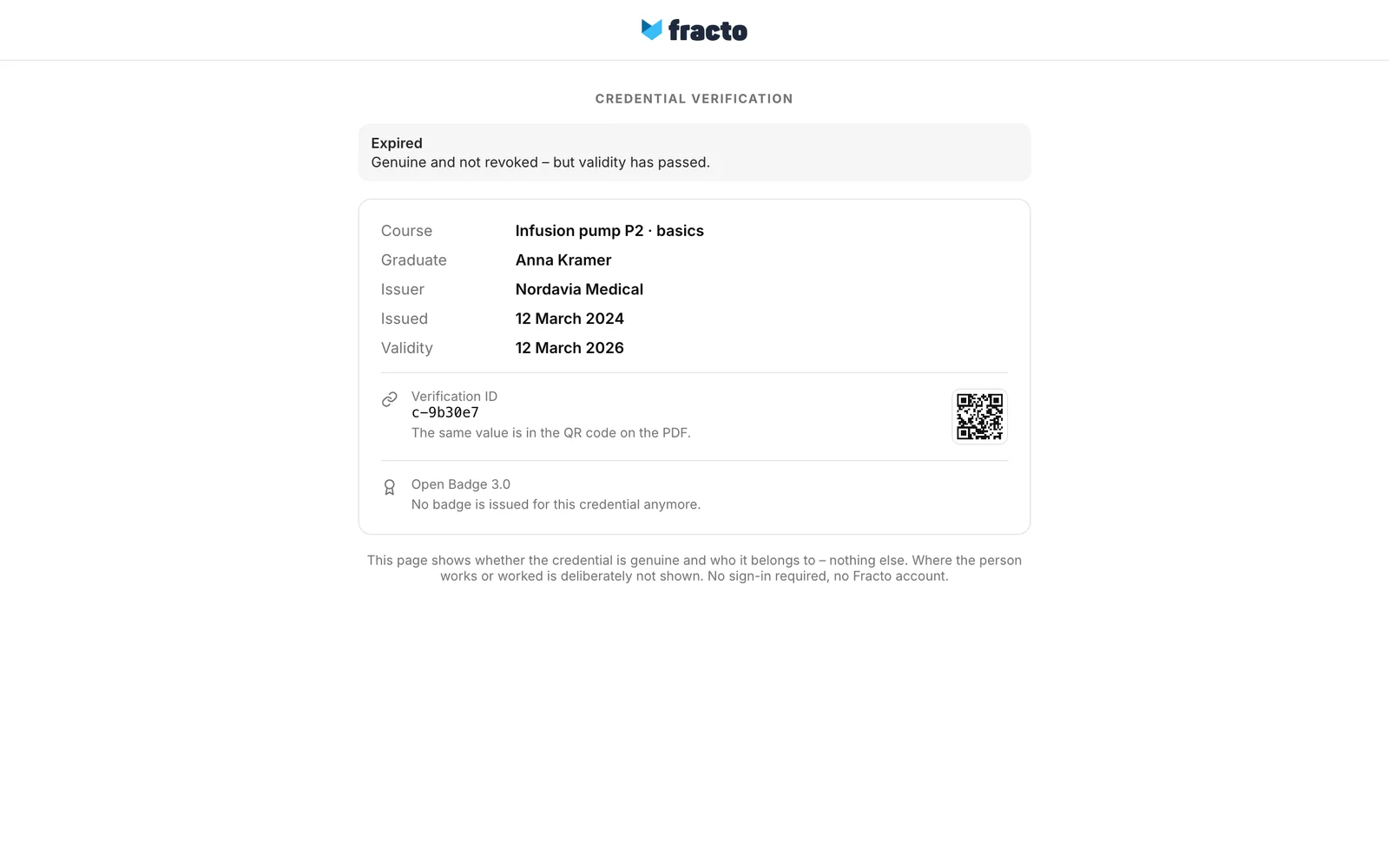
What happens next
The verification page reads the state again each time it is opened. If a credential is revoked or replaced later, the other person sees it the next time they open the same link. If you delete your account, your certificates stay verifiable, with the name from the day of issue (see “Download your data or delete your account”).
If it does not work
| Message | What it means |
|---|---|
| No credential under this ID | Check that the link is complete. A real credential would appear here even if it had expired or been revoked. |
| Verification not possible (HTTP …) | The page could not look up the credential. With HTTP 429 there were too many requests in a short time (limit: 30 requests per minute from the same internet address, each visit to the page counts twice). Wait a minute. |
Checked on 6 November 2026 against the current Fracto release.
