
Organization, languages and branding
What you set under Organization in Hub: master data, logo and accent colour, interface languages, content languages and time zone, and where it applies.
Under Organization you maintain how your workspace presents itself: master data, brand and languages. The page has seven tabs: Master data, Branding & domains, Languages & region, Message templates, Certificates, Security and API tokens. This article covers the first three. Certificates and API tokens have their own articles, see below.
Who sees what
- Organization appears in the sidebar for people with the Administer workspace task. Without it, Hub shows only Overview and Inbox.
- With this task you can change everything on this page. The server checks it on every save.
- Fracto Support sees master data, branding and languages read-only. The page says so in a notice, and the inputs are locked.
- Above the tabs you see your workspace’s identity with type, name, place and logo, and “Last changed” with the person.
- If you have unsaved changes and switch tab or page, Fracto asks first.
Master data
The tab is split into cards. Only Display name and Legal name are required.
| Card | Fields |
|---|---|
| Organization | Display name, Short name, Legal name, Legal form, Description |
| Address | Street, House number, Postal code, City, State / region, Country |
| Contact channels | General email, Phone, Website, Training / Support (email address) |
| Responsible contacts | List of contacts with the button Assign contact. It leads to People & access, on the tab for contacts. You maintain billing contacts under Contract & usage. |
| Legal & regulatory details | Manufacturer workspaces only: Commercial register, VAT ID, Regulatory organization identifier |
| Institution profile | Institution workspaces only: Institution type, Sponsoring organization, Institution identifier |
Limits: name 2 to 160 characters, legal name 2 to 240, description up to 4,000. Email fields must contain a valid address. Click Save changes. Fracto reports “Master data was saved.” Discard resets your input.
Branding & domains
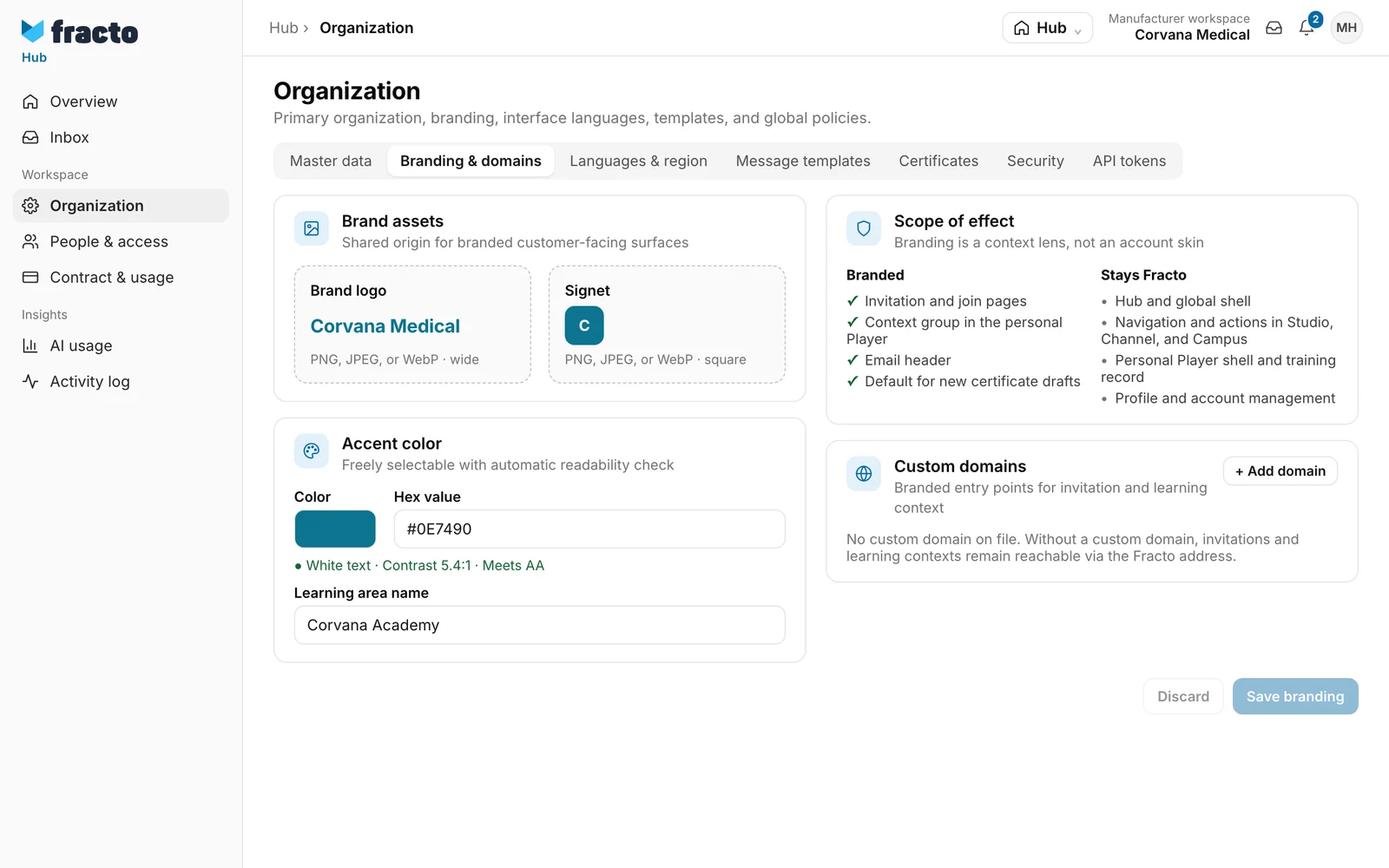
- Upload the Brand logo and the Signet as PNG, JPEG or WebP. The logo is wide, the signet square. Fracto opens a crop step: the logo as original, 3:1 or 1:1, the signet as 1:1. An upload applies at once and needs no Save branding.
- Under Accent color, pick the colour or enter the Hex value in the format #RRGGBB. Fracto checks readability and shows whether white or dark text fits and whether the contrast meets AA. An incomplete value blocks saving.
- The Learning area name is pre-filled with your workspace’s name until you enter something else.
- Click Save branding. Fracto reports “Branding was saved.”
The Scope of effect card says where the brand applies. Branded: invitation and join pages, the context group in the personal Player, the email header and the default for new certificate drafts. Stays Fracto: Hub and global shell, navigation and actions in Studio, Channel and Campus, the personal Player shell with the training record, and profile and account management. Branding applies to your workspace’s context only, not to people’s accounts.
You set up custom domains in the same tab, see Connect your own domain.
Languages & region
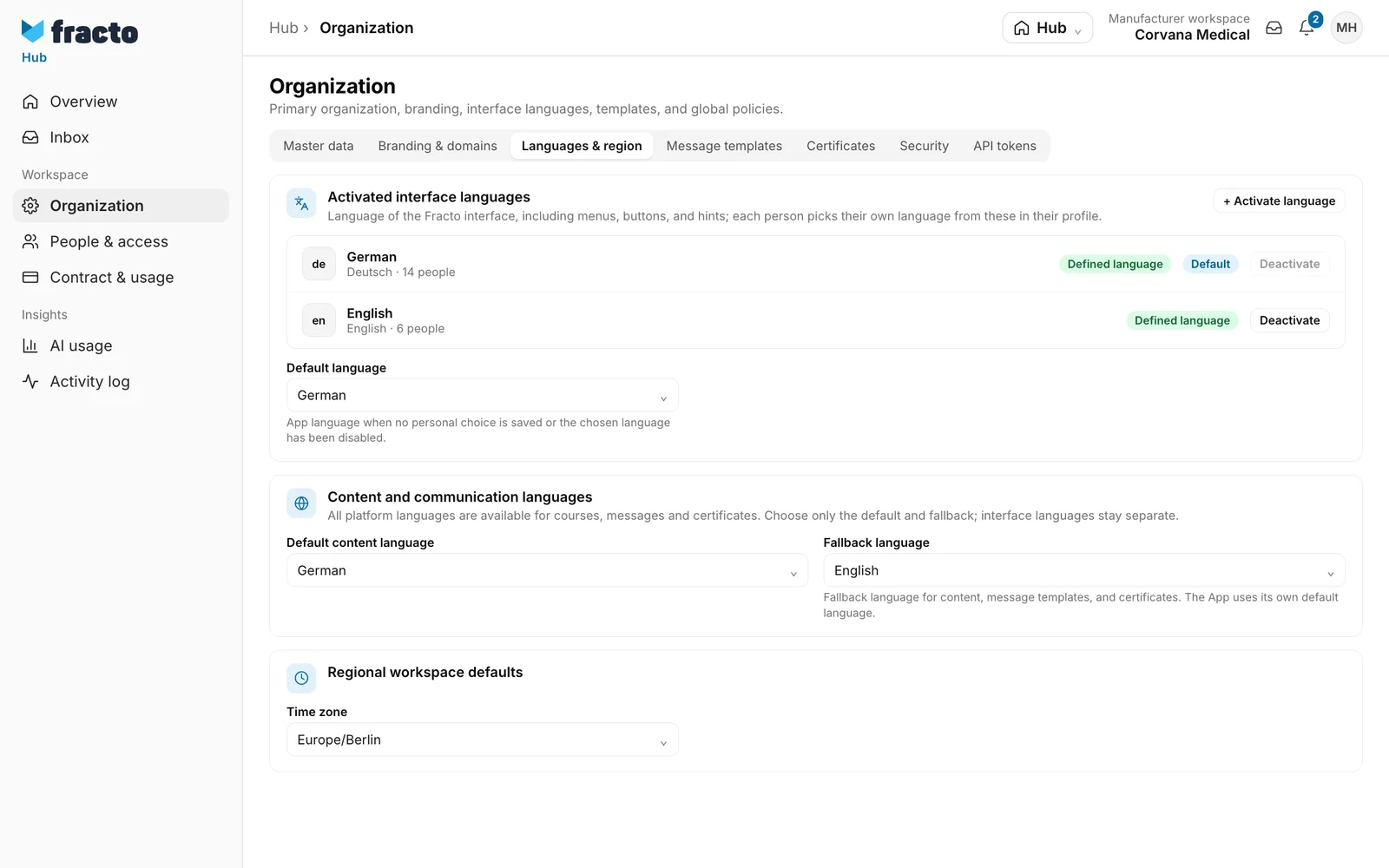
- Activated interface languages: These are the languages for menus, buttons and hints. Each person picks their own from these in their profile. Activate language lets you choose from the released languages, Deactivate removes one. Both save at once (“Interface languages were updated.”). The number of people per language is in the row.
- Default language: It applies to people without their own choice and when their language has been deactivated. The default language stays active, Deactivate is blocked for it. Choose another default language first.
- Default content language and Fallback language: They apply to courses, message templates and certificates. The fallback language is the one used when a language is missing. Both selections save at once (“Regional defaults were saved.”). Interface languages are separate.
- Time zone under “Regional workspace defaults”: only it needs a click on Save languages & region. All selections above it save at once.
- The AI translation card with the list of terms that are not translated is in the same tab. It is not covered here.
Your workspace’s languages also decide which languages you can choose for an invitation, see Invite a person with a role and tasks. Fracto releases new system languages, you only activate them. You maintain courses and translations in Studio.
What happens next
Changes apply at once to the whole workspace. All changes appear in the Activity log.
If it does not work
- Save stays blocked: There is no change, a required field is empty or the colour is not in the format #RRGGBB.
- Inputs are locked and a notice about Fracto Support is shown above: You are in the support view, which may only read.
- The server rejects the change: Fracto shows the message in a red notice above the tab. Click Close, check your input and try again.
Checked on 6 November 2026 against the current Fracto release.
