
Change language and appearance
How to set the interface language and the appearance (light, dark, system) in the account menu, and where each setting applies.
You set language and appearance in the account menu. The language is a setting of your account and applies on every device. The appearance applies only to the browser where you set it.
Before you start
- You open the account menu with the round button at the top right, showing your picture or initials. In Hub, Studio, Channel, Campus and the Player it is the same menu.
- The language applies to the interface: navigation, buttons, hints and messages. The language of a course is separate. Learners choose it as the Course language on the course page, see Start your first course.
- In the work apps the menu offers only the languages your workspace has activated. Workspace admins enable more in the Hub under Organization → Languages & region.
- Before you sign in, Hub, Studio, Channel and Campus show the language of your browser if Fracto offers it, otherwise German. The Player shows the language you last chose in this browser; when you register you can choose it in the field Language. If you have not chosen a language yet, the default language of your workspace applies in the work apps after sign-in.
How to change the language
-
Click the round account button at the top right. The row with the workspace and your name at the bottom of the sidebar opens the same menu. On narrow screens, Interface language and Appearance unfold inside the menu instead of opening beside it.
-
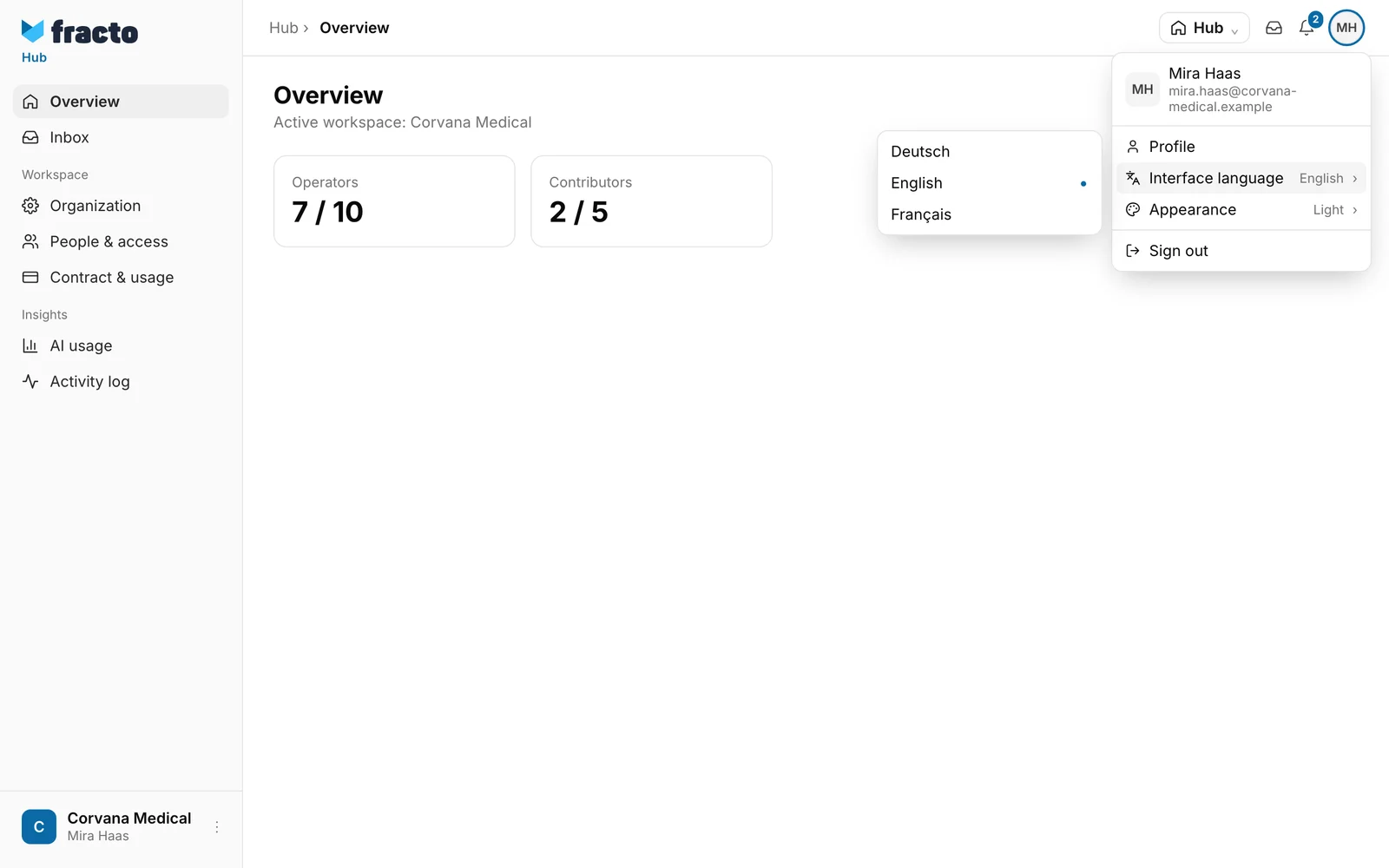
Choose Interface language. The current language is on the right. The list of languages opens, each in its own name, for example Deutsch, English, Français.
-
Click the language you want. There is no save button: Fracto saves the choice at once and switches the interface.
You also find the setting in your profile. In the account menu, open Profile. The field Interface language is there and also saves at once. The hint there does not mention the Player; the language applies in the Player too.
In the Player, open Profile in the account menu. On the page My Fracto account, choose the language in the tab Language under Interface language. “Saved.” appears.
How to change the appearance
- Open the account menu as above.
- Choose Appearance. The current setting is on the right.
- Choose Light, Dark or System. With System, Fracto follows the setting of your device and changes with it.
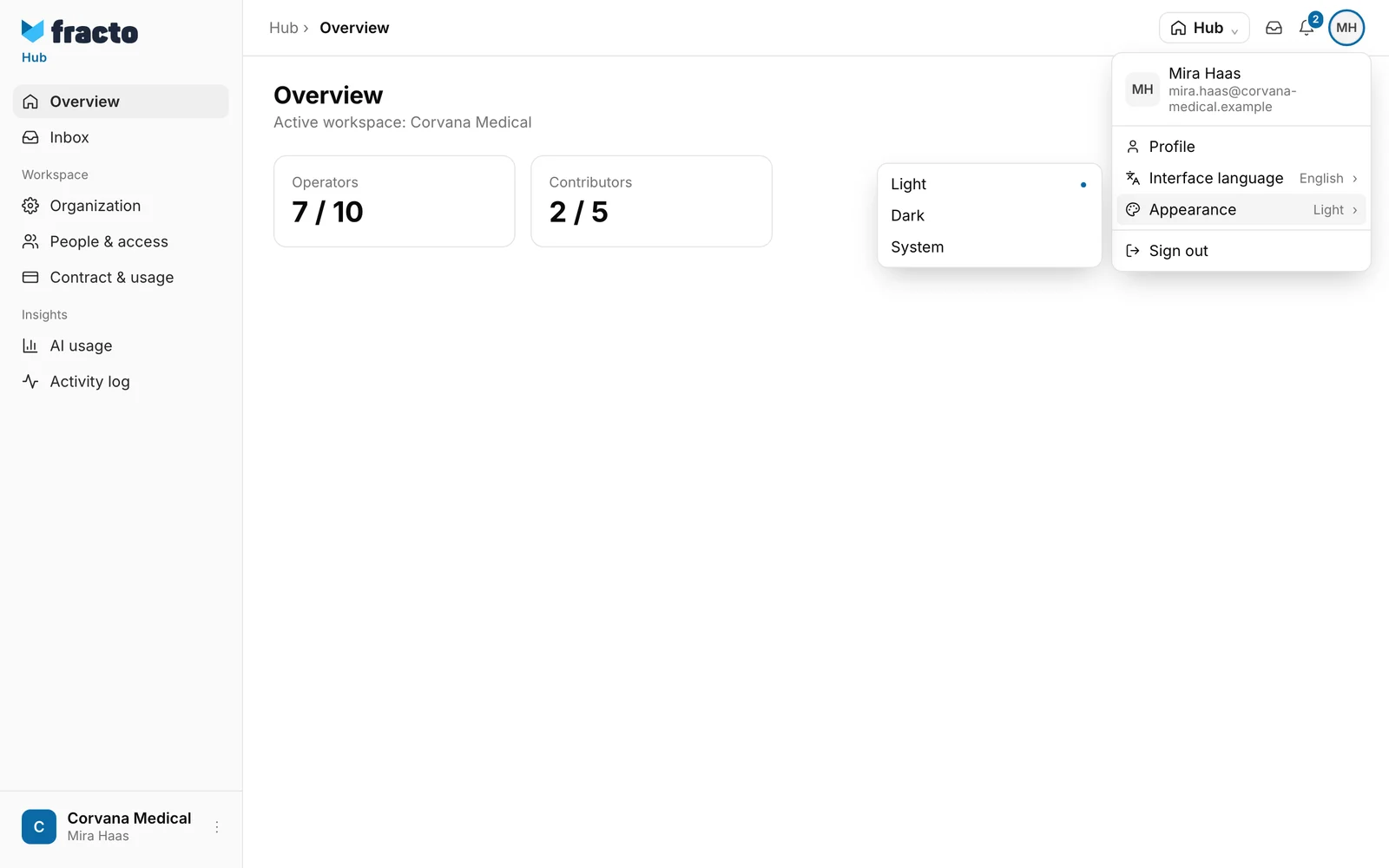
Light is the default. The choice applies at once.
Where the setting applies
- Language: It belongs to your account and applies in Hub, Studio, Channel, Campus and the Player, in each of your workspaces and at every institution. The list of languages, however, depends on the active workspace. If a workspace has not activated your language, Fracto shows the workspace default language there. Your choice stays saved and applies again where the language is offered.
- In the Player, all languages of the Player are available. If you choose one there that your workspace has not activated, Hub, Studio, Channel and Campus show the workspace default language.
- System emails: Fracto sends the sign-in code in the language of your account. If you have not chosen one, it arrives in German (in the Player, in the default language of the workspace you last worked in). The email for resetting your password and security emails arrive in your language as far as the workspace you last worked in allows it, otherwise in its default language.
- Appearance: It is stored in this browser only, not in your account, separately for the Player and for the other apps. In the Player you therefore set it on its own. On another device or in another browser you set it again too. If you clear your browser’s site data, it is back to Light.
If it does not work
| Message | What it means |
|---|---|
| The language could not be saved. | In the account menu and in the Player tab Language: the choice did not arrive. The previous language stays. Try once more. In Hub, Studio, Channel and Campus this also happens if a workspace admin has disabled the language in the meantime. |
| Interface language could not be saved. The previous language remains active. | The same in the field Interface language of the profile. |
If your language is not in the list, your workspace has not activated it. Ask a workspace admin to activate it under Languages & region. The appearance has no messages.
Checked on 6 November 2026 against the current Fracto release.
