
Add an institution and assign its Campus lead
How to add an institution in Channel, choose who supports it and what it receives, and assign its Campus lead, as a draft or afterwards.
An institution is a hospital or practice that uses your courses. When you add one, you create its organisation profile in a single step, choose who supports it and which product groups it receives, and name its Campus lead. You allocate learner places separately afterwards.
Before you start
- You are the network lead (Hub task “Lead network”) or appointed in Channel as region, team or partner lead for this area. If your only Hub tasks are “Manage region”, “Manage team” or “Channel reporting”, you do not see the Institutions page. Without the right, the Add institution button is missing in Institutions, and under Add element there is no Institution entry.
- The network has an active team or partner that can support the institution, and the catalogue has at least one active product group.
- The Campus lead needs a free Contributor place. The form shows “Takes 1 Contributor place · … free”. For a draft, the place is only checked on activation.
- You know the email address of the Campus lead. That is the person who manages the institution’s Campus. It does not give them any Channel rights.
Add an institution
-
In Channel, open Institutions and click Add institution. Alternatively, click Add element under Network & learner places and then Institution. The Add institution dialog opens. If you open it from a region, that region is preset for the learner places.
-
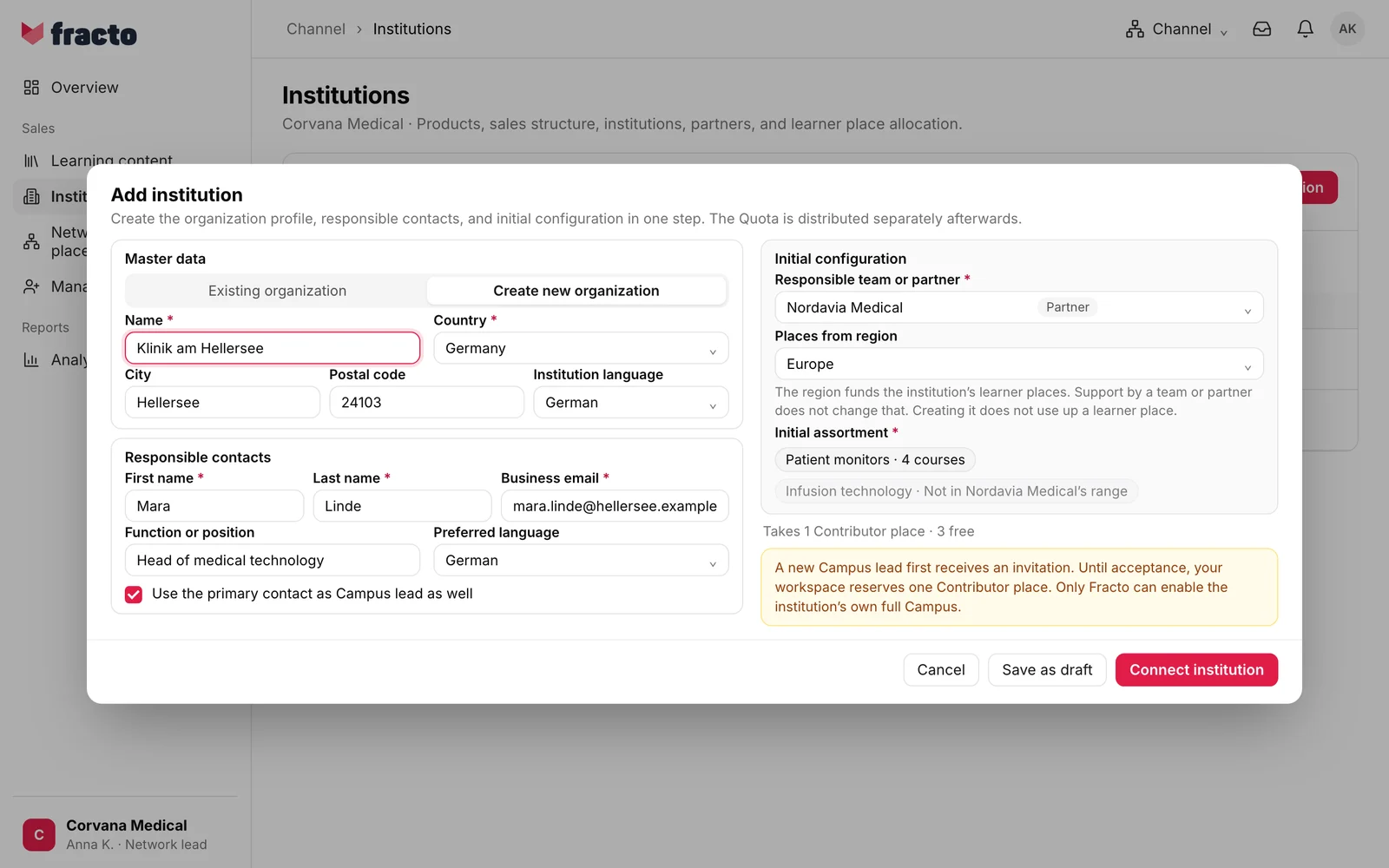
Under Master data, set the organisation:
- Existing organization is selected first. It is for institutions your workspace already knows, such as ones connected earlier or known from Campus. Enter at least two characters under Search organizations (name, country, email or website), click Search and choose the result. If the institution is already connected, open it in Institutions.
- With Create new organization you enter the master data yourself. Name and Country are required. Optional are, among others, short name, logo (JPG, PNG or WebP up to 5 MB), address, Website, Central email, Phone and a description. Institution language is preset from the country and can be changed.
-
For a new organisation, check the notice This institution may already exist. It appears once Name, City and Country are filled in and Fracto knows a similar institution. If it is the same one, click Connect this institution next to it. If it is already connected in your scope, it says “Already connected” with an Open button. If the institution is a different one, click Create separately. If you ignore the notice, Fracto asks again when you save, with the same choices.
-
Under Responsible contacts, enter the primary contact. First name, Last name and Business email are required. Function, department, phone numbers, Preferred language and Preferred contact method (preset: email) are optional. If you chose Connect this institution in step 3, the contact and the Campus lead are no longer required.
-
Set the Campus lead. Existing person is preselected as soon as there are candidates for the selected team, otherwise Add by email. Choose one of three ways:
- Tick Use the primary contact as Campus lead as well. The primary contact’s email address must be valid.
- Choose Existing person and then pick someone under Person. The list shows leads of teams and partners who qualify for the selected team, marked “Responsible for …”. If there are none, this option is disabled.
- Choose Add by email and enter the Campus lead email.
-
Under Initial configuration, choose the Responsible team or partner. It is required. It is preselected: the team you opened the dialog from, otherwise the first team of the region you opened it from, otherwise the first in the list. Check it. The list is divided into Internal teams and Partner.
-
Check Places from region. It is preset to the team’s region, or to the region you opened the dialog from. The region funds the institution’s learner places, and support by a team or partner does not change that. If you change the team, the region jumps back to the new team’s region, unless you opened the dialog from a region.
-
Choose the Initial assortment, at least one product group. Product groups that the supporting team does not have itself are disabled (“Not in … range”). If you change the team, Fracto removes selections that are not possible there and tells you: “Selections outside the new team’s range were removed.”
-
Click Connect institution. If you do not want to set anything in motion yet, click Save as draft instead. A draft needs only the organisation, the supporting team and one product group. The contact and the Campus lead are then optional. If a required entry is missing, nothing is created and the field shows a hint such as “fill in “First name””.
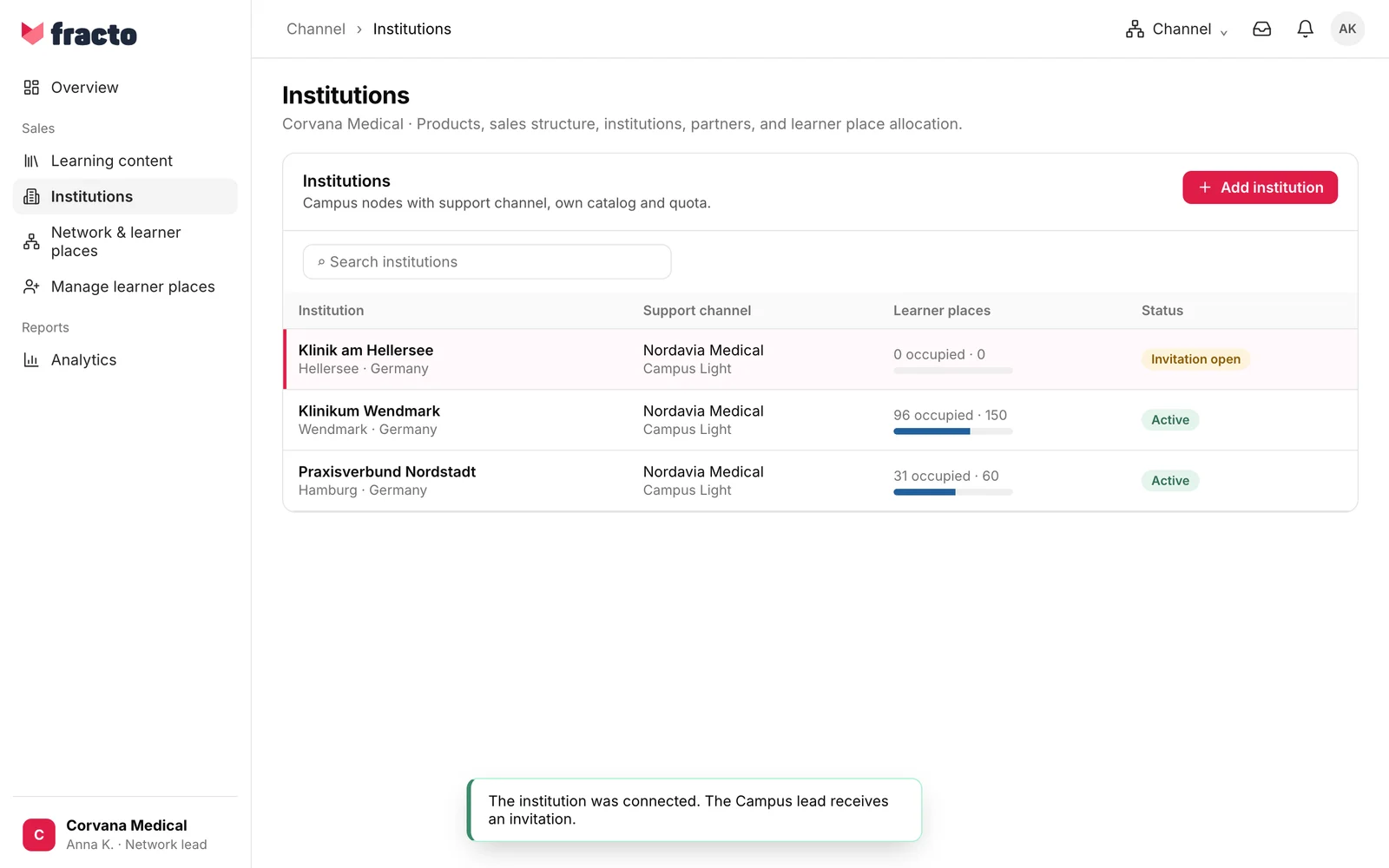
You know it worked when the institution appears in Institutions, highlighted. A message appears at the bottom:
- “The institution was connected. The Campus lead receives an invitation.” The status is Invitation open.
- “The institution has been connected.”, if you gave no Campus lead. This is only possible if you chose Connect this institution in step 3. The status is then No Campus lead.
- “The draft is saved. Nothing is delivered and nobody is invited until you activate it.” The status is Draft.
- “Fracto reviews requests matching an institution with its own Fracto contract. After approval, complete the approved creation or connection.” Nothing is connected yet. The request appears under Institution requests under review. Once Fracto has approved it, click Complete request there.
What happens next
-
The Campus lead receives an invitation by email, even if you chose an existing person. Until they accept, your workspace reserves a Contributor place for them. The Campus lead does not need an Operator seat. The language of the invitation is, in this order: the preferred language of the contact with that address, the interface language of the person (if they already have an account), the Institution language, otherwise your workspace’s default language. The invitation is valid for 7 days. The invitation email is mandatory and cannot be switched off; the workspace can change its text in the Hub.
-
Delivery to the institution starts immediately and the assortment applies from now on. The quota is empty: creating the institution does not use up a learner place. Allocate learner places, see “Allocate learner places”. Until then nobody there can learn.
-
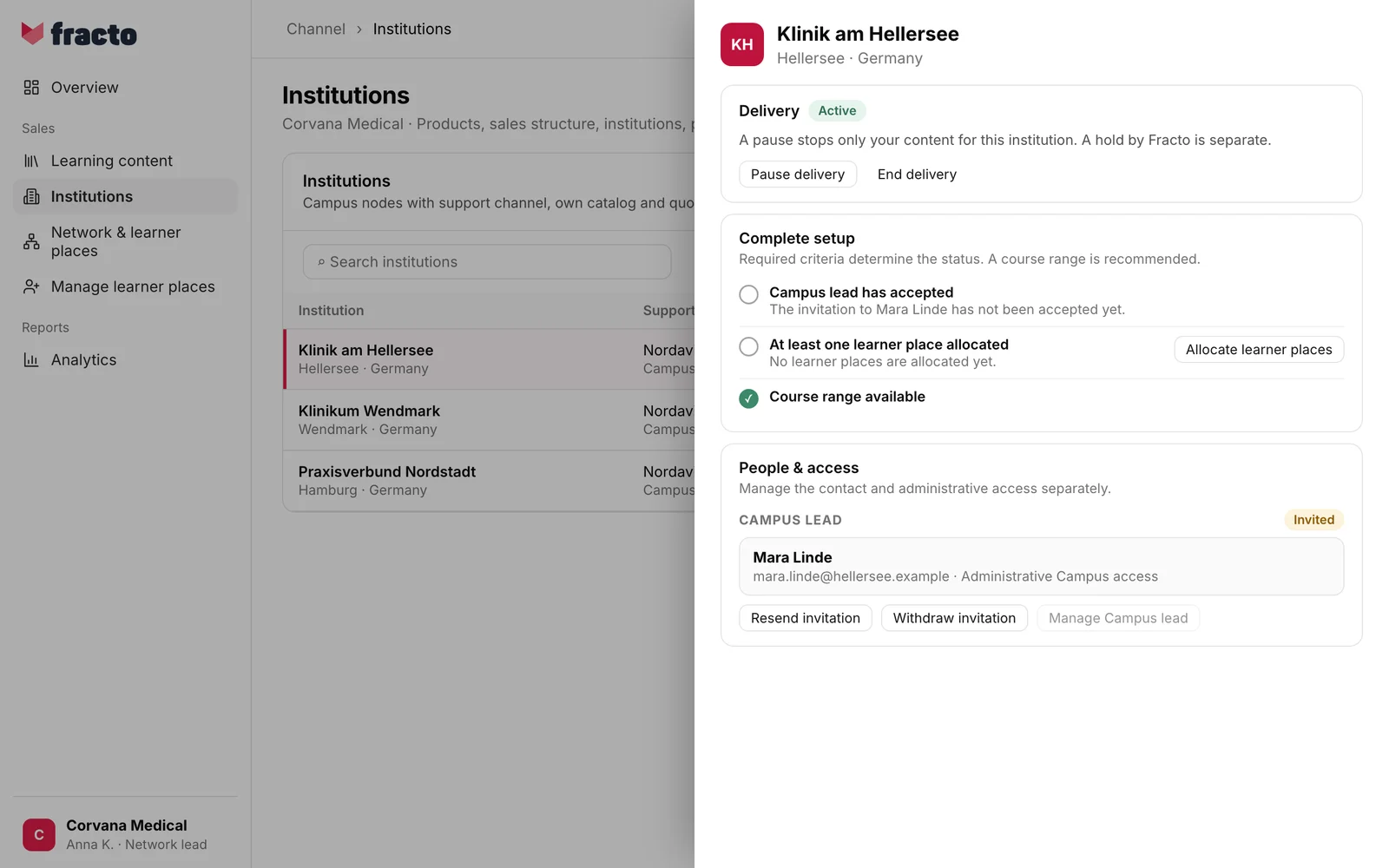
On the institution’s page, Complete setup takes you through the open steps: Campus lead has accepted, At least one learner place allocated and, recommended, Course range available. The institution is only Active once the Campus lead has accepted and at least one learner place is allocated. Before that it shows Invitation open, No Campus lead or Setup open.
-
This does not give the institution its own full Campus. Only Fracto can enable that.
-
A draft delivers nothing, occupies no places and invites nobody. On the institution’s page you activate it with Activate draft. Fracto then checks for a free Contributor place, invites the stored Campus lead and starts delivery: “The draft is activated. The Campus lead was invited and the delivery has started.” Without a stored Campus lead it does not work (“Add a Campus lead to the draft first. They are invited when the draft is activated.”).
Assign, replace or remove the Campus lead later
An institution has at most one Campus lead or open invitation per manufacturer.
- Open the institution in Institutions. Under People & access, click Manage Campus lead. Alternatively, click Assign Campus lead next to Campus lead has accepted. Both need the right described under “Before you start”.
- The Assign Campus lead dialog shows Campus Light access with the note No Operator seat. The assignment only gives administrative access to this institution’s Campus. Channel permissions and the primary contact stay unchanged.
- Under Find existing person, search by name or email and choose the person, or enter an address under Or invite by email.
- Click Assign Campus access. The message “The Campus lead was invited. No Operator seat was occupied.” appears. For a draft, it says “The Campus lead is saved in the draft and is invited when the draft is activated.” instead.
While the invitation is open, the Campus lead shows as Invited there, and Manage Campus lead is disabled. Resend invitation sends a new link and the previous one stops working. There is a daily limit (“This invitation cannot be sent again today.”). Withdraw invitation makes the link unusable and frees the reserved place. Once the Campus lead has accepted, you replace them with Replace or remove them with Remove. The previous appointment and its Campus access then end immediately, the Contributor place is released when no longer needed, and delivery and learners are unchanged. When replacing, the new person is invited. After removing, “The Campus manager was removed. Delivery continues.” appears.
If it does not work
| Message | What it means |
|---|---|
| Organizations could not be searched. | The search or the check for similar institutions failed. Search again. |
| No matching organization found. Check the search term or choose “Create new organization”. | No organization matches the search term that your workspace may see. |
| This organization is not visible in your workspace. Search again and select an available organization. | The chosen organisation is not available to you. |
| This institution is already connected to the Channel. Add the team as a caring team in the existing institution. | The institution is already connected with you. Open takes you to it. |
| You cannot connect this institution because the manufacturer already supplies it. Contact the network lead. | The manufacturer already supplies the institution, so it cannot be connected again. |
| The partner or appointment was not created. No Contributor places are free. | No Contributor place is free for the Campus lead, and nothing was created. The dialog shows “No Contributor places are free. Request more places before appointing someone.” with Request Contributor places. Without the right to request, it says “Ask your workspace admin for more Contributor places.” |
| This person can no longer be invited. | The address belonged to a person whose data has been deleted. Use another address. |
| The selected team is unavailable or outside your Channel access. Reload and select an available team. | The team is archived or not in your scope. |
| The selected funding region is unavailable or outside your Channel access. Reload and select an available region. | The region under Places from region is not available to you. |
| At least one selected product group is no longer active. Reload and select active product groups. | Someone archived a product group while the dialog was open. |
| The selected product groups are outside the responsible team’s assortment. Select product groups available to that team. | A product group does not fit the team’s assortment. If the app knows the names, the message names them: “These product groups are outside the responsible team’s assortment: …”. |
| The selected Campus lead is unavailable in this team’s context. Select an available person or invite a person by email. | The chosen person does not belong to the team’s context. |
| The Campus lead’s email does not match the selected person. Check the email and select the correct person. | The address does not belong to the chosen person. |
| The partner relationship is paused, winding down or ended. No new deliveries or invitations are possible until it is active again. | If a partner supports the institution and its relationship is not active, a draft cannot be activated. |
| This institution already has a Campus lead from your workspace through another connection. Enter the same person on the draft, or replace or remove the current Campus lead first, then activate again. | When activating a draft: the institution already has a Campus lead from your workspace. Enter the same person on the draft, or replace or remove the current lead, then activate again. |
| The draft’s Campus lead was just changed. Check the saved Campus lead and activate the draft again. | When activating a draft: someone just changed the draft’s Campus lead. Check it and activate again. |
| The institution has changed in the meantime. Please reload the page. | Someone changed the institution. Reload the page and try again. |
| Channel could not process the institutions. Please try again. | General message. Causes include a missing right or a change made while you were saving. |
Checked on 6 November 2026 against the current Fracto release.
