
Publish a course
How to publish a course in Studio: requirements, first publication, correction or new version, and how to withdraw a publication.
When you publish, Fracto saves a course version and releases it to learners. You then keep working in the draft without changing the published version.
Before you start
- You have the right to publish in Studio. Without it, the menu entries are missing. Publication exists for manufacturers and for institutions with Campus Full, not for sponsored institutions.
- If the course requires approval, the last review must be approved. Only then does the menu show Publish approved snapshot. Exactly the approved version is published. Changes you made in the draft afterwards must go through a new review first. See “Submit a course for review”.
- If the course does not require approval, you publish the saved draft. Fracto saves open changes first.
- At least one lesson is visible.
- If the course has a final assessment, it is complete: at least one active question, and the number of questions drawn fits the pool.
- Media in the course belong to this course.
How to publish
-
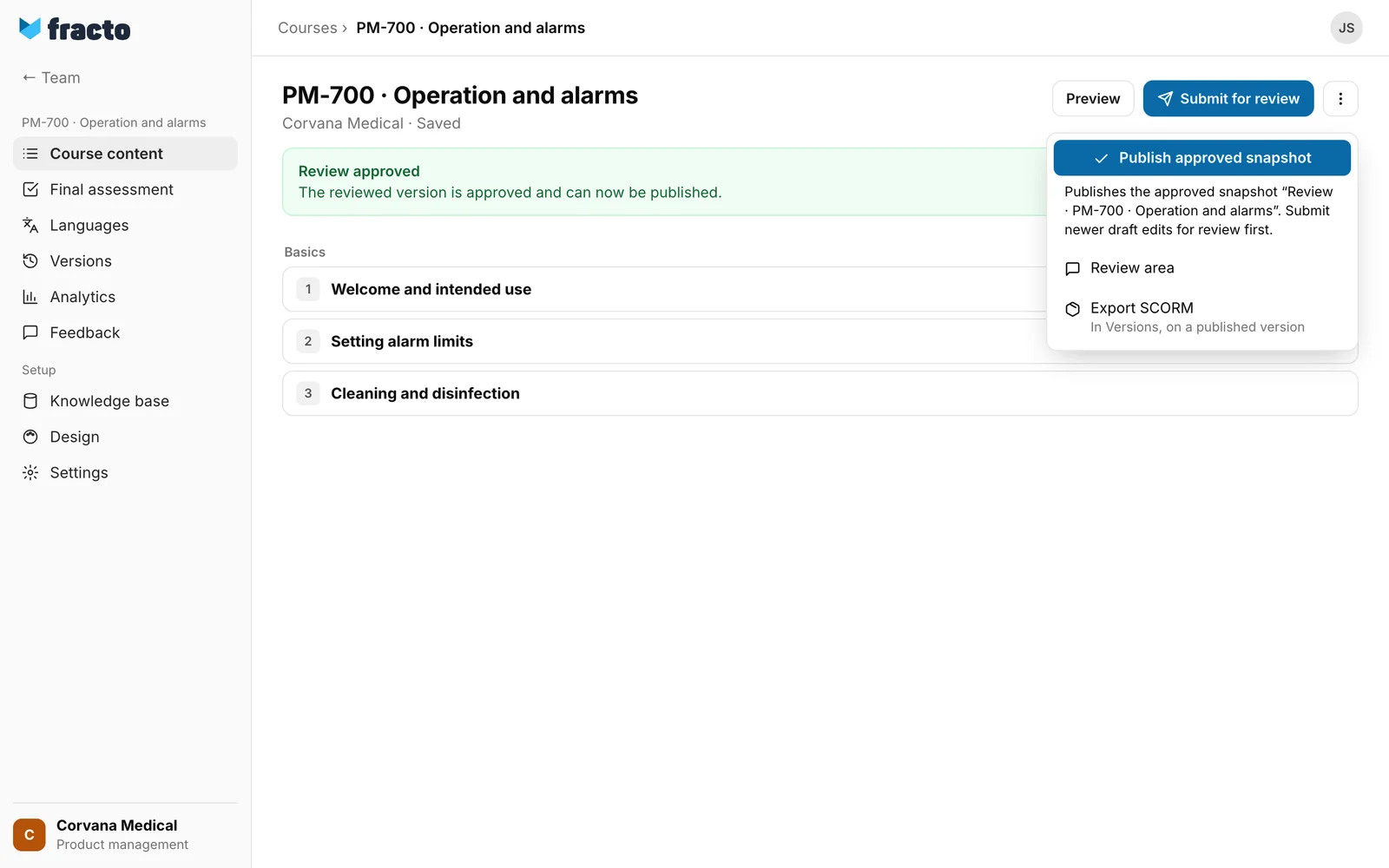
Open the course under Course content. At the top right, click the three-dot menu (More actions) and then Publish. For a course that requires approval, the entry is called Publish approved snapshot, and below it Fracto says which version that is.
-
If Fracto shows the Publication check, it has looked through your current draft for places that seem unfinished: empty blocks, images without a screen reader description, images that are too small, demo images or missing images, empty or very thin lessons, and lessons with “More than two emphasized areas in this lesson”. These are notes under Suggestions. You fix them with Fix or publish with Publish anyway. Items under Prevents publication must be fixed first. One example is “The final assessment has no active question yet.” For a course that requires approval, there are no such blocking items here, because the approved version has already been reviewed. Note, though: even there the check looks at your current draft, while the approved version is what gets published. Fix changes only the draft. The fixed item reaches the publication only after a new review.
-
A dialog follows:
- If the course is published for the first time, it is called Publish course. Click Publish course.
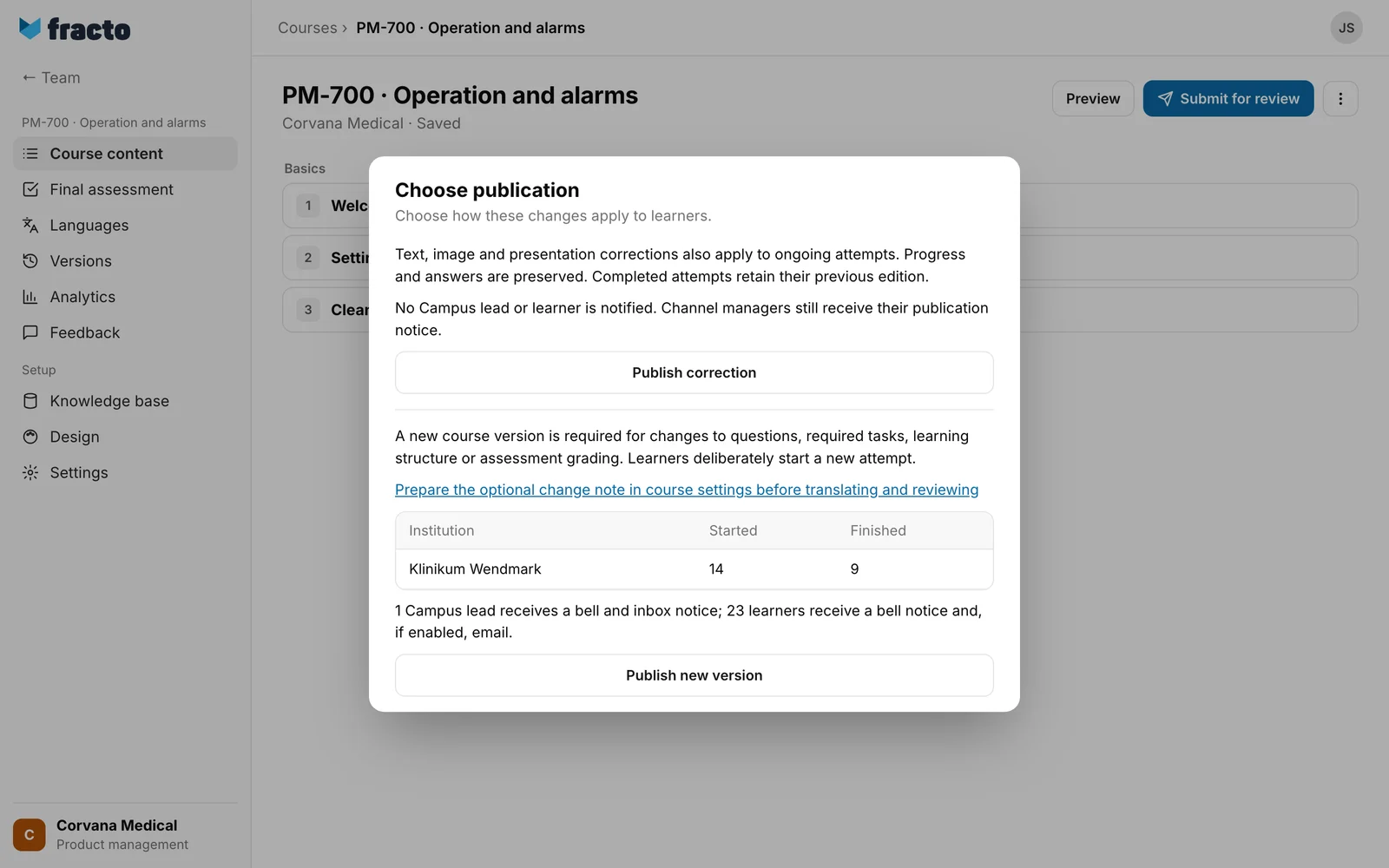
- If there has been a publication before, even a withdrawn one, it is called Choose publication. You choose Publish correction or Publish new version. The difference is explained in “Versions and corrections”. In the section for the new version, the dialog shows from the start a table of the institutions that have the course in their library and how many learners started and finished, and it says who is notified.
-
If some languages were in the last publication and are now stale, Fracto asks for a new version: “Publish without these stale translations: DE?” If you confirm, those languages are not in the new version. Fracto does not allow a correction in this case.
You know it worked when Fracto says: Course was published as "
What happens next
- A version is created. It appears under Versions and is called “Approved ·
”, even if the course does not require a review. The current one carries the label Live for learners. The course then has the status “Published”. Learners who receive the course can start it. - No Campus lead and no learner is notified on the first publication.
- Channel managers, meaning people with the “Administer workspace” or “Lead network” task in the publishing workspace, receive a notice in Fracto and an email for every publication. A person without an email address gets nothing. The person can switch the notice off, and the workspace can switch the email off in the Hub or reword it.
- For Publish new version after an earlier publication, the Campus leads of the institutions that have the course in their library receive a notice in Fracto (bell and inbox in the app), no email. Learners receive one only if they are active members of that institution and have started or finished the course. Whoever was only assigned it gets nothing. The notice in Fracto is mandatory, the email only with an address and if the person has not switched it off. Learners deliberately start the new version as a new attempt.
- For Publish correction, no Campus lead and no learner is notified. The correction also applies to ongoing attempts. Progress and answers are preserved. Completed attempts retain their previous edition.
- With Unpublish in the same menu you take the course out of circulation. Before that, the dialog names the reach (learners, institutions, running attempts). New starts are blocked, and the course disappears from the libraries. Existing attempts can continue using their saved version. Progress and issued certificates remain valid. The course remains as a draft.
If it does not work
| Message | What it means |
|---|---|
| This course needs an approved review before it can be published. | The last review is not approved. Submit the course or wait for the decision. |
| At least one lesson must stay visible. | All lessons are hidden. Show at least one. |
| The final assessment is not ready for publication yet. Please complete it in the “Final assessment” area. | The final assessment has a gap, for example no active question. If the number of questions used does not fit the pool, a note on the number of questions replaces the second sentence. |
| A question in the lesson “ | A question in that lesson has a contradictory setting. Change it in the lesson editor. |
| A media file in the lesson “ | A file is missing or comes from another course. Without a lesson name, the message reads “A media file in the course cannot be published.” |
| Changed exam questions require a new version. | You wanted to publish a correction but changed something that only a new version allows. Choose Publish new version. If a correction is impossible from the start, the Publish correction button is disabled and the reason is shown on it. More reasons are listed in “Versions and corrections”. |
| These languages will not be published: DE. Changed translations need another review. | The translation is stale. Review it again or publish a new version without it. |
| Another person has changed the course. Reload before continuing. | Someone changed the draft while you wanted to publish. Reload the page. This affects only courses without an approval requirement. |
| Network error. The publication status could not be changed. | The connection dropped. Check the status of the course and try again. |
| Course could not be published (HTTP 500). | The server refused the publication. The number is the server’s code. Try again. |
| Publication could not be withdrawn (HTTP 500). | Withdrawing did not work. Try again. |
| The notification overview could not be loaded. You can still publish. | The table of institutions is missing from the dialog. That is a hint, and you can still publish. |
Checked on 6 November 2026 against the current Fracto release.
