
Invite a person with a role and tasks
How to invite a person in Hub and set the access type and the tasks in one step, so they can work as soon as they accept.
With an invitation you set in one step how a person works: the access type and the tasks are already in place when they accept the invitation. No further approval is needed.
Before you start
- You have the task Administer workspace in Hub. Only then does People & access have the button Invite person.
- In your workspace, the person must not yet have work access or an open invitation, and must not be in the waiting room. You can invite learners, contacts and people whose work access has ended. For people who already have access, change the access in People & access instead.
- A seat must be free: an Operator seat or a Contributor seat, depending on the access type. The cards Operator seats and Contributor seats on the Work access tab show how many are free. If none is free, Fracto shows the notice Quota used up in the first step. It is not an error message: you can prepare the invitation, but you can send it only once a seat is free. You request more seats with Manage seats. A request does not release anything; the responsible administration reviews scope and billing.
- Decide beforehand whether the person should be an Operator or a Contributor and which tasks they need. Roles and permissions explains both.
Invite a person
-
In Hub, open People & access and click Invite person. The page opens on the Directory tab. There you can also open a person and choose Invite to collaborate. The assistant then fills in their address.
-
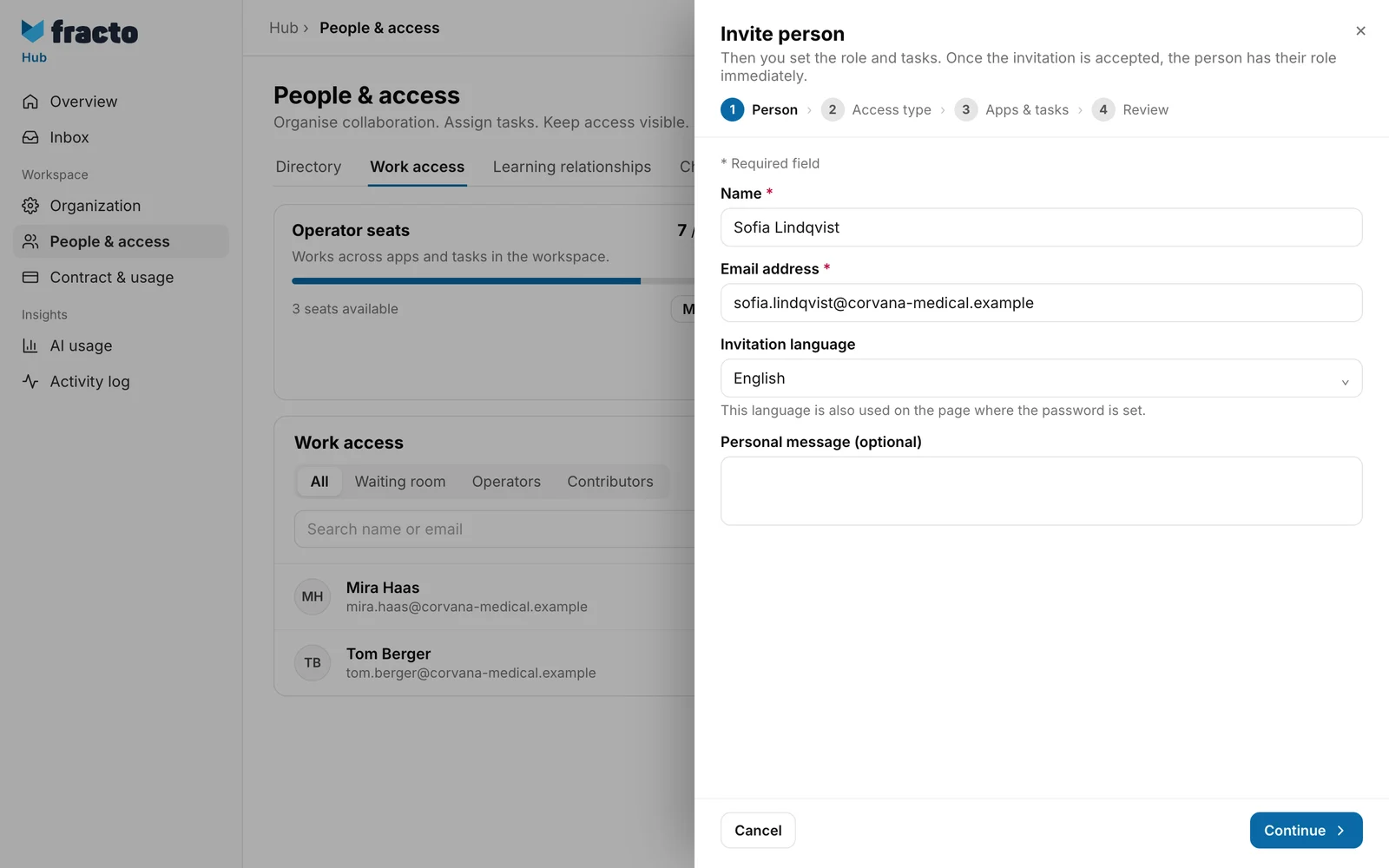
In the step Person, enter Name (first and last name) and Email address. Both are required. The Invitation language sets the language of the page where the person sets their password, and normally also that of the email. You can choose from the languages your workspace has activated; the preset is the workspace’s default language. A Personal message (optional) of up to 1,000 characters is shown to the person on the invitation page and in the email. Click Continue.
-
In the step Access type, Fracto asks “How should … collaborate?” Choose Operator (several apps and tasks) or Contributor (one app, one limited task). Each card says how many seats are free. Nothing is preselected; Continue becomes active only after you choose.
-
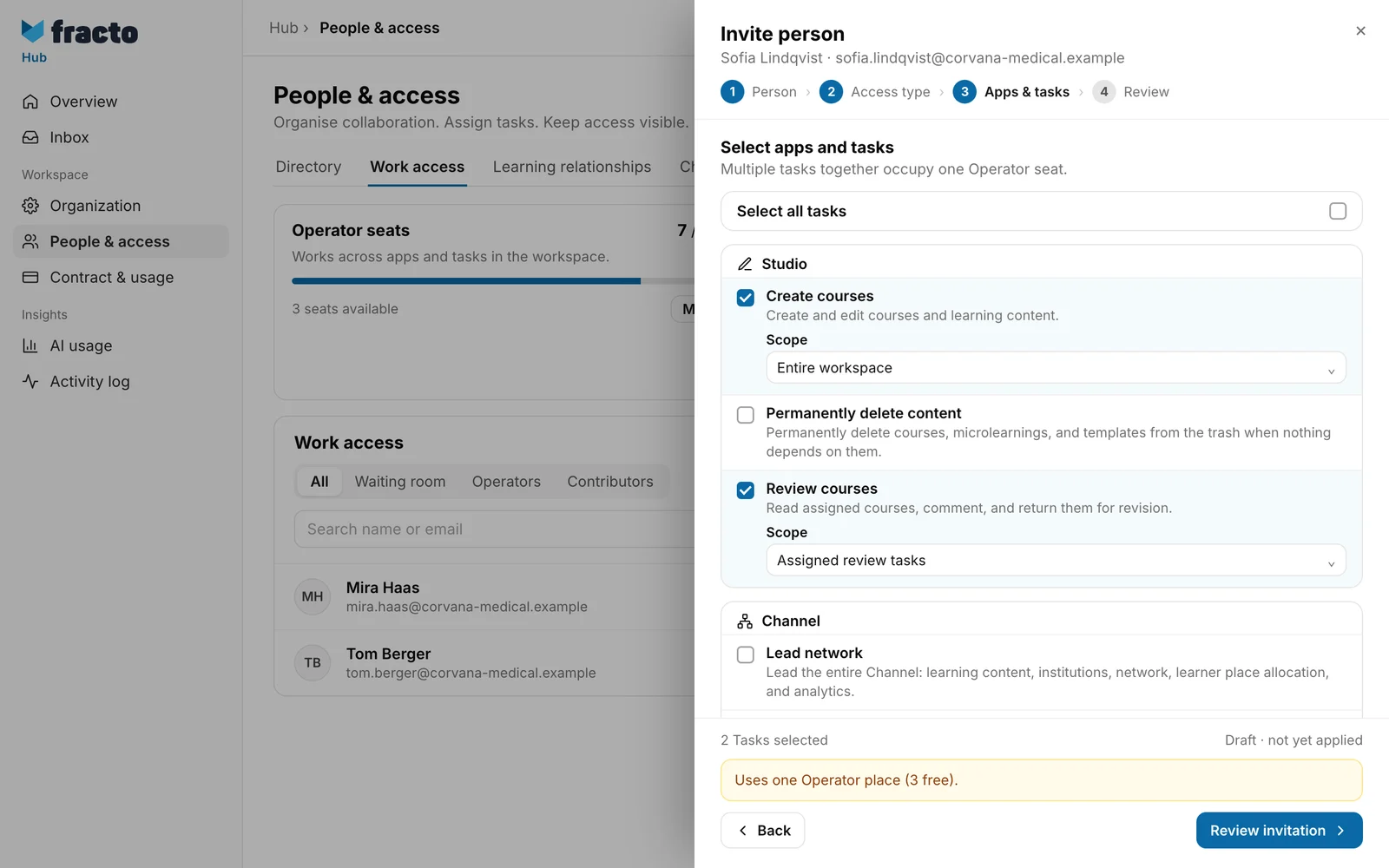
In the step Apps & tasks, choose the tasks. They are grouped by Studio, Channel, Campus and Hub.
- For Operator, tick as many as you like. Together they use one Operator seat. Select all tasks selects all that need no choice of area. Tasks that need an area stay open, and Fracto lists them in a notice.
- For Contributor, choose exactly one task.
- Choose at least one task.
- Under a chosen task you see the Scope, for example “Entire workspace”. If there are several areas, such as several regions, the choice is required (“Select area”).
- If you have chosen Lead network, for example, Manage region, Manage team and Channel reporting are greyed out and say “Already included in “Lead network”.” If you choose the broader task only afterwards, Fracto removes the narrower one from the selection. A task that is not available in your workspace is greyed out with “Not available in this workspace.” If the matching area is missing, it says “This workspace has no matching area yet.”
- At the bottom of the window, Fracto shows how many tasks are selected and the seat requirement, for example “Uses one Operator place (3 free).”
-
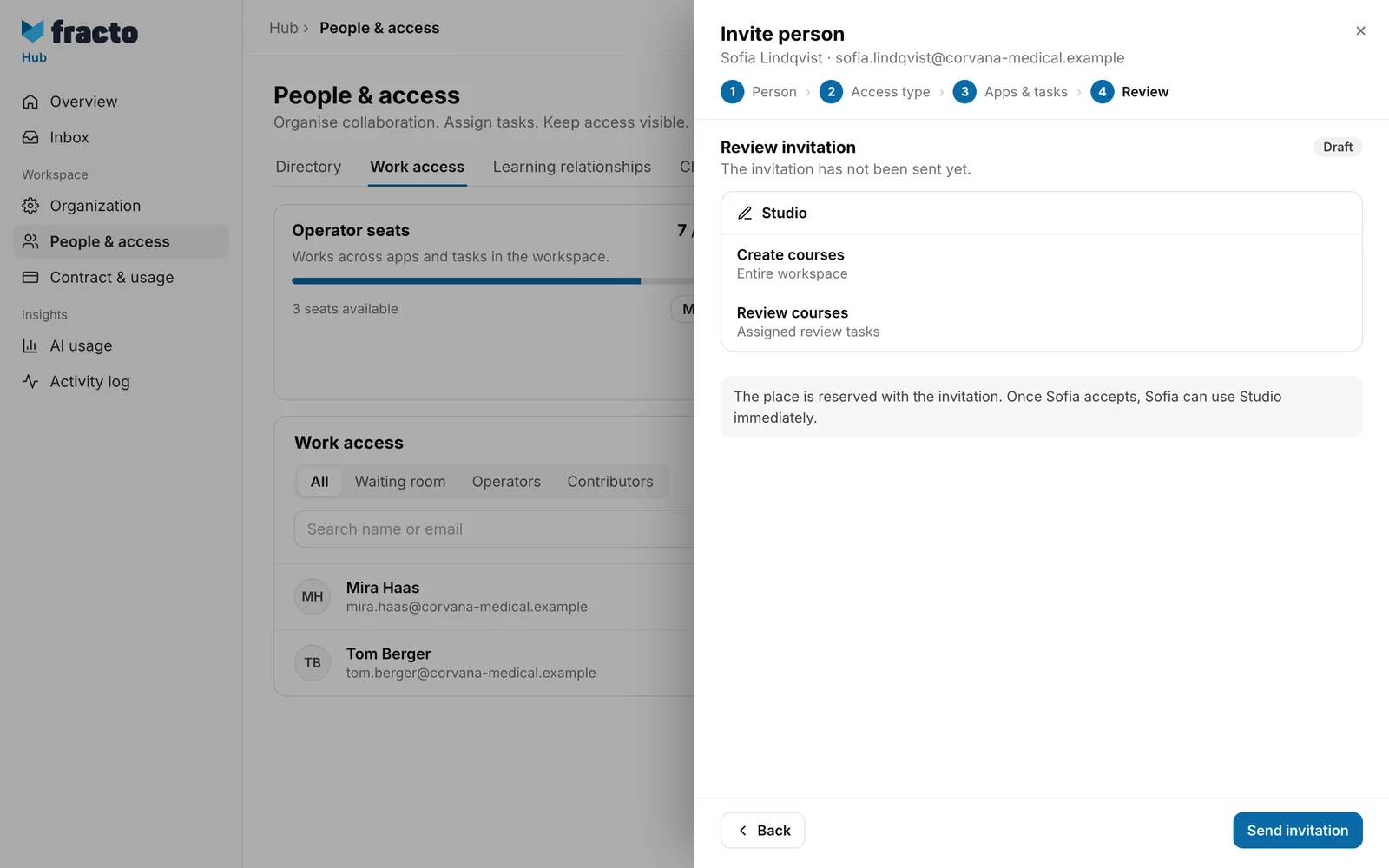
Click Review invitation. The step Review shows the tasks, grouped by app, with the label Draft and the note “The place is reserved with the invitation. Once … accepts, … can use … immediately.” If a seat is missing, it says “No Operator seat available · 1 required”, and the button reads No seat available.
-
Click Send invitation.
How you can tell it worked: the panel shows Invitation sent with the message “The invitation to … has been sent. The Operator place is reserved, and these tasks are prepared:” and the task list. To waiting room closes it. The person is then in the waiting room with the status Invitation open. Every closing of the assistant, Cancel included, leads to the waiting room.
What happens next
- The person gets an email, normally in the language you chose. If your workspace has published its own invitation template, its language applies. The link in it is valid for 7 days from the last sending and only for this person.
- The seat is reserved from the moment you send and counts as occupied under Operator seats or Contributor seats.
- If the person has no Fracto account yet, they set a password on the invitation page and activate the account with Activate account. There they can tick that they want to set up two-factor authentication afterwards. The box is not ticked beforehand. If they already have an account, they sign in and accept the invitation with Sign in to accept. Their password stays unchanged. If they are already signed in with the right account, they click Accept invitation. If they are signed in with another account, they click Sign out and continue.
- Once accepted, access is active. The tasks apply immediately.
- While the invitation is open, open the person under Work access. Resend invitation sends a new link. The old link becomes invalid, and the 7 days start again. Within 24 hours an invitation goes out at most three times; the first sending counts. Withdraw invitation makes the invitation invalid, and reserved places and prepared tasks are released. You cannot change or pause an open invitation, only withdraw it.
- If the link expires after 7 days, Hub shows Invitation expired for the person. Resend the invitation or withdraw it.
If it does not work
| Message | What it means |
|---|---|
| This person is already in the directory. | The address already exists under Work access, unless the access has ended. Use another address or change the existing access. The message appears under Email address and blocks Continue. |
| This person already works in this workspace or has an open invitation. Change their access in People or resend the invitation. | The person already has access or an open invitation. |
| No operator seat is available. Nothing was changed. | When sending, no Operator seat was free any more. Close the draft and request more under Work access with Manage seats. |
| No contributor seat is available. Nothing was changed. | The same for a Contributor seat. |
| This task or area is no longer available. Load the current state. | The task or the area has changed in the meantime. Click Close draft and load current status. |
| This operator invitation is invalid. | The server rejected the entries. Close the window, reload the page and try again. |
| The operator invitation failed. | A general error. Try again. |
| The invitation has been sent too often today. Try again tomorrow. | The limit for Resend invitation is reached. |
| No work place is available for this invitation. Ask the administrator to check capacity. | The invited person sees this message when accepting if the seat is missing. |
Checked on 6 November 2026 against the current Fracto release.
