
Register for a session or cancel
How to register for a live training in Events, put it in your calendar and cancel your registration if you need to.
Requires: Campus Full
In Events you register for your institution’s live trainings. The seat is yours only once you register.
Before you start
- Your institution or a manufacturer sets up live trainings in Campus. An institution needs Campus Full for that. You only see the sessions offered to you. If nothing shows, your institution has not scheduled a session for you yet.
- You can only register before the session starts.
- You only get an email about the registration if an email address is stored for you.
- Whether you may cancel yourself is set by the institution for each session. Without its permission only the organiser can cancel registrations.
- A training sold through training passes is visible without a matching pass, but with the tag Requires a training pass you cannot book it. Ask your institution how to get a pass.
How to register
-
Open Events in the sidebar. The sessions are ordered by time in up to four sections (empty ones are missing): Upcoming (you are registered), Required – choose a session, Available (offered, you are not registered) and Past. List and Calendar switch the view. Each row shows time, duration, format (Online, On-site or Hybrid), title, lecturer and institution. For sessions you are not registered for, the number of free seats is shown too, for example “6 seats left” or “This session is full”.
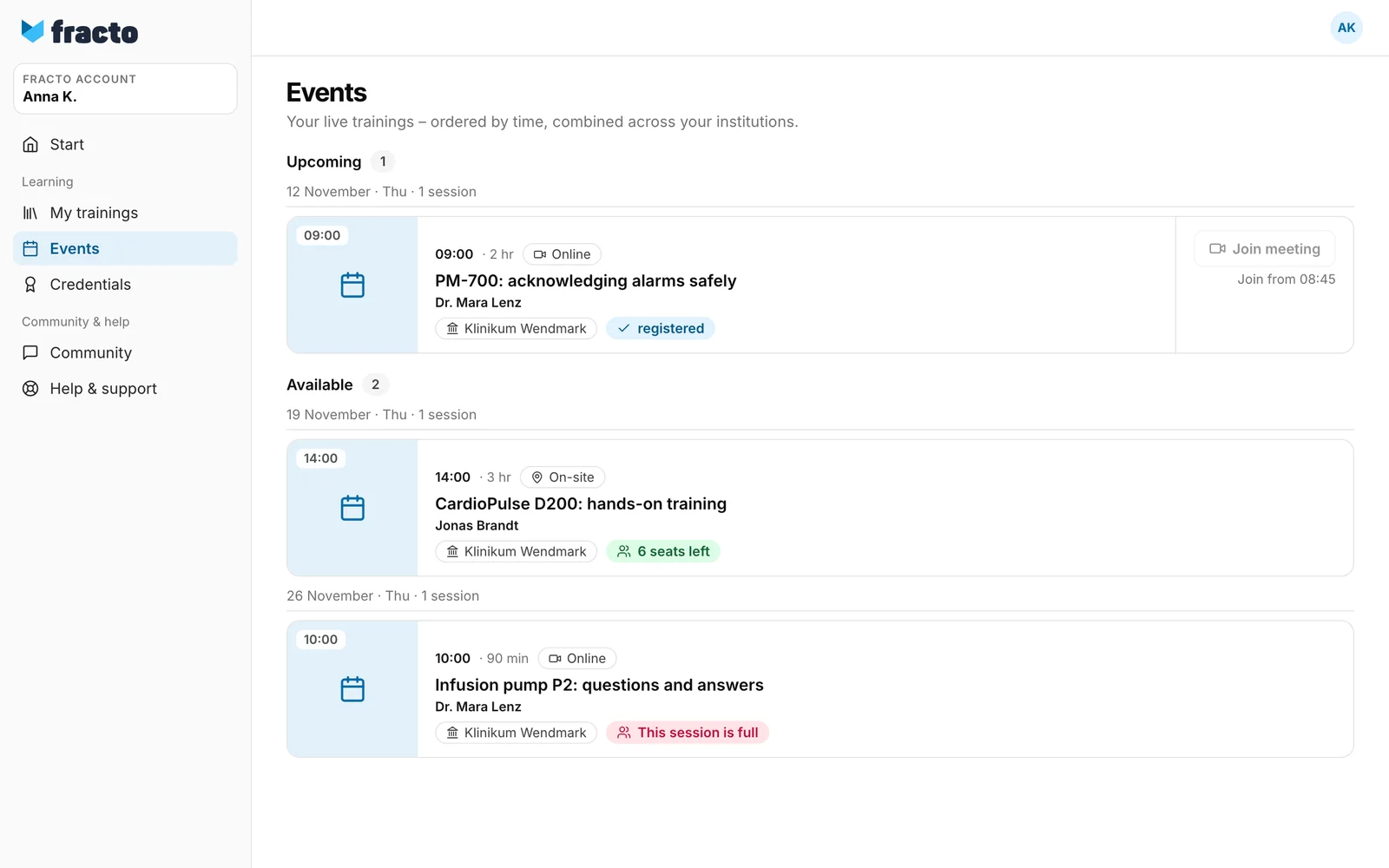
-
Click the row. The session opens as a panel. On the Overview tab the registration area is right at the top. For a mandatory training there is one card per training under Required – choose a session. It shows how many sessions still have seats. Under Choose a session the date buttons open the respective session. You need exactly one.
-
Click Register. After that it says “You are registered.”
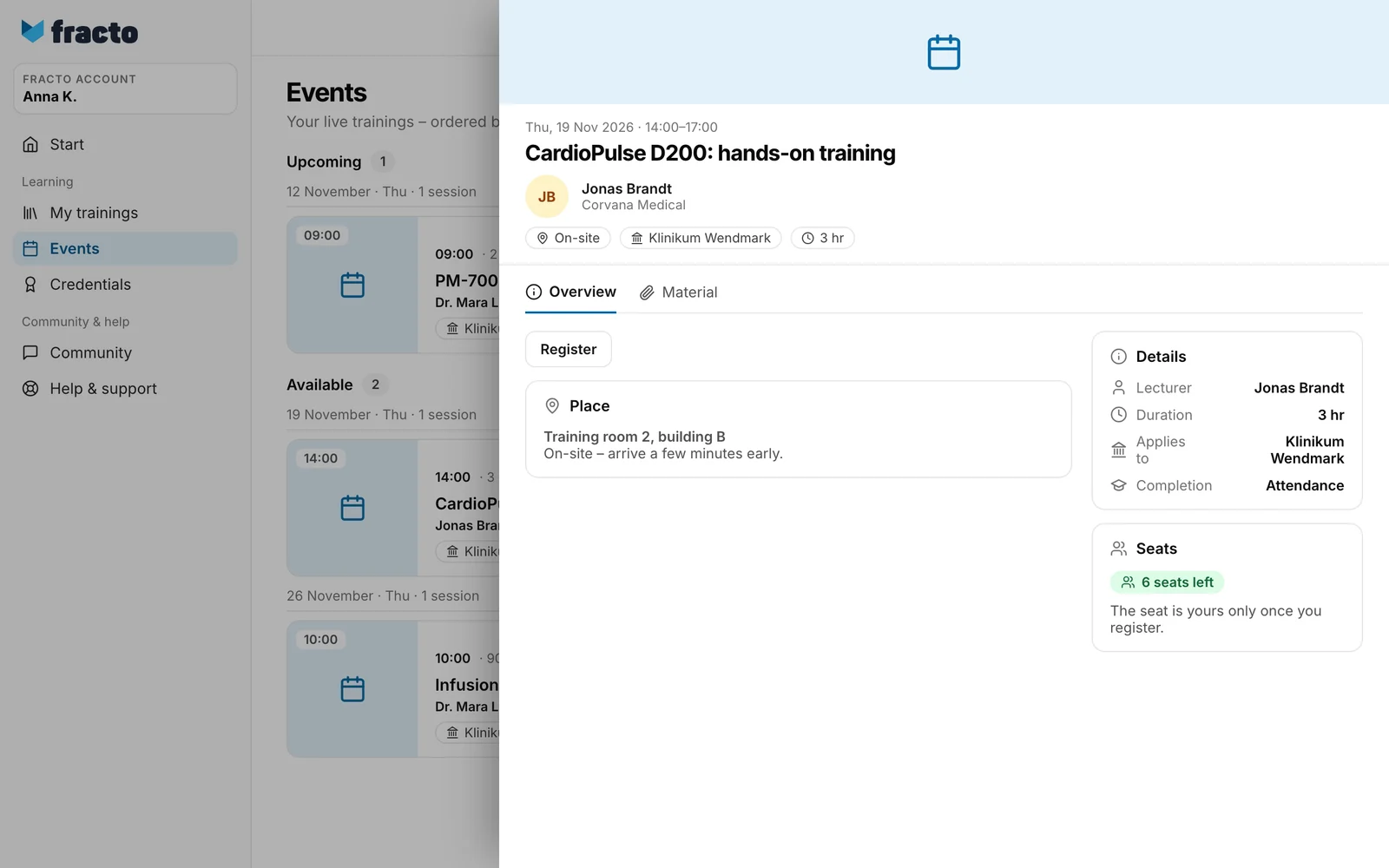
You can tell it worked when the session is listed under Upcoming with the tag “registered”.
What happens next
- You get a confirmation as a notice in the Player. Whether an email comes as well is set under your profile on the Notifications tab, at Bookings and cancellations. Your institution can change the wording of this message or switch it off. The lecturer is told about your registration too.
- Registered people see Calendar file on the session. It downloads a file for your calendar.
- For online sessions you get access with your registration. The Join meeting button becomes active 15 minutes before the start. Until then it shows the time, for example “Join from 08:45”.
- Reminders before the session are controlled by the setting Upcoming event. If your institution reschedules or cancels the session, you always get a message. You cannot turn that off.
How to cancel
-
Open the session under Upcoming.
-
Click Cancel registration. Confirm the question “Cancel your registration?” with Cancel registration. After that it says “Your registration is cancelled.” Your seat is released.
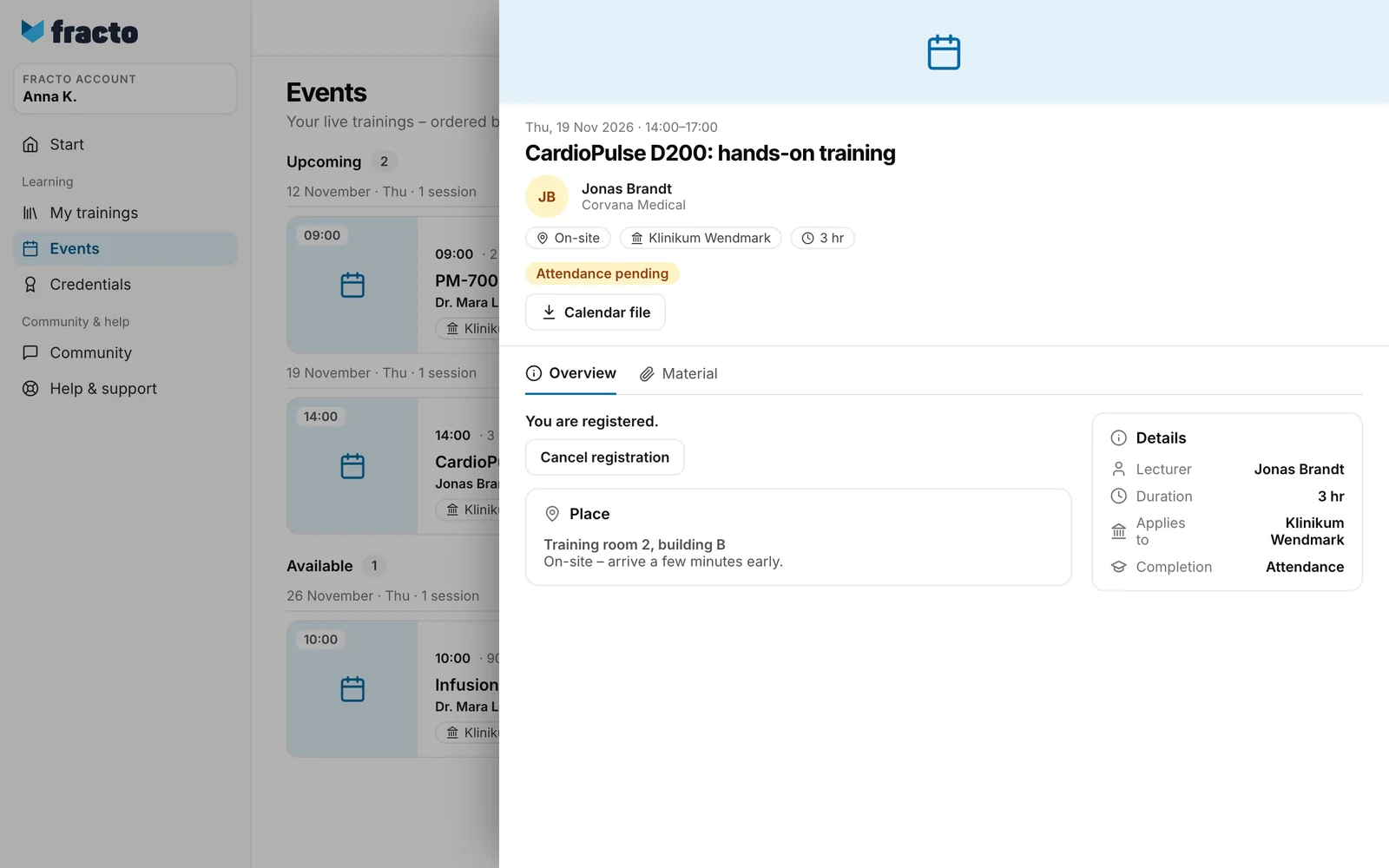
The button only appears if the institution has allowed cancelling, the session has not started and you are not yet recorded as present. If the institution has not allowed cancelling, the note says “Cancellation is not possible for this session.” After the session has started the button is missing without a note. After you cancel, the session shows under Available again (for a mandatory training under Required – choose a session) as long as it is not over. You can register again if a seat is free.
If it does not work
| Message | What it means |
|---|---|
| This session is full | All seats are taken. The Register button is grey. There is no waitlist. Check whether your institution offers another session. |
| You already have a session for this mandatory training. Cancel that one to choose this session instead. | You book only one session of a mandatory training. Cancel the other one if the institution allows it. |
| This training requires a training pass. Ask your institution how to get one. | Without a matching pass you cannot register. |
| Your registration could not be changed. Check the current event and try again. | General message, for example when the session has started, was cancelled or changed, or after a fault. Reload the page and check the session. |
| The events could not be loaded. Please try again later or contact support. | The list did not load. |
Checked on 6 November 2026 against the current Fracto release.
