
Use “My files”
How to keep personal photos and PDFs in My files, sort them into folders and know how long they stay after your access ends.
Requires: Switch per workspace, off by default
Under My files you keep personal photos and PDFs, for example product photos from your trainings. Only you can see them.
Before you start
- Fracto switches the area on per workspace, and it is off by default. If My files is not in the sidebar under Learning, it is not switched on for your workspace. Ask your institution, it can request it from Fracto. If the switch is turned off later, the area disappears, but the files are kept.
- PDF, JPEG and PNG are allowed, up to 20 MB per file and 200 MB in total per area. The file extension alone is not enough: the content must match the format.
- The files are private. The institution, course authors and support cannot see them, and support cannot open them on your behalf either. They belong to no course, no exam and no credential. Fracto re-saves photos on upload. Extra information inside the image file, such as the place it was taken, is not kept. PDFs stay unchanged.
How to upload files
-
Open My files. At the top are a bar showing the storage used, for example “4 MB of 200 MB used”, and the note “PDF, JPEG or PNG, up to 20 MB per file”.
-
If there are several areas, choose the workspace under Area. To tie new files to one of your courses, choose a course under “Course for new files (optional)”, otherwise it stays No course. If you have a folder open, new files go into it.
-
Click Upload files and choose one or more files. Each is uploaded on its own. After that it says “Uploaded”, and the files appear in the list, newest first. The list shows 100 files, Load more fetches more.
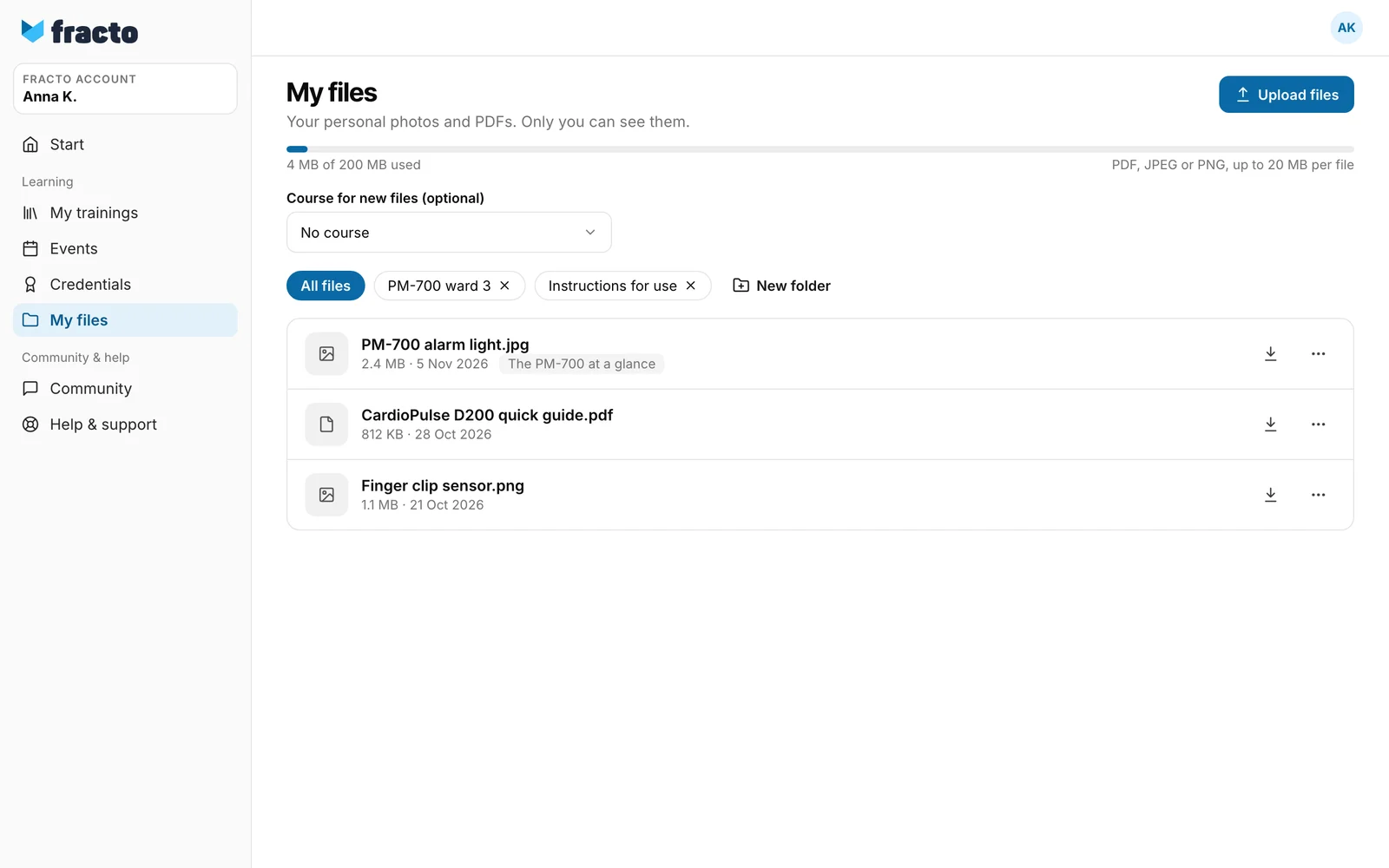
You can tell it worked when the file is in the list and the storage used has grown.
Sort, view, download, delete
- New folder: enter a name (up to 120 characters), then Create folder. You pick a folder with the fields next to All files. The cross on a folder deletes it after a confirmation. The files stay and then show under “All files”.
- The icon next to each file downloads it. The “Actions for …” menu offers View (images only), Change folder and course (only if you may upload) and Delete. Fracto asks before deleting. The file is deleted permanently.
What happens next
- If your access to the workspace ends completely, for example because your membership ends, the area stays readable at first. The top says Your access has ended with the date until which you can download your files (“You can download your files until …. After that they are deleted automatically.”). If Fracto has not yet recorded the end, it says “You can download your files for 90 more days.” instead of the date. Uploading, creating folders and changing then stop working. Downloading and deleting still work.
- After 90 days without access the files disappear. They are deleted for good after a further grace period of 7 days. If you get access again in that time, they are kept.
- Your files are in the data package under “Download your data or delete your account”, in the folder
learner-files. If you delete your account, they are deleted too.
If it does not work
| Message | What it means |
|---|---|
| Your storage is too full for this file. | The area is full. Delete files you no longer need. |
| This is not a valid PDF, JPEG or PNG. | Format or content do not match, or the file is empty. |
| The file is larger than 20 MB. | Make the file smaller. |
| This photo has too many pixels. Save it at a smaller size and upload it again. | JPEG up to 120 and PNG up to 64 megapixels are allowed, with at most 16,384 pixels per edge. |
| This folder already exists. | Choose another name. |
| That did not work. Please try again. | General error, also when the area is closed and you may no longer upload. |
When you upload several files, each message starts with the file name, for example “Plan.pdf: The file is larger than 20 MB.” The other files are uploaded anyway.
Checked on 6 November 2026 against the current Fracto release.
