
Insert a table of contents
How to insert a table of contents in Studio that keeps itself up to date: for the headings of a lesson, for the whole course, or written by hand.
A table of contents shows learners a numbered list. It can keep itself up to date: for the headings of a lesson or for all lessons of the course. You can also write the entries by hand.
Before you start
- You need the Hub task Create courses. Without it you only see the lesson as a preview. Only its owner edits a private course.
- For This lesson you need headings in the lesson: Heading blocks or headings (H2, H3) in text blocks.
- For Whole course you need no preparation. If the final exam should appear, it needs at least one active question (see “Create a final assessment”).
How to insert a table of contents
-
Open the lesson in the Lesson editor and, where the table should go, click the plus between two blocks or Insert block at the end of the lesson. In the Block library, choose the category Introductions and the block Table of contents.
-
Fracto asks first: Insert table of contents, “What should the table of contents show?”. Choose one of the three sources. If you close the dialog without choosing, Fracto inserts nothing.
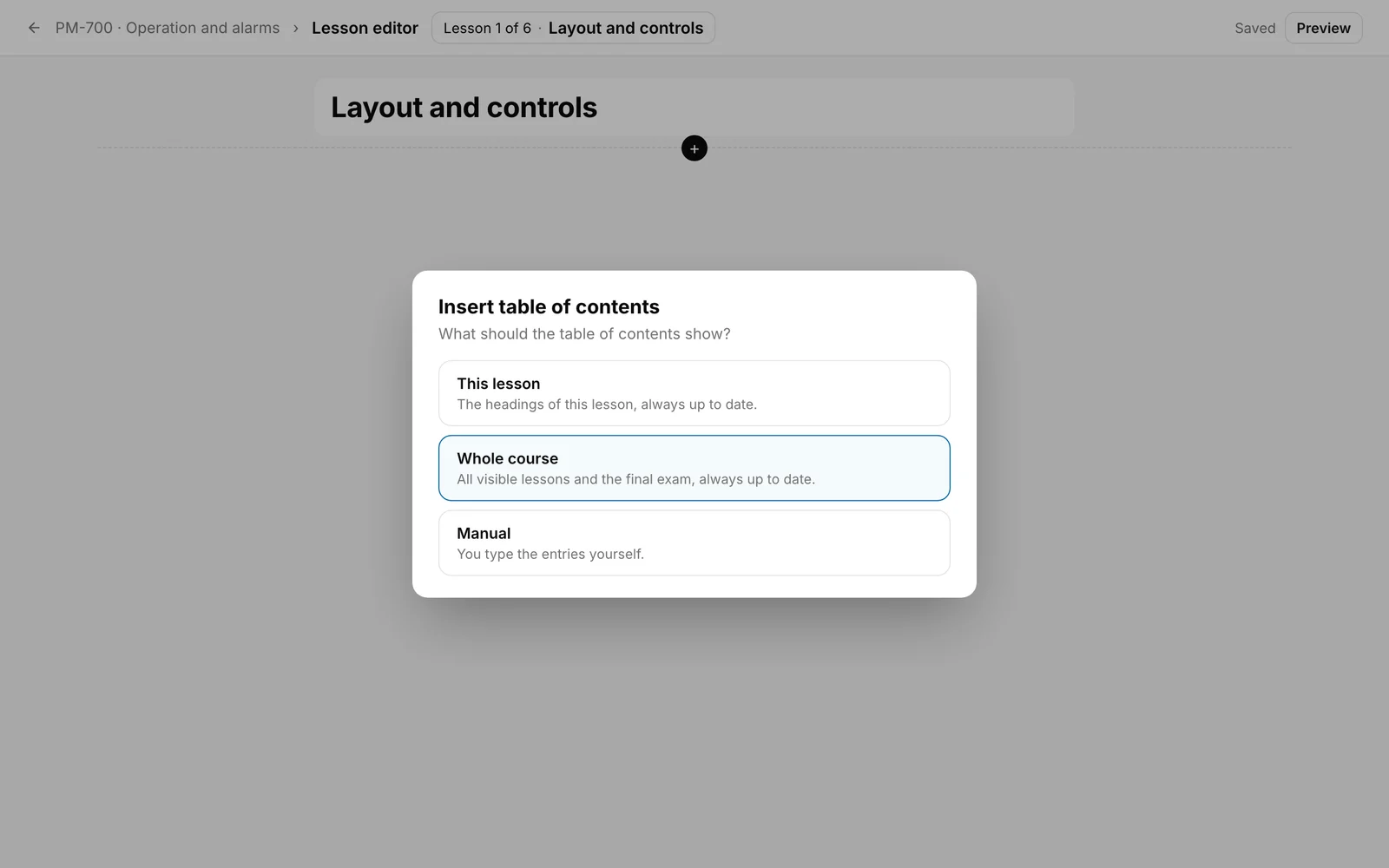
- This lesson: “The headings of this lesson, always up to date.”
- Whole course: “All visible lessons and the final exam, always up to date.”
- Manual: “You type the entries yourself.”
-
The block is in the lesson. The Section title is preset: “In this lesson” for This lesson, “Course contents” for Whole course, empty for Manual. Change it if you like.
-
For Manual, three sample entries are already there (“Topic One” to “Topic Three”, in English, even in a German course). Overwrite or remove them. + Entry adds more. Each entry has a number and a text. A cross next to the entry removes it. These sample entries are also stored in an automatic table in the block. If you switch to Manual later, they appear there.
-
Later you change the source in the field Content: Manual, This lesson or Whole course. The section title does not change with it. Manual entries stay saved in the block. If you switch back to Manual, they are there again.
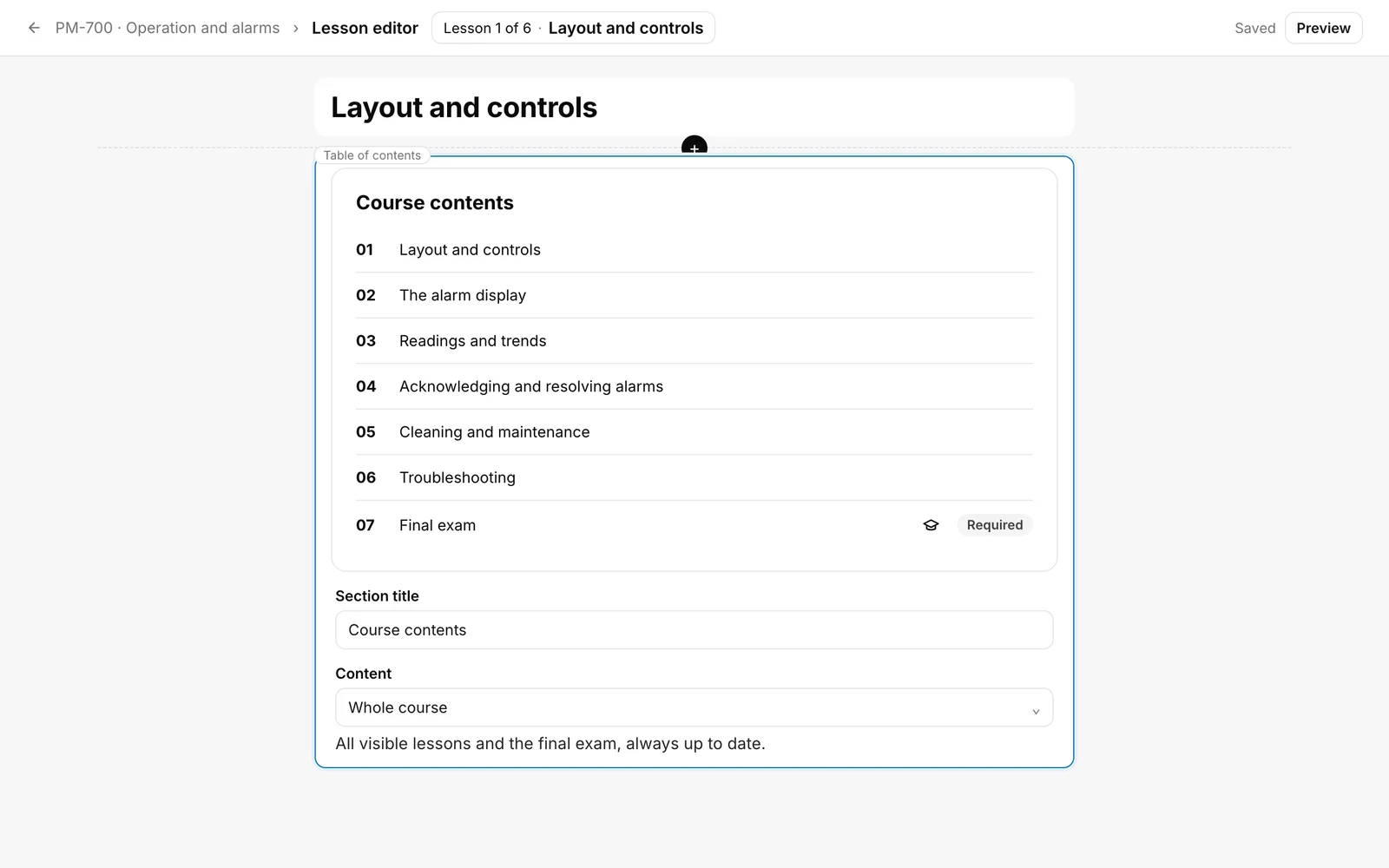
You know it worked when the block shows the numbered list and the editor shows Saved at the top.
What is in the list
- This lesson: the Heading blocks and the headings in Text blocks, in the order of the lesson, numbered 01, 02 and so on. Empty headings are left out, formatting is dropped. Learners jump to a heading with one click.
- Whole course: the titles of the lessons in their order, numbered. Hidden lessons (badge Hidden) are left out. At the end comes the Final exam with the badge Required or Optional, if the course has an exam with at least one active question. A click opens the lesson, a click on the Final exam opens the exam. A locked lesson shows a lock and cannot be opened.
- Manual: exactly your entries with your numbers, shown with two digits (1 becomes 01). They cannot be clicked.
- With This lesson and Whole course it says “No entries yet.” if there is nothing to show. With Manual and no entries the list stays empty.
What happens afterwards
- The lists for This lesson and Whole course follow your course: if you change a heading or a lesson title, the list changes with it, without you changing the block. In the editor you see the draft. Learners see the list once the course is published (see “Publish a course”).
- In a course that was published before, inserting the block, switching the source, a new section title and changed manual entries need a new version (see “Versions and corrections”).
- In the editor the entries of Whole course cannot be clicked. In the preview a click opens the lesson.
- When a course is translated, Fracto translates the section title and the manual entries. The automatic entries appear in the language in which learners see the course.
- In a SCORM export, Whole course shows the lessons without the final exam (see “Export a course as SCORM”).
If it does not work
| What you see | What is behind it |
|---|---|
| No block appears after you chose Table of contents. | You closed the dialog without choosing a source. Insert the block again. |
| “No entries yet.” | With This lesson, the lesson has no heading with text. With Manual the hint never appears. |
| The final exam is missing with Whole course. | The exam has no active question yet, or it is a SCORM export. |
| A lesson is missing with Whole course. | The lesson is hidden. |
| An entry cannot be clicked. | Manual entries can never be clicked, and locked lessons cannot either. With This lesson, headings behind a start-of-course evaluation that has not been submitted yet cannot be clicked. In the editor, a click on lessons opens nothing. |
Checked on 6 November 2026 against the current Fracto release.
