
Answer feedback and forum posts
How to handle the feedback from Campus on a course in Studio and reply in the course forum, and who is notified.
For a published course you get feedback in two ways. People with the Hub task “Manage Campus” (Campus managers) report errors and wishes as feedback, and learners ask questions in the course forum. You handle both in Studio.
Before you start
- You have the Hub task “Create courses”. It covers reading and answering feedback and reading and managing the forum. Reviewers see neither feedback nor forum.
- Who is notified is described under “What happens next”.
Answer feedback
-
Open the course and click Feedback in the sidebar. If there is open feedback, the course card in the Studio contents also shows ”
open feedback” (several: ” open feedback items”). Clicking it leads here. -
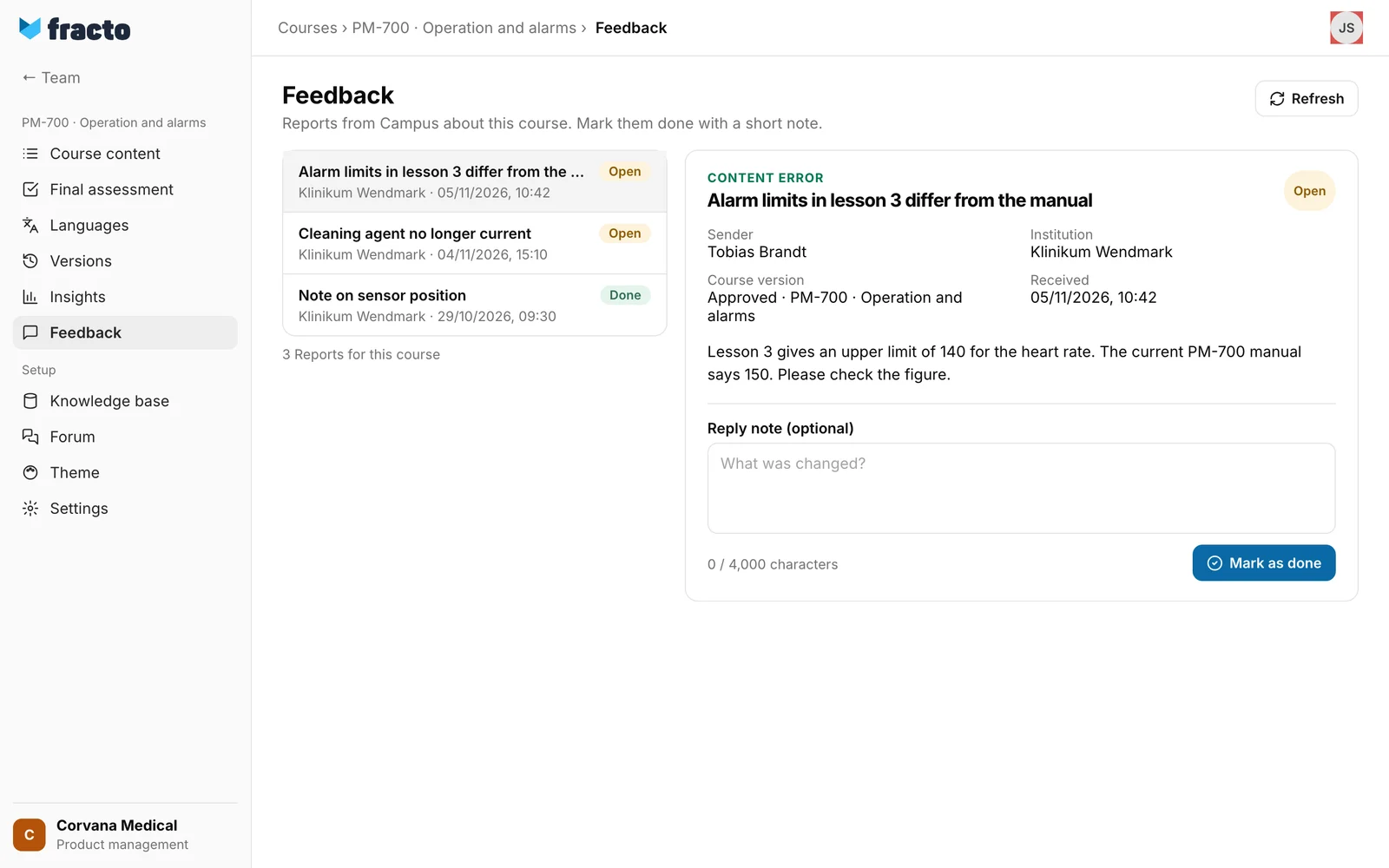
The list shows the newest report first, at most 100. Each row shows the subject, the status Open or Done, the institution and the date. Choose a report. Refresh at the top right reloads the list.
-
The report shows the category (Content error, Update required, Improvement suggestion or Other), subject, Sender, Institution, Course version, Received and the text of the report. On wide screens it sits next to the list, otherwise below it.
-
If the report is justified, change the course and publish it. Whether that is a correction or a new version is covered in “Versions and corrections”.
-
If you like, write a Reply note (optional), up to 4,000 characters, for example what you changed. Click Mark as done.
You know it worked when: the report has the status Done, and instead of the form it shows the Reply note with “Completed on
Reply in the forum
-
In the sidebar, under Setup, click Forum. The list shows the topics, pinned ones first, then by last activity. Each row gives the number of posts, the last person and the date. Without topics it says “No topics yet.”
-
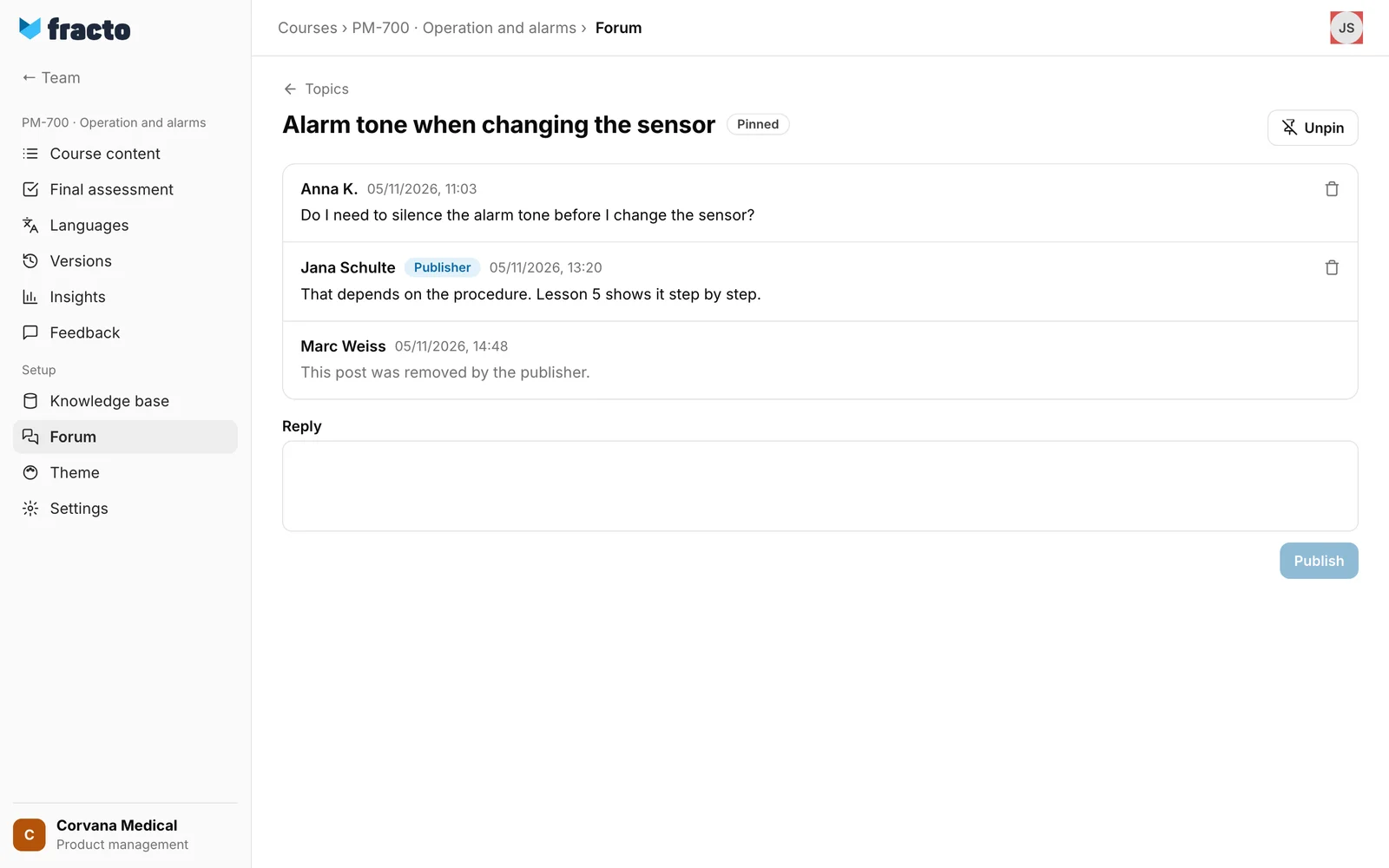
Open a topic. Every post written in Studio carries the Publisher mark.
-
Write your text under Reply, up to 5,000 characters, and click Publish.
More actions:
- New topic opens a topic with a Title (up to 200 characters) and a Post. You publish it with Publish. Both fields must be filled in.
- In an open topic, Pin puts it at the top of the list, Unpin takes it back.
- With the bin icon Delete post you remove a post. Fracto asks: “Permanently delete this post? Replies will remain.” Afterwards it says “This post was removed by the publisher.” Name and date stay, the text is gone, and the topic and the other posts remain.
What happens next
- Feedback received: The person who owns the course gets a notice in Fracto: “New feedback on "
"" with category and institution. It leads to the Feedback view. Other authors on the team see the feedback in the list but get no notice. The person can switch the notice off in the notification settings under “Course feedback”. - Feedback resolved: The reporting person gets a notice in Fracto: “Your course feedback has been resolved”, with “The publisher has resolved your feedback on "
".” and, if you wrote a note, “Reply: ”. The reporting person sees the note only in this notice. It leads to the course in the Campus library. This person too can switch the notice off under “Course feedback”. - New forum topic by a learner: The person who owns the course gets a notice in Fracto and an email: “New forum topic:
in <course>”. It leads to the topic. For a topic you open yourself, no notice is created. Replies by learners in an existing topic do not trigger a notice to Studio either. The email arrives only if the person has an address and still works in the workspace. The person can switch the notice off under “New course forum topics”. - Your reply in the forum: The learner who opened the topic gets the notice “New reply to your forum post” in Fracto and by email. They can switch off both. This applies if they still have access to the course. The setting is called “Community replies and mentions” in the Player. More about the learners’ side is in “Talk to colleagues in Community”.
- In the forum, learners with active access to the course write, in the Player under “Community”. Posts from Studio carry the publisher mark there too.
If it does not work
| Message | What it means |
|---|---|
| No feedback for this course yet. | No report has arrived yet. Reports from Campus appear here. |
| Feedback could not be loaded. | The list could not be loaded. Click Try again. |
| Feedback could not be marked as done. Please try again. | Marking as done did not work. Reasons can be that another person has meanwhile resolved the report with a different note, or that the institution that reported is no longer reachable. Click Refresh. |
| The forum could not be loaded or changed. Check your access and try again. | The forum could not be loaded, or an action such as publishing, pinning or deleting did not work. |
Checked on 6 November 2026 against the current Fracto release.
