
Review and mark a translation as reviewed
How to check a translation item by item in Studio, correct it and mark it as reviewed so that it can be published.
A translation starts as a draft. In the translation editor you see the source and the translation for each item, correct them and finally mark the language as reviewed. Only then does it go into a published course version.
Before you start
- A draft exists for the language, for example from the article “Translate a course into another language”.
- You need the Studio right to edit courses. Without it you can only view the translation.
- The button Translate block is only available with both rights (edit and AI translation) and when AI translations are switched on for the workspace. It uses AI credit.
- This is not the review of the course by a reviewer. Here someone with the right to edit marks the language as reviewed themselves. There is no step for a second person. The app also does not check whether you looked at every item: if no target text is missing and nothing needs confirming, the language can be marked as reviewed straight away. The care is up to you.
How to review a translation
-
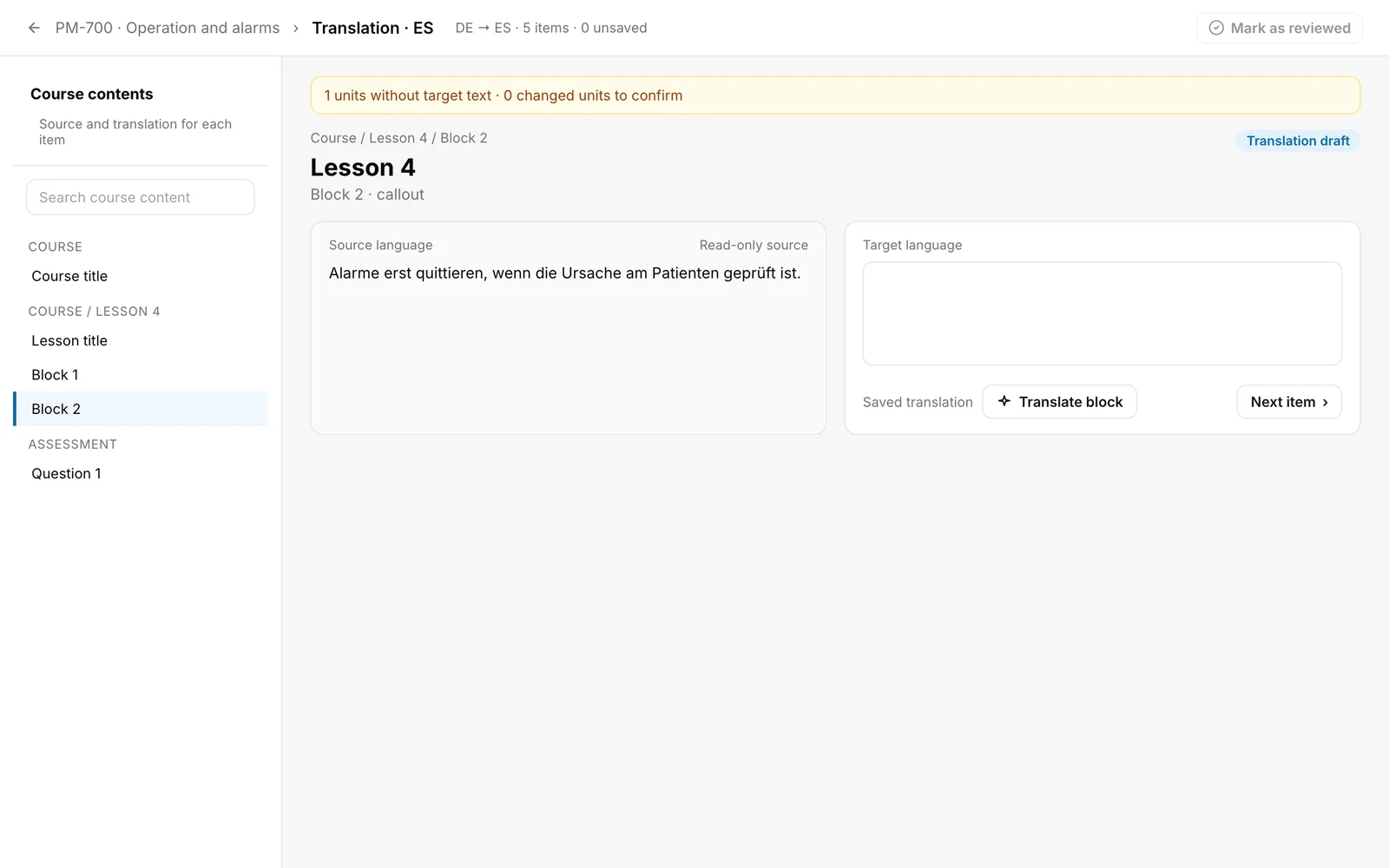
In Languages, open Review translation for the language. The editor is called “Translation · ES” (with the language code). At the top you see the direction and the number of items (“DE → ES · 5 items · 0 unsaved”).
-
In the list Course contents, choose an item (on narrow screens the list is a collapsible row at the top). On wide screens you can also find items with Search course content. The list is organised by course, lesson and assessment. The text in the Source language is read-only. Next to it, on narrow screens below it, you write under Target language.
-
A line at the top says what is still missing: “1 units without target text · 0 changed units to confirm” (the app says “units” here, “items” elsewhere). Items with source text need target text. The author name may stay empty. The list does not mark missing target texts. Go through the items with Next item.
-
Add missing texts and correct wrong ones. Then click Save change. Save each item on its own. The header counts unsaved changes (“n unsaved”). Reset takes your input back. If you leave the editor with unsaved changes, the app asks Discard unsaved corrections?. With Discard the changes are lost.
-
For a block you can choose Translate block. The AI shows an AI suggestion for this block. With Accept suggestion you put it into the field, with Discard you do not. Accepted does not mean saved yet: click Save change afterwards.
-
If the source text has changed since the last review, the item shows “Source changed” (for new text “New source passage”) and is marked as Changed in the list. Check the target text and click Confirm unit, even if it is correct.
-
When all items are translated and confirmed and nothing is unsaved, click Mark as reviewed at the top.
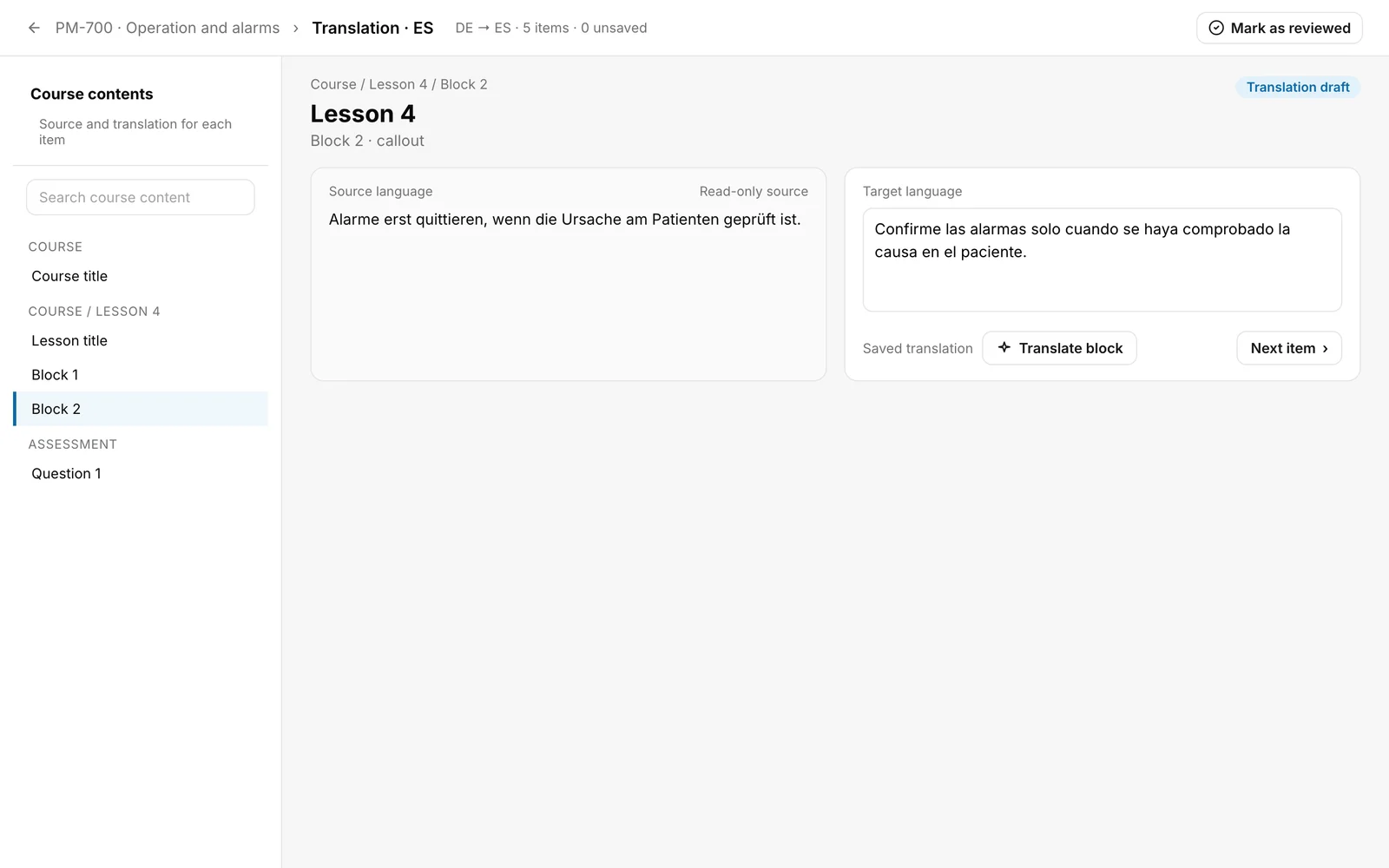
You know it worked when the label changes from Translation draft to Reviewed. If the language is not yet published, Languages shows the status Draft with the addition Ready to publish. For an already published language it shows Published or Published · new draft.
Videos in the translation
If a course has videos, the item shows Uses the original video. You can enter a Video link for the language (Vimeo, YouTube or HTTPS) and save it. With Use the original video you go back. If the original video was replaced, it says “Review needed: the original video was replaced”. Decide with Keep this video (only if a language video is stored) or Use the original video.
What happens afterwards
- Marking is not publishing. The translation reaches learners with the next publication of the course. Only reviewed, complete translations that match the current source text are included.
- If you save another correction after marking, the translation is a draft again. Mark it as reviewed again then.
- If you change the source text later, the editor shows the label Source changed. In Languages a language that is not yet published shows Needs review, a published one Published · new draft. The editor says how many source passages have changed since the last review and marks them. Confirm these items and mark the language as reviewed again.
- If the course has a final assessment, its translation must be complete too. You find it in the editor under “Assessment” and in the final assessment on the Settings tab under Translations.
If it does not work
| Message | What it means |
|---|---|
| 1 units without target text · 0 changed units to confirm | This is a hint, not an error. Mark as reviewed stays disabled until nothing is missing and everything is confirmed. |
| The correction could not be saved. | Saving failed. Try again. |
| The source or translation changed. Please reload. | The source or the draft changed while you worked. Reload the page and check your input. It also appears when marking as reviewed if the state has changed in the meantime. |
| The source text changed. Please reload the page. | Appears with Translate block when the source text is new. Reload the view. |
| Translation could not be generated. / This block could not be translated. | The AI translation of the block failed. Translate by hand. |
| The translation could not be marked as reviewed. | Usually the translation of the final assessment is incomplete. Open the items under “Assessment” in the list or the final assessment on the Settings tab under Translations. |
| Enter a valid Vimeo, YouTube or HTTPS video link. | The video link does not fit. |
| The translation draft could not be loaded. | Reload the page. |
Checked on 6 November 2026 against the current Fracto release.
