
Roles and permissions
Which tasks exist in Hub, what they allow, which scope they apply to, and how Operator and Contributor seats fit together.
In Fracto there are no fixed roles. What a person may do in Studio, Channel, Campus and Hub is decided by the tasks a workspace admin gives them. Every task applies to a scope, and every person has an access type that uses seats of the workspace.
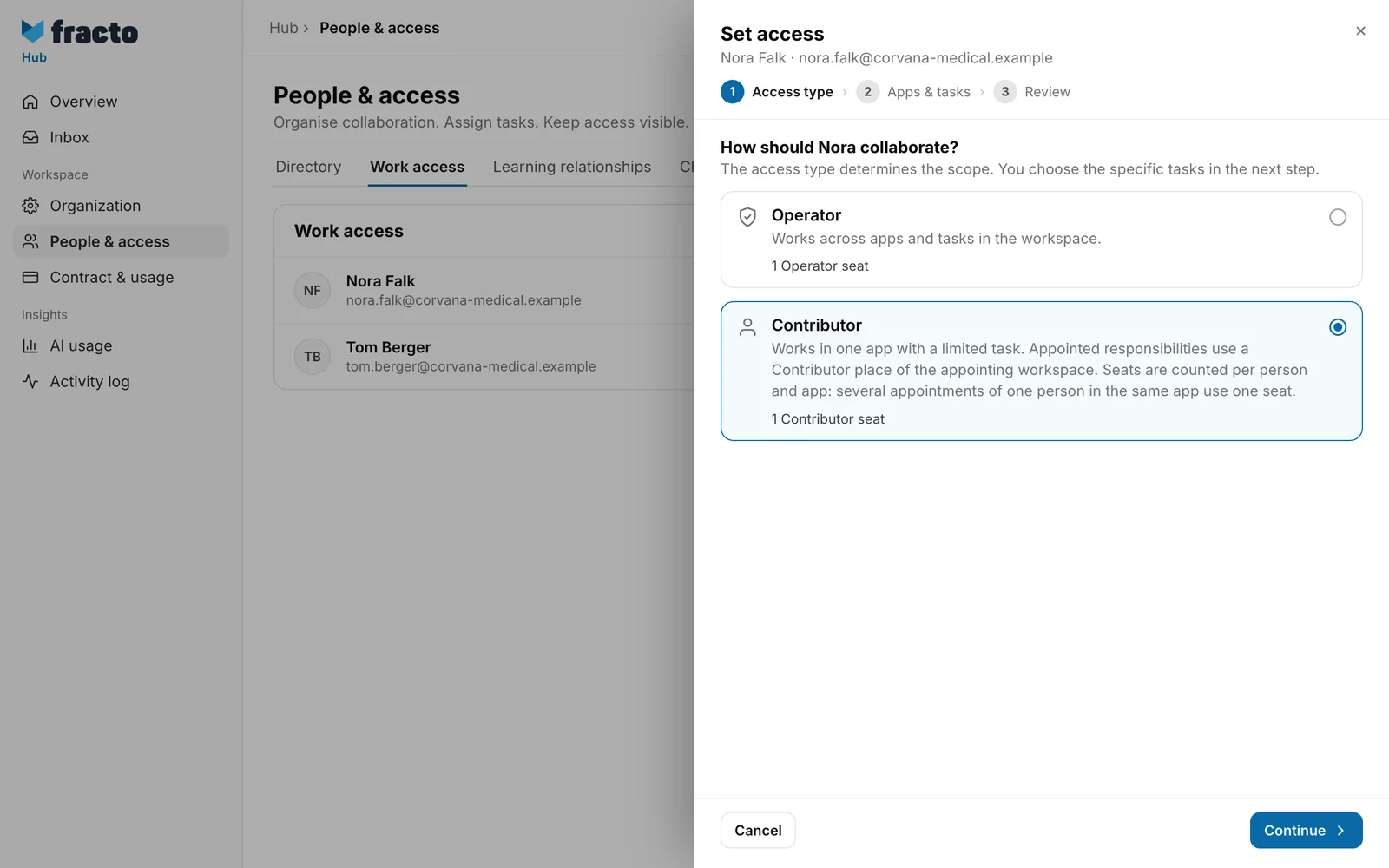
Access type and seats
| Operator | Contributor | |
|---|---|---|
| For whom | Someone who works in several apps | Someone with a limited task in one app |
| Tasks | as many as needed | exactly one |
| Seat | Multiple tasks together occupy one Operator seat. | One Contributor seat. Counted per person and app. |
In addition:
- Learners need no task. They learn in the Player and use a learner place: “Learns in Player. A learner place provides a personal learning year.”
- The cards Operator seats and Contributor seats on the Work access tab of People & access show how many seats your workspace has and how many of them are occupied and free. You request more with Manage seats. A request does not release any seats; the responsible administration reviews scope and billing.
- Someone appointed in Channel or Campus for a region, a partner or a team carries the label Responsibility in the list. The same applies to Campus managers whom a manufacturer appoints for a supported institution. You manage such appointments in the app concerned (“Manage in Channel”, “Manage in Campus”). They use a Contributor seat of the appointing workspace.
- A person can only become a Contributor for tasks that say “both” under access type in the table. All other tasks exist only for Operators.
The tasks
| Task | App | Access type | Scope | What it allows |
|---|---|---|---|---|
| Administer workspace | Hub | Operator | Entire workspace | Manage people, work access, and workspace settings: invite people and change, pause or end their access, handle access requests, request more seats, manage API tokens, set up the organisation, and view contract and usage, AI usage and the activity log. |
| Create courses | Studio | Operator | Entire workspace | Create and edit courses and learning content, including publishing, requesting reviews, translating, generating with AI, importing and exporting, answering feedback and changing the Studio settings. Only the owner sees and edits private courses. Permanent deletion from the trash is not included. |
| Permanently delete content | Studio | Operator | Entire workspace | Permanently delete courses, microlearnings, and templates from the trash when nothing depends on them. |
| Review courses | Studio | both | Assigned review tasks | Read assigned courses, comment, approve, or return them for revision. Only courses assigned to the person for review. |
| Lead network | Channel | Operator | Entire workspace | Lead the entire Channel: learning content, institutions, network, learner place allocation, and analytics. |
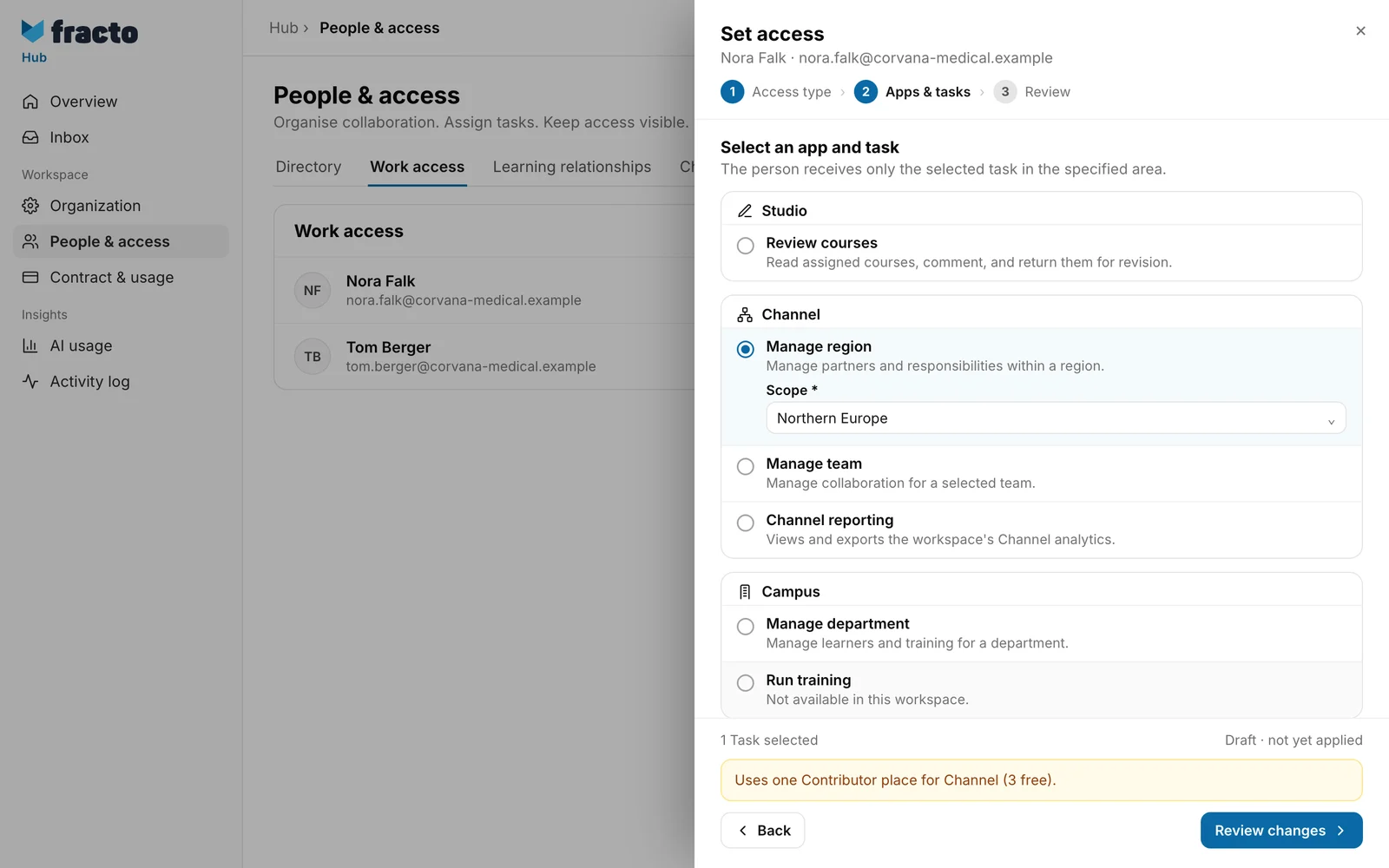
| Manage region | Channel | both | one region | Manage partners and responsibilities within a region: view and edit the network of that region. Learning content, institutions, learner place allocation and analytics are not included. |
| Manage team | Channel | both | one team (“Region · Team”) | Manage collaboration for a selected team: view and edit the network of that team. Learning content, institutions, learner place allocation and analytics are not included. |
| Channel reporting | Channel | both | Entire workspace | View and export the workspace’s Channel analytics. |
| Permanently delete entries (Channel) | Channel | Operator | Entire workspace | Permanently delete archived product groups, products, regions and teams, as well as ended deliveries and partner relationships, when nothing depends on them. |
| Manage Campus | Campus | Operator | one institution (at a manufacturer: its own Campus) | Manage institutions, learning offers, and responsibilities. In Campus this is the Campus manager: they manage people, sessions and the training matrix and assign courses. |
| Permanently delete entries (Campus) | Campus | Operator | one institution | Permanently delete archived learning paths, events, departments, roles, announcements and lecturers once nothing depends on them. |
| Manage department | Campus | both | one department (“Institution · Department”) | Manage learners and training for a department: view and export people, learning plans and status of the department, record attendance. View the institution’s sessions. Assigning and changing are not included. |
| Run training | Campus | both | one institution | Support assigned training as an instructor: view the institution’s sessions, edit your own sessions and record attendance there, maintain your own instructor profile. Exists only in institutions with Campus Full. |
You choose the scope of a task under Scope when you assign it. If there is only one scope, it is preselected. If there are several (several regions, teams, institutions or departments), the choice is required.
When a task cannot be chosen
When you assign tasks, a task is greyed out if
- the workspace does not have it: “Not available in this workspace.” Channel tasks, for example, exist only in manufacturer workspaces.
- the matching area is missing: “This workspace has no matching area yet.” Create the region, team or department first.
- it is already part of a broader task you have chosen. If you have chosen Lead network, Manage region, Manage team and Channel reporting are greyed out: “Already included in “Lead network”.” The broader one then suffices.
Without a free seat you can prepare the access, but you cannot save or send it.
What you see in Hub
Hub shows only the areas a person has the right to. With Administer workspace, in addition to Overview and Inbox, these are Organization, People & access, Contract & usage, AI usage and Activity log. Without this task, Hub shows only Overview and Inbox.
Change, pause and end access
Open the person on the Work access tab of People & access. The actions apply to the person’s entire work access in this workspace:
- Pause work access: The tasks assigned in Hub are blocked and remain recorded for a later return. Appointments from Channel or Campus stay effective. The seat remains occupied during the pause.
- Resume work access: The recorded tasks become available again. The seat is checked first.
- Revoke all tasks: The person remains a member and returns to the waiting room. The seat becomes free. Appointments from other apps remain active.
- End work access: To confirm, you type the person’s name. The seat becomes free. The personal account and separate learning relationships remain. The person must be invited again to collaborate. Appointments from Channel or Campus are removed as well.
Two rules protect the workspace:
- The last active administration cannot be paused, ended or removed by revoking its task. The message reads “Assign workspace administration to another person first.”
- If there is another active administration besides you, you do not change the access type and tasks of your own access yourself. The message reads “Another active administrator must change your access. Please contact another administrator in this workspace.”
Checked on 6 November 2026 against the current Fracto release.
