
Have “My files” switched on
How your learners get the private file area “My files” in the Player. The switch is per workspace, off by default and set by Fracto.
Requires: Switch per workspace, off by default; Fracto sets it
“My files” is a private area in the Player where learners keep their own photos and PDFs from their trainings, for example product photos. The files are not a credential. How learners use the area is described in Use “My files”.
Who sets the switch
You cannot switch on “My files” in Campus yourself. The switch belongs to the workspace and is in Fracto’s platform administration, in the section Entitlements, entry My files: “Learners get a private 200 MB file area in the Player.” It is off by default. If you want to use the area, contact your Fracto contact or sales, see Get help. It applies per workspace.
What your learners see afterwards
In the Player, the navigation shows the entry My files. While the switch is off, it is missing.
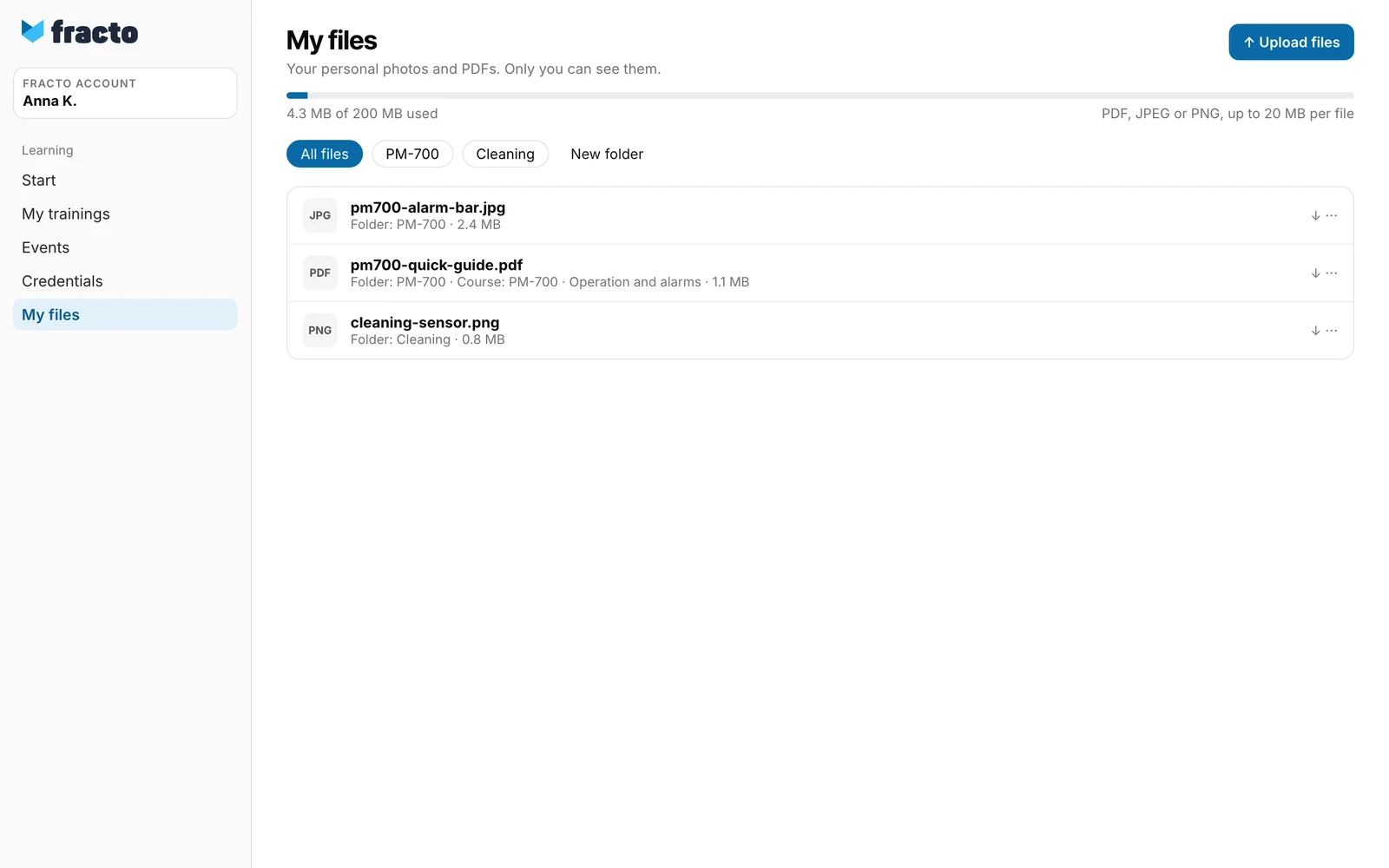
- The area is called My files: “Your personal photos and PDFs. Only you can see them.” Neither you nor others in the institution can see the files. They are also blocked in the learner view (See what a learner sees).
- With Upload files, learners upload PDF, JPEG or PNG, up to 20 MB per file. In total 200 MB are available. The display shows “… of … used”.
- Photos are re-saved on upload. Metadata such as camera data is not kept.
- With New folder, learners create folders. Under Course for new files (optional) they assign new files to one of their courses. Both can be changed later with Change folder and course.
- Delete removes a file permanently (“The file is deleted permanently.”). If learners delete a folder, the files stay and appear under All files.
- If learners work in several workspaces with the switch on, they choose the workspace under Area. Each has its own storage.
What happens when access ends
If a person loses all access to the workspace, their files stay available for download for 90 days. The Player shows Your access has ended and the date until which they can still download the files. Uploading is then no longer possible. After that, the files are deleted automatically, after a further grace period of 7 days in which they are only hidden. If the person gets access again beforehand, the 90 days start anew at a later end.
If the switch is turned off, the area no longer appears for the learners of this workspace. The files stay stored; the 90 days do not start because of this.
Messages when uploading
| Message | What it means |
|---|---|
| Your storage is too full for this file. | The 200 MB are used. Delete files. |
| This is not a valid PDF, JPEG or PNG. | Another format, or the content does not match the format. |
| The file is larger than 20 MB. | Too large. |
| This photo has too many pixels. Save it at a smaller size and upload it again. | The photo’s resolution is too high. |
| This folder already exists. | The folder name is taken. |
Checked on 6 November 2026 against the current Fracto release.
