
Add a partner
How to create an external partner as a network entry in Channel and optionally appoint its partner lead: required fields, presets, consequences and messages.
An external partner is its own network entry in a region in Channel. When you create it, you can appoint a partner lead who looks after the partner.
Before you start
- You may create entries in the network. If you have no right to create anything, the Add element button is missing altogether.
- Only the network lead can create a new partner organisation. Whether a region lead can add an organisation that already exists to their region depends on conditions the form does not show. Usually it does not work. Then ask the network lead.
- The region the partner belongs to exists already.
- At least one product group is active in the catalogue. Without a product group, no partner can be created.
- A partner that is already in the network is not offered again.
- If you assign a partner lead, that person needs a free Contributor place, unless they already have one. The form shows “Takes 1 Contributor place · … free”. The same applies to a partner lead in manufacturer Campus.
Add a partner
-
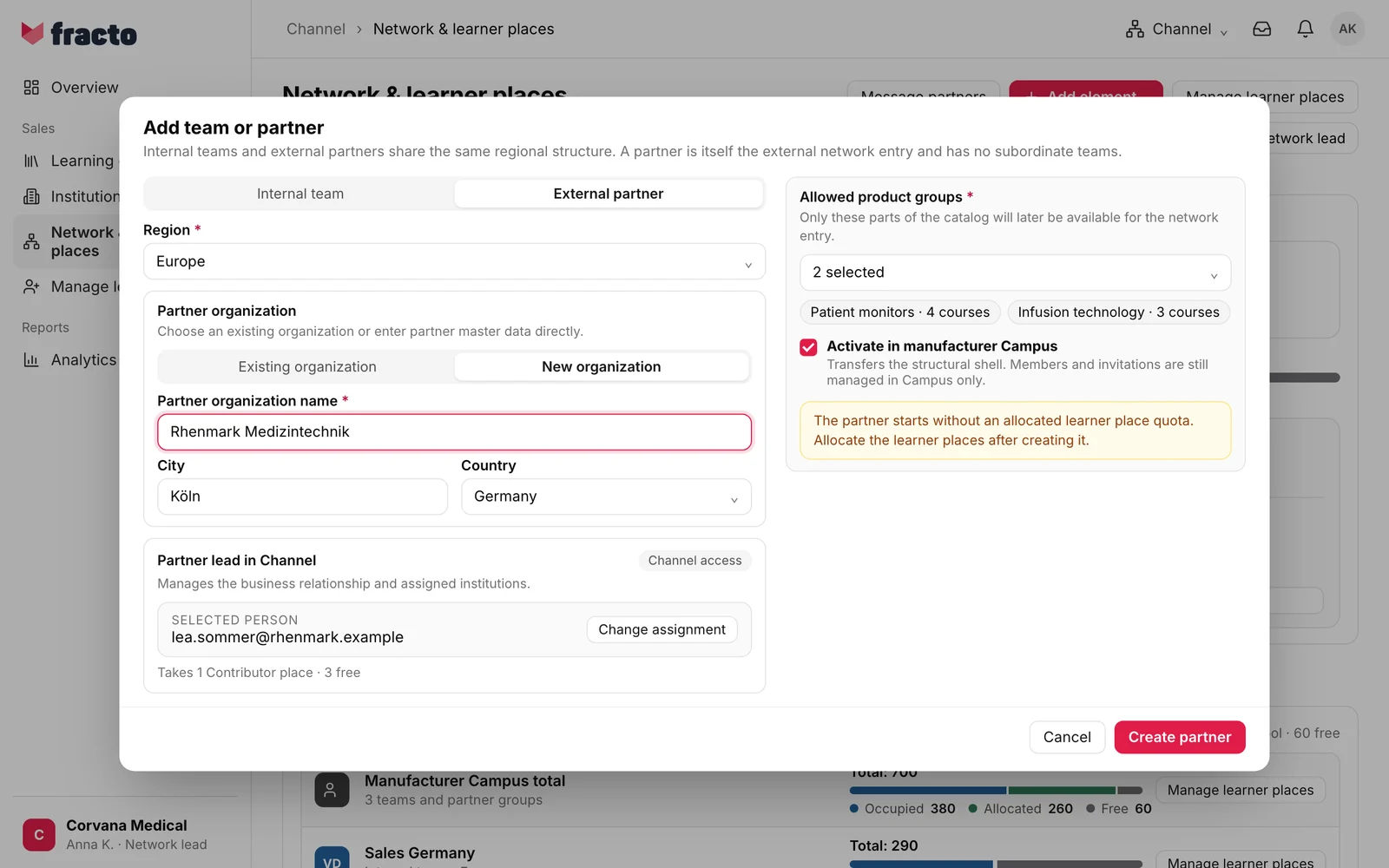
In Channel, open Network & learner places and click Add element, then Partner. The Add team or partner dialog opens with External partner selected.
-
Check the Region. It is required. It is preset to the region you opened the dialog from, otherwise to one of the regions. Check it.
-
Set the Partner organization:
- If organisations already exist, Existing organization is preselected. Choose the partner from the list. If its partnership has ended, it says “Partnership ended” and the button reads Start a new partnership; region, partner leads and product groups then drop out.
- With New organization you enter the master data yourself. Only the Partner organization name is required. Logo (PNG, JPG or WebP up to 5 MB), address, website, Central email and phone are optional. Then comes the Primary contact · optional with role, department, preferred language and Internal notes. The primary contact including the notes is saved only if first name, last name and email are filled in.
-
Under Partner lead in Channel, assign the person who looks after the partner. This is optional. The badge Channel access sits next to the heading. Click Assign person. The Add person and access dialog opens.
-
Enter the email address. Fracto recognises existing people only by their exact email address, never by name. Existing person and Invite new person differ only in the note below.
-
Valid from is preset to today. Valid until · optional stays empty for access without an end date; an end date must be after the start.
-
Click Use person. The button then reads Change assignment. With a new organisation you can tick Use the primary contact as the partner lead as well instead. You can tick it only once the primary contact’s email is entered.
-
Under Allowed product groups, choose at least one product group. Only these parts of the catalogue are available for the partner later.
-
Activate in manufacturer Campus is ticked. The partner then appears in Campus as a structural shell; the Campus leads keep managing members and invitations there. Only with the tick set can you enter a Partner lead in manufacturer Campus. They organise the partner’s invitations and learner rosters in Campus and, if they do not have active access in your workspace yet, are invited as well. Without the tick it says “Available only after Campus activation”.
-
Click Create partner. If region, name or product group are missing, nothing is created and the field shows a note such as “select “Allowed product groups””.
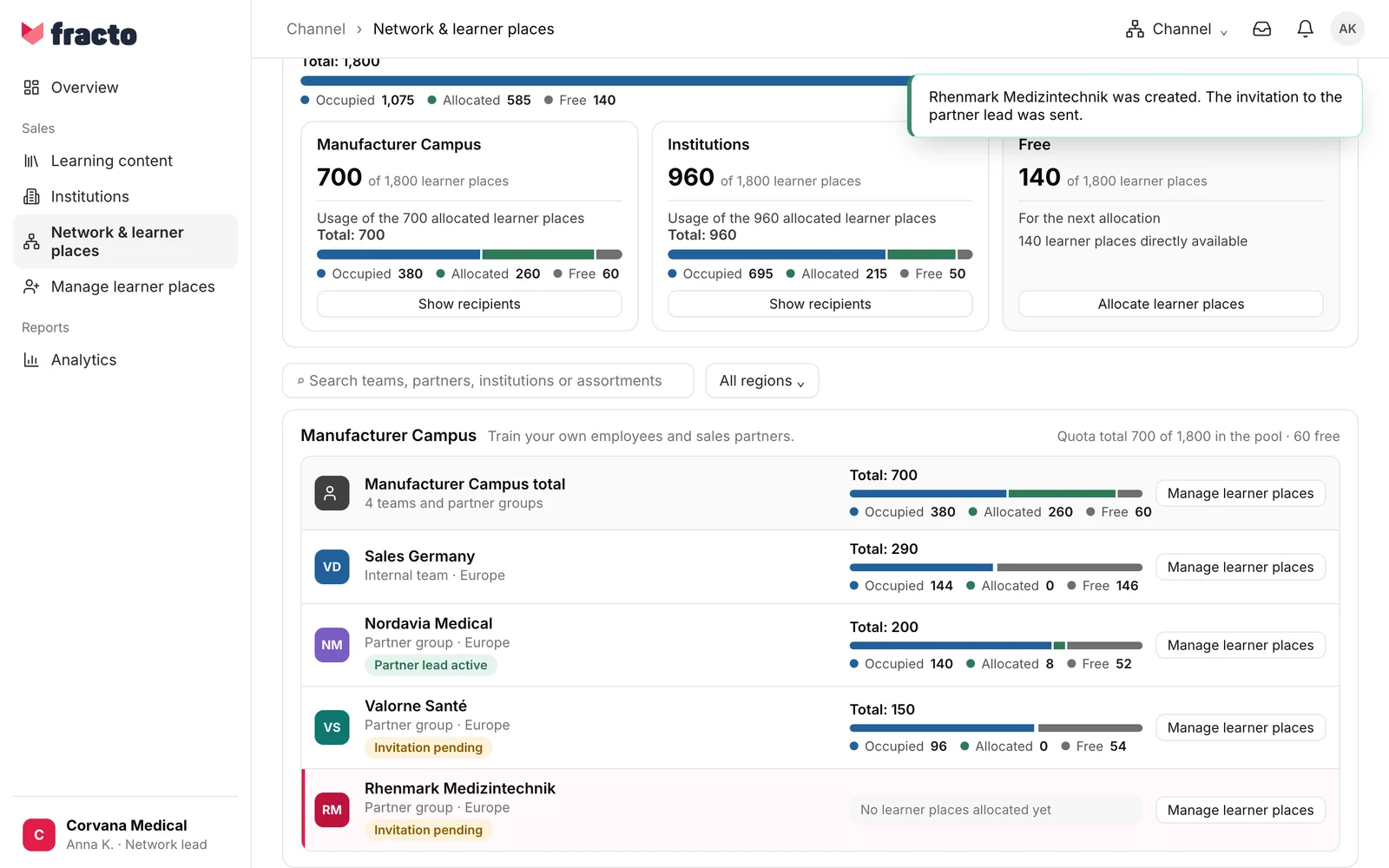
You know it worked when the partner is listed under Manufacturer Campus as a Partner group, marked Invitation pending, Partner lead active or No partner lead. A message also appears:
- “… was created. The invitation to the partner lead was sent.” if the partner lead had no active access in your workspace yet.
- “… was created in the sales network.” if the person already had it, or you assigned no partner lead. In the first case the role applies at once.
What happens next
- If the partner lead has no active access in your workspace yet, they receive an invitation. The Contributor place is reserved; access starts after acceptance. The invitation goes to the email address you entered. The language of the invitation follows the Preferred language field of the contact with that address. If it is missing, the person’s language in Fracto applies, otherwise your workspace’s default language.
- If the person already has active access, they get the role at once and there is no invitation. They only receive additional access, not a second account.
- Until it is accepted, you can manage the invitation in the partner profile under Partner lead in Channel: Resend invitation invalidates the previous link. There is a daily limit: “This invitation cannot be sent again today.” Withdraw invitation makes the link useless and frees the reserved place.
- If there was no partner relationship yet, it starts immediately and has no end date. If one already existed, it carries on.
- The partner starts without learner places: “No learner places allocated yet.” Allocate them after creating the partner, see “Allocate learner places”.
- If the partner had no manufacturer range ceiling yet, the product groups you chose also become its upper limit for the assortment. See “Make a course available to a partner”.
- The partner has access to learning content only once it has learner places and people are invited in Campus. The Campus leads decide who learns what.
If it does not work
| Message | What it means |
|---|---|
| Matching partners: … Use an existing partner or confirm a separate creation. | A similar organisation exists already. It counts as similar if one name contains the other or the Central email is the same. If possible, choose the existing partner under Existing organization. If it really is a different one, tick Create a separate partner organization despite the matching name. Start a new partnership restarts an ended partnership. |
| A partner organization with this name already exists. Choose the existing entry or confirm a separate creation. | As above, without the names of the matches. |
| At least one selected product group is no longer available. Reload the page and check your selection. | Someone archived a product group while the dialog was open. |
| Outside the manufacturer range ceiling: … | For an existing organisation with a manufacturer ceiling, a chosen product group lies outside it. The message may show identifiers instead of names. |
| The partner or appointment was not created. No Contributor places are free. | No Contributor place is free for the partner lead. Nothing was created. The form also shows the note “No Contributor places are free. Request more places before appointing someone.” with the button Request Contributor places. Without the right to request, it says “Ask your workspace admin for more Contributor places.” |
| This person can no longer be invited. | Inviting this person is no longer possible. Check the email address. |
| You do not have permission to perform this network action. | You lack the permission for this region. |
| Channel could not process the sales network. Please try again. | General message. It also appears if the partner is already in the network, an entry with this name already exists in the region, manufacturer Campus is not active yet, the organisation is not in your area, an email address belongs to several people, or you may not create a new partner organisation. |
Checked on 6 November 2026 against the current Fracto release.
