
Create a final assessment
How to create the final exam of a course in Studio: write questions, set the question pool and rules, and check that the exam is ready.
The final assessment belongs to the whole course. It consists of a question pool and rules for completion. Knowledge checks in the lessons stay independent of it.
Before you start
- You need the Studio right to edit courses. Without it you see the assessment only (read-only mode), for example as a reviewer, and cannot create it.
- Create with AI is only available if you have the right to use AI features. Generating questions uses AI credit.
- The assessment is only published with the course. From then on, questions, rules and solutions are fixed immutably in that course version. Only someone with the right to publish can do it. If the course needs an approval, it must have been granted first.
How to create the final assessment
-
Open the course and choose Final assessment in the course navigation. If there is no assessment yet, click Create final assessment.
-
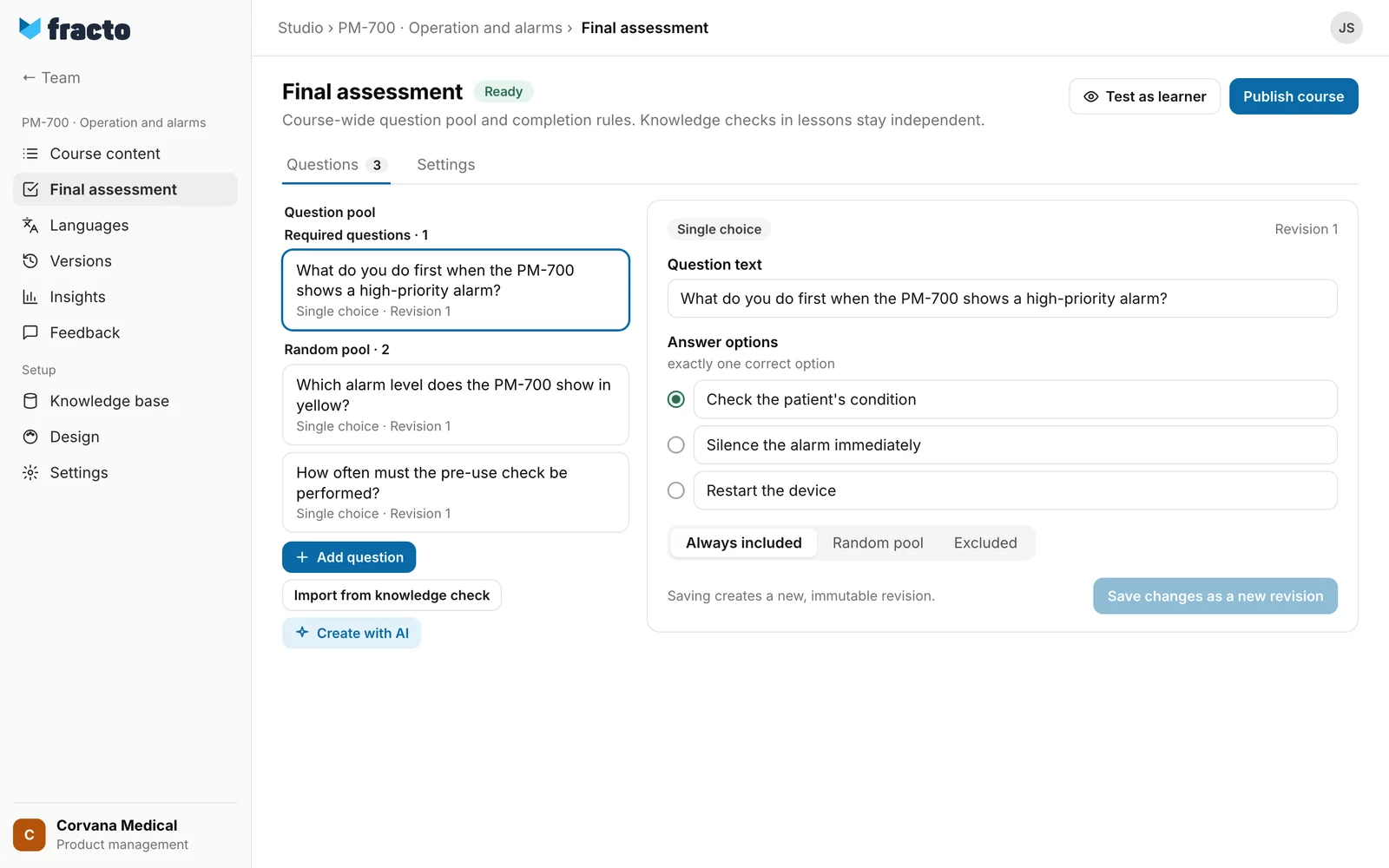
On the Questions tab, click Add question and choose the type: Single choice, Multiple response, True / False, Fill in the blank, Matching, Ordering or Image hotspot.
-
Write the Question text and enter the answers. For Single choice you mark exactly one correct option. Other fields are Feedback for a correct answer, Feedback for an incorrect answer, Explanation (optional) and Topics. Topics feed the topic list before the start and the gap analysis after the attempt.
-
Decide how the question enters the assessment: Always included (required question), Random pool (preset for new questions) or Excluded.
-
Click Save changes as a new revision. Every save creates a new, immutable revision of the question. Save each question on its own.
-
You can also bring in questions from a knowledge check (Import from knowledge check). They are copied as independent copies into the pool of the course.
-
Or click Create with AI. In the dialog all Lessons are preselected. You set Number of questions (1 to 30, preset to two per lesson, but at least 5 and at most 30), Question types (preset: single choice, multiple response and true/false), Difficulty (preset medium) and Bloom level (preset “apply”). Optionally you choose Also use documents from the knowledge base (preset off) and give Notes for the AI (optional). With Generate questions the AI starts. It does not repeat existing questions and knowledge checks. Nothing is saved until you add questions. Review them before you publish.
-
Switch to the Settings tab and check the rules. With Save settings you keep changes. The Assessment plan below summarises what learners can expect per attempt.
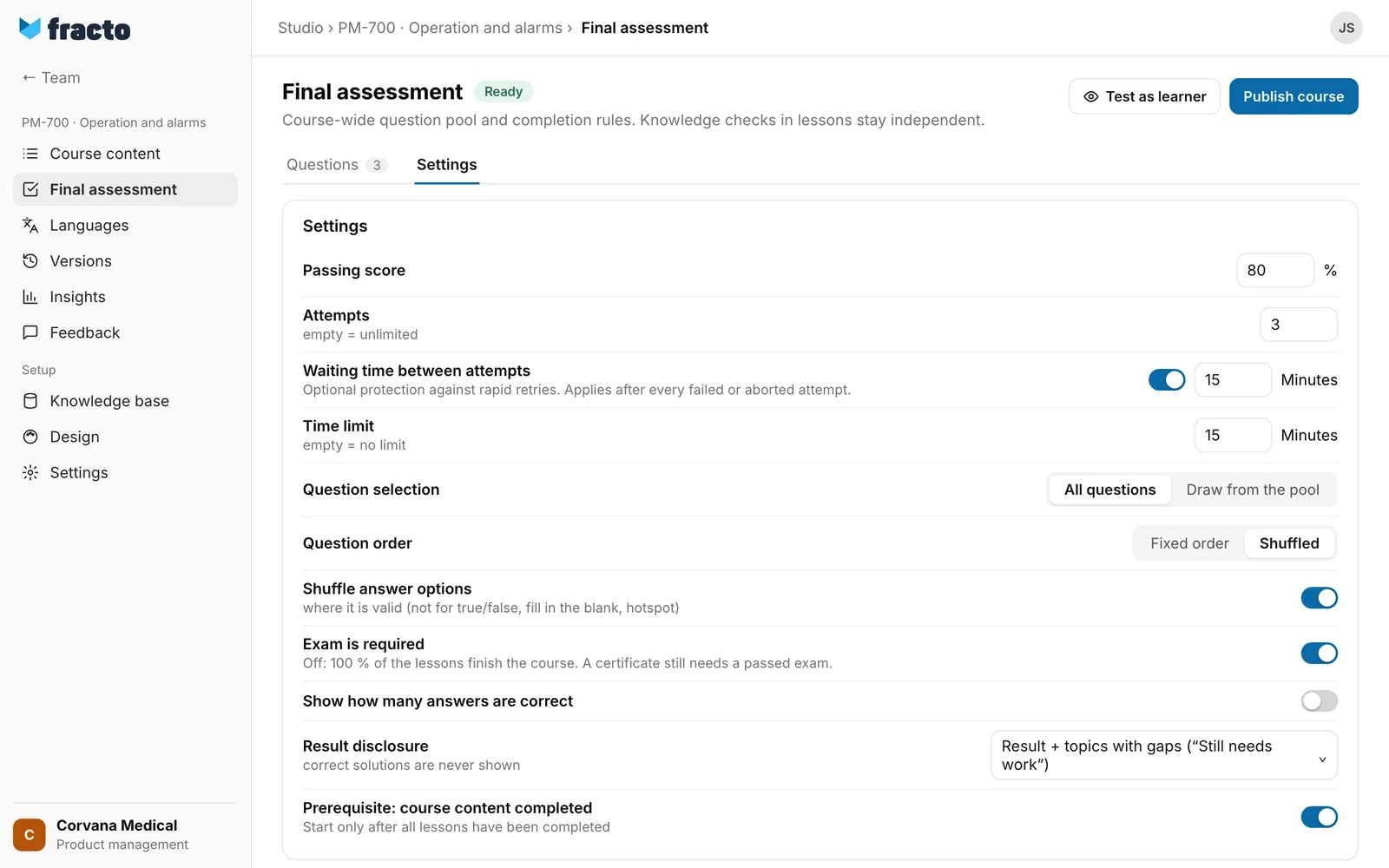
You know it worked when Ready appears next to the heading. That applies when the assessment has at least one active question, no message is open under Finish these items before publication and the open question is saved.
With Test as learner you go through the assessment. The button is only active when the assessment has at least one active question and no message is open. Save all changes first, otherwise “Save questions and settings before testing.” appears. In the preview, answers are not saved.
Defaults of a new assessment
| Setting | Default |
|---|---|
| Passing score | 80%, 1 to 100% allowed |
| Attempts | 3, empty means unlimited. After the last allowed failed attempt the assessment is closed for that person. After passing, no further submission is possible. A reset exists in Campus (see “Reset a learner’s course”). |
| Waiting time between attempts | on, 15 minutes, 1 minute to 7 days allowed. It applies after every failed or aborted attempt. |
| Time limit | 15 minutes, at least 1 minute, empty means no limit |
| Question selection | All questions. With Draw from the pool you choose a number of random questions. Required questions are always included. |
| Question order | Shuffled |
| Shuffle answer options | on, where it is valid (not for true/false, fill in the blank and hotspot) |
| Exam is required | on. Off: 100% of the lessons finish the course. A certificate still needs a passed exam. Accredited courses always need the exam. |
| Show how many answers are correct | off |
| Result disclosure | Result and topics with gaps. The other options are the result only, or the result with right/wrong and feedback per question. Learners never see correct solutions. |
| Prerequisite: course content completed | on: start only after all lessons have been completed |
During the assessment the Player is locked. Pause unlocks the app; the timer keeps running. The AI tutor is only available between attempts. Learners cannot influence the scoring. After a pass, Fracto issues the certificate once a design is published in the Hub. The course does not have to be completed for that.
Limits per question type
- Every question needs question text. Every option and every item needs text.
- Single choice: 2 to 10 options, exactly one correct. Multiple response: 2 to 10 options, at least one correct, only the exact set counts.
- Matching: 2 to 10 pairs, the texts must be unique on each side. Ordering: 2 to 10 items.
- Fill in the blank: at least one and at most 5 gaps. Each gap appears as a marker in the question text and has at least one and at most 10 accepted answers of at most 200 characters.
- Image hotspot: 2 to 8 regions, all completely inside the image, at least one correct region and one distractor, alt text for the image and a label for each region.
Translating the assessment
The translation of the assessment is part of the course translation. It is on the Settings tab under Translations and in the translation editor under “Assessment”. See “Translate a course into another language” and “Review and mark a translation as reviewed”.
What happens afterwards
- An assessment is Ready when no message is listed under Finish these items before publication and the open question is saved. Then Publish course is active if you have the right to publish. The button publishes the whole course with all lessons and this assessment. The design check runs first. If the course needs an approval and it is missing, the app stops.
- If the assessment is not ready, the course cannot be published. The message then names the assessment.
- An assessment that was never published can be deleted permanently at the bottom of the Settings tab with Delete final assessment…. Questions can also be deleted permanently before the first publication. After that you can only Archive questions. Published versions stay traceable in the course version.
If it does not work
| Message | What it means |
|---|---|
| Add at least one assessment question. | The assessment contains no active question. Create one or take one back from Excluded. |
| Question text is missing. | An active question has no text. |
| A single-choice question needs exactly one correct option. | Mark exactly one option as correct. |
| The draw requires 5 random questions, but the pool only has 3. | With Draw from the pool the number is larger than the random pool. Reduce the number or add questions. |
| Draw is on, but no count is set. | Enter a count under Draw from the pool. |
| Passing score must be between 1 and 100%. | Correct the Passing score. |
| Time limit must be at least 1 minute (or left empty). | Correct the Time limit. |
| Waiting time must be between 1 minute and 7 days, or turned off. | Correct the Waiting time between attempts. |
| Image hotspot needs alt text for accessibility. | Enter the Image alt text. |
| Please correct the highlighted fields. | Fields are invalid when saving a question. Correct the highlighted fields. |
| The question could not be saved. / Settings could not be saved. | Saving failed. Try again. |
| Another person has changed this course in the meantime, so your latest change was not saved. Copy any text you want to keep before you load the current version. | The course changed during your action. Reload the page. |
| Save questions and settings before testing. | You still have unsaved changes when choosing Test as learner. Save first. |
| Select at least one lesson. | No lesson is chosen in the AI dialog. |
| The AI did not return any usable questions. Adjust the settings and try again. | Nothing usable came back in the AI dialog. Change the lessons or the notes. |
| 3 of 5 questions passed the quality check. | The AI returned fewer questions than requested. You can only add those. |
| 2 questions could not be added. | Some of the AI questions failed when being added. Try again. |
| The questions could not be generated. Please try again. | General error in the AI dialog. |
Checked on 6 November 2026 against the current Fracto release.
