
Start your first course
How to open an assigned course in the Player, begin it with “Start course” and land in the first lesson.
A course opens its lessons only after you begin it with Start course.
Before you start
- The Player runs in the browser, on a computer, tablet or smartphone. There is no app and no offline mode. You need an internet connection.
- The course is in My trainings because your institution assigned it to you or because it is optional (“optional” on the course card). You begin an optional course yourself with Open.
- If Start says “No access yet”, no course has been released for you yet. Contact the person who invited you, or click Request access.
How to start the course
-
In the sidebar, open My trainings. It lists all your courses, including those from several institutions. Start also shows your courses and learning paths.
-
Click Open on the course. For a course you have already worked on, the button says Continue.
-
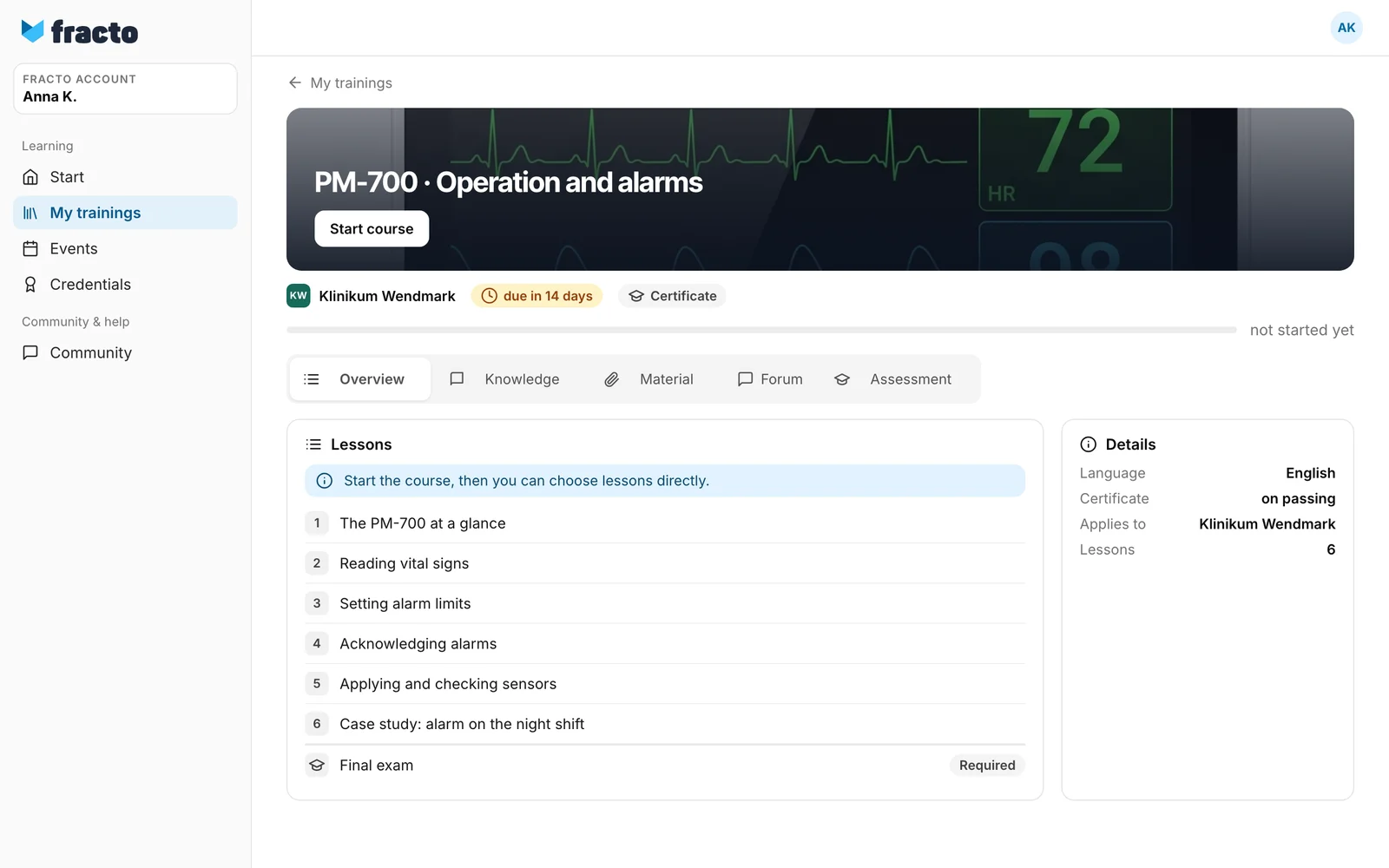
The course page opens. At the top are the title and the Start course button. The course decides how this area looks; before the start, the button always has this name. Until you start, the lessons and the Final exam in the list are plain text and cannot be clicked. A note points this out: “Start the course, then you can choose lessons directly.” If the course offers several languages, choose the Course language above the cover before you start.
-
Click Start course. Fracto records that you have started and opens the first lesson.
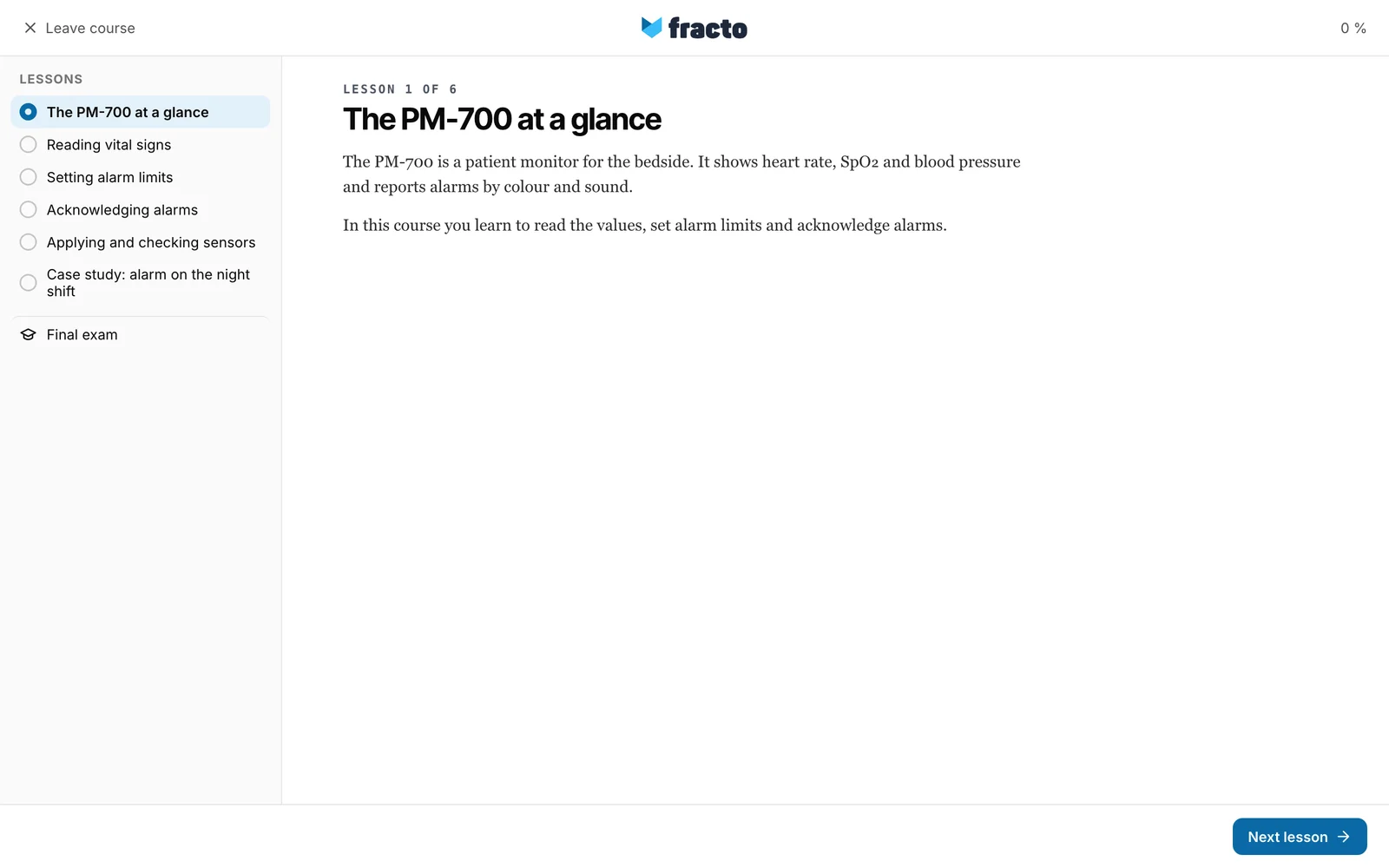
You know it worked when the first lesson is open and Next lesson appears at the bottom. On screens narrower than 1024 pixels, which includes many tablets and smartphones, the lesson bar starts collapsed. Open lesson bar shows it. On wide screens the course decides whether it starts open. On the course page, Continue now replaces Start course, and you can click lessons one by one.
What happens next
- The course counts as begun. In My trainings it shows its progress, and the button says Continue. Your institution also sees the course as begun from now on.
- Continue takes you back to where you stopped.
- A direct link to a lesson takes you back to the course page before the start.
- Courses delivered as a SCORM package do not have the start step. If you have already worked on the course, it is skipped as well. If your institution resets the course for you, the new attempt begins with Start course again.
If it does not work
| Message or display | What it means |
|---|---|
| No access yet | No course has been released for you yet. Click Request access or contact the person who invited you. |
| The training could not be started. | When you clicked Open on an optional course, the enrolment could not be created. Try again. |
| The training was assigned but is not ready to start yet. | The course is assigned to you but not ready yet. Try again later. |
| This course is no longer in your institution’s assortment. You cannot start it. | Your institution removed the course from its offer. |
| The course could not be started. Please try again. | The start was not saved, so no lesson opens. Click Start course again. |
| This training is currently unavailable. Contact your institution if you expect to have access. | The course is not released for you. Ask your institution. |
| This course is no longer in your institution’s assortment. Your access has ended; your certificates remain valid. | Your institution removed the course from its offer. Certificates already issued stay under Credentials. |
| The course could not be loaded. Please try again later or contact support. | The course page did not load. Reload the page later. |
| Waiting for a learner place | The button on the course is locked because no learner place is free for you yet. Contact your institution. |
| complete “…” first | Another course comes first in the learning path. Finish it first. |
| Locked during the exam | An exam is running or paused. Finish or resume it, then the course is free again. |
Checked on 6 November 2026 against the current Fracto release.
