
Create product groups and products
How to create the product groups and products in Channel that courses and assortments are built from: required fields, image, name rules and archiving.
In Channel, a course never belongs to a partner directly. It hangs on a product, the product hangs on a product group, and product groups make up the assortment. You create product groups and products in the catalogue. How to assign courses afterwards is described in “Make a course available to a partner”.
Before you start
- You are the network lead (Hub task “Lead network”). Only the network lead changes the catalogue. Region, team and partner leads appointed in Channel can only view the catalogue: Read-only access (“You can view the workspace-wide catalog. Network leadership makes changes.”). The buttons for creating are missing then. If your only Hub tasks are “Manage region”, “Manage team” or “Channel reporting”, you do not see Learning content at all.
- A product needs an existing, active product group. So create the product group first. As long as there is no active one, Create product cannot be chosen.
Create a product group
- In Channel, open Learning content and click Create product group in the page header. The Create product group dialog opens.
- Enter the Name. It is required, at most 160 characters.
- If needed, add a Description (at most 2,000 characters).
- If needed, add an image under Image: JPEG, PNG or WebP, at most 5 MB. The image stays private in the workspace. Under Alternative text (optional), describe what it shows.
- Click Create.
You know it worked when “Product group was created.” appears at the bottom. Learning content opens on the Assignment tab. Switch to Product catalog: the product group appears there.
Create a product
-
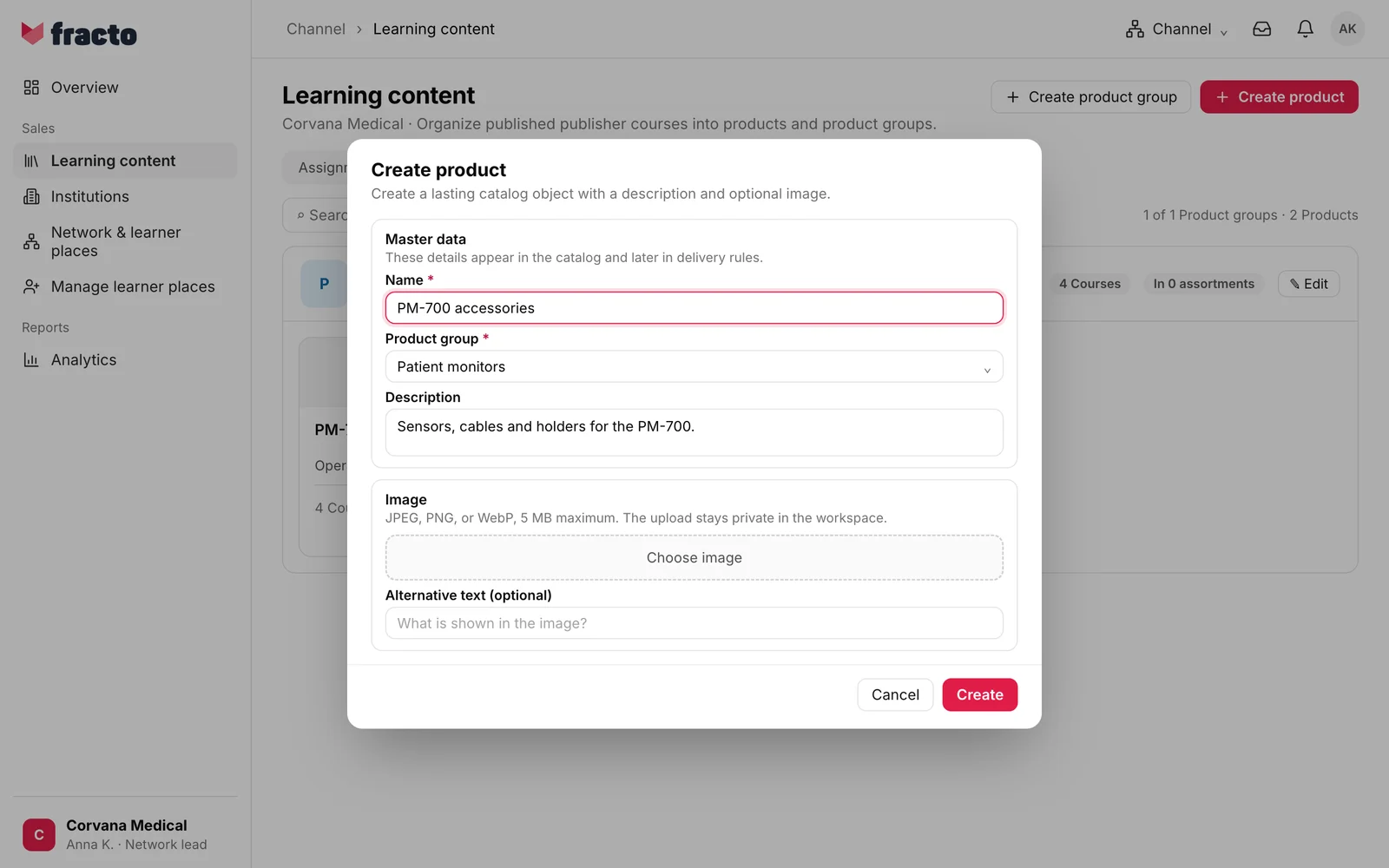
In Learning content, click Create product. The Create product dialog opens.
-
Enter the Name (required, at most 160 characters).
-
Choose the Product group. Only active product groups are offered. The first active product group is preselected. Without a product group, it says: “Please choose an active product group.”
-
Add Description, Image and Alternative text (optional) as for the product group.
-
Click Create.
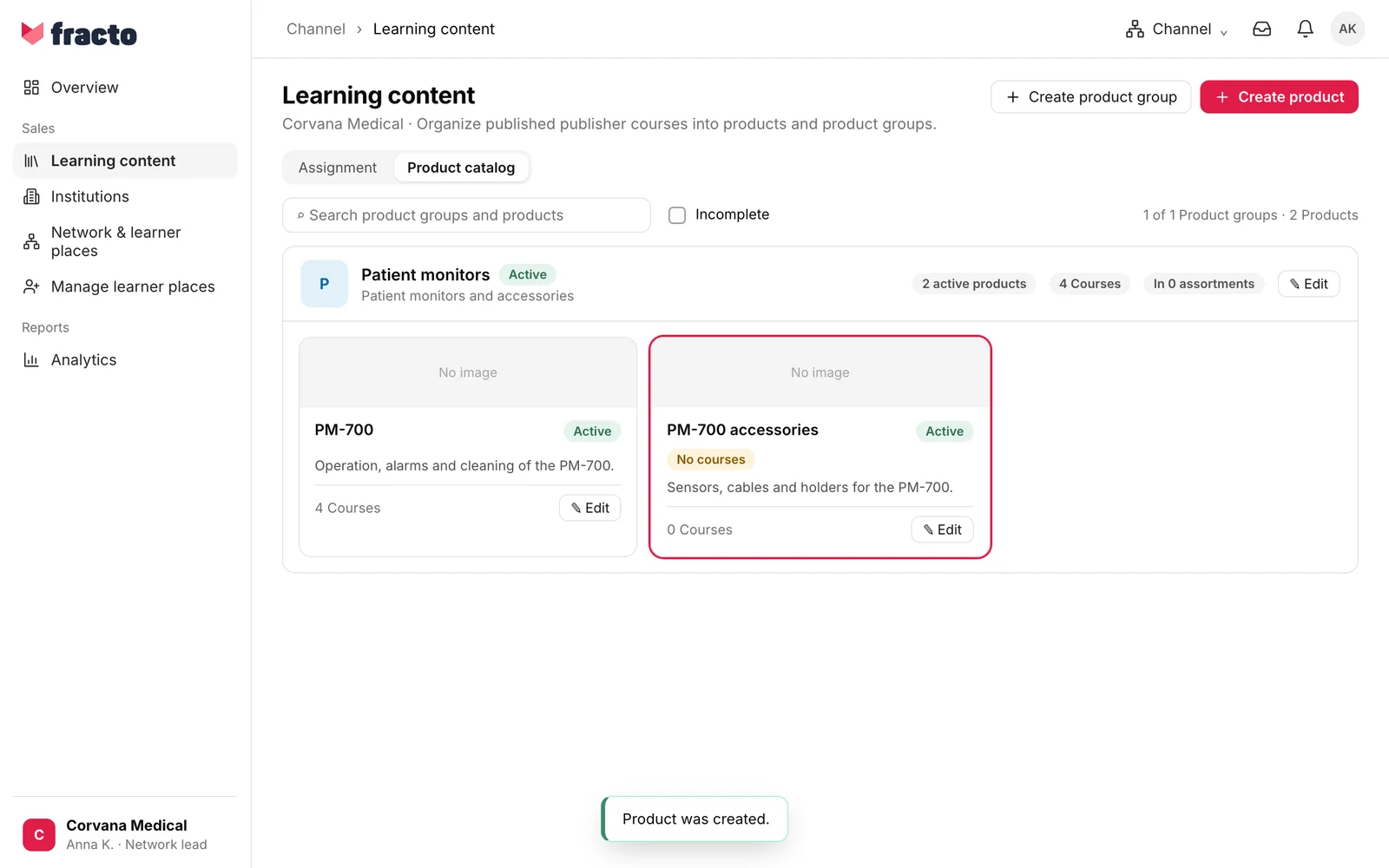
You know it worked when “Product was created.” appears at the bottom. Switch from the start tab Assignment to Product catalog: the product appears there under its product group.
Names and hints
- Two product groups cannot have the same name, not even if one of them is archived. A product can appear only once in its product group. Upper and lower case and accents do not count as a difference.
- Hints on the cards show what is still missing: “Missing description”, “Missing alt text” (only if an image is set) and “No courses”. The filter Incomplete shows only objects with such hints. A missing image shows as an empty image area.
- “In … assortments” on a product group says how many assortments it belongs to. For new product groups it says 0.
What happens next
- New product groups and products are active at once, but they have no effect yet. They reach someone only when you assign courses to the product and add the product group to the assortment of a team, partner or institution. See “Make a course available to a partner”.
- A product group must exist before you can choose it when you create a partner or an institution.
- With Edit, you change name, description, image and assignment later. With Archive, you take an object out of use: it stays traceable but is no longer available for new assignments. A product group can only be archived once its products are archived and all courses have been reassigned or removed. A product only once its courses have been reassigned or removed. Under Dependencies you see what is still attached, with the buttons Review products and Review course assignments. You bring archived objects back with Restore.
If it does not work
| Message | What it means |
|---|---|
| Please enter a name. | The Name field is empty. |
| Please choose an active product group. | No product group is chosen for the product, or there is no active one. |
| Please choose a JPEG, PNG, or WebP image. | The image has another format. |
| The image must be 5 MB or smaller. | The image is too large. |
| The product group was created, but the image was not saved. Select the image again and then save once more. … | Creating worked, only the image did not. The edit window opens with the product group you just created. For a product, the message reads “The product was created, …” accordingly. |
| The action could not be saved. Please try again. | General message. Causes include a name that is already taken, a product group that was archived in the meantime, or missing rights. |
| Cannot archive: … courses have this further product group. Remove the tags first. | When archiving a product group: courses have it as a further product group (tag). Remove those tags first. |
| The catalog was changed in the meantime. Your entries are kept. Review the updated state and then save again. | Someone changed the catalogue while you were editing. |
Checked on 6 November 2026 against the current Fracto release.
