
Add manuals to the knowledge base
How to add manuals and other sources to the knowledge base of a course in Studio, follow the processing and reprocess documents.
The knowledge base of a course collects your source materials. From each document Fracto extracts entries, images and terms. The AI assistant and the AI tutor draw on them. Here you upload manuals, presentations, transcripts and recordings.
Before you start
- You need the Hub task Create courses. Only its owner edits a private course.
- Fracto accepts PDF, DOCX, PPTX, TXT, VTT/SRT, MP3/WAV/M4A and MP4/WEBM/OGG. DOC, PPT and the subtitle formats SBV and SUB work too. A file can be up to 1 GB.
- For audio and video, only the spoken language is transcribed for the knowledge base. The visual content of videos is not analysed. A video produces up to 120 scene images for the course media library, which do not count as knowledge.
How to upload documents
-
Open the course and click Knowledge base in the sidebar.
-
Click Upload documents. If the knowledge base is still empty, the button is in the middle of the page, under “No pages yet”. Or open the tab Documents. The heading there is Source documents.
-
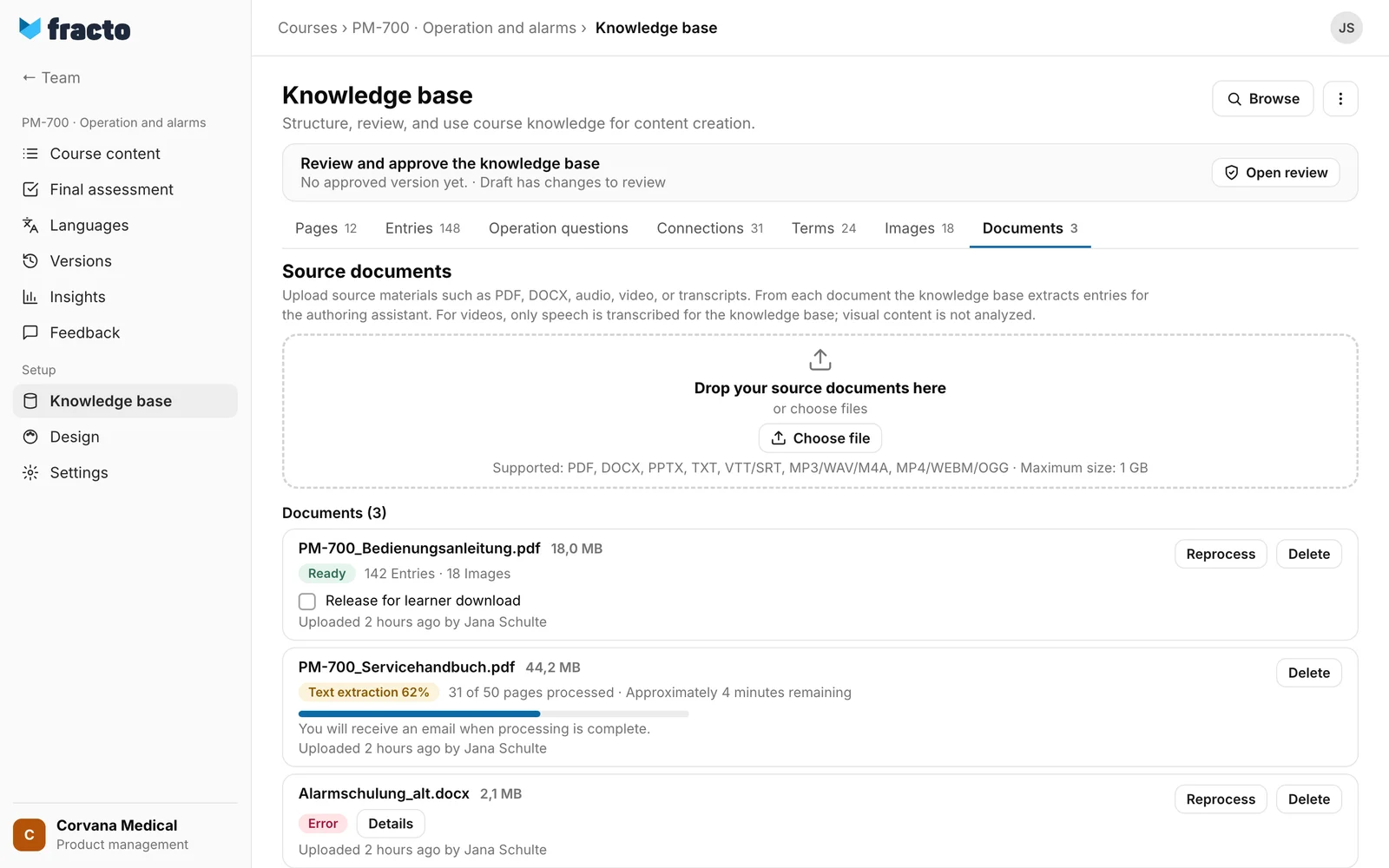
Drag your files into the field “Drop your source documents here” or click Choose file. You can choose several files at once. Fracto uploads them one after the other and shows the progress under Uploads.
-
If a file does not fit, Fracto names it: “… : unsupported file type” or “… : exceeds 1 GB”. The other files are still uploaded.
-
After that Fracto processes each document in the background. In the list Documents you see the state of each file:
- In queue: The document is waiting. A note says how many jobs are ahead of it or that it is next.
- Preparing, for audio and video Transcribing: The document is being read. Depending on the document, Fracto shows the progress, for example “Text extraction 62%” with “31 of 50 pages processed” and the estimated time left. Next to it you see “You will receive an email when processing is complete.”
- Ready: The document is done. Next to it you see how many entries and images came out of it.
- Error or Processing failed: Processing did not work (see below).
-
You do not have to keep the page open. If you do, the list updates by itself, every 5 seconds while jobs are running.
You know it worked when the document is Ready. Under Pages, knowledge pages and topics appear over time.
What happens afterwards
- From the finished documents, Fracto builds pages, terms and a topic tree in the background. Refresh data in the menu Manage knowledge base reloads the page.
- New documents and changes stay in draft. What learners and the tutor see depends on the approval (see “Review status of the knowledge base”).
- When a document is Ready, the person who uploaded it gets an email in their interface language with a link to the list of documents. This applies as long as they still work in the workspace and have an email address. After an error no email is sent. You cannot change the text of the email or switch it off.
- Reprocess reads a finished document, or one with an error, once more. Try again appears instead when the job failed or was interrupted.
- Delete asks first: “Delete document?”. With Delete permanently the document is removed, and with it all knowledge entries that came from it. The dialog gives the number.
- For a finished PDF you tick Release for learner download, add a Label (optional) if you like and click Save. This works up to 100 MB per PDF. Unlike the approval of the knowledge base, which takes effect at once, the download release takes effect with the next publication of the course.
- Whoever uploads, reprocesses or deletes a document cannot give the next whole approval of the knowledge base themselves (four-eyes rule, see “Review status in the knowledge base”).
If it does not work
| Message | What it means |
|---|---|
| … : unsupported file type | The file does not have an allowed format. Convert it to one of the formats named above. |
| … : exceeds 1 GB | The file is larger than 1 GB. Split or compress it. |
| Upload failed | The document did not arrive. Try again. |
| Network error | The connection dropped during the upload. Try again. |
| Too many uploads are running right now. Please try again in a few seconds. | The server cannot take another upload right now. Wait a moment. |
| Processing failed | The job could not be processed, or it was interrupted (“You can safely restart it”). Click Try again. |
| Error, with Details: “The document could not be processed. Please check the file and start processing again.” | Check the file, for example whether it opens, and click Reprocess. |
| The text is usable, but not everything was processed, for example images. You can re-import the document later. | The document is ready, but a part is missing. Try Reprocess later. |
| The job is waiting for the next automatic processing attempt. | This is a hint. Fracto tries again by itself. |
| Document could not be processed again. | Reprocess did not work. Try again. |
| Document could not be deleted. | Deleting did not work. Try again. |
| Documents could not be loaded. | The list could not be loaded. Reload the page. |
| The download release could not be saved. | The release was not saved. Try again. |
| On a knowledge page: This source was imported without passage locations. Delete it under “Documents” and upload it again; the knowledge base is then rebuilt. | There are no passages from this source that pages can rest on. Delete the document and upload it again. |
Checked on 6 November 2026 against the current Fracto release.
