
Assign an obligation in the training matrix
How to make a learning path an obligation for a role in Campus: set cadence, due date and start, check the impact and assign it.
In the training matrix you set which role must complete which learning paths. Each assignment is a rule with a cadence, a due date and a start date.
Before you start
- In Campus you are a Campus manager. Department leads see only the obligations of their department in the Training matrix and cannot change anything.
- The role exists already. You create roles in Learners, under Roles & departments. At the top right of the Training matrix, + Add role opens role management. The matrix itself does not create roles.
- The learning path is created and active, with the courses the role should complete. See “Create a learning path”.
- You can assign a learning path to a role only once. If it is already assigned, it is no longer offered. When all active learning paths are assigned, the note “All learning paths assigned – create new ones under “Manage learning paths”” replaces the Assign learning path button.
Assign an obligation
-
In Campus, open the Training matrix. Each role has a card with its number of learning paths and people.
-
On the role’s card, click Assign learning path.
-
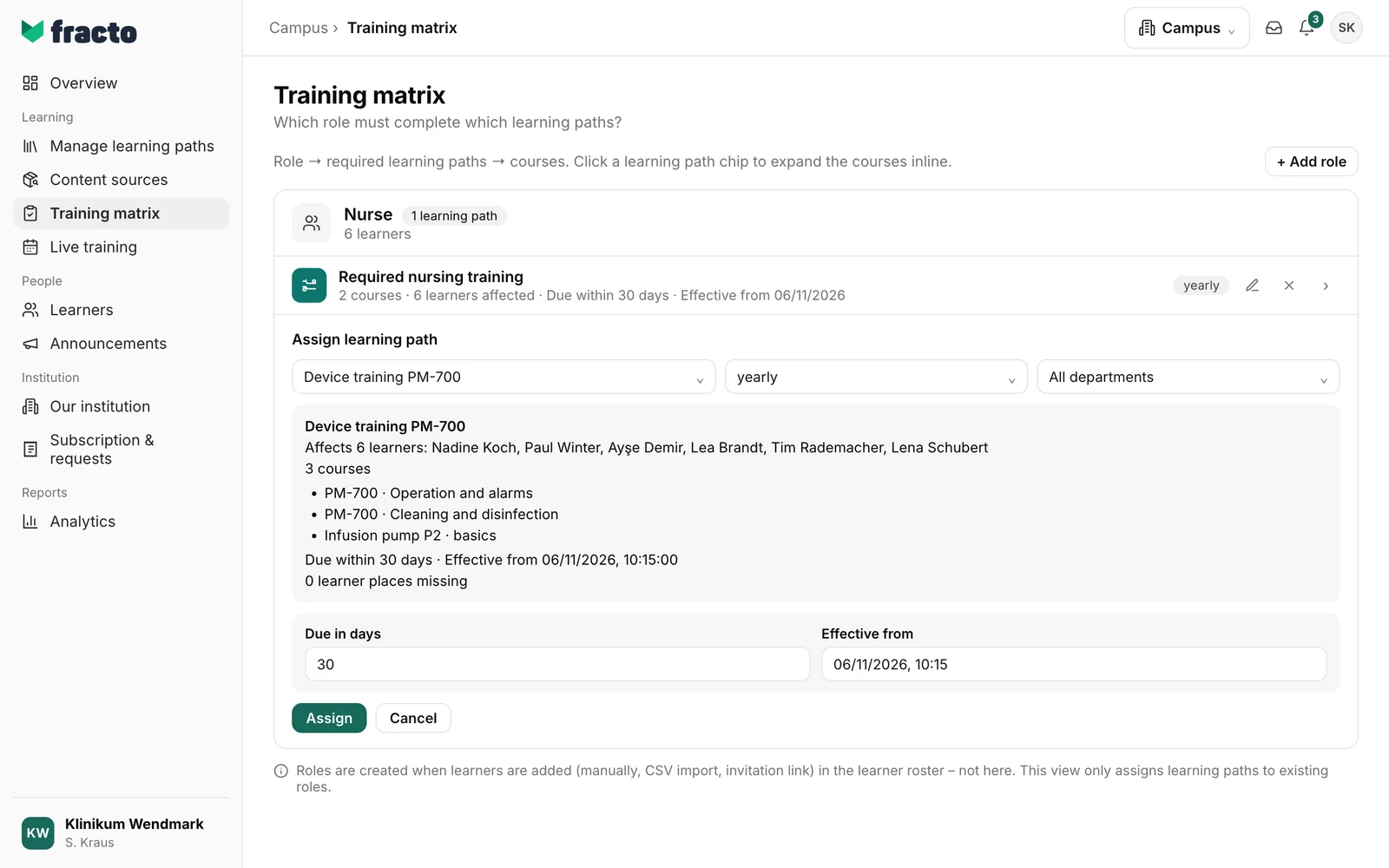
Choose the learning path in the first field (Choose learning path…). Once you have chosen, Fracto checks the impact: you see how many people the rule affects and who they are, the courses of the learning path and how many learner places are missing.
-
Choose the Cadence: one-time, yearly, Every 2 years, quarterly or Every … months with a number from 1 to 120. yearly is preset.
-
Choose the department. All departments is preset. If you choose a single department (“only …”), the rule applies only to people in that department. The preview updates.
-
Due in days holds the due date. 30 days is preset, 0 to 3,650 is possible. If you leave the field empty, there is No deadline. Effective from holds the start. It is preset to now.
-
Check the preview and click Assign. The button only becomes active once the preview is there and the cadence is valid (for “Every … months”, 1 to 120). If it says “No preview available”, the impact could not be calculated. Choose the learning path again.
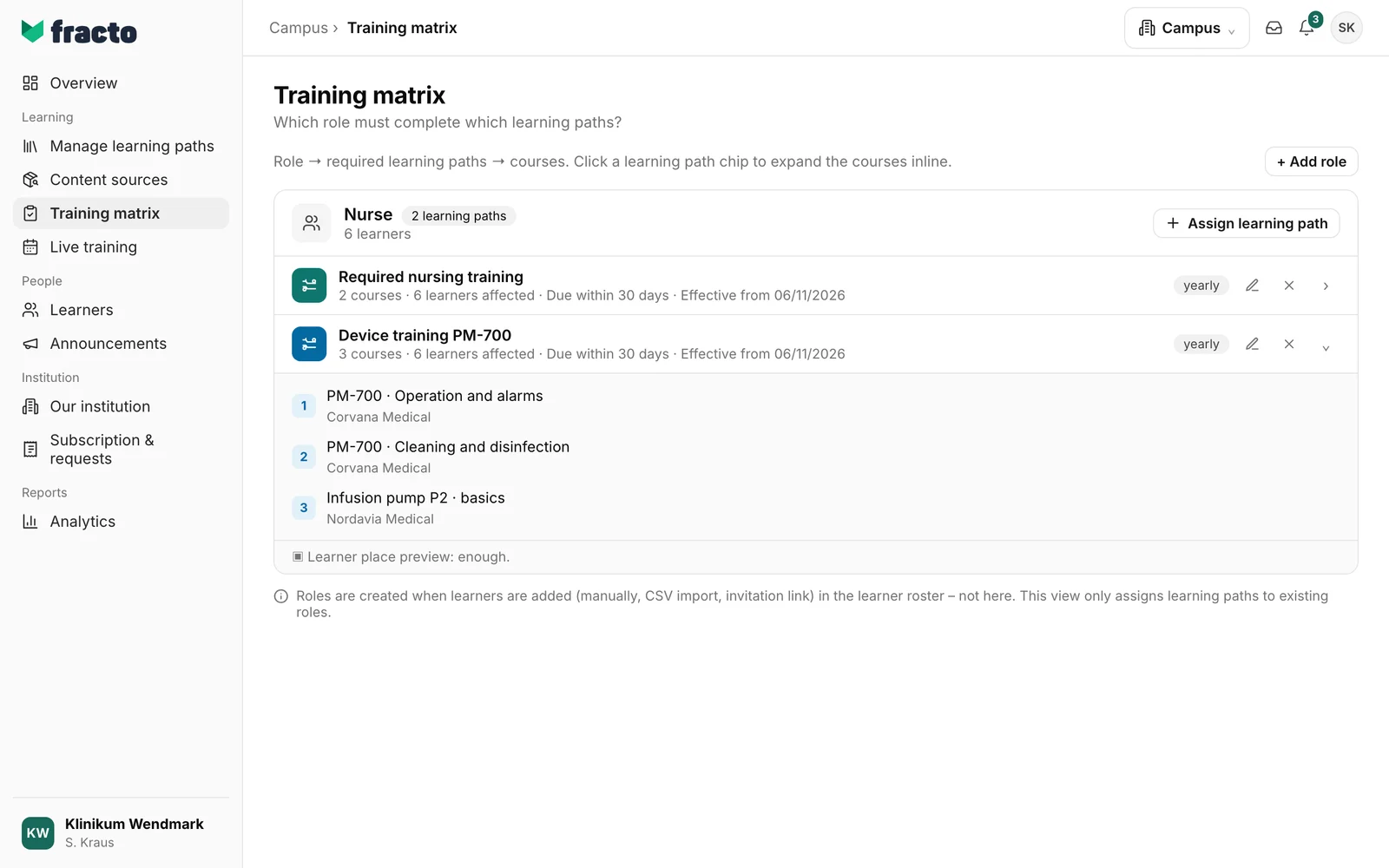
How you can tell it worked: under the role there is a new row with the learning path, for example “3 courses · 6 learners affected · Due within 30 days · Effective from 06/11/2026”. Click the row to see the courses.
What happens next
- Fracto creates the obligations at once, for every course in the learning path and for everyone with that role, or only for the chosen department.
- The due date is the start of the obligation plus the days under Due in days. For each person, the start is the latest of these points in time: when they joined the institution, when they were given the role, and Effective from. Someone who gets the role later starts then. If Effective from is in the past, the due date is counted from that point, at the earliest from the day the course was added to the learning path. It can then already be overdue.
- For a recurring obligation, a completed obligation falls due again after the cadence, counted from the completion. If the record expires earlier, it falls due earlier. With one-time, nothing repeats. If a person completed the course as part of an earlier obligation and the record is still recognised, the obligation is not opened again for one-time, and for a cadence only at the next repetition. People without a free learner place wait until a place is free.
- If learner places are missing for some people, the role card shows a badge such as “1 waiting”. In the expanded rule row it says for example “1 learner waiting for a learner place”. Resolve issue → opens the overview of learner places under Subscription & requests.
- You change a rule with the pencil, Edit assignment: cadence, department, due date and start, then Save changes. With the cross, Remove assignment, you take the obligation back. The dialog tells you first: “… will be removed from role …. 6 learners will lose this obligation.” Confirm with Remove.
If it does not work
| Message | What it means |
|---|---|
| The impact could not be checked. | The preview could not be loaded. Choose the learning path again. |
| The rule could not be created. | The rule was not saved. Try again. |
| You do not have permission for this change. | Only Campus managers change the training matrix. |
| The selected role, department, learning plan, or rule is no longer active. | Someone has archived or removed the role, department, learning path or rule in the meantime. Reload the page. |
| The change conflicts with data that is already in use. | The change does not fit the current state of the rule. Reload the page and try again. |
| The entries are incomplete or invalid. | Check the cadence (months 1 to 120) and the due date (days 0 to 3,650). |
| The rule could not be saved. Please reload if it was changed in the meantime. | The change to an existing rule was not saved. Reload the page. |
| The rule could not be deactivated. | Removing did not work. Try again. |
| No preview available | The impact of the rule could not be calculated. Choose the learning path again. |
| No roles in Campus yet. | There is no role yet. Create one first under Roles & departments. |
Checked on 6 November 2026 against the current Fracto release.
