
Upload a SCORM package
How to upload your own SCORM package in Campus so it is available as external content in learning paths: requirements, steps, errors.
With a SCORM package you bring learning content from another authoring tool into Campus. It appears as external content and can be put into a learning path like any course.
Before you start
- SCORM upload is available with Campus Light and with Campus Full.
- Campus managers can upload.
- You have the package as a ZIP file with SCORM 1.2 or SCORM 2004. The file
imsmanifest.xmlis in the root of the archive, and the launch file it names is in the archive. The ZIP can be at most 500 MB. - External content is set up for your institution. Otherwise the button is missing and the tab says: “External content is not available for this institution.”
Upload a package
-
In Campus, open Content sources and choose the External content tab. Click Upload SCORM package.
-
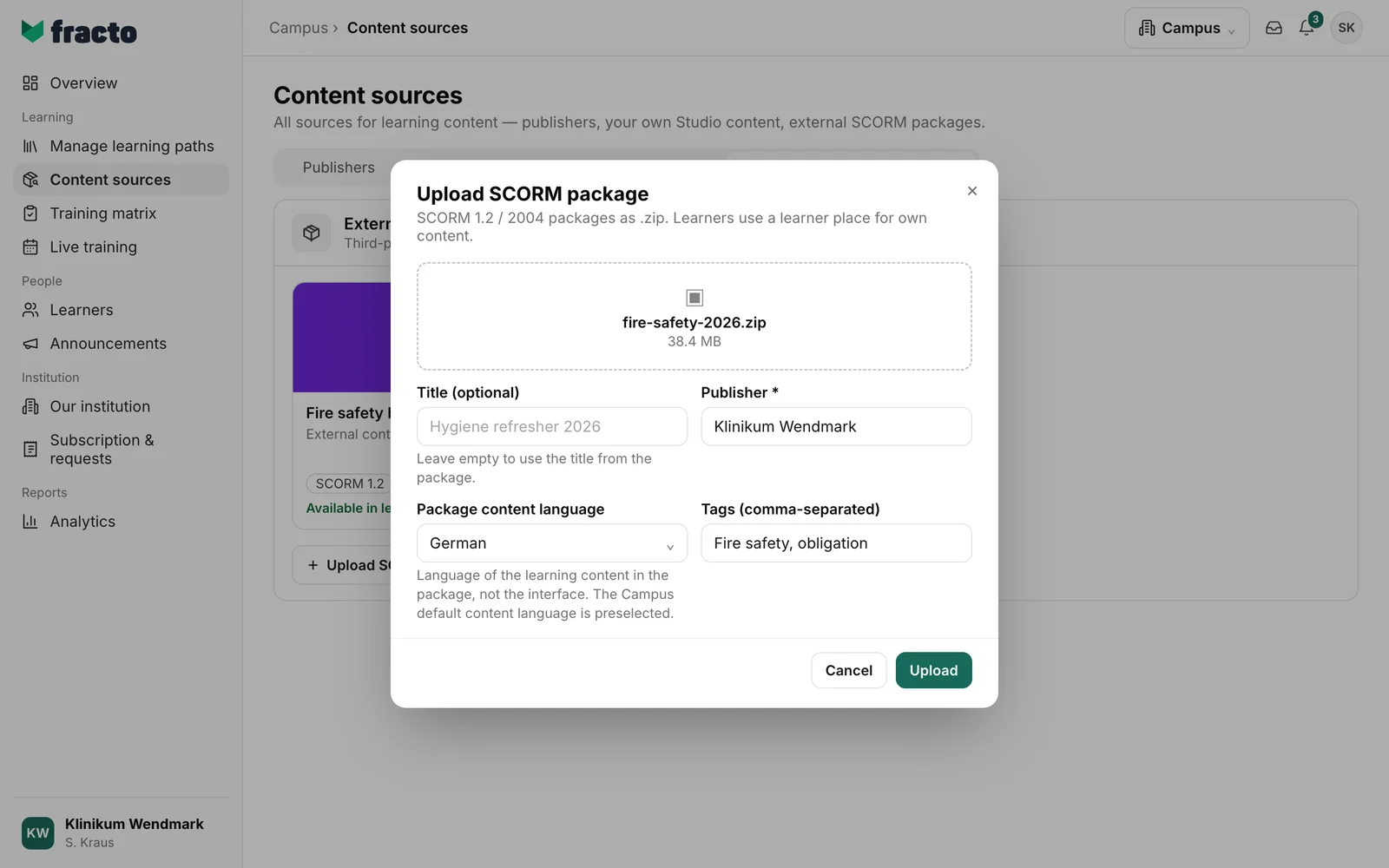
Drop the ZIP file on Drop or click SCORM ZIP or click to choose it. For another file type the file picker says: “fire-safety.pdf: Allowed formats: .zip,application/zip.”
-
Enter the details:
- Title (optional): leave it empty to use the title from the package. If the title equals the file name, Fracto replaces it with the package title as well. At most 500 characters.
- Publisher: required, at most 500 characters. Says who the content comes from, for example your institution.
- Package content language: the language of the learning content in the package, not of the interface. The Campus default content language is preselected.
- Tags (comma-separated): optional, at most 2,000 characters together, for example “Fire safety, obligation”.
-
Click Upload. The button becomes active only when file, publisher and language are set. During the upload it says “Uploading…”.
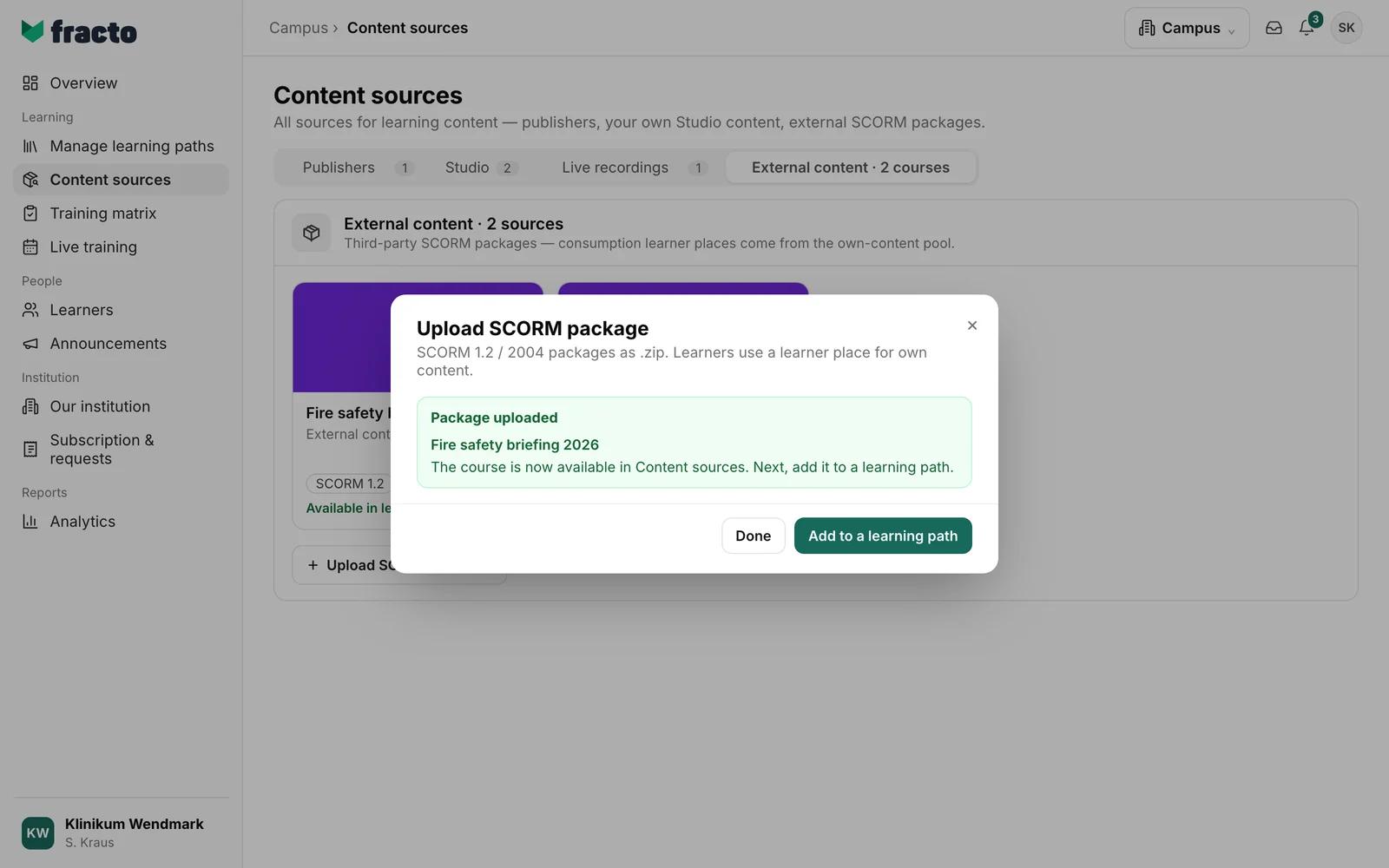
You can tell it worked: the dialog shows “Package uploaded” with the course title and the note “The course is now available in Content sources. Next, add it to a learning path.” The course then appears in the External content tab.
What happens next
- Add to a learning path takes you to Manage learning paths. There you assign the course to a learning path. See “Create a learning path”. Done closes the dialog.
- An uploaded package cannot be removed or replaced in Content sources. There is no button for it.
- If you upload the same package again, Fracto does not create a second course. The dialog then shows “Package was already there” with the existing course.
- Learners use a learner place for own content for this course. The same rule applies as for Studio courses and live recordings. See “Content sources”.
If it does not work
The file picker already checks format, size and number of files. Further messages come from the server.
| Message | What it means |
|---|---|
| fire-safety.pdf: Allowed formats: .zip,application/zip. | The chosen file is not a ZIP. |
| fire-safety.zip: The file must be no larger than 500 MB. | The ZIP is larger than 500 MB. |
| Please select exactly one file. | It must be exactly one file. |
| The package is not a readable ZIP archive. Upload a valid SCORM ZIP file. | The archive is damaged or not a ZIP. |
| The ZIP root is missing imsmanifest.xml. Upload a SCORM 1.2 or SCORM 2004 package. | The manifest is not in the root, for example because it sits in a subfolder. |
| The imsmanifest.xml does not contain a valid launch resource. Export the SCORM package again. | The manifest is faulty. Export the package again. |
| The launch file referenced in imsmanifest.xml is missing from the ZIP archive. | The launch file is not in the archive. |
| The ZIP archive contains encrypted, linked, unsafe or duplicate files. Export the package again. | The package contains files Fracto does not accept. |
| The unpacked package, file count or imsmanifest.xml exceeds the allowed limits. Reduce the package size. | The package is too large unpacked or has too many files. |
| Check the title, publisher, language and tags. | An entry was rejected, for example a title that is too long or too many tags. |
| No content producer is configured for this institution. Contact your administrator. | External content is not set up for your institution. |
| No permission — Producer facet (Studio add-on) required. | Only Campus managers can upload. The message text names a Studio add-on. You do not need that for SCORM. |
| Too many uploads. Please try again in a few seconds. | Another upload is running in the workspace, or the server is busy. Wait a few seconds. |
| Upload failed. | A general error, for example a server error or a content language your workspace does not allow. Fracto also rejects more than five uploads per minute. Try again after a minute. |
Checked on 6 November 2026 against the current Fracto release.
