
Find help and reach support
How to create a support ticket in the Player or in the app’s inbox, where it goes depending on the topic, and how to find the reply.
If something does not work, create a support ticket. Where it goes depends on where you are: in the Player the topic decides, in the inbox of Hub, Studio and Channel it goes to Fracto Support, and in Campus you choose the recipient yourself. You read the reply in the inbox. You can also find answers to common questions in this help centre through the search and the content tree.
Before you start
- You are signed in. If you cannot sign in, Sign in and reset your password helps. If you have lost your two-factor device, the way forward is in Set up two-factor authentication.
- If you learn, you write in the Player. If you work in Hub, Studio, Channel or Campus, you write in the app’s inbox.
- In the Player, a ticket belongs to the institution you are currently learning in. The Player opens the institution you last learned in. If you have access to several institutions and sign in with the link in the sign-in email, choose the institution on the page Choose your workspace. If you belong to no institution, you cannot create a ticket. Contact the institution that invited you. With Course content, the ticket belongs to the institution of the course you choose.
Create a ticket in the Player
- In the sidebar under Community & help, click Help & support. The page is called Inbox and has the tabs Messages, Help & support and Notices.
- Click New support ticket.
- Choose the Topic. The preset is Technical issue or login. The topic decides who gets the ticket:
- Access, dates or mandatory training: your institution. The ticket goes to the Campus managers responsible for the whole institution. Campus managers of a single department do not receive it.
- Course content: the course’s publisher. Choose a course under Course (“Choose an assigned course”). Only courses assigned to you are offered. The ticket goes to the person who owns the course, and for team courses to the publisher’s author team.
- Technical issue or login: Fracto Support. If there is currently nobody at your institution or for the course who can receive the ticket, it goes to Fracto Support.
- Under What’s this about? enter a subject (at most 240 characters) and under How can we help? your request (at most 10,000 characters). Both fields are required.
- If it helps, click Add images and choose up to five images (JPEG, PNG or WebP, at most 25 MB together, each image at most 10 MB).
- Click Send support ticket.
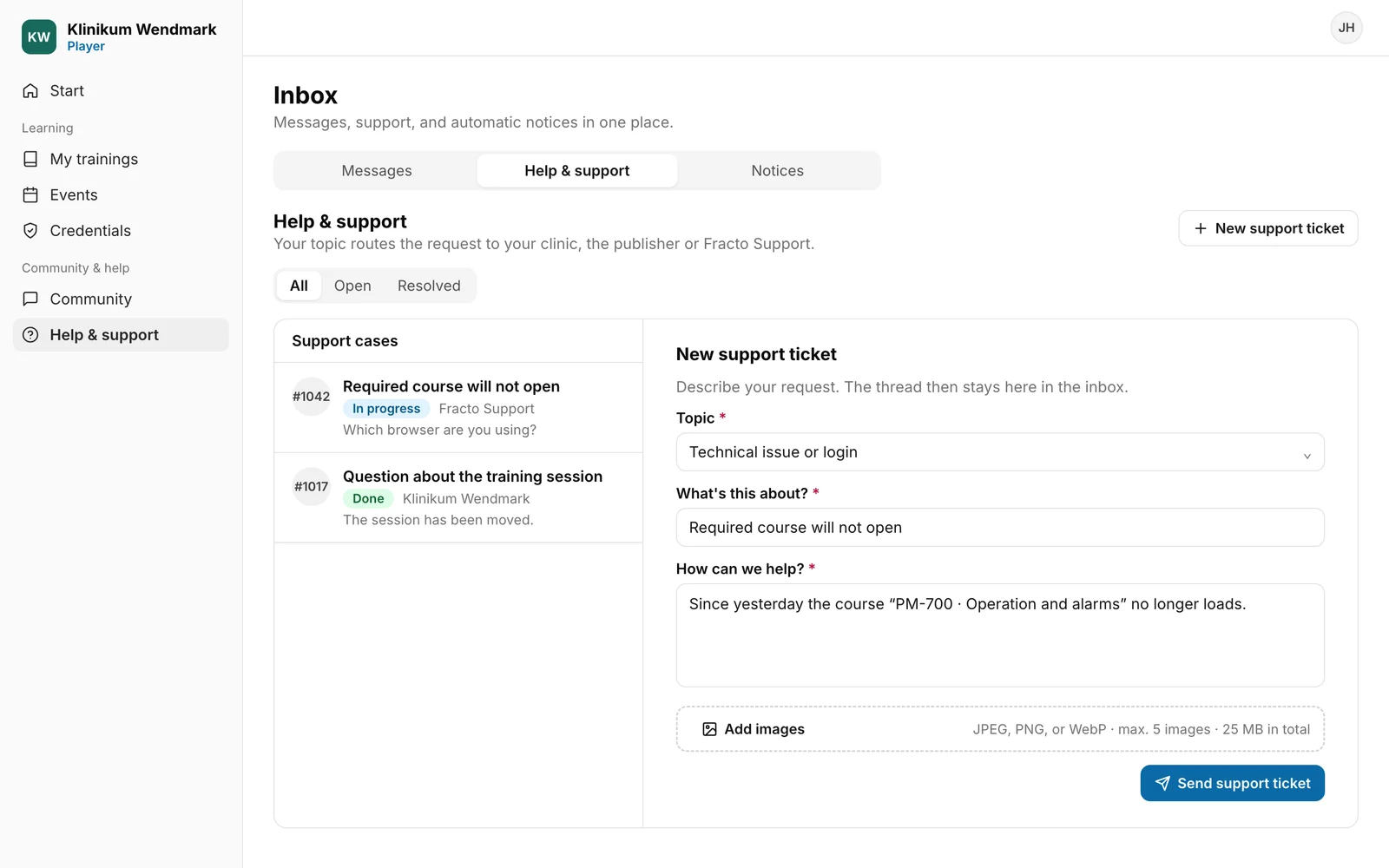
How you can tell it worked: the ticket is in the Support cases list and opens with its thread. It has a number, for example “#1042”, and the status Open. Under the subject you see who is responsible: your institution’s name, the publisher’s name or “Fracto Support”.
Read the reply and answer
- Open Help & support. New replies show in the list with a dot, and you also get the notice “New support reply” under Notices.
- Click the case in the list. The thread shows your message (“You”) and the replies.
- Write your answer under “Reply to support …” and click the paper plane (Send support reply). You can attach images here too.
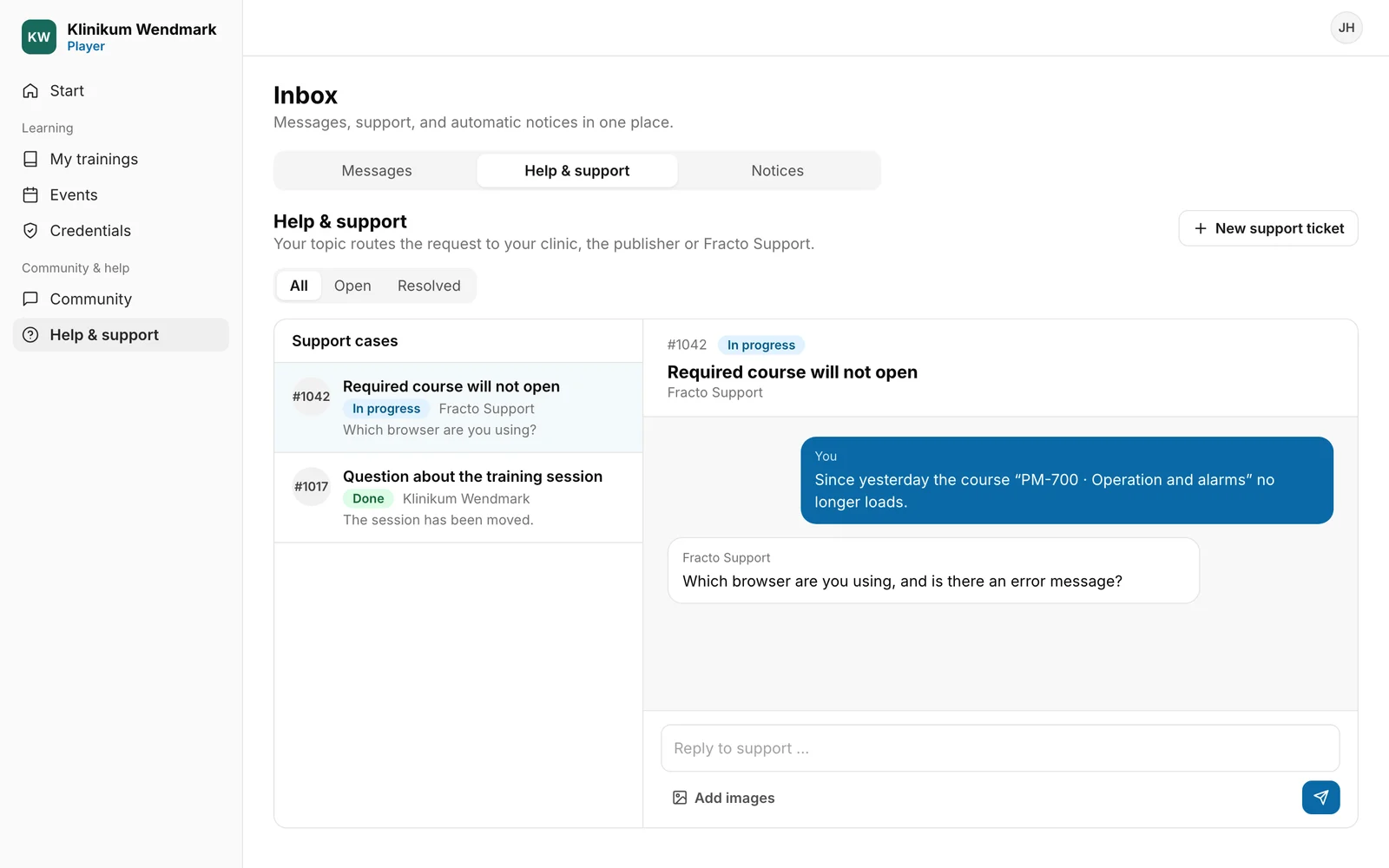
The status of a case is Open, In progress, Follow-up (support is waiting for your reply) or Done. When support has resolved a case, the summary appears under Solution. If you reply to a case marked Done, Fracto usually reopens it, and the status changes to Open. If it stays on Done, the case is closed. Create a new ticket then.
The filters All, Open and Resolved show only your own cases. The new ticket opens with its thread. In the list it appears under All and Open, not under Resolved.
Create a ticket in Hub, Studio and Channel
- Open the Inbox. In Hub it is in the sidebar; in Studio and Channel, the inbox icon is at the top right of the header.
- The inbox opens in the Support area. Click New support ticket.
- The dialog says: “Your request goes to Fracto Support. You will receive the reply here in your inbox.” The Recipient is fixed as Fracto Support.
- Fill in Subject and Message. Both are required, otherwise the button stays disabled.
- If it helps, attach up to five images with Add images (JPEG, PNG or WebP, at most 25 MB together, each at most 10 MB).
- Click Create request.
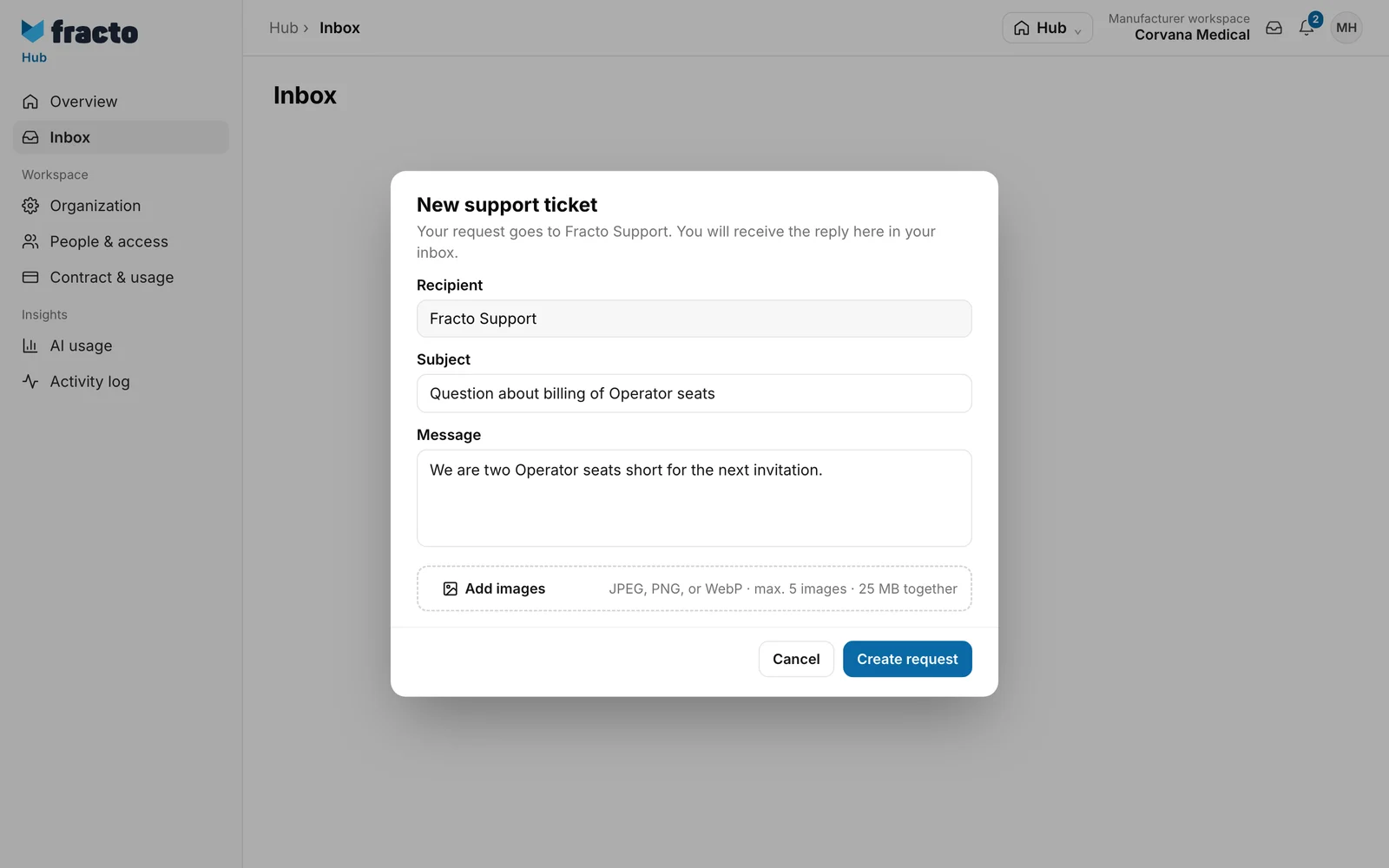
How you can tell it worked: the dialog says “Request #… was created.” Go to inbox closes it. The ticket is in the Support area under the filter All and under Requests. The reply arrives there in the thread.
In Campus the dialog is different: there you choose a contact person yourself under Recipient.
If it does not work
| Message | What it means |
|---|---|
| Support cases could not be loaded completely. | In the Player: the list could not be loaded, or sending failed. Click Try again. Subject and text are empty afterwards, so write them again. Topic, Course and chosen images are kept. |
| The images could not be uploaded. Selection and text are kept. | At least one image could not be uploaded, for example because it is larger than 10 MB. Remove it or send again. |
| Please use JPEG, PNG, or WebP images only. | In the Player, another file format was chosen. |
| You can attach at most five images. | More than five images were selected. |
| The images may be at most 25 MB in total. | The images are too large together. |
| Request could not be created or recipients could not be loaded. Please try again. | In the app’s inbox: the ticket was not created. Try again. |
Checked on 6 November 2026 against the current Fracto release.
