
Record attendance
How to record attendance at a live training in Campus: check people in, set completion and give a reason for later corrections.
Requires: Campus Full
At a live training you record who was there and who completed the event. You do this in the event itself, on the Attendance tab.
Before you start
- Live training is part of Campus Full. Without Campus Full, Live training does not appear in the menu. Through a direct link, it says “This area is part of Campus Full” with a button to Subscription & requests. There, Campus managers request Campus Full with Request Campus Full and a dedicated Studio. This guide applies to institutions. A manufacturer workspace has the area even without Campus Full, but no active lecturers.
- Campus manager, Department lead and Lecturer can record attendance. A lecturer sees only the events they teach. A department lead sees only the people of their department.
- The people must be registered for the event. Only registered people are in the list. If someone is missing, Campus managers and lecturers add the person with Add participant.
- You cannot record attendance for a cancelled event.
Record attendance
-
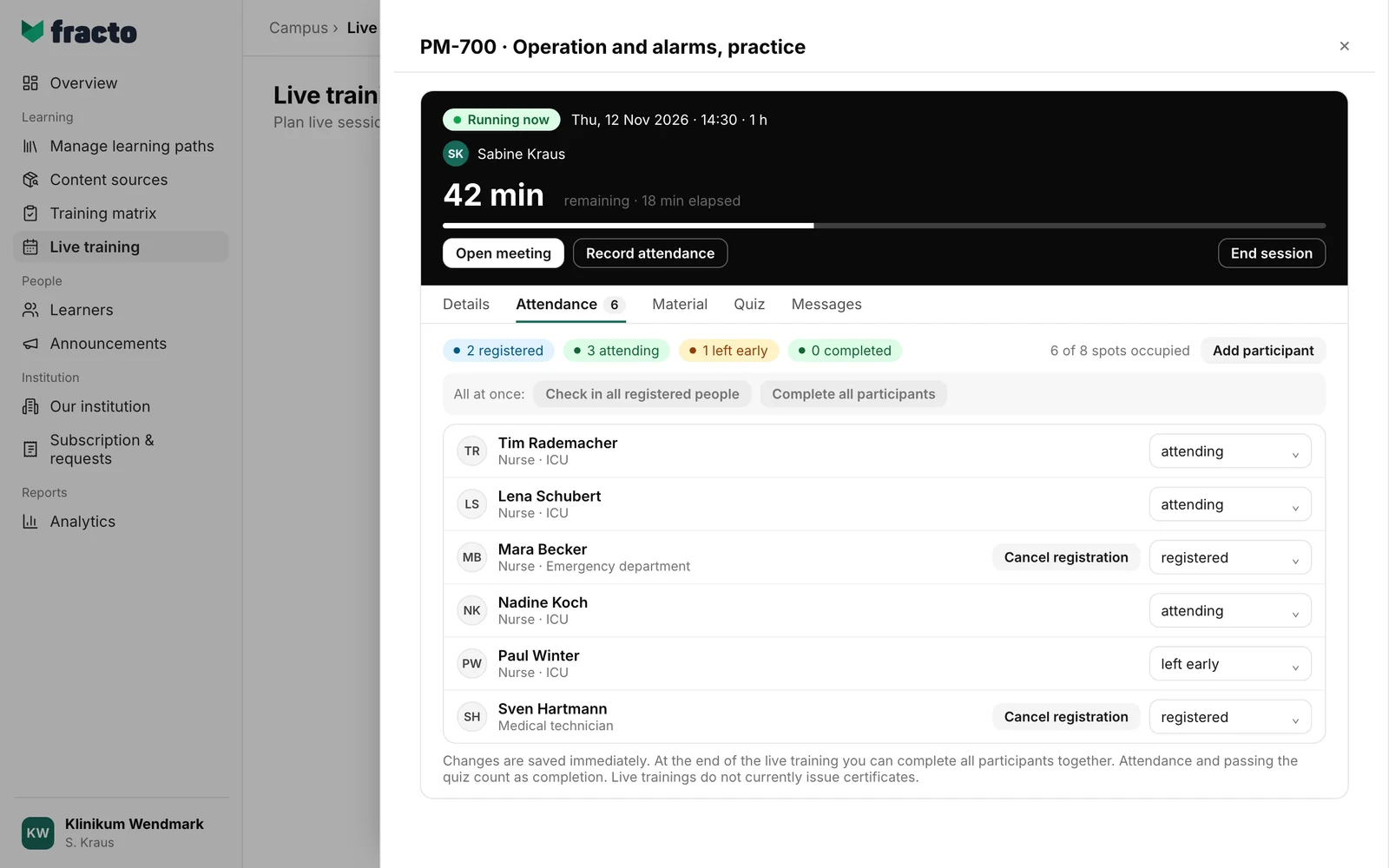
In Campus, open Live training and click the event. If it is running, it says Running now at the top. For a running or past event, the Attendance tab is already open. Otherwise, click the tab. For a running event, Record attendance also takes you there.
-
At the top of the tab are the counters: how many people are registered, attending and completed. The left early counter only appears once at least one person has left early. Next to them it says how many places are occupied.
-
Each person has a selector with four states: registered, attending, left early and completed. Set each person to the state that applies.
-
While the event is running, you can save time with “All at once”. Check in all registered people sets all registered people to attending. Complete all participants sets all attending people to completed. People marked left early stay unchanged.
-
Changes are saved immediately. There is no save button.
These steps work without a reason: registered to attending, and attending to left early or completed. While the event is running, also registered directly to left early or completed. Every other change is a correction. The Correct attendance dialog then opens. Enter a reason, at least 3 and at most 500 characters, and click Save correction. The reason is logged.
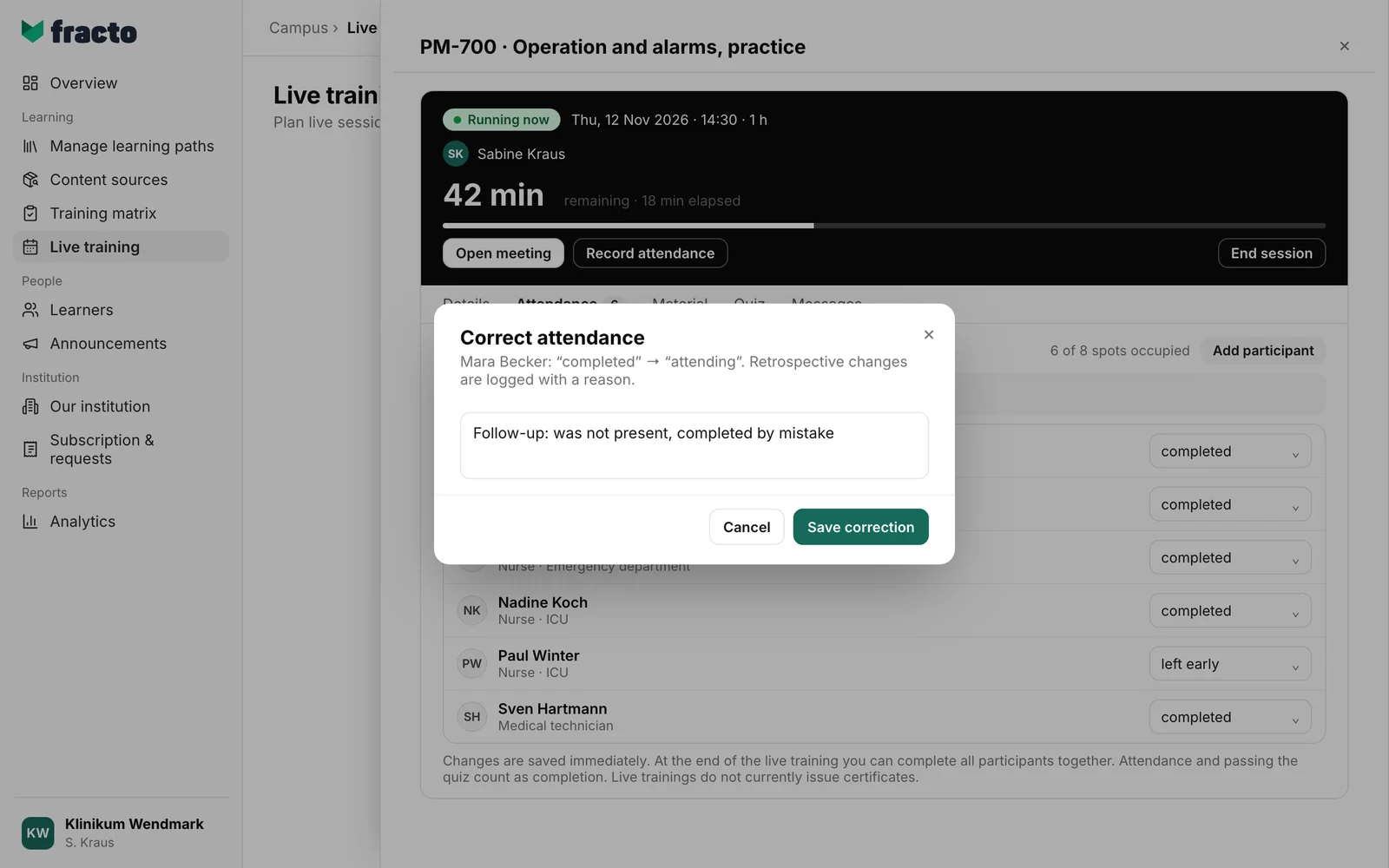
How you can tell it worked: the counters at the top have changed, for example “5 completed”.
What happens next
- completed is the completion of the live training. If the event belongs to a learning path, the completion can fulfil the obligation. If the event has a quiz, the completion only counts once the person has also passed the quiz. Campus says: “Attendance and passing the quiz count as completion.”
- You can set a completion only from the start of the event. Before that, Fracto rejects it.
- Fracto does not currently issue a certificate for live trainings. There is the completion, but no certificate.
- If you set a person back from completed, their completion is revoked. An obligation it had fulfilled is then open again.
- Campus managers free the place of a person who is still registered with Cancel registration. This only works while the event is scheduled or running. Attendance and completion records stay unchanged.
- Once there is a completion, the event can no longer be cancelled. Issued records stay valid.
- With End session you close the event. Campus managers and lecturers can do that once the event has started. The recorded attendance stays unchanged, and the external meeting stays open. Afterwards you can still record attendance; only cancelled events are locked. The same steps without a reason apply as above; only registered straight to left early or completed is then a correction.
If it does not work
If a change fails, the person’s selector jumps back, and the message appears above the list.
| Message | What it means |
|---|---|
| Please check the entries and event time. | The change was rejected, for example because you tried to set a completion before the event started. |
| You do not have permission for this action. | Your role is not allowed to do this. |
| The event or person was not found in your area. | The event or person is outside your area, for example in another department. |
| The change conflicts with the current event state. | Someone changed the event in the meantime. Reload the page and try again. |
| This event is fully booked. There is no waitlist. | With Add participant, all places are taken. |
| This event already has completed attendance. Issued records stay valid, so it can no longer be cancelled. | The event can no longer be cancelled. |
| The live training action failed. | A general error. Try again. |
Checked on 6 November 2026 against the current Fracto release.
