
Edit your profile
How to change your photo and name, decide who sees your employer and devices, and switch a public profile on or off.
Your profile belongs to you as a person, not to an institution. Photo and name apply everywhere, and you decide what others see of you.
Before you start
- You open the profile from the account menu at the top right, where it is called Profile. The page My Fracto account has the tabs My profile, Sign-in, Language, Notifications and Data. This article covers My profile.
- A certificate carries the name from the day it was issued. If you change your name later, certificates that were already issued, their verification page and their Open Badge keep the old name. So change your name before an exam.
Change photo and name
-
Open the account menu at the top right and choose Profile.
-
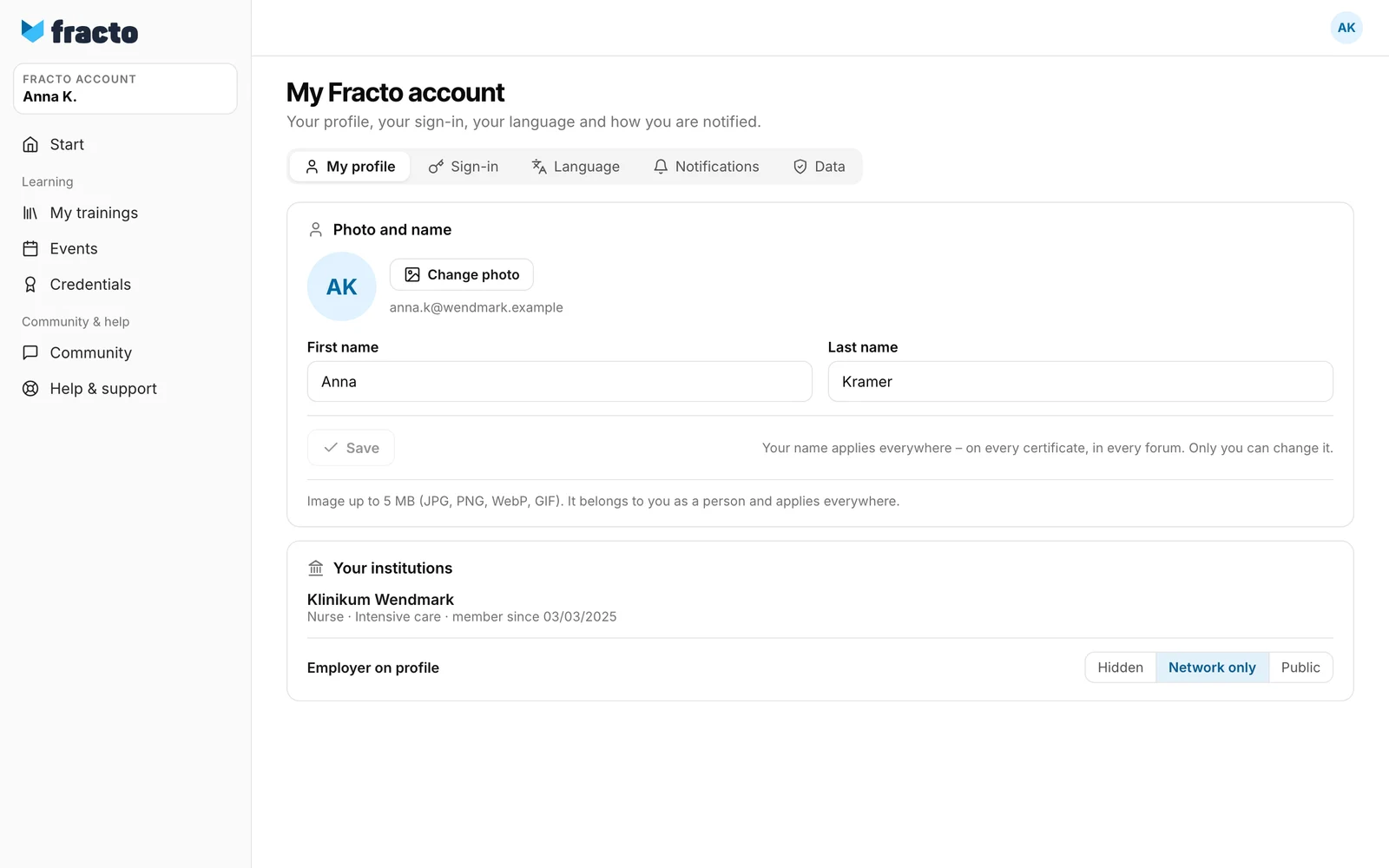
Under Photo and name click Change photo and choose an image (JPG, PNG, WebP or GIF, up to 5 MB). The photo is saved at once. Remove takes it away again.
-
Change First name and Last name. Both are required, up to 120 characters each. Click Save. The button only becomes active once something has changed. After that it says “Saved.”, and the name in the sidebar changes at once.
If your institution suggests a correction to your name, Confirm name correction appears at the top of the page. With Use this name the suggestion applies to your account, with Keep current name nothing changes.
Decide who sees what
-
Your institutions lists where you belong. The institution decides who adds you. At Employer on profile you choose one visibility for all institutions: Hidden (nobody can see this except you), Network only (only your connections can see this, the default) or Public (everyone can see this, even without signing in).
-
Under Professional role on public profile you choose which professional role, as set by your institution, appears on your profile and in the directory, or Do not publish. Without a choice no role appears. In forums the role still appears next to your name.
-
Device competencies lists the devices you are trained on. They are created automatically when you complete a device training, also from earlier employment. Choose the visibility per device. Without a choice from you a device is Public.
-
Under Public profile, Profile public switches on a page that anyone can see through a link without signing in. The default is off. The link is created the first time you switch it on. View opens the page, Copy link copies the link (“Copied”). The link contains your name from the first switch-on, for example
anna-kramer-3f9c1a. It stays the same even if you switch the profile off and on again or change your name. -
Findable in the directory (default on) decides whether colleagues at your institutions can find you in Community. Off means you do not appear at all. Member of the Fracto network since (default off) shows “Member since” with month and year on the public profile.
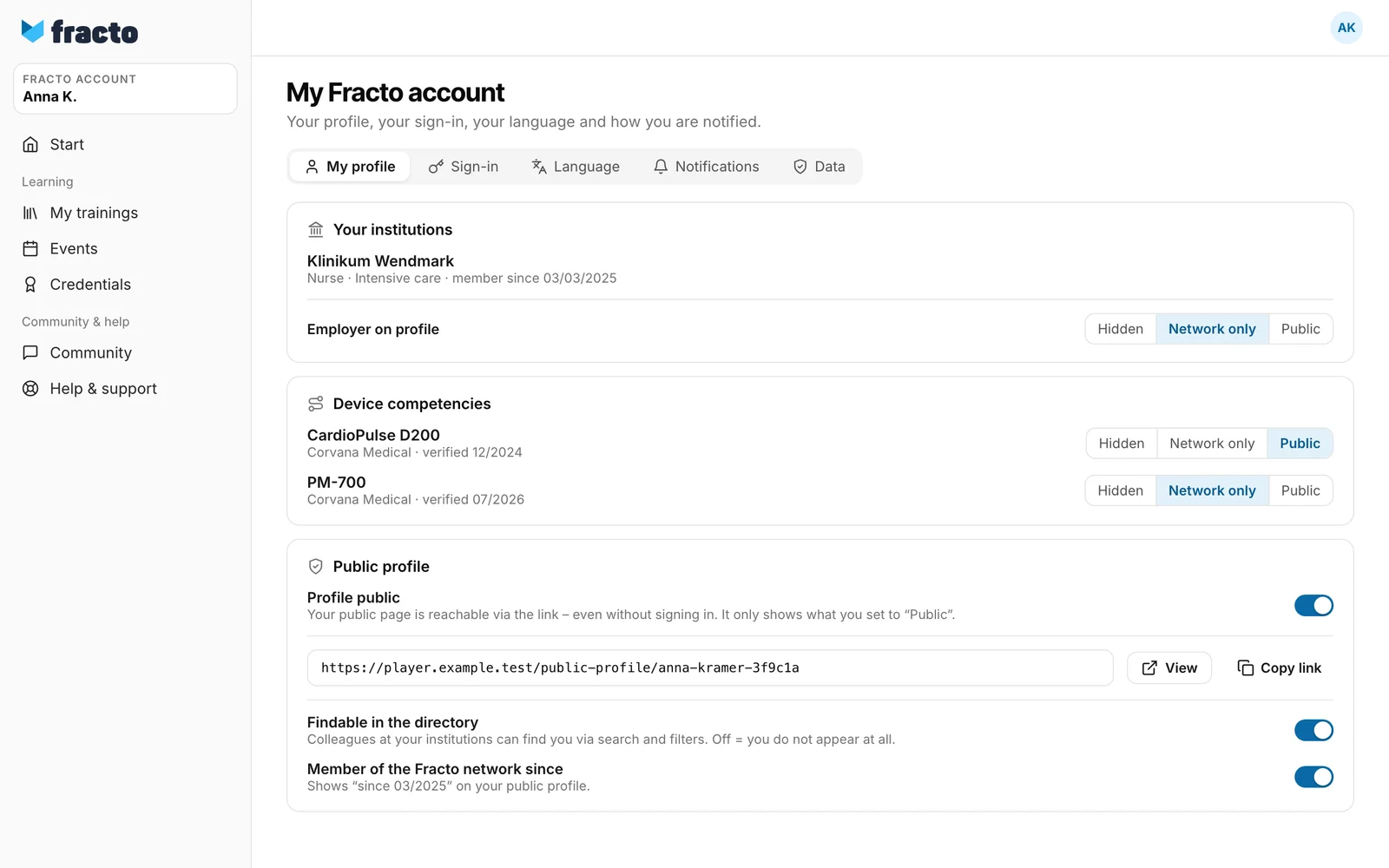
Without any setting, colleagues in Community see your name and photo and all your devices, because those are Public. They see the professional role only after your choice and the employer only if they are connected. This holds as long as you are findable in the directory.
Changes to visibility and switches apply at once. There is no Save button for them.
What the public page shows
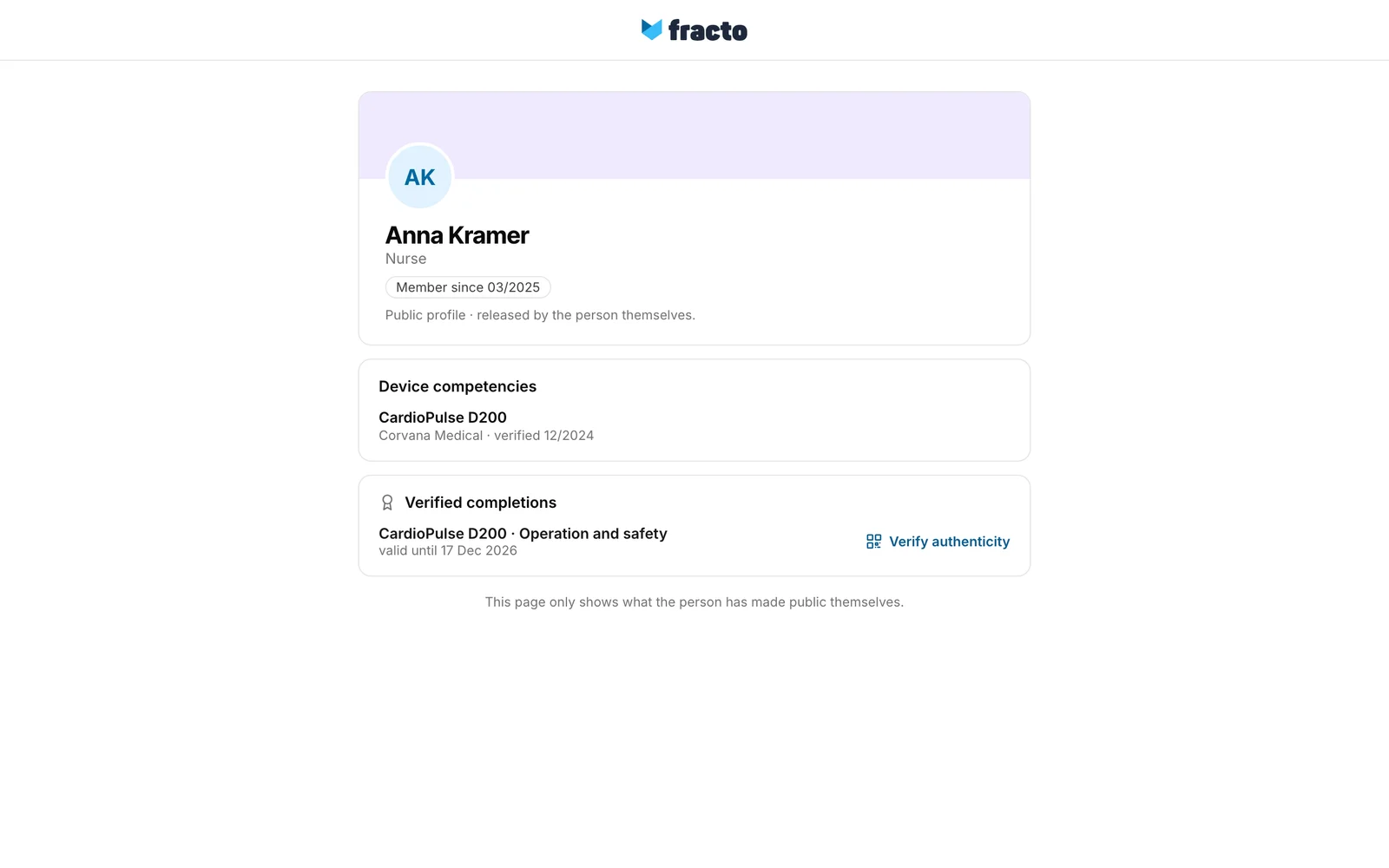
It always shows your name and photo. In addition it shows the professional role you chose, “Member since” if you switched it on, your devices with the visibility Public, and your valid certificates under “Verified completions”, each with a link to the verification page. Certificates have no visibility of their own: if the profile is public, all valid certificates are on it. A certificate shows the institution’s name on this page only if you set Employer on profile to Public. The verification page behind it shows the issuer, which can be your institution. If you switch the profile off, the link shows “Profile not found”.
If it does not work
| Message | What it means |
|---|---|
| The image could not be saved (type or size?). | JPG, PNG, WebP and GIF up to 5 MB are allowed. |
| Save failed (HTTP …). | The name was not saved. First and last name must be filled in and at most 120 characters long. |
| Removal failed (HTTP …). | The photo stayed. Try again. |
| Your name has changed since this proposal. Ask your Campus for an updated proposal. | Your name changed after the suggestion. The suggestion no longer applies. |
| Your device competence could not be loaded. Please try again later or contact support. | The list of devices did not load. |
If saving a visibility or a switch fails, the setting jumps back to its old value without a message. Then check that it is really set the way you wanted.
Checked on 6 November 2026 against the current Fracto release.
