
Create a live training
How to plan a live training in Campus: set title, time, location, lecturer and audience, and create the event.
Requires: Campus Full
A live training is an event with a lecturer: on site, online or both. It can optionally belong to a learning path; attending can then fulfil the training obligation.
Before you start
- Live training is part of Campus Full. Without Campus Full, Live training does not appear in the menu. Through a direct link, it says “This area is part of Campus Full” with a button to Subscription & requests. There, Campus managers request Campus Full with Request Campus Full and a dedicated Studio. This guide applies to institutions. A manufacturer workspace has the area even without Campus Full, but no active lecturers.
- Campus managers and lecturers create events. Department leads see the events but have no New event button. A lecturer plans only their own events. For a lecturer, the Lecturer field is fixed to their own name.
- There is at least one lecturer. Only a Campus manager creates lecturers, under Our institution, in the Lecturers section, with Create lecturer.
- The online meeting is only created automatically if the lecturer is active and has connected Zoom or Teams. Otherwise you enter your own meeting link.
Create an event
-
In Campus, open Live training and click New event.
-
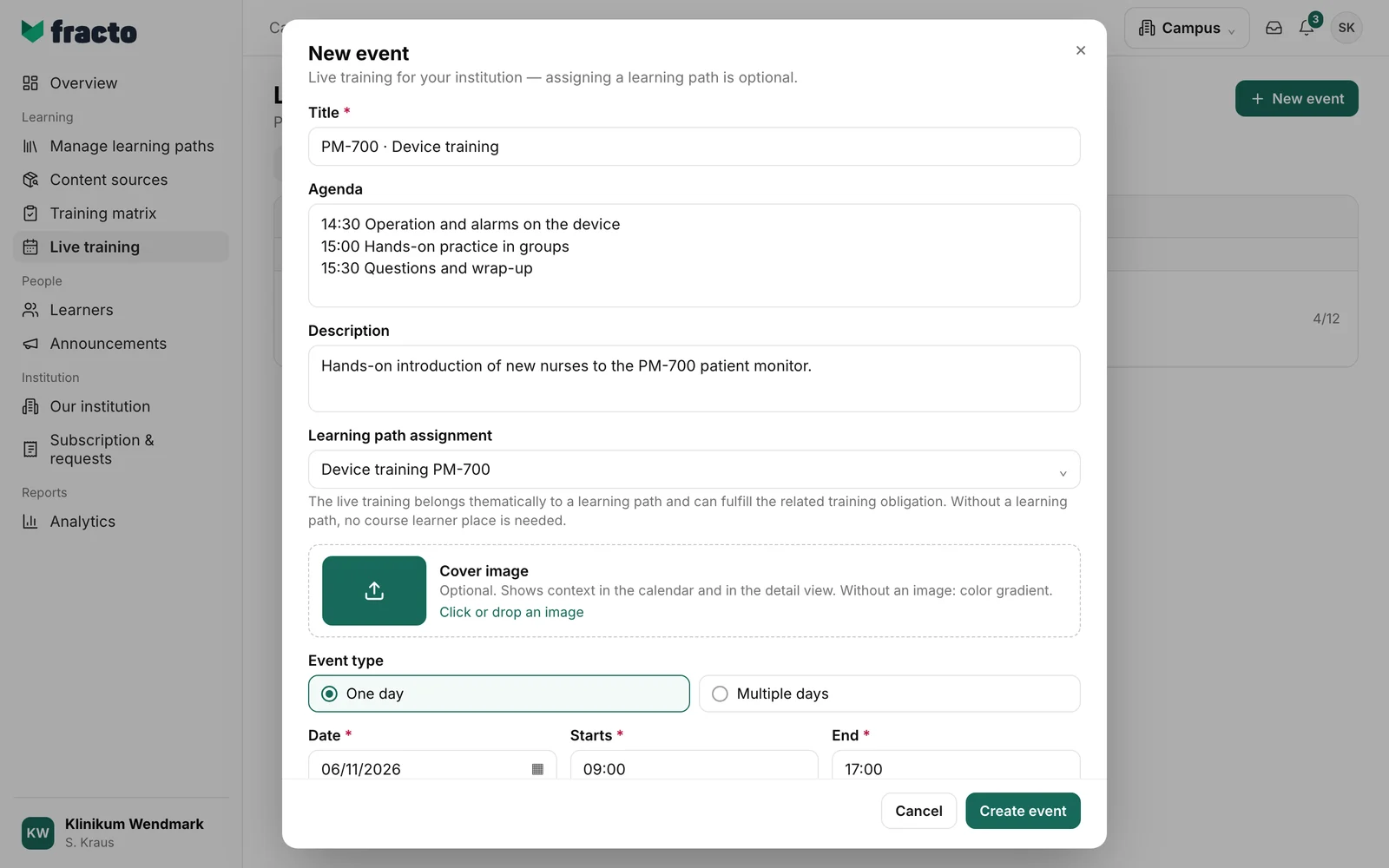
Enter the Title. It is required and may have at most 240 characters. Agenda and Description are optional. Under Learning path assignment you can choose an active learning path. Without one, it says No learning path. A Cover image is optional. Without an image, Campus shows a colour gradient.
-
Choose the Event type: One day or Multiple days. For one day, enter Date, Starts and End. The date is preset to today and the time to 09:00 to 17:00. If it is already later than 09:00 today, the event is rejected. Then choose a later time or a later date. The End must be after the Starts time. For several days, at least two, enter First training day, Last training day, Daily start and Daily end. All calendar days in between are training days. The start must be in the future.
-
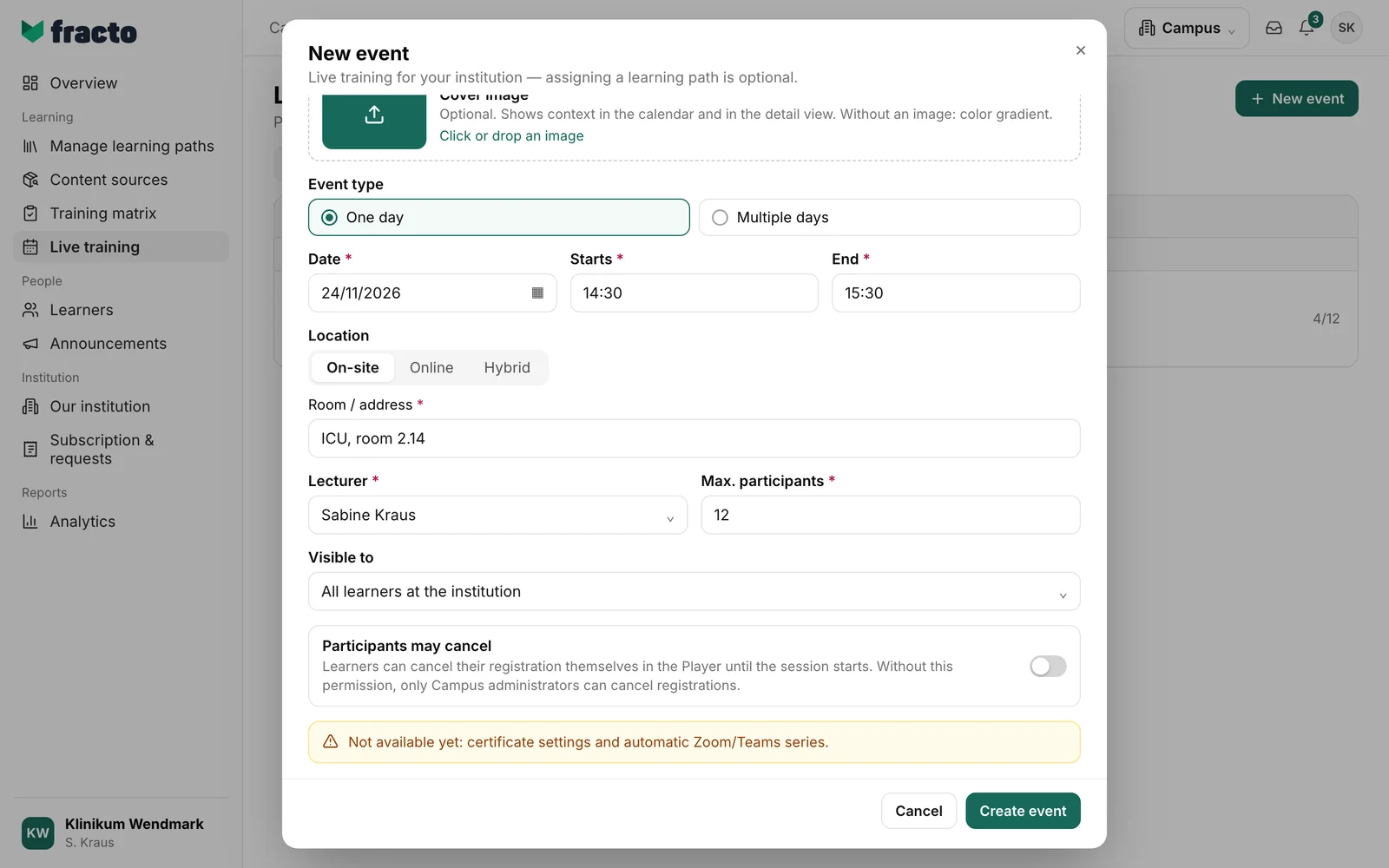
Choose the Location: On-site, Online or Hybrid. For on-site and hybrid, Room / address is required. For online and hybrid, you set up the meeting: Create meeting automatically is switched on by default. Fracto then creates the Zoom or Teams meeting through the lecturer’s connection. If the lecturer has connected both, choose the Meeting provider. The switch is locked if the lecturer has connected neither Zoom nor Teams, or if the event lasts several days. Then Meeting URL (manual) is required: an https link.
-
Under Lecturer, choose the person who teaches the event. The field is preset to the first lecturer in the list. You can choose active lecturers and lecturers with a basic profile. A meeting can be created automatically only with an active lecturer. Enter the number of places under Max. participants. 16 is preset.
-
Under Visible to, set who the event is visible to: All learners at the institution, Selected roles or Selected departments. For the last two, choose at least one role or department.
-
With the Participants may cancel switch, you allow learners to cancel their registration themselves in the Player until the event starts. Without it, only Campus administrators can cancel registrations.
-
Click Create event.
How you can tell it worked: the dialog closes and the details of the new event open. In the list it is under Upcoming.
What happens next
- The event is scheduled. It has as many places as you entered under Max. participants. There is no waitlist. When the event is full, Add participant on the Attendance tab is locked, and it says “The event is fully booked. There is no waitlist.”
- Learners can register in the Player. You can also add people yourself: on the event’s Attendance tab there is Add participant.
- If the event belongs to a learning path, attending can fulfil the related obligation. Without a learning path, the event needs no course learner place.
- Fracto does not currently issue a certificate for live trainings. The dialog says: “Not available yet: certificate settings and automatic Zoom/Teams series.”
- If only the upload of the cover image fails, the event is still created. No message appears. You can add the image later in the event’s details.
- You can change the event later in its details with Edit. The dialog is then called Edit event.
If it does not work
| Message | What it means |
|---|---|
| Please enter a title. | The event cannot be created without a title. |
| The event must be in the future. | Date and start are before now. Choose a later time. |
| The last training day must be after the first. | For several days, the end must be after the start. |
| Please select a lecturer. | Choose a lecturer. If there is none, a Campus manager has to add one first. |
| Please enter a room or address. | The location is required for on-site and hybrid. |
| Please enter a valid HTTPS meeting URL. | The manual meeting link must start with https. |
| This lecturer has not connected Zoom or Teams. Please enter a manual meeting link. | This is a note in the dialog, not an error message. The meeting cannot be created automatically. Enter a link. |
| No usable Zoom or Teams connection is available for this lecturer. | The event cannot be created like this. Switch off the automatic meeting and enter a link, or choose another lecturer. |
| The duration must be a positive whole number. | The End is not after the Starts time. Choose a later end. |
| Please select Zoom or Microsoft Teams. | The lecturer has connected both. Choose the Meeting provider. |
| Please choose a valid date. | The date is missing or invalid. |
| The lecturer needs to reconnect the meeting provider. | The lecturer must connect Zoom or Teams again. |
| The meeting connection could not be renewed right now. Please try again. | A temporary error. Click Create event again. |
| Select at least one role or department. | Selected roles or Selected departments has no selection. |
| You do not have permission for this action. | Only Campus managers and lecturers create events. |
| Please check the entries and event time. | An entry or the event time was rejected. Check the marked fields. |
Checked on 6 November 2026 against the current Fracto release.
