
Import a video as a course
How to turn a recorded webinar into short video lessons in Studio: let the AI suggest chapters, review them and create the lessons.
You have the recording of a webinar or talk. The import cuts it into short video lessons. The AI suggests chapters, learning objectives and one knowledge check per chapter, and you review everything before anything is created.
Before you start
- You have the Create courses task in Hub. Without it, Create new → Create from video is not there. The import is only available when you create a new course.
- The video is an MP4 or WebM file up to 1 GB.
- A subtitle file (.vtt or .srt) is optional but recommended: with it, chapter boundaries are accurate to the second and the import does not have to transcribe the audio track first. Without it, Fracto transcribes the audio track.
- The AI writes chapters, questions and objectives in the source language of the course.
- The chapter suggestions use your workspace’s AI credit. If it is used up, the import stops with a message (see below).
- When you upload the video, it is stored in the course’s knowledge base and processed there like other audio and video files.
How to import a video
-
In the course overview, click Create new and choose Create from video. In the Course from video dialog, enter a Title, check the Source language and click Create course. The course is created in the folder you have open. Then the Create from video page opens.
-
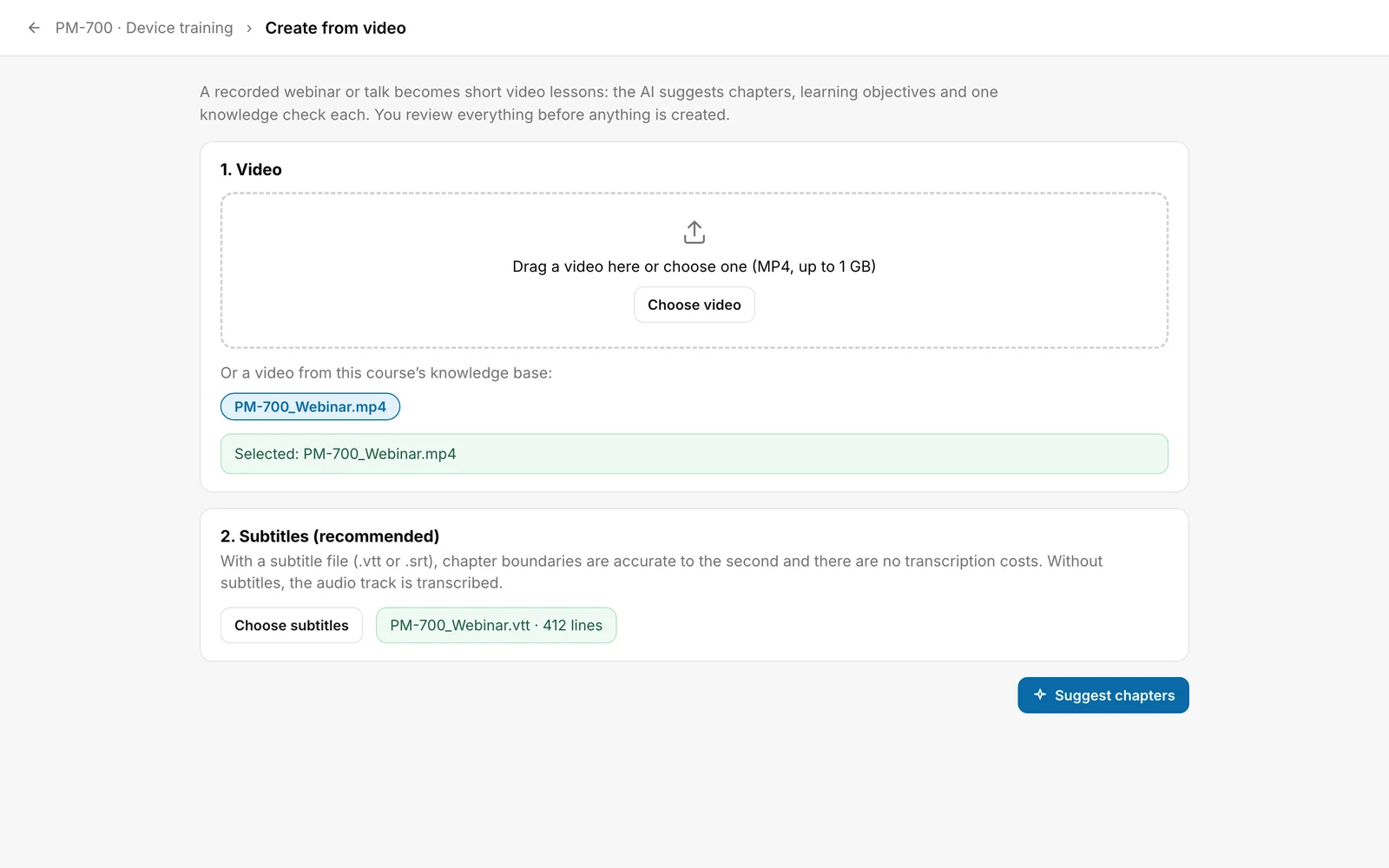
Under 1. Video, drag the file into the area or choose it with Choose video. While uploading, it says “Uploading … 40 %”. Afterwards it says “Selected: …” with the file name. If the course’s knowledge base already holds a video, click its name under “Or a video from this course’s knowledge base:” instead.
-
Under 2. Subtitles (recommended), upload the subtitle file with Choose subtitles. Afterwards it says “file name · 412 lines”.
-
Click Suggest chapters. The button is disabled until a video is selected. With subtitles it says “The AI is suggesting chapters and questions …”. Without subtitles it first says “Creating transcript … 35 %”. Stay on the page until the suggestion appears. If you leave it earlier, the suggestion is gone. The course stays empty, and the Create from video page cannot be opened again from the course. Then create a new course from video and archive the empty one. The knowledge base belongs to the course, so upload the video again in the new course. A new suggestion uses AI credit again.
-
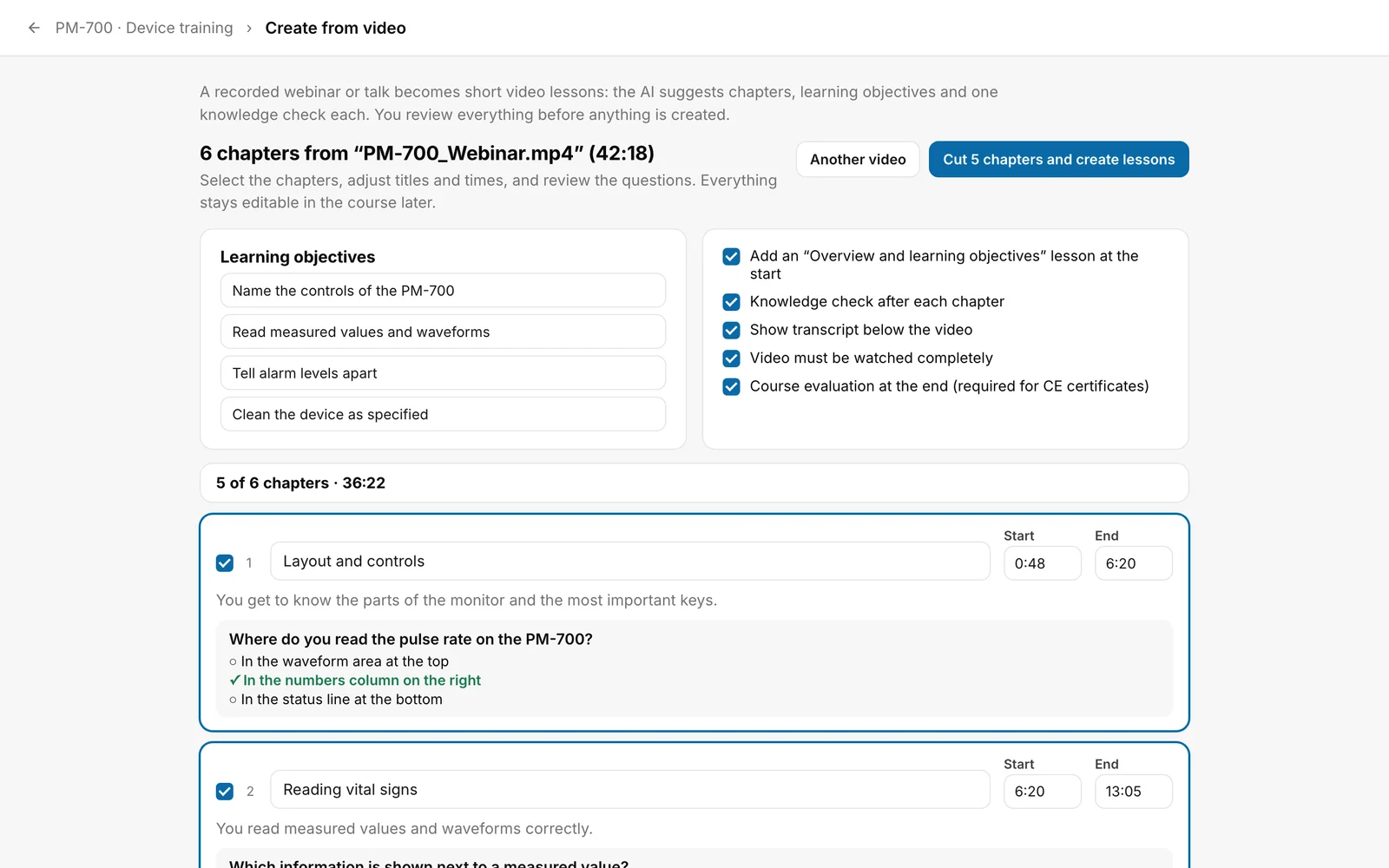
Review the suggestion. The heading gives the number, file and length, for example “6 chapters from “PM-700_Webinar.mp4” (42:18)”. Each chapter has a checkbox before the number, a title field, and Start and End in minutes and seconds (“6:20”, from one hour “1:05:30”). Below are the summary and the knowledge check question with the correct answer. You cannot change the summary and question here, only in the lesson editor. If a question is missing, it says “No question for this chapter”. A deselected chapter is not created and its fields are disabled.
-
Change titles, start and end if needed. The end must be after the start, and a chapter can be at most 10 minutes long. Otherwise a note appears above the chapters, “Check the times: the end must be after the start, and a chapter can be at most 10 minutes long.”, and the button to create is disabled. The bar above the chapters keeps count: “5 of 6 chapters · 36:22”.
-
Edit the Learning objectives and choose the options. All five are selected:
- “Add an “Overview and learning objectives” lesson at the start”
- “Knowledge check after each chapter”
- “Show transcript below the video”
- “Video must be watched completely” (learners cannot fast-forward and must watch the video to the end)
- “Course evaluation at the end (required for CE certificates)”
-
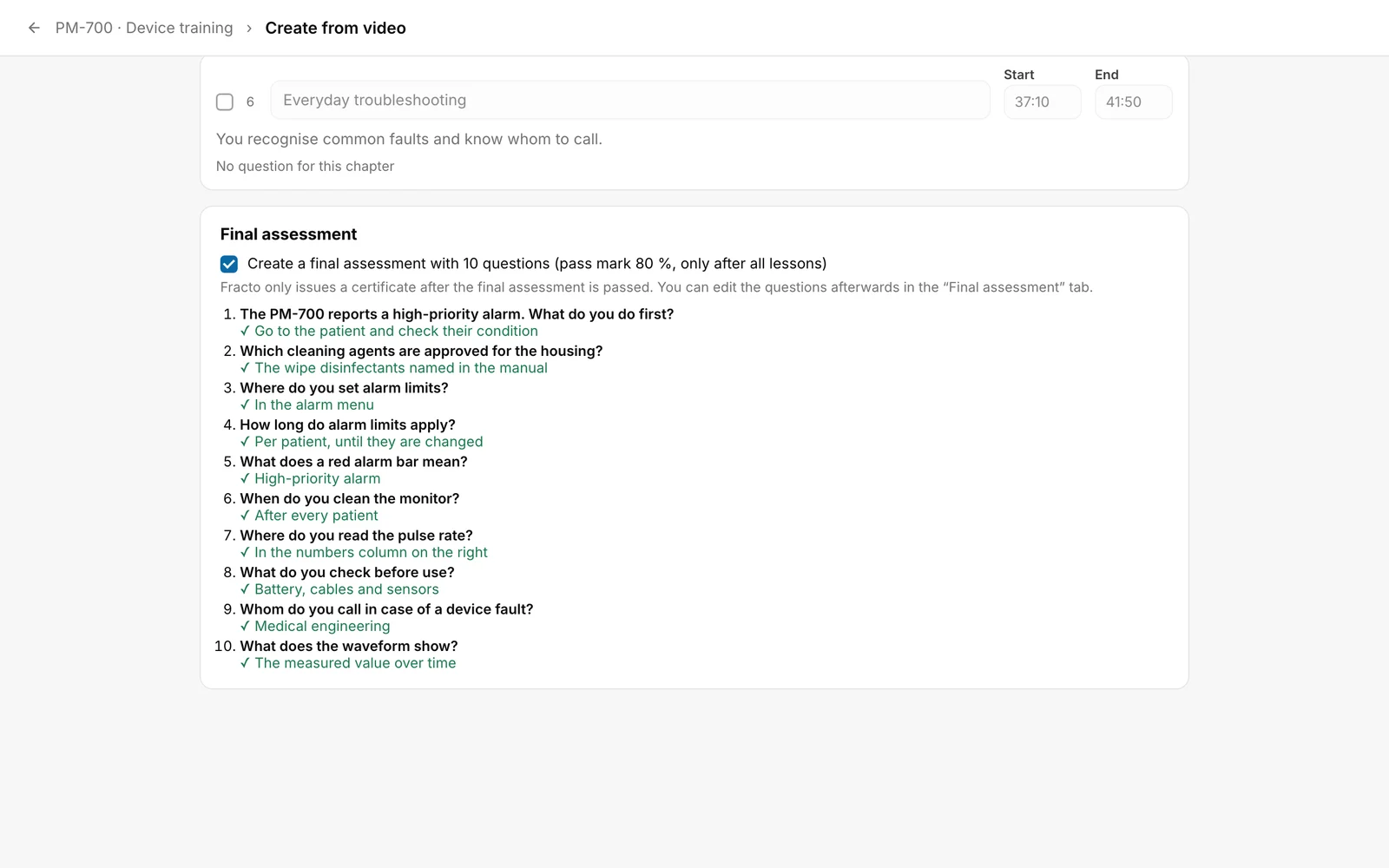
At the bottom is the Final assessment card with the checkbox “Create a final assessment with 10 questions (pass mark 80 %, only after all lessons)”. Fracto asks the AI for 10 questions; questions without exactly one correct answer are dropped. The number in the checkbox is what remains. The checkbox is selected as long as the AI delivered exam questions. The questions are listed below. Clear the checkbox if you do not want an exam. Without a passed final assessment, Fracto does not issue a certificate.
-
Click “Cut 5 chapters and create lessons” at the top. The number follows your selection. The button is disabled while no chapter is selected or the times are invalid. Fracto shows “Cutting chapters … 60 %”, “Creating lessons …” and, with an exam, “Creating final assessment …” in turn.
You know it worked when: the course page opens and shows an AI style suggestion for the course. The lesson list contains a new section named after the course.
With Another video you discard the suggestion and start again at the top. No lessons have been created at that point. The video stays in the knowledge base and stays selected.
What happens next
- Fracto appends the lessons to the existing ones, in a new section named after the course. The section contains, in this order: the lesson “Overview and learning objectives” (with your objectives, only if the option is on and there are objectives), one lesson per chapter and the course evaluation (only with the option, and if the AI delivered one). The AI writes the titles of the framing lessons in the course language.
- Each chapter lesson contains the cut video with a poster image, the summary as text, if you chose it the transcript below the video, and if you chose it the knowledge check question as a learning check. If Video must be watched completely is on, Prevent fast-forwarding in the player and Video must be watched to the end are switched on in the video block. You change both later in the lesson editor (see “Edit a lesson with blocks”).
- The chapter videos are course media of their own. The original stays in the knowledge base.
- With the final assessment option, Fracto creates the exam with the single-choice questions. Pass mark 80 %, it opens only after all lessons. You edit it in the Final assessment tab (see “Create a final assessment”).
- Learners only see the course after it is published (see “Publish a course”).
If it does not work
| Message | What it means |
|---|---|
| This video format is not supported. Please upload an MP4 or WebM file. | The file ending is neither .mp4 nor .webm. |
| The video could not be uploaded (status …). | The upload failed. Status 413 means the file is larger than 1 GB. The number helps support. |
| Too many uploads are running right now. Please try again in a few seconds. | The server is busy. Wait a moment. |
| No timestamped subtitles were found in the file. | The file has no subtitle lines with times. Choose a .vtt or .srt file. |
| You do not have Studio author rights in this workspace. Ask an administrator to add you as an author. | You do not have the Create courses task, or you may not edit this course. The app only notices when you start Suggest chapters or the cutting. |
| This workspace has used up its AI credit for this month. | Also: “… for the contract year.” and “No valid AI credit is currently set up for this workspace.” Ask a person with the Administer workspace task. |
| The AI is currently unavailable. Please try again later. | The AI request failed. |
| The AI did not return a usable chapter proposal. Click “Suggest chapters” again. | The AI’s answer could not be used. |
| That did not work (…). Please try again. | A code for support is in brackets. For example VIDEO_TRANSCRIPT_EMPTY when neither subtitles nor audio yield text, or VIDEO_PROCESSING_FAILED when the video could not be processed. “HTTP_503” also occurs when the service cannot be reached. |
| The lessons could not be saved (status …). | Creating them in the course failed. No lesson was created, but the chapter videos are already cut. A new attempt cuts them again. |
| Another person has changed the course. Nothing was overwritten. Check the chapters and try again. | Someone else changed the course while you were reviewing. The chapter videos are already cut, and a new attempt cuts them again. |
| The lessons were created, but the final assessment could not be saved (status …). | The lessons are already in the course. Do not click the button again, or they are created a second time. Open the Final assessment tab in the course. Settings and some questions may already be there. Add the missing ones. |
Checked on 6 November 2026 against the current Fracto release.
