
Publish a recording of a session
How to make a live training recording available in Campus: upload a video or store a link, clear the usage rights and publish it.
Requires: Campus Full
Fracto does not record live trainings itself. You upload a finished video or store a link, then publish it for the learners of your institution.
Before you start
- Recordings are part of Campus Full, like live training itself. Without Campus Full, Live training does not appear in the menu.
- Campus managers and lecturers can add and publish a recording. A lecturer needs an active profile and works only on their own sessions. As the responsible lecturer they can only choose themselves. Campus managers and the responsible lecturer can withdraw it. Only Campus managers can permanently delete a stored video.
- A lecturer is assigned to the session. Otherwise the section says: “Assign a lecturer to the session first.”
- You have either a video as MP4, MOV or WebM (under 2 GiB, at most four hours long) or an https link to a recording.
- If the responsible lecturer is not a member of your institution, for example a guest speaker, they count as external. They must confirm the usage rights themselves before you can publish.
Publish a recording
-
In Campus, open Live training, click the session and choose the Material tab. The Recording section is there.
-
Under Responsible lecturer, choose the person who held the session. Without one, Upload video and Add link are disabled. Campus managers see the session’s lecturers with a basic or active profile, a lecturer sees only themselves.
-
Store the recording in one of two ways:
- Upload video: choose the file. During the upload it says “Upload in progress …”. After that the recording shows “Uploaded video · Video is being processed”. The page refreshes by itself until “Ready to publish” appears. If processing fails (“Processing failed”), click Restart processing.
- Provider link: enter an https link and click Add link. Fracto does not fetch or check the link. It is only stored. The recording is “Ready to publish” at once.
-
If the lecturer is external, the recording says: “The responsible external lecturer must confirm the usage rights first.” Publish recording is disabled. The lecturer signs in themselves and clicks Confirm usage rights. By doing so they confirm: “I allow Klinikum Wendmark to make the recording of my session on … available to its own learners in the Player and in learning paths until I or the clinic withdraw publication.” Only the responsible lecturer sees this button. If the lecturer is a member of your institution, they see it too but do not need the confirmation. Then this step does not apply.
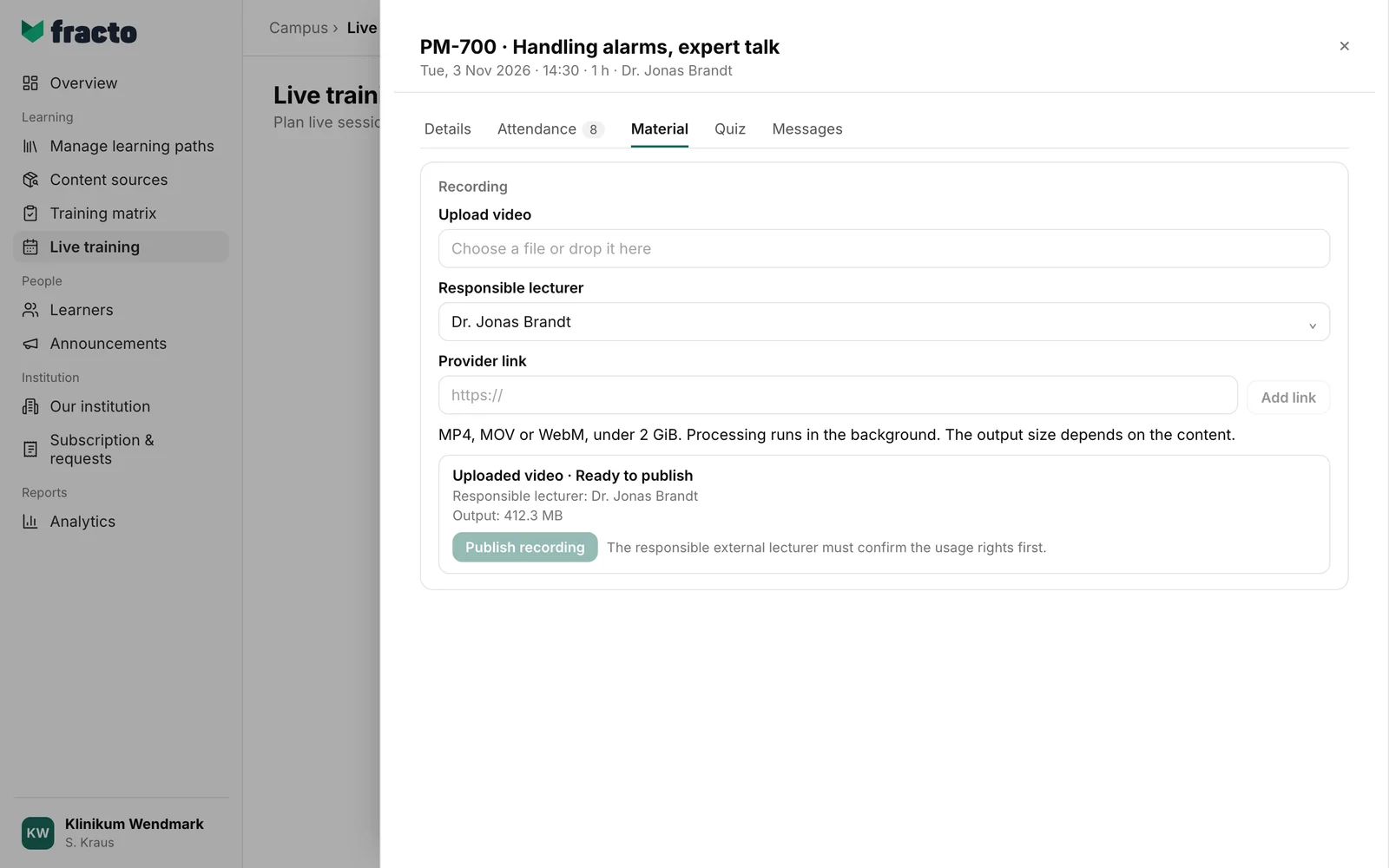
-
Click Publish recording.
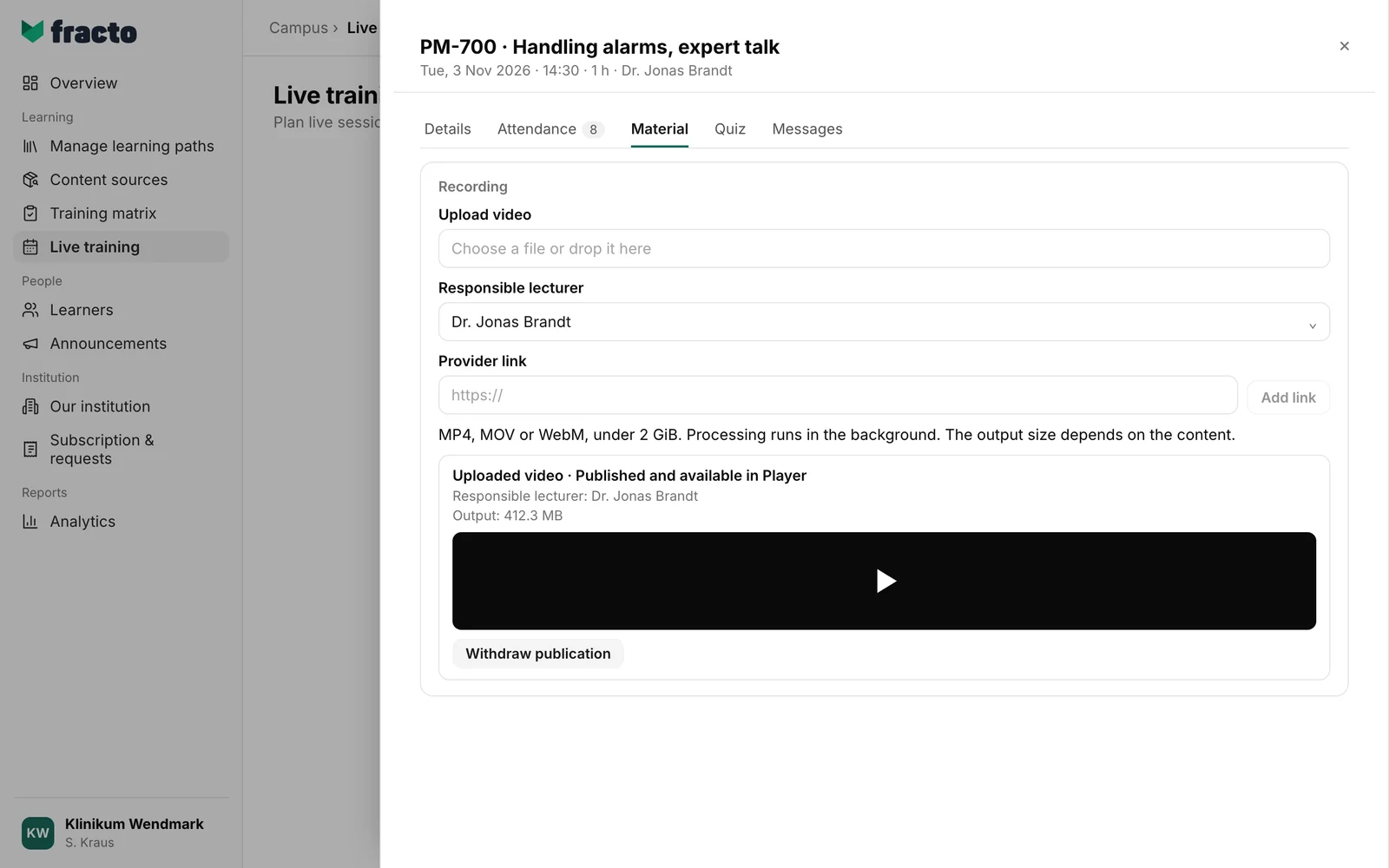
You can tell it worked: the recording reads “Published and available in Player”. An uploaded video plays right in the section. For a link, the section shows Open recording at provider.
What happens next
- Learners see the recording in the Player on the session in the Recording tab, which exists only for online and hybrid sessions. It is missing if the session requires a training pass and the person has none. Before the session the tab says: “Whether there is a recording is decided by course leadership – it appears only after publication.” After the session, without a publication, it says: “No recording is currently available for this event. If the course team publishes one, it will appear under My Training.” Once published, the recording can also be found under “My trainings”.
- Withdraw publication takes it back. The Player then says: “This recording was available and no longer is.” The video stays stored, and you can publish it again. If the external lecturer withdraws it themselves, their confirmation of the usage rights is revoked. They must confirm again before a new publication.
- Campus managers delete a withdrawn, stored video with Permanently delete stored video. After the confirmation this cannot be undone. A link has nothing to delete.
- A published recording becomes a training of its own. It appears in Content sources in the Live recordings tab, can be assigned to a learning path like a course under Manage learning paths, and uses learner places for own content. See “Content sources: where your courses come from”. Fracto sends learners no notification when you publish.
If it does not work
| Message | What it means |
|---|---|
| recording.pdf: Allowed formats: video/mp4,video/quicktime,video/webm. | When choosing: the file has another format. |
| recording.mp4: The file must be no larger than 2,048 MB. | When choosing: the file is larger than 2 GiB. |
| Processing failed | The video could not be converted, for example because it is longer than four hours or damaged. Click Restart processing or upload another file. |
| You do not have permission for this action. | Your role cannot do this, for example deleting as a lecturer. |
| The event or person was not found in your area. | The session or the chosen lecturer is not in your area. A lecturer can only choose themselves. |
| Please check the entries and event time. | For example the link is not an https link. |
| Too many uploads. Please try again in a few seconds. | Another upload is running in the workspace, or the server is busy. Wait a few seconds. |
| The live training action failed. | A general error. Try again. |
Checked on 6 November 2026 against the current Fracto release.
