
Invite people with invite links
How to invite many people to Campus with one link: set role, validity and use limit, share the link and manage it later.
You do not know the people in advance and want to give them a link. For that you create an invite link: role and department are already set, and people register themselves.
Before you start
- In Campus you have the task Manage Campus (Campus manager). Only then does Learners have the Add learner button and the Invite links tab. With Manage department you see neither.
- You can create the role beforehand in Learners under Roles & departments or directly in the dialog. You create departments under Roles & departments. A department is optional, but it must be active.
- Your institution has a source of learner places. Without a source, the dialog does not show the Learner places field and Create link stays disabled. You manage learner places under Subscription & requests.
- The link books nothing yet. A learner place is only taken when someone accepts the link. From then on, learning access runs for one full year.
Create an invite link
-
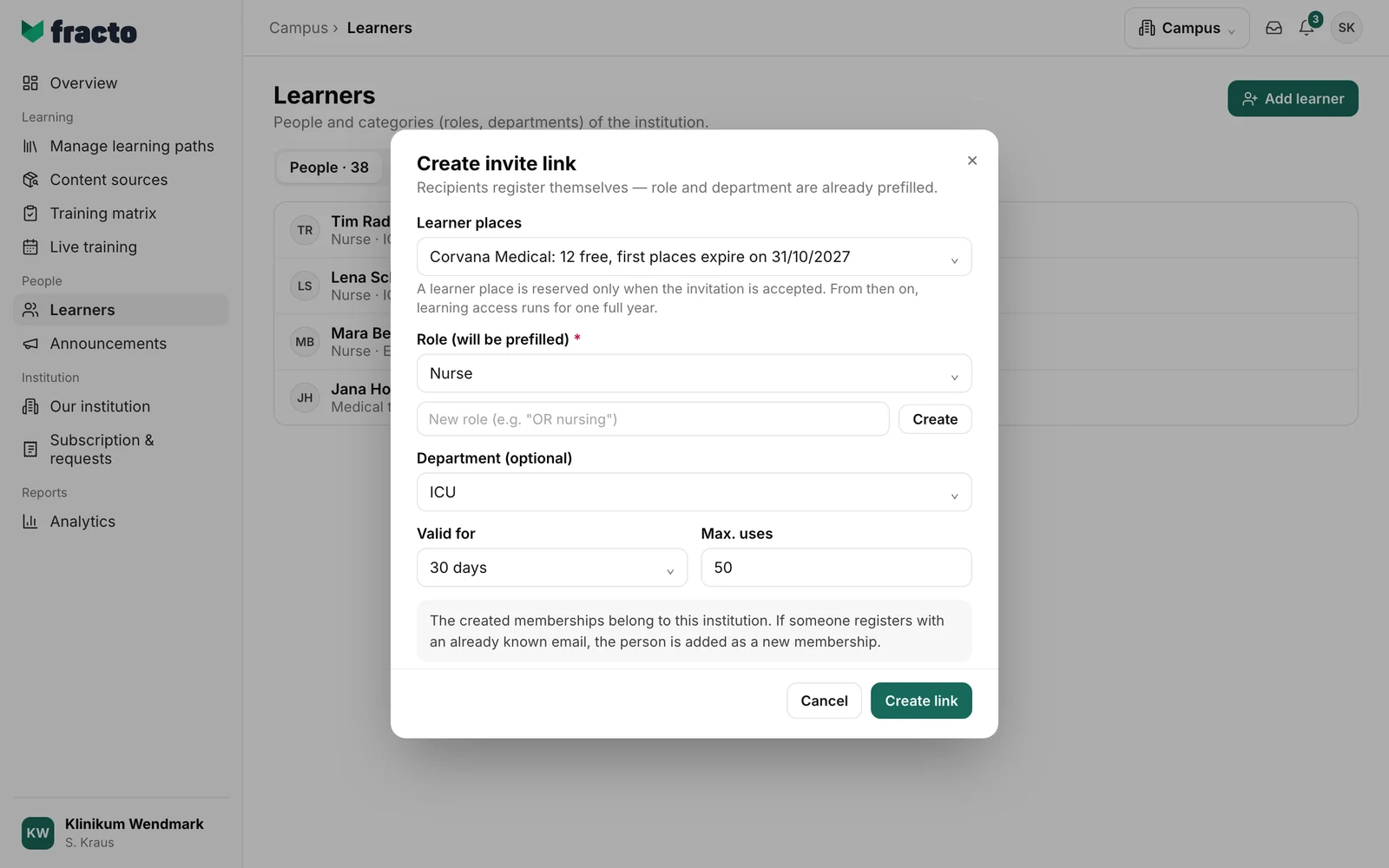
In Campus, open Learners. Click Add learner and then Create invite link.
-
Under Learner places, choose the source the places come from. Each entry shows the supplier, how many places are free and when the first places expire. If there is only one source, it is already chosen.
-
Under Role (will be prefilled), choose the role everyone gets through this link. This field is required. Roles of a team appear in the list with the suffix “(Team)”. If the role does not exist yet, create it right below: enter the name in the field “New role (e.g. “OR nursing”)” and click Create. The new role is then chosen. If there is no role at all, it says “No role exists yet. Create the first role here.”
-
If needed, choose a department under Department (optional). The default is No department.
-
Under Valid for, set how long the link works: 24 hours, 7 days, 30 days or Unlimited. The default is 30 days. The time runs from the moment you create the link.
-
Under Max. uses, enter how often the link may be accepted. The default is 50, and any whole number from 1 to 100,000 is possible. If you leave the field empty, the number of uses is not limited.
-
Click Create link. The dialog shows Link created, below it the presets (“Prefilled: …”) and the link. Copy puts it on the clipboard. Create another resets the form, Done closes the dialog.
You can tell it worked when the Invite links tab shows a new entry with the status Active, the role, the department and the use count (“0 of 50”).
Share and manage the link
Fracto does not send the link. Pass it on yourself, for example by email or on your intranet. On the Invite links tab, each link shows Role and department, Created, Valid until, Uses and Status. On very wide screens the list is a table, otherwise it consists of cards. Under Uses you see the names of the people who have already accepted the link (“Joined: …”).
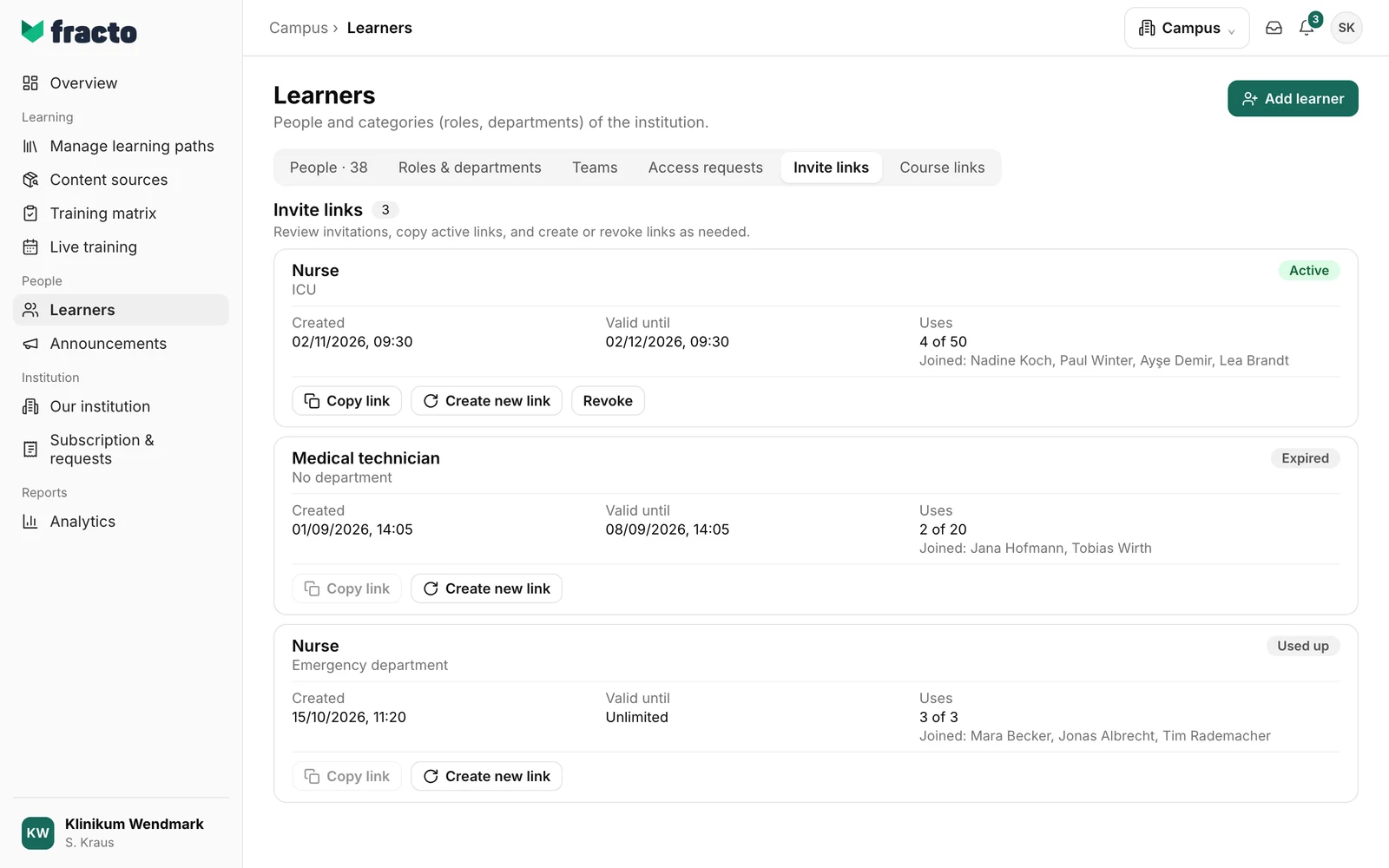
- For active links, Copy link fetches the full link again. For expired and used-up links the button is disabled, for revoked links it is missing. It is also disabled for personal invitations, for example from an approved access request: “Personal invitations cannot be shared.” For older links that cannot be recovered, it says: “This older link cannot be recovered. Create a new link.”
- Create new link asks first (“Create a new invite link?”). For an active link, the previous link stops working immediately. Role, department and use limit stay, and so do the uses so far. The new validity starts now; its length is the time from creating the link to its previous expiry. An unlimited link stays unlimited. For an expired, used-up or revoked link, a new active link is created with the same role, department and use limit. Fracto then shows the new link.
- Revoke exists only for active links. After the question (“Revoke this invite link?”) and Revoke now, the link can no longer be used. People who have already accepted it stay unchanged in Learners.
What happens next
- Whoever opens the link signs in with their Fracto account or registers. When they accept, the membership in your institution is created with the set role and department, and a learner place is taken. If the person is already a member, no new membership is created: the link’s role is added to their existing roles, and a department on the link replaces the current one. Someone whose Campus access ended earlier becomes active again. If someone registers with an email address Fracto already knows, the person is added as a new membership of your institution.
- If there is no free learner place, people cannot accept the invitation until a place is free again. The dialog warns you (“No learner places are currently free here. …”) but still lets you create the link.
- Each acceptance counts as one use. When the limit is reached, the link shows Used up. After the validity ends, it shows Expired.
- Obligations from the training matrix that apply to the role start at the earliest when the person joins.
If it does not work
| Message | What it means |
|---|---|
| Please choose a role. | You have not chosen a role yet. |
| Please enter a whole number between 1 and 100,000. | Max. uses holds an invalid number. |
| A maximum of 100,000 uses is possible. | The number under Max. uses is too large. |
| Learner places could not be loaded. Please try again. | The sources of learner places could not be loaded. Create link stays disabled. Close the dialog and open it again. |
| Invite link could not be created. | The link was not saved, for example because the role or department has been archived in the meantime or the learner place source can no longer be used. Check your choices and try again. |
| Invite links could not be loaded. | The list could not be loaded. |
| Could not copy the invite link. Please try again. | The link did not reach the clipboard. |
| This older link has no learner places assigned, so it cannot be renewed. Create a new link. | Create new link is disabled for this old link. Create a new link via Add learner. |
| Could not create a new invite link. Please try again. | Renewing did not work. |
| Invite link could not be revoked. Please try again. | The link is still active. |
Checked on 6 November 2026 against the current Fracto release.
