
Manage lecturers
How to manage lecturers in Campus: create and maintain profiles, assign or remove Contributor access, request places and archive profiles.
Lecturers run live trainings and appear on certificates. In Campus there are two levels: a managed profile, which is only a record, and a profile with its own Contributor access, with which they maintain their sessions themselves.
Before you start
- In Campus you have the task Manage Campus (Campus manager). Only people with this task see the Lecturers tab under Our institution. With Manage department it is missing.
- You can create and maintain profiles in every institution. Contributor access is part of Campus Full. Without Campus Full, the tab says: “Your package lets you add lecturers for certificates. Lecturers maintain their own sessions and courses only with Campus Full.” In a manufacturer workspace, there are no active lecturers.
- For Contributor access you need a free Contributor place and an email address in the profile. If you manage the institution only on someone’s behalf, that is without your own Campus manager role in this institution, it says: “You may not activate lecturers here. This needs your own Campus manager role in this institution.” Assign Contributor access and Request additional seats are then missing.
The two levels
| Level | What it means |
|---|---|
| Base | Only a record, free of charge. The profile is available for certificates, learning paths and live trainings. You, as Campus manager, plan the sessions and content for this lecturer. There is no Campus access. |
| Invited | You have assigned Contributor access. The person has not accepted the invitation yet. The Contributor place is already reserved. |
| Active | The person has their own Contributor access and uses a Contributor place. They create their sessions themselves and maintain profile, photo and the Zoom or Teams connection themselves. |
Create a lecturer
-
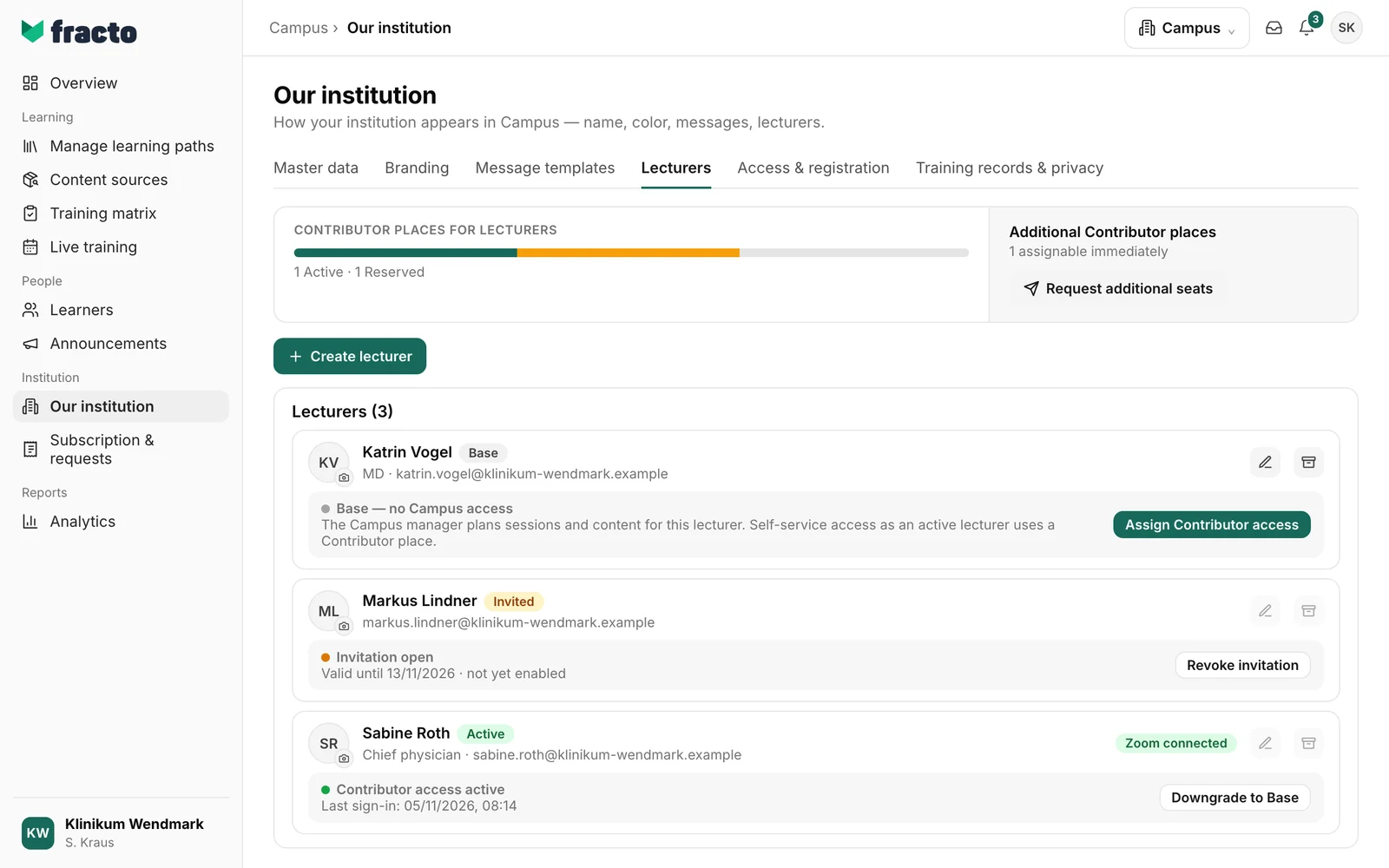
In Campus, open Our institution and then the Lecturers tab. The heading shows the number of lecturers (“Lecturers (3)”).
-
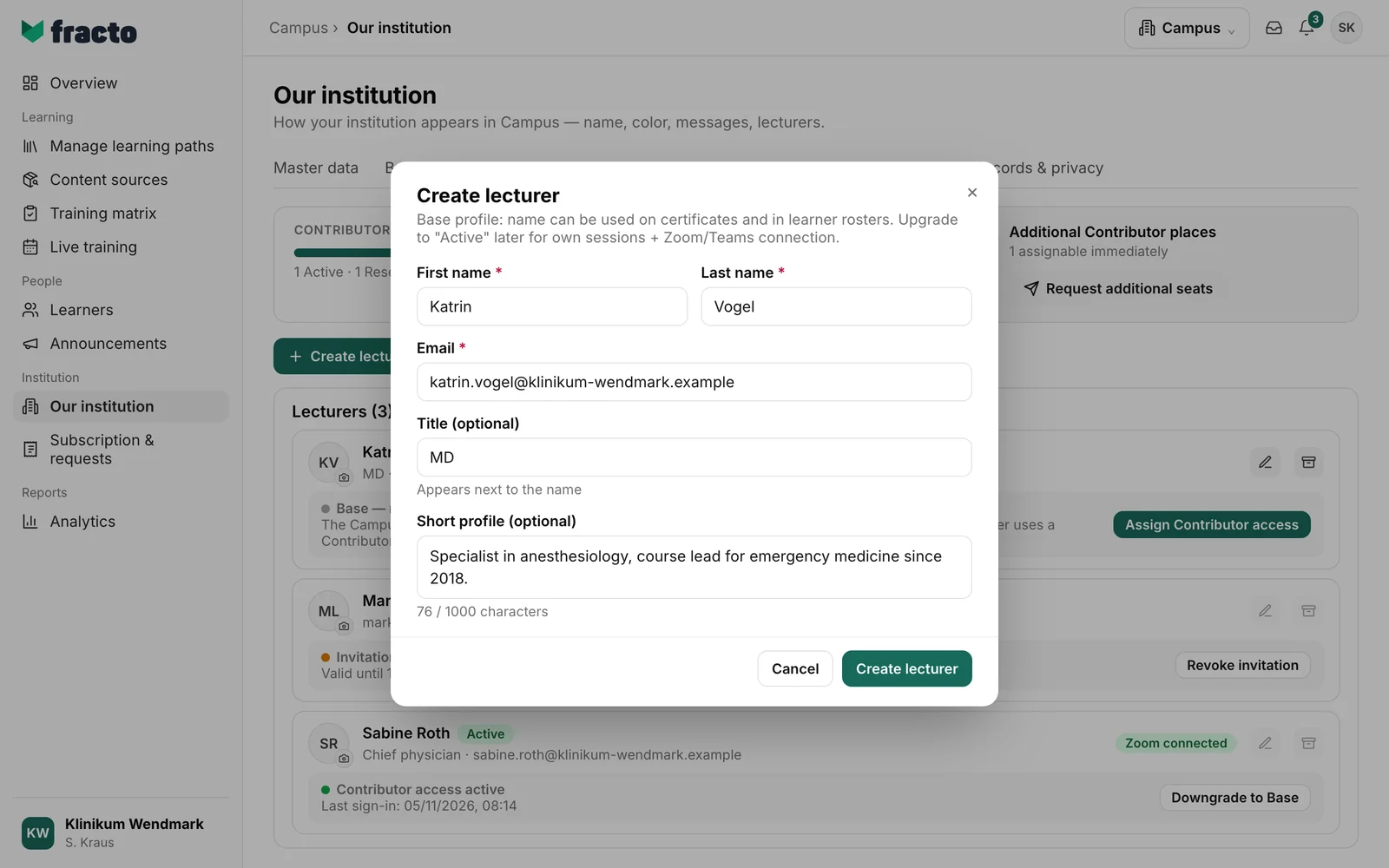
Click Create lecturer.
-
Enter First name, Last name and Email. These are required. First and last name can be at most 120 characters long. The email address must not already be used for another lecturer.
-
If needed, enter a Title (optional) (at most 200 characters, “Appears next to the name”) and a Short profile (optional) (at most 1,000 characters).
-
Click Create lecturer.
You can tell it worked when the lecturer appears in the list with the label Base. With Campus Full, the note “Base — no Campus access” also appears. They can be used on certificates and in the learner list at once.
Change a profile, set a photo, archive
- With the pencil, you change Email, Title (optional) and Short profile (optional) of a base lecturer. The name does not change this way; it comes from the person profile. For lecturers with Contributor access the pencil is disabled: “Only Base profiles can be edited — downgrade to Base first”. They maintain their profile themselves.
- With the camera icon you upload a photo, for all lecturers, even without Contributor access (PNG or JPEG up to 5 MB). You upload it on their behalf. Active lecturers can also maintain it themselves.
- With the archive icon, you archive a base lecturer. The profile leaves the list and can no longer be chosen for new sessions. The contact data is kept until permanent deletion. For lecturers with Contributor access this is not possible: “Can only be archived without Contributor access – remove the Contributor access first”.
- Under Archived lecturers, Restore brings a profile back to the list with its data. Delete permanently exists only with the additional task Permanently delete entries.
Assign and remove Contributor access (Campus Full)
This section applies only with Campus Full. The Contributor places for lecturers card shows how many places are used and reserved and how many are “assignable immediately”.
- For a base lecturer, click Assign Contributor access. The button is disabled when no place is free; above the list it then says “No free seat — request more first”.
- The person gets an invitation at their contact email address. Until they accept it, they are Invited (“Invitation open”, “Valid until … · not yet enabled”). The place is reserved.
- With Revoke invitation, you withdraw the invitation, without a confirmation. The place becomes free again. If the invitation email could not be confirmed, it says “Invitation created – sending pending”, and Retry sending sends it again.
- After acceptance, the lecturer is Active (“Contributor access active”, “Last sign-in: …”). The row also shows whether Zoom or Teams are connected (“… connected” or “Provider missing”).
- With Downgrade to Base, you release the place, without a confirmation. The person stays as a base lecturer. Their Zoom or Teams connection is disconnected.
If the person already works in your workspace as staff, they become active at once without an invitation. This also applies if they already have other tasks there and are an Operator. If they are already a Contributor with other tasks there, the lecturer task cannot be added here. The app then says: “This person already works here as a Contributor. Change the lecturer task in People.”
A lecturer with Contributor access may create and edit their own sessions, upload material, set up a quiz for a session, record attendance at their own sessions, publish recordings of their own sessions, maintain their profile and the Zoom or Teams connection, and see the participants of their own sessions. They may not view the full learner list, change the training matrix, manage quotas, change institution settings, manage other lecturers, or edit content sources and learning paths.
Request more Contributor places (Campus Full)
- On the Additional Contributor places card, click Request additional seats.
- Under Additional seats, enter a number from 1 to 1,000. A Preferred date (optional) and a Note to Fracto (optional) are voluntary.
- Click Send request.
There is no immediate activation: Fracto reviews the request and provides the places. The confirmation is “The request for more Contributor places has been sent to Fracto.” Without the permission, it says “You are not allowed to request Contributor places.”
If it does not work
| Message | What it means |
|---|---|
| Please enter a first name. / Please enter a last name. | A required field is empty. |
| Please enter a valid email address. | The email address is not valid. |
| This email is already used for a lecturer. | A profile already exists for this address. |
| Please enter an email address. | The Email field is empty. |
| The first name can be at most 120 characters long. / The last name can be at most 120 characters long. | Shorten the name. |
| Please check the highlighted fields. | At least one field is invalid. Correct the highlighted fields. |
| Lecturer could not be created. | The profile was not saved. Check the entries. |
| No permission to create. | Only Campus managers create lecturers. |
| The lecturer profile could not be saved. Please try again. | The change to the profile was not saved. |
| No free Contributor place – please request more places. | No place is free. Request more places. |
| Seat reserved, but the invitation email could not be sent. | The place is reserved. Use Retry sending or Revoke invitation. |
| Action could not be completed. | An action in the list failed. Try again. |
| The action failed. Please try again. | Restoring or archiving did not work. |
| Request could not be sent. | The request for places did not go out. |
Checked on 6 November 2026 against the current Fracto release.
