
Talk to colleagues in Community
How to find colleagues in Community, connect with them, write in course forums and read notices.
In Community you find colleagues at your institution, connect with them, talk in your course’s forum and read notices.
Before you start
- You find Community in the sidebar under Community & help. The page has four tabs: Directory, Connect, Forums and Notices.
- You write under your real name everywhere. Forums belong to a course and are moderated by the course publisher.
- Who appears in the directory and what others see of them is each person’s own decision. For your own profile that is covered in “Edit your profile”.
Find colleagues
-
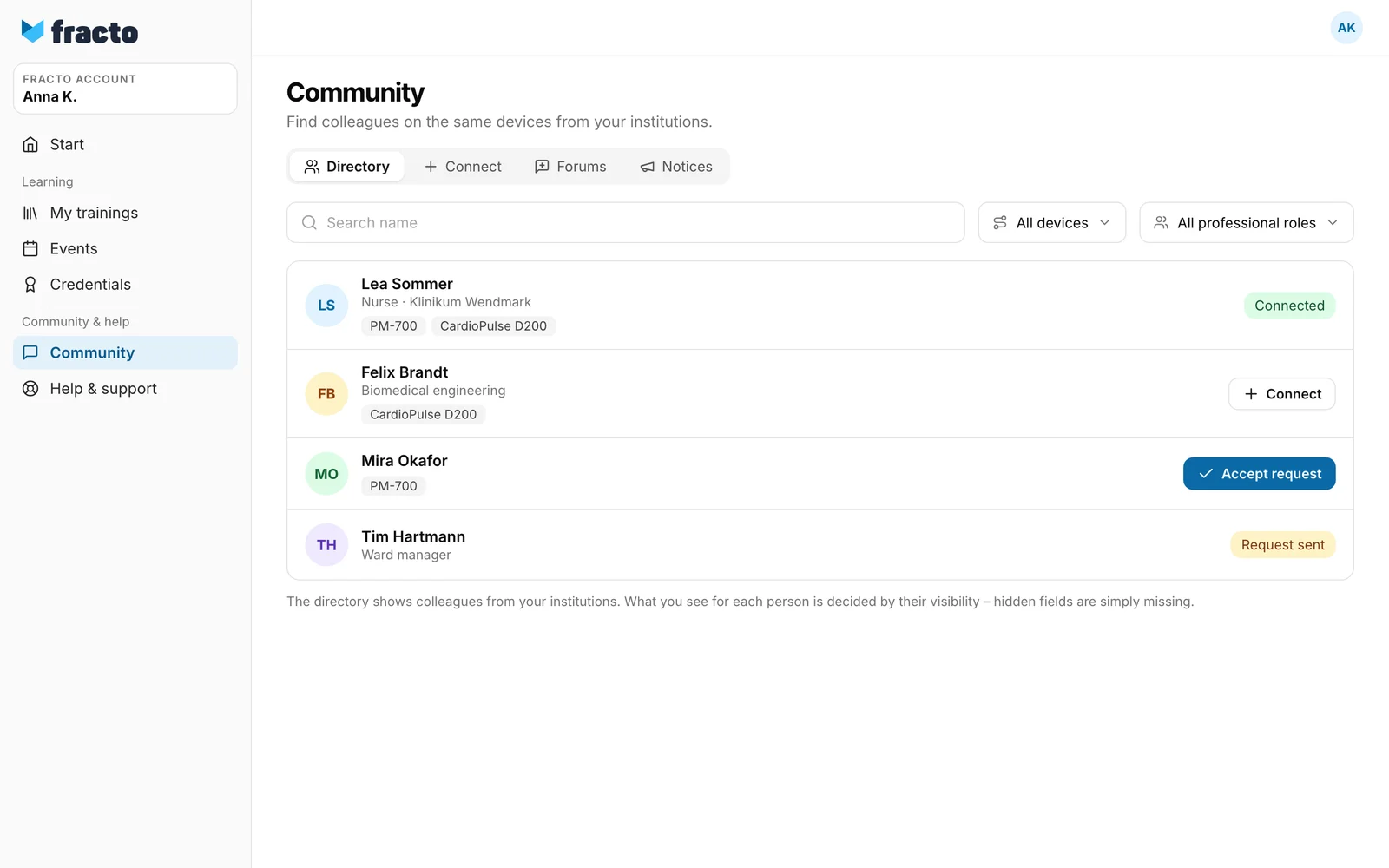
Open the Directory tab. It lists the active members of your institution who can be found there. You are not in the list yourself. The list has at most 200 people. Search and filters only work within this list.
-
Search in the Search name field or filter with All devices and All professional roles.
-
Each row shows name and photo, plus, depending on the person’s visibility, professional role, institution and up to four devices. The professional role only shows if the person has published it. Only connected people see the institution if the person chose Network only (the default). Anything Hidden is simply missing.
-
Click the name to open the profile. It shows the device competencies the person shows you.
Connect
- Click Connect next to a person. After that it says Request sent. You cannot add a message.
- The other person sees the request on the Connect tab under Requests to you and clicks Accept or Decline. If they have already asked you, you see Accept request, and one click connects you. A request triggers no notification: the other person only sees it when they open the Connect tab.
- With Connected you see the fields the person set to Network only or Public. The tab also shows Your connections and, under Find connections, up to six suggestions from your institutions and devices.
A declined request can be sent again. A connection cannot be undone in the interface. If you no longer want to show connected people something, set it to Hidden.
Write in a forum
-
Open the Forums tab. It lists one forum per course you have, with the number of topics and the last activity. “3 new” counts topics with news since your last visit. Your own posts do not count.
-
Click a forum. New topic starts a topic: title (up to 200 characters) and text (up to 5,000 characters), then Publish.
-
Open a topic, write under “Reply …” and click Reply. Next to each name is the professional role your institution gave that person, even if that person chose “Do not publish” in their profile. Posts by the publisher carry the tag Publisher. Pinned topics carry Pinned.
-
To address someone directly, tick the person under Mention people directly. The choices are people who have already written in the topic and also have the course, at most 20.
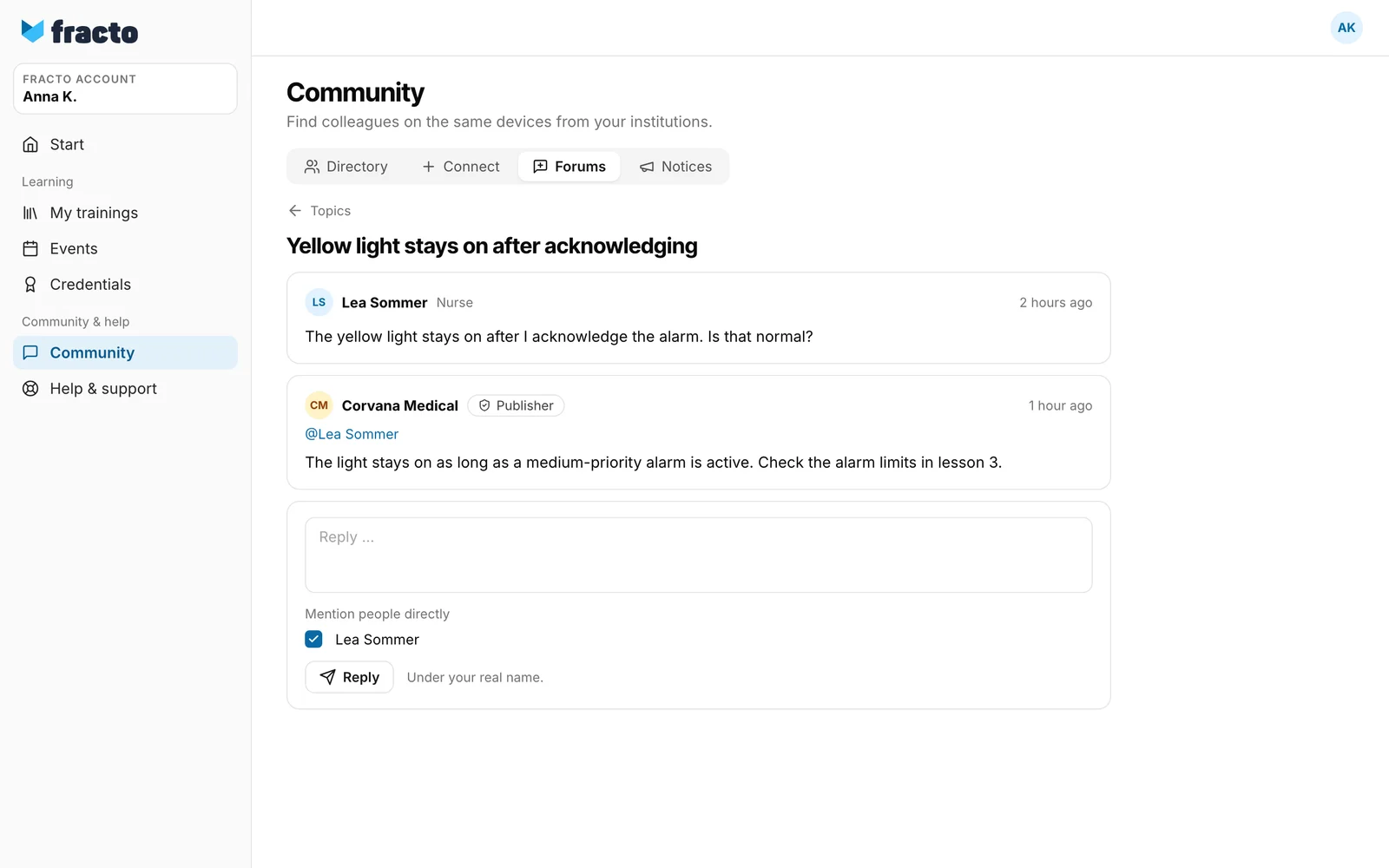
The person who opened the topic and any mentioned people get a notice about your reply, provided they have the course. Under your profile on the Notifications tab, at Community replies and mentions, you set what you receive yourself. If the publisher removed a post, it says “This post was removed by the publisher.”
Read notices
The Notices tab shows messages from your institution or from the manufacturer of a device you are trained on. They are read only. Pinned ones are tagged “pinned” and on top, unread ones have a dot. Load older notices fetches older ones. Notices also appear in the bell, here the history stays.
If it does not work
| Message | What it means |
|---|---|
| No one found. Not every professional is visible in the directory – each person decides that. | No match for your search and filters, or nobody can be found. |
| Profile not available | The person cannot be found in your institutions. A direct link does not help. |
| You don’t have any courses with a forum yet. | Forums exist only for courses you have. |
| This topic is not available. | The topic belongs to a course you do not (or no longer) have. |
| Please wait a moment before sending another message. | You sent a lot in a short time. The limit covers topics, replies and messages together. Wait a moment. |
| Your reply could not be published. Please check your selection. | A mentioned person no longer has access to the course, or the reply could not be sent. Remove the mention and send again. |
| No notices. Messages from your institution or from a manufacturer of a device you are trained on appear here. | There is no notice for you yet. |
| The directory could not be loaded. Please try again later or contact support. | The list did not load. The same applies to “The forum could not be loaded.” and “The notices could not be loaded.” |
Checked on 6 November 2026 against the current Fracto release.
