
Set up the AI tutor for a course
How to switch a course's AI tutor on or off in Studio, give it a name and greeting, set how it answers and test it.
The AI tutor answers learners’ questions from your course’s knowledge base. In the course settings you decide whether it exists, how it appears and how it answers.
Before you start
- You have the right to edit courses in Studio. Without it you can only view the tab: “You can view these settings, but you do not have permission to change them.” The right is part of the Hub task Create courses.
- Test tutor needs the right to use AI features. That right is also part of Create courses. Every test question counts towards your workspace’s AI usage.
- The tutor answers from the course’s published knowledge base. Without sources it can answer very little.
- If you change the tutor after a publication, learners need a new version for it. A correction does not work for this (see below).
- You do not choose provider or model here. Fracto sets that centrally.
How to set up the tutor
-
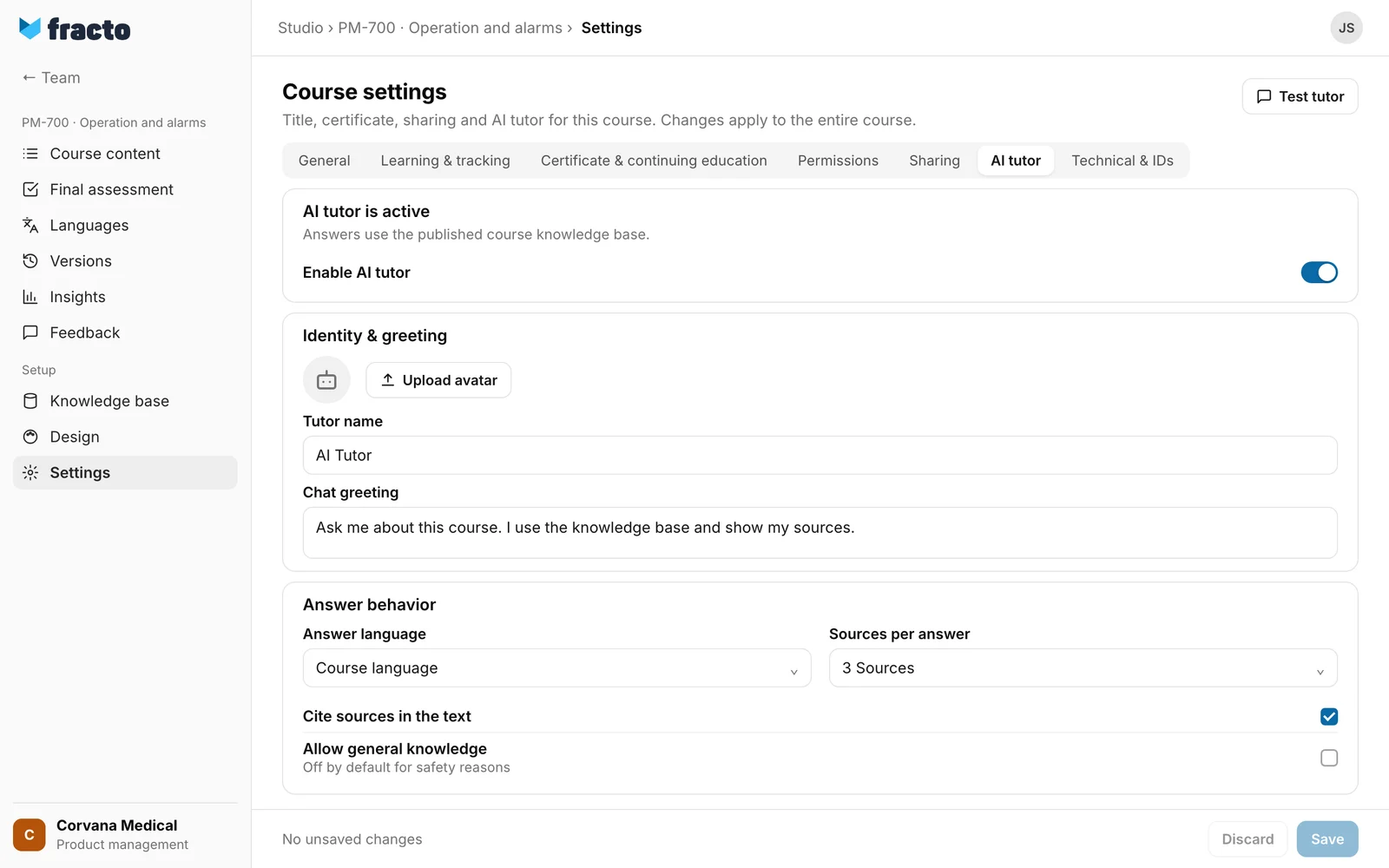
Open the course and click Settings in the course navigation. Choose the AI tutor tab. On the Content page you can also get there through the AI assistant menu and Configure AI tutor.
-
The top says “AI tutor is active” or “AI tutor is disabled”. Change it with the Enable AI tutor switch. It is on for every course by default.
-
Under Identity & greeting, upload an image with Upload avatar (Remove takes it away again). Enter the Tutor name and the Chat greeting. Both are filled in already, in the course language. Texts you leave unchanged follow the course language later. A name can have at most 80 characters, the greeting 300. The image, too, applies only after saving.
-
Under Answer behavior you set:
- Answer language: Course language (default), Deutsch or English. With Course language the tutor answers in the language of the question and uses the course language if it cannot tell. With Deutsch or English it always answers in that language in the Player.
- Sources per answer: 1, 2, 3 (default), 5, 8 or 10 sources.
- Cite sources in the text (on by default): the tutor is told to add source markers such as [1] to concrete statements.
- Allow general knowledge (off by default, “Off by default for safety reasons”): if the sources are not enough, the tutor may add background knowledge and marks it as not backed by the knowledge base. Off: it says plainly that the knowledge base has nothing on the question.
-
Under Tutor instruction you find the Teaching guideline (at most 2,000 characters). It is filled in, in the course language. In an English course it reads: “Answer in a friendly, concise and instructive way. Use only the provided sources and cite them when you state specific facts.” The tutor treats it as an addition to fixed rules. It does not replace them.
-
Click Save at the bottom. It saves the tutor settings together with open changes on the other tabs of the course settings. Discard takes back all unsaved changes. If saving the other settings fails, the tutor changes are not saved either.
-
Click Test tutor in the page header. The button is locked while tutor changes are unsaved (“Save your tutor changes first.”). The test chat opens over the page and always uses the last saved configuration. It shows your greeting, the number of published sources and, with answers, the sources with a link to the wiki page. Reset chat starts over. The test chat is not an exact copy of the Player: if it finds no reviewed source, it also searches all non-archived sources of the draft. So it can answer questions that learners get no answer to.
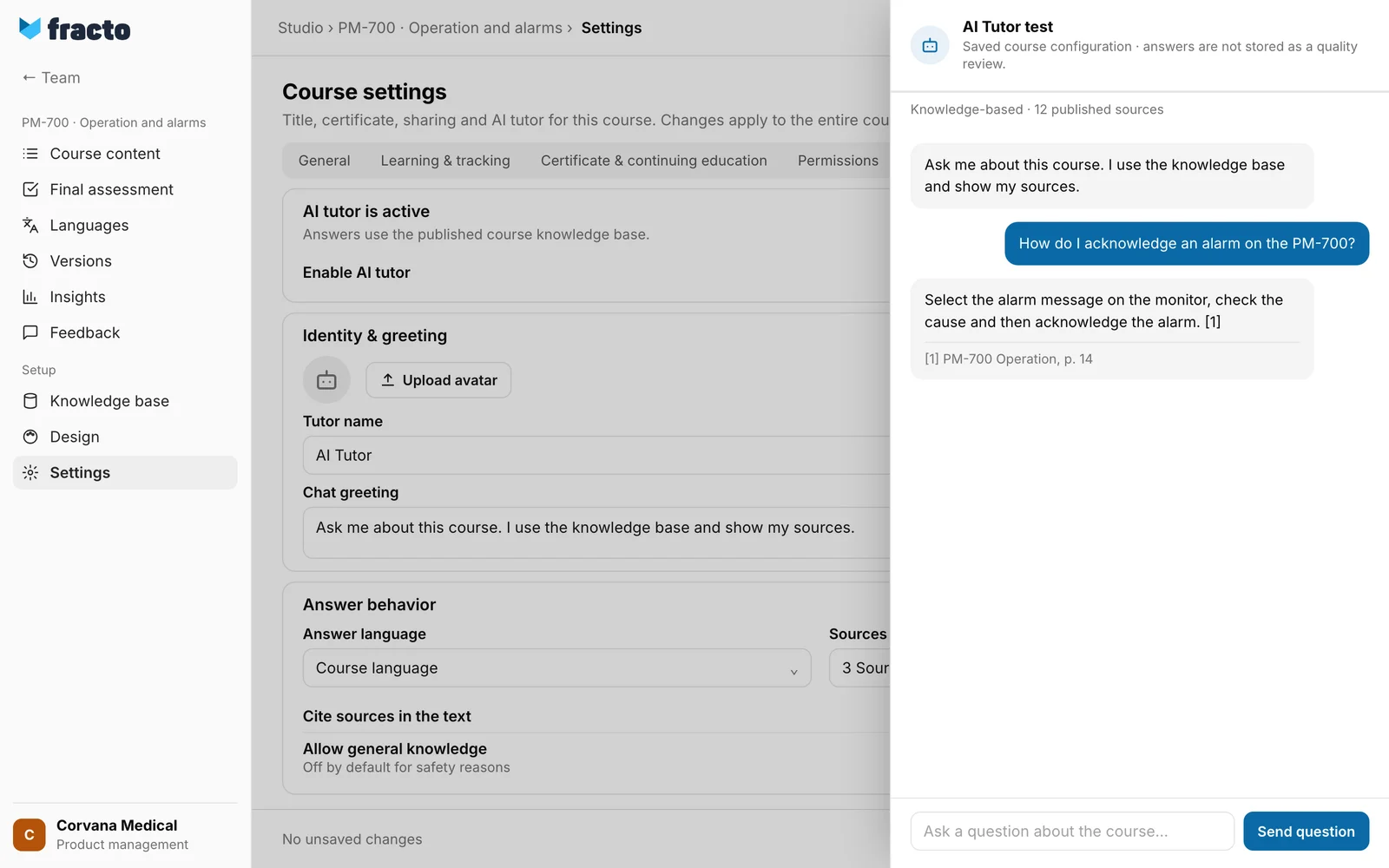
You can tell it worked: after saving, “Saved” appears and the bar shows “All changes saved”. In the test chat the tutor answers with your settings.
What happens next
- Learners get the settings only with the next published version of the course. The Player reads them from the published version, not from the draft. Only the test chat in Studio uses the saved draft. See “Publish a course”.
- If you change the tutor after a publication, learners need a new version for it. The tutor settings belong to the protected part of a version, a correction does not work. The publish dialog then says “Changed required tasks require a new version.” That includes the tutor settings here. See “Versions and corrections”.
- If the tutor is disabled, learners do not get the AI tutor button. During an exam the tutor is always locked. See “Ask the AI tutor”.
- The Player shows name and greeting. Only the test chat in Studio shows the avatar, it does not appear in the Player.
- Learners’ questions count towards the AI usage of the workspace that owns the course.
What your settings do not change
- Fixed rules stay: the tutor intercepts questions about patient-specific decisions and, in the Player, about exam solutions before the model is asked. Your guideline does not lift that. In the test chat only the rule on patient decisions applies.
- The answer language has no effect in the test chat. There the answer always follows the language of the question.
- Whether a further safety check runs on the tutor’s questions and answers is set by Fracto for each workspace, not by the course. It is off by default. This article does not describe how it behaves.
If it does not work
| Message | What it means |
|---|---|
| Tutor settings could not be loaded. | The tab cannot load the settings. Click Reload. |
| Save failed | Saving failed. One cause can be a text that is too long: name over 80, greeting over 300 or guideline over 2,000 characters. Shorten it and try again. |
| The course changed in the meantime. Reload the latest state before saving again. | Someone changed the course while you worked. Reload the page and enter your change again. |
| Upload failed | The avatar image could not be uploaded. Try another image file. |
| The AI tutor is disabled for this course. Enable and save it in course settings first. | In the test chat: the tutor is off in the saved configuration. |
| The saved tutor configuration could not be loaded. | The test chat cannot load the configuration. Open it again. |
| The tutor could not respond. Please try again. | In the test chat the answer failed. It can also be an exhausted AI quota of the workspace. The chat then shows a notice with the option to try again. |
Checked on 6 November 2026 against the current Fracto release.
