
Create API tokens
How to create an API token for integrations in Hub, choose scopes and expiry date, save the secret, and rotate and revoke tokens.
With an API token, an integration, for example a sync with a learning management system, accesses the /api/v1 interface of your workspace. A token acts with the rights of the person who owns it and is further limited by its scopes.
Before you start
- You have the Administer workspace task in Hub. Fracto Support does not see the API tokens tab.
- The token will belong to the person who creates it, so to you. It acts with your current rights. Every request also checks that you may still perform the action. So do not create it with an account that will later lose its tasks.
- Think about which scopes the integration needs, and choose only those.
How to create a token
-
In Hub, open Organization and the API tokens tab.
-
Click Create token.
-
Enter a Label, for example “LMS sync” (up to 120 characters).
-
Under Scopes, switch on what the token may do. Each scope has a switch with its short code below it, for example
certificates:read. Nothing is preselected, at least one scope is required. The list has 14 scopes, including Read courses, Edit course drafts, Enroll learners, Read certificates, Read people, Invite and manage people and Manage manufacturer workspaces. For people, organizations, manufacturer workspaces and enrollments, a write scope includes the matching read scope. In the end only what your rights allow takes effect.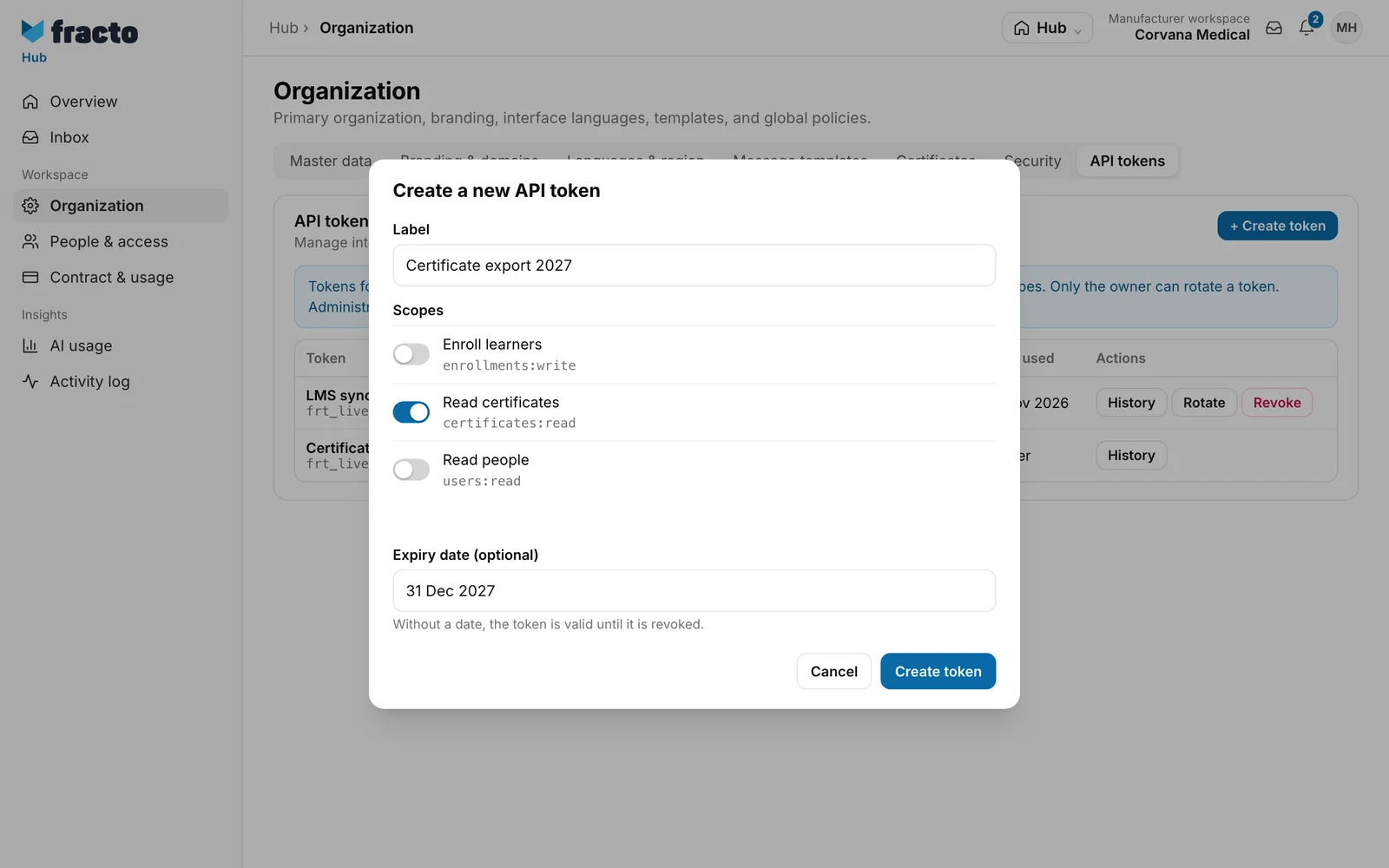
-
Under Expiry date (optional) you can choose a date. The token then stays valid until the end of that day in your workspace’s time zone. Without a date it is valid until it is revoked.
-
Click Create token. The button becomes active only when a label and at least one scope are set.
-
In the window Copy the token secret, click Copy next to the secret and store the secret safely, for example in your integration’s settings. Fracto does not show it again. Then click Done.
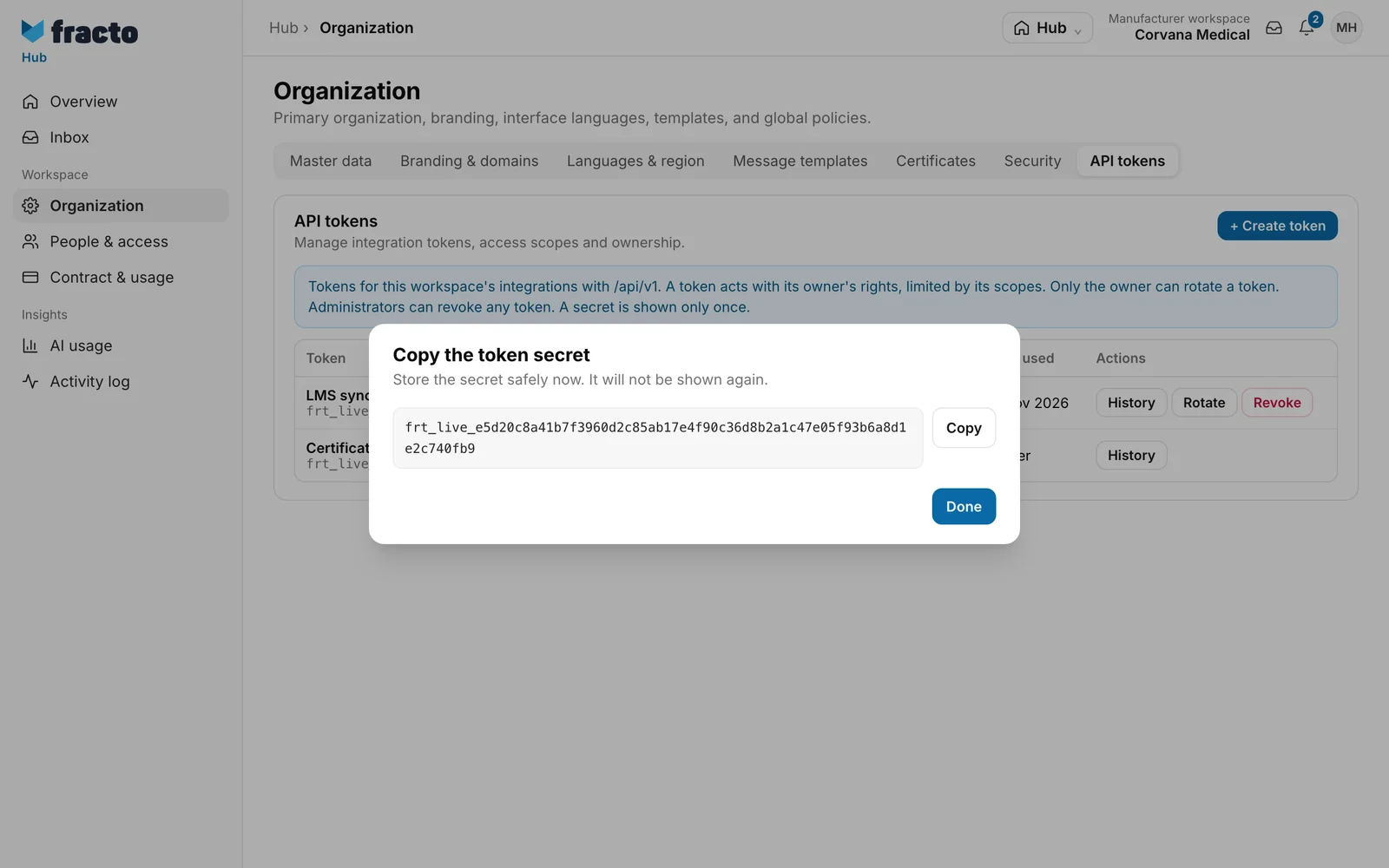
The integration sends the secret as a bearer token in the Authorization header with every request to /api/v1. In production it starts with frt_live_.
How you know it worked
The token is in the list with the status Active and you as Owner. The Token column shows the label and below it the first characters of the secret (the prefix). Scopes shows the scopes as short codes. Last used shows “Never” until the integration uses it for the first time. Requests that are rejected for missing rights count there too.
Rotate, revoke, history
- Rotate appears on active tokens only for the owner. Fracto revokes the old token and creates a new one with the same label, the same scopes and the same expiry date. It shows the new secret once, as when creating. Enter it in the integration at once.
- Any administrator can Revoke any active token. Fracto asks: “The token stops working. This cannot be undone.”
- History shows who created, rotated or revoked the token, with time. The last 100 events appear.
What happens next
- A token acts with the rights its owner has at that moment. If they are missing, the interface rejects the request with 403 ACCESS_DENIED. Fracto does not revoke tokens when someone loses tasks or work access ends. For rights the person keeps (for example appointments from Channel or Campus), the token keeps working, and after resuming or a new invitation it works fully again. So revoke tokens yourself, see Remove or pause access.
- After the expiry date, Fracto no longer accepts the token. The list still shows it as Active until someone uses it after expiry. Only then does it say Expired.
- Creating, rotating and revoking appear only in the token’s history, not in the Activity log.
If it does not work
| Message | What it means |
|---|---|
| You do not have permission for this. Only the owner can rotate a token. | Appears for every action you lack the right for, for example because your tasks have changed in the meantime. The text always mentions rotating. Only owners see Rotate. |
| The action failed. Please try again. | Rotating, revoking or the history did not work. Try again, for example if the token has been revoked in the meantime. |
| The API tokens could not be loaded. | Reload the page. |
The interface itself answers with these errors: authentication_required (no or malformed bearer token), invalid_token (the token is invalid, expired or revoked), insufficient_scope (the token lacks the required scope), ACCESS_DENIED with status 403 (the owner lacks the right for the action, the most common case after access is removed) and workspace_mismatch (for addresses with a workspace: the token belongs to another workspace).
Checked on 6 November 2026 against the current Fracto release.
