
Approve access requests
How to review access requests in Campus: read the request, set role, department and courses, then approve access or decline the request.
People who already have a Fracto account with a confirmed email address can ask for access to your institution. You decide whether they are admitted and with which role.
Before you start
- In Campus you have the task Manage Campus (Campus manager). Only then does Learners have the Access requests tab. With Manage department you do not see it.
- Requests for access only exist if you have allowed them: in Our institution, the Access & registration tab has the switch Allow access requests. With allowed email domains, your institution can be selected in the Player. Through the Campus link, people with other email addresses can also ask. You review every request yourself; there is no automatic approval.
- The role for the person already exists. You create roles in Learners under Roles & departments.
- Your institution has a free learner place. Approval books the learner place at once. Without a free place, the request stays open.
Approve access
When a person asks, Fracto notifies everyone who has the task Manage Campus in this institution by email (“New access request for …”), as far as a confirmed address exists. The email is fixed, arrives in the recipient’s language and cannot be switched off. For course requests (see below) there is no email. Waiting requests are listed under Access requests on the Overview and in Learners on the Access requests tab.
-
In Campus, open Learners and then the Access requests tab. Each request shows the name (for a course request, also the course title), the email address, the person’s message and their answers to your additional details. Yes/no fields appear as Yes or No, an empty answer as “–”.
-
Click Grant access on the request. The Approve access dialog opens with four steps. Step 1, Details, shows the request for reading. Click Next.
-
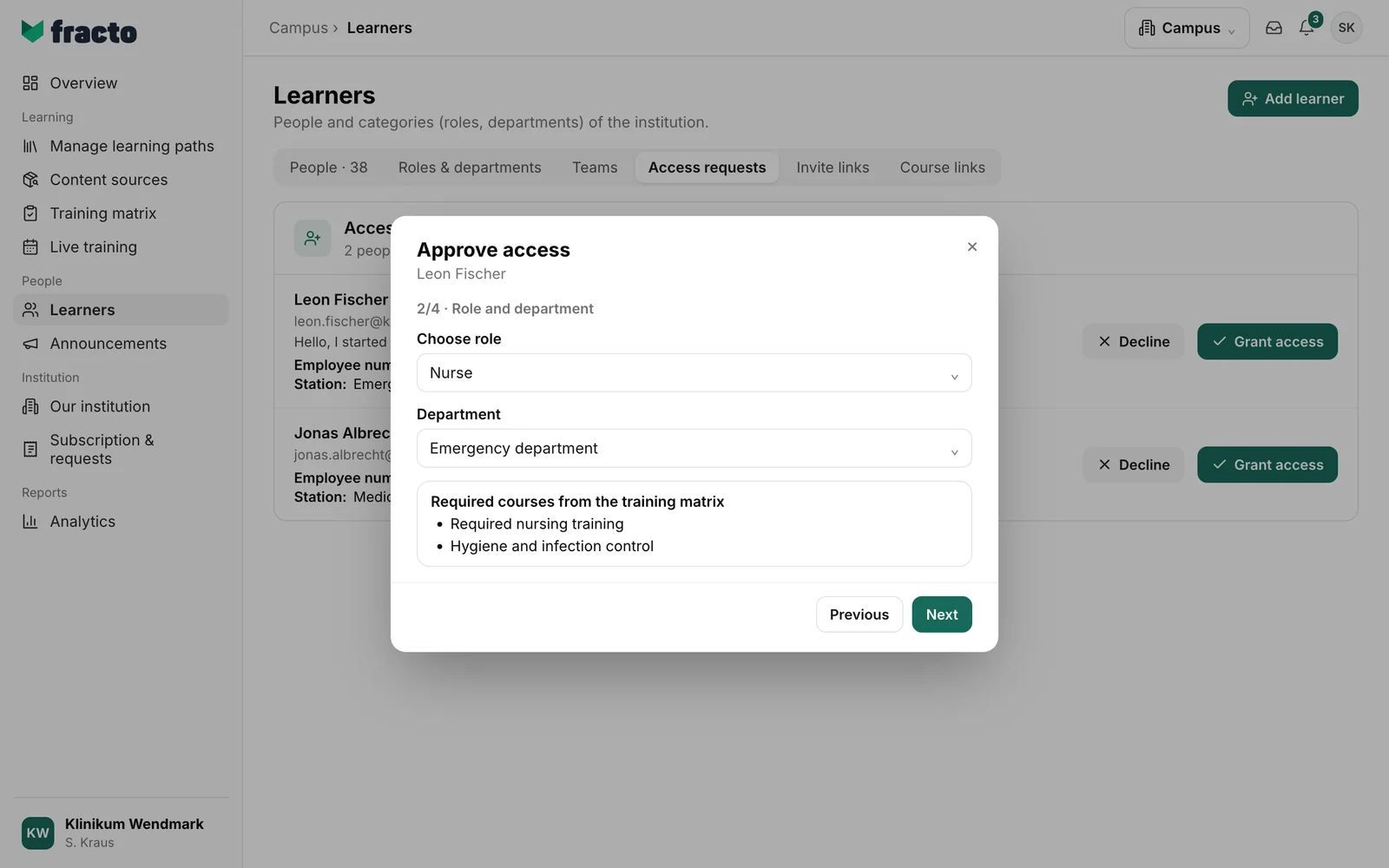
In step 2, Role and department, choose the person’s role under Choose role. Without a role, Next is disabled. The Department is optional (No department). Below, under Required courses from the training matrix, Fracto shows the learning paths of the rules that apply to this role and department. If there are none, it says “No matrix rule exists for this role and department.”
-
In step 3, Additional courses, you can also assign courses from your manufacturers to the person directly (up to 20). You can choose from the courses your institution may use. If a course shows the note “No free course places visible. The assigned person place may still be sufficient.”, no new place is free for it; more under “What happens next”. Without a selection, it says “No additional courses selected.”
-
Step 4, Summary, shows role, department, matrix learning paths and courses. Click Confirm approval.
You can tell it worked when the dialog is now called Approval complete and names the status of each additional course (“Course assigned”). With Close, the request disappears from the list.
Decline a request
- Click Decline on the request.
- Write a text under Reason (at most 500 characters). The reason is required. Decline is only active once something is entered.
- Click Decline.
For a request for access, the person receives the reason by email (“Your access request at … was declined. …”) if they have a confirmed address, and sees it in the Player. Someone who was declined cannot ask again through the direct Campus link. A new request is possible through the selection in the Player (with an allowed domain).
Requests for a specific course
If a person who already belongs to your institution asks for a specific course from the voluntary course catalogue, the course is attached to the request. Such requests arise for catalogue courses that need approval, independently of the switch Allow access requests. Grant access approves the course without a dialog. The person then takes part voluntarily; in the person record the course appears under Voluntary. If no learner place is free, they wait for one. For such requests, Fracto sends no email, neither to the managers nor on approval or decline.
What happens next
- The person stays the same Fracto account; no second one is created. They are admitted to the institution with the chosen role and department and appear in Learners on the People tab.
- For each source of learner places, Fracto also creates a personal invitation (valid for 30 days, one use, the place is reserved). It appears on the Invite links tab with the status Active; its link cannot be copied.
- Fracto creates the obligations of the matching matrix rules for the person and assigns the chosen additional courses directly. If a course has no free place, the result says “WAITING_LICENSE: The course is waiting for a free learner place.” The assignment then waits until a place is free. If a course is outside the partner teams’ contracted range, it says “Assignment recorded. The course is currently unavailable because it is outside the partner teams’ contracted range.”
- The person gets an email: “Your access to … has been approved” with the assigned courses (or “No courses assigned yet.”). The email is only sent if the person has a confirmed address. The text is fixed; you cannot change it.
If it does not work
| Message | What it means |
|---|---|
| The quota is occupied. The request remains open; no partial access is created. | No learner place is free. Nothing was created. Below the note is Request quota. As soon as a place is free, click Confirm approval again. |
| Approval could not be completed. Please check the selection and try again. | The approval was not saved. Common reasons: the dialog’s data could not be loaded, you chose more than 20 courses, someone else has decided the request in the meantime, the role or department is no longer active, or the person no longer has a confirmed email address. Reload the page and check your selection. |
| The decision could not be saved. Please try again. | Declining was not saved, for example because the request has been decided in the meantime. |
| The catalog could not be updated. | Approving a course request failed. |
| Access requests could not be loaded. | The list could not be loaded. |
Checked on 6 November 2026 against the current Fracto release.
