
Format text
How to format text in Studio: bold, italic, underline, colour, highlight and large text, and what formatting means for corrections.
You can set text in a lesson in bold, italic, underline, colour, highlight and large type. There are fixed presets for this. There are no free colours.
Before you start
- You need the Hub task Create courses. Without it you only see the lesson as a preview. Only its owner edits a private course.
- You can format the text fields of blocks: in the Text block, in columns, lists and tables, in image captions, and in the questions, feedback and explanations of knowledge checks, quizzes and the final assessment.
- Headings, labels, alt texts and button texts stay plain text. Fill-in-the-blank passages and accepted answers cannot be formatted either.
How to format text
-
Open the lesson in the Lesson editor and click into the Text block. As soon as the cursor is in the text, a bar appears above the cursor or the selection.
-
Select the words you want to change.
-
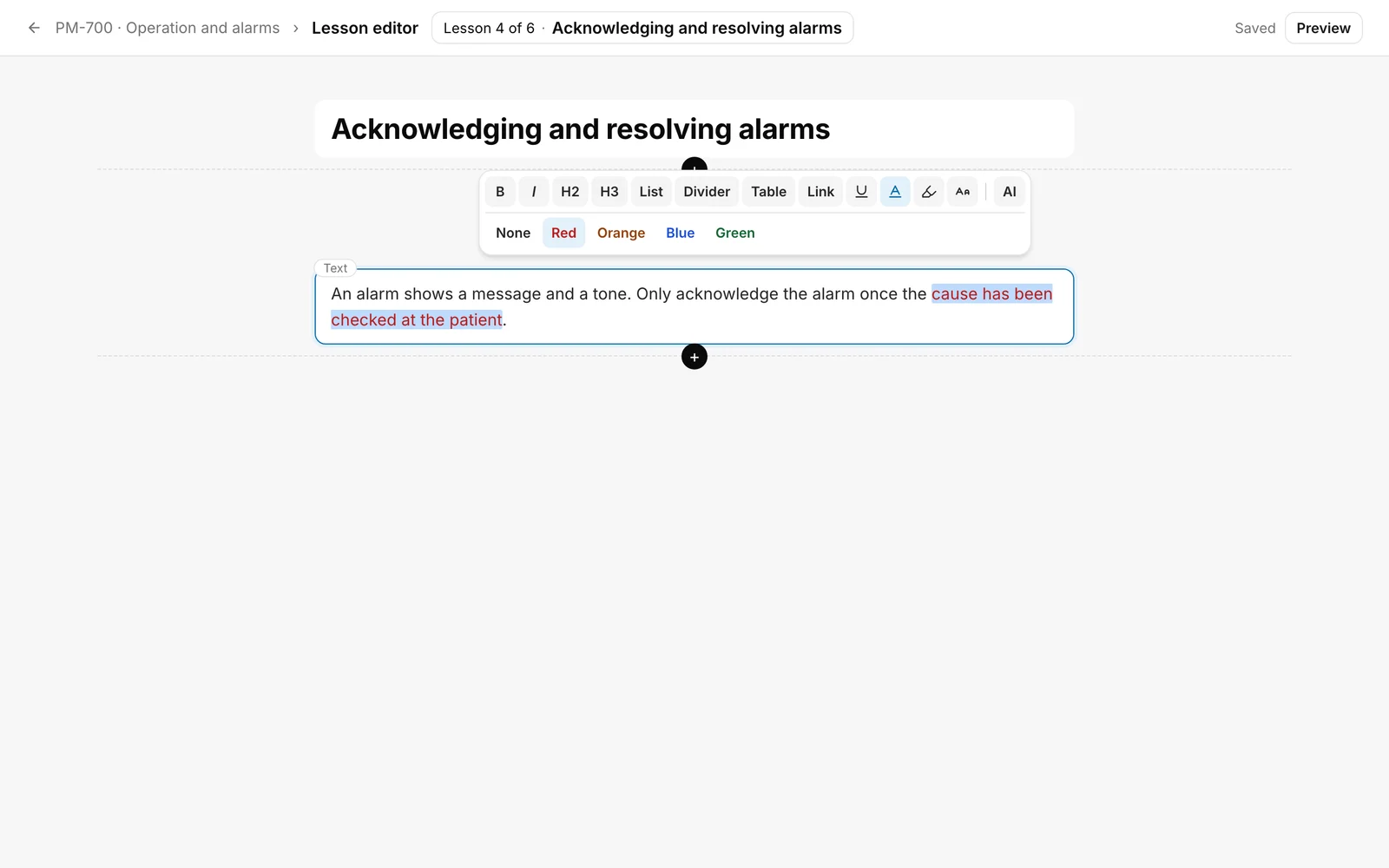
Click the format in the bar. First come buttons with text:
B(bold),I(italic), H2 and H3 for headings, List, Divider, Table and Link. After them come four buttons with an icon: Underline, Text colour, Highlight and Large text. The names appear when you point at an icon. At the far right is AI, which edits the selection with AI, where available. -
Text colour opens a row under the bar with None, Red, Orange, Blue and Green. Choose a colour. None removes the colour. A second click on Text colour closes the row.
-
Highlight opens a row with None, Course colour, Yellow, Red, Blue and Grey. Course colour is the main colour of your course design. The others are fixed pairs of background and text colour.
-
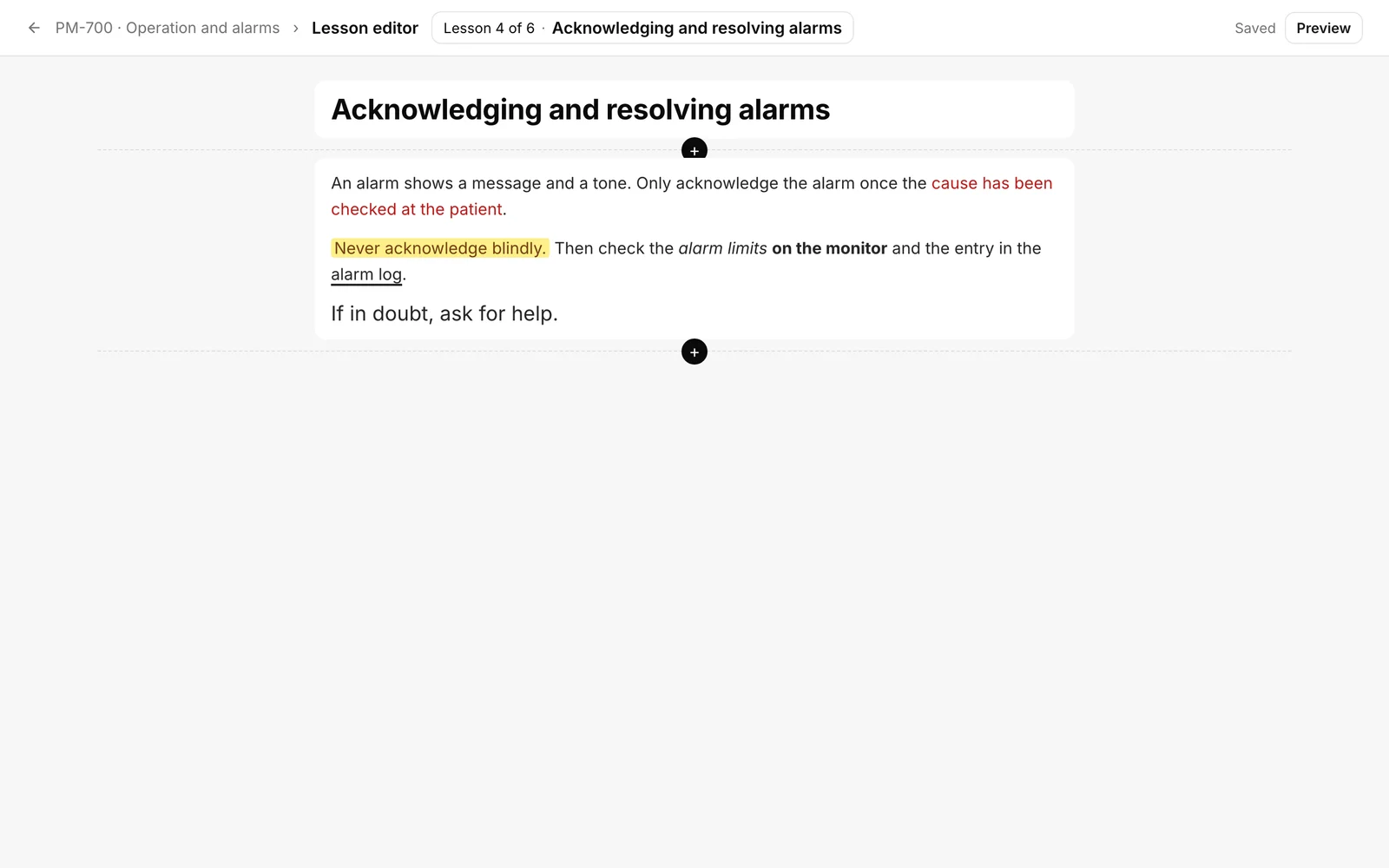
Large text makes the words a quarter larger. A second click undoes it. There are no smaller or other sizes. You switch Underline on and off the same way.
-
In the text fields of other blocks, each field has its own bar above it as soon as you click into it. The buttons there are called Bold, Italic, Underline, Text colour, Highlight, Large text, Superscript, Subscript, List, Numbered and Link. The answer options of questions only have the character formats: no list, no link, no line break and no second paragraph.
You know it worked when the words show in the chosen form in the editor and the editor shows Saved at the top.
What applies to formatting
- Only the presets apply: four text colours, five highlights and one large size. Free colours, fonts and sizes are not kept, not even from pasted text.
- Text colours adapt to the light and the dark appearance. A highlight is a fixed colour pair. If a coloured word sits on a coloured surface or on an image, it gets a white background so it stays readable.
- Plain text stays plain until you change it. If you only open a field and leave it again, Fracto saves nothing.
What happens afterwards
- The editor saves by itself (see “Edit a lesson with blocks”). Learners see the formatting as soon as the course is published.
- If you insert a block anew into a course that was published before, that needs a new version (see “Versions and corrections”). Changes in an existing block can be a correction, see the next point.
- In Text, columns, tables, quotes and image captions, every change to the text is a correction, including words, lists and links. In lists, knowledge checks, quiz questions and the final assessment, only bold, italic, underline, colour, highlight and size are free. Changed words, headings, links, lists, superscript and subscript or line breaks need a new version there.
- A reviewed translation stays valid when the source text changes in formatting only.
- If you only reformat a question of the final assessment, its version stays the same, and reviewed translations stay valid.
- Where Fracto only needs the words, for example in a table of contents, the formatting is dropped.
If it does not work
| What you see | What is behind it |
|---|---|
| No bar appears above the text. | The cursor is not in the text, or you only see the lesson as a preview because you lack the task Create courses. |
| A title, a label or an alt text cannot be formatted. | These fields stay plain text. |
| A colour from another program is gone after pasting. | Fracto only knows the presets. Choose the colour in the bar. |
| The colour looks different in the course than in the editor. | Text colours adapt to the light and the dark appearance. On coloured surfaces and images the word sits on white. |
Checked on 6 November 2026 against the current Fracto release.
