
Activity log
How to read and filter your workspace's activity log in Hub and export it as a CSV file or as a single event record, and what it contains.
The Activity log shows who made which administrative change in your workspace and when. You can search it, filter it and export it as evidence. Entries cannot be changed or deleted.
Who sees it
- The log is in the sidebar under Insights for people with the Administer workspace task. The server checks the right to read and to export.
- Fracto Support also sees the log, read-only.
- It shows only your workspace.
What the log contains
It holds administrative changes from Hub, Studio, Channel, Campus and Platform Management, for example invited people, paused access or new certificate profiles. Learning progress and individual learner activities are not in it. They stay in Campus reports.
Fracto Support access and system actions appear in the log under their actual identity, as Fracto Support and System. Read access by Fracto Support appears grouped, not one by one.
How to read the log
-
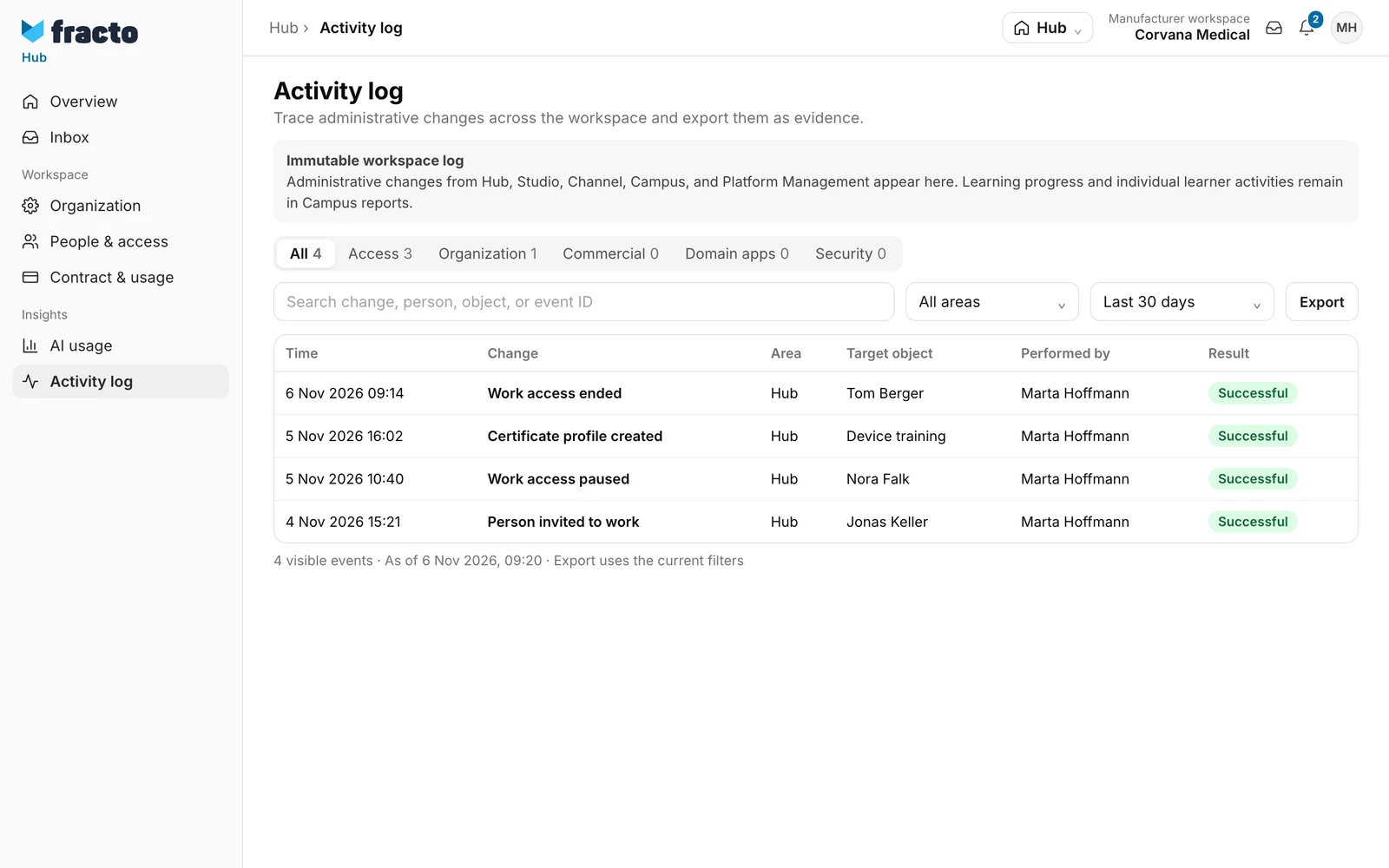
In Hub, open the Activity log. It first shows the last 30 days, newest first.
-
Choose a category: All, Access, Organization, Commercial, Domain apps or Security. Next to each is the number of events in the chosen period, regardless of search and area.
-
Search by change, person, object or event ID, choose an area in the selection All areas (Hub, Studio, Channel, Campus or Platform Management) and the period in the selection Last 30 days (7, 30, 90 days, 12 months or all time).
-
The table shows Time, Change, Area, Target object, Performed by and Result (Successful, Planned or Rejected).
-
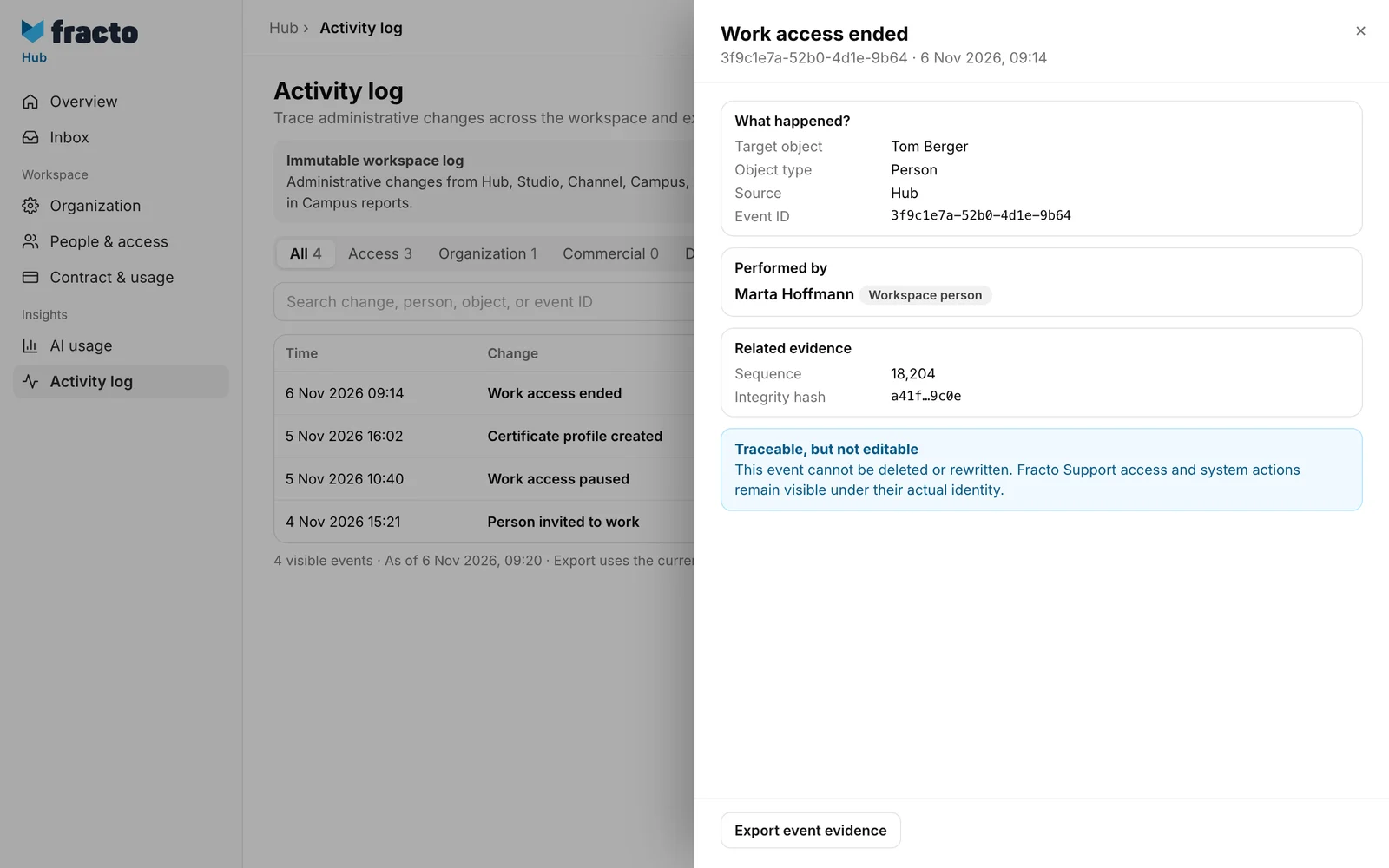
Click a row. The side panel shows What happened? with target object, object type, source and event ID, where available Before and After plus the reason, Performed by and Related evidence with sequence, integrity hash, operation and signature.
Below the table you see how many events are visible and the data’s timestamp.
How to export
- Export downloads the table as a file workspace-aktivitaetsprotokoll.csv. The export uses the current filters (category, area, search, period), and times are in your workspace’s time zone. If the language’s decimal separator is a comma, the file uses semicolons, otherwise commas. The file name is the same in the English interface. The columns include event ID, time, category, area, change, target object, performed by, result and Related evidence.
- Export event evidence in the side panel downloads that one event as a JSON file named after the event ID.
Good to know
- The list shows at most 500 events, newest first. If there are more, or the search was limited over very long periods, it says Display limited. Narrow the period or the filters then. The CSV export contains all events of the filter.
- You also reach the Security category directly from the Security tab under Organization.
If it does not work
| Message | What it means |
|---|---|
| No matching events | There are no entries for the search and filters. Adjust them. The log itself does not change. |
| The activity log could not be loaded. | Click Try again. |
| The CSV export could not be created. | Try the export again. |
Checked on 6 November 2026 against the current Fracto release.
