
Who hears about a new version
Who is notified when you publish a new version in Studio, what learners then see, and how the change note gets to them.
Who hears about a new publication depends on whether you publish a correction or a new version. This article says who gets a notice when, what learners see afterwards, and where you add a change note.
When anyone is notified at all
| Publication | Campus lead | Learners |
|---|---|---|
| First publication | no | no |
| Publish correction | no | no |
| Publish new version after an earlier publication, even a withdrawn one | yes | yes, under the conditions below |
Channel managers receive their own notice for every publication. That is covered in “Publish a course”. When something is a correction or a new version is covered in “Versions and corrections”.
Who gets the notice
Campus leads. These are people with the Hub task “Manage Campus” for the whole institution (not for one department), in every institution that has the course in its library. They receive a notice in Fracto (bell and inbox) titled “New version of
Learners. A person gets the notice only if all of this is true:
- They are an active member of an institution that has the course in its library.
- They have started or completed the course. Someone who was only assigned it hears nothing.
- Their attempt was not withdrawn. Someone who has only a withdrawn attempt hears nothing.
Even someone with several institutions or attempts gets only one notice per publication. A Campus lead, by contrast, gets one notice per institution.
The notice is titled “New version of
When the notice is delivered, Fracto checks again whether the institution still has the course in its library and whether the person still belongs to it. Anyone who leaves, or loses the course, between publication and delivery gets nothing.
The publication dialog shows in advance how many Campus leads and learners there are, and a table with Institution, Started and Finished. See “Publish a course”.
What learners see afterwards
On the page of a course they have in the older version, learners find a card “A new course version is available.” It names the new version (“Version from
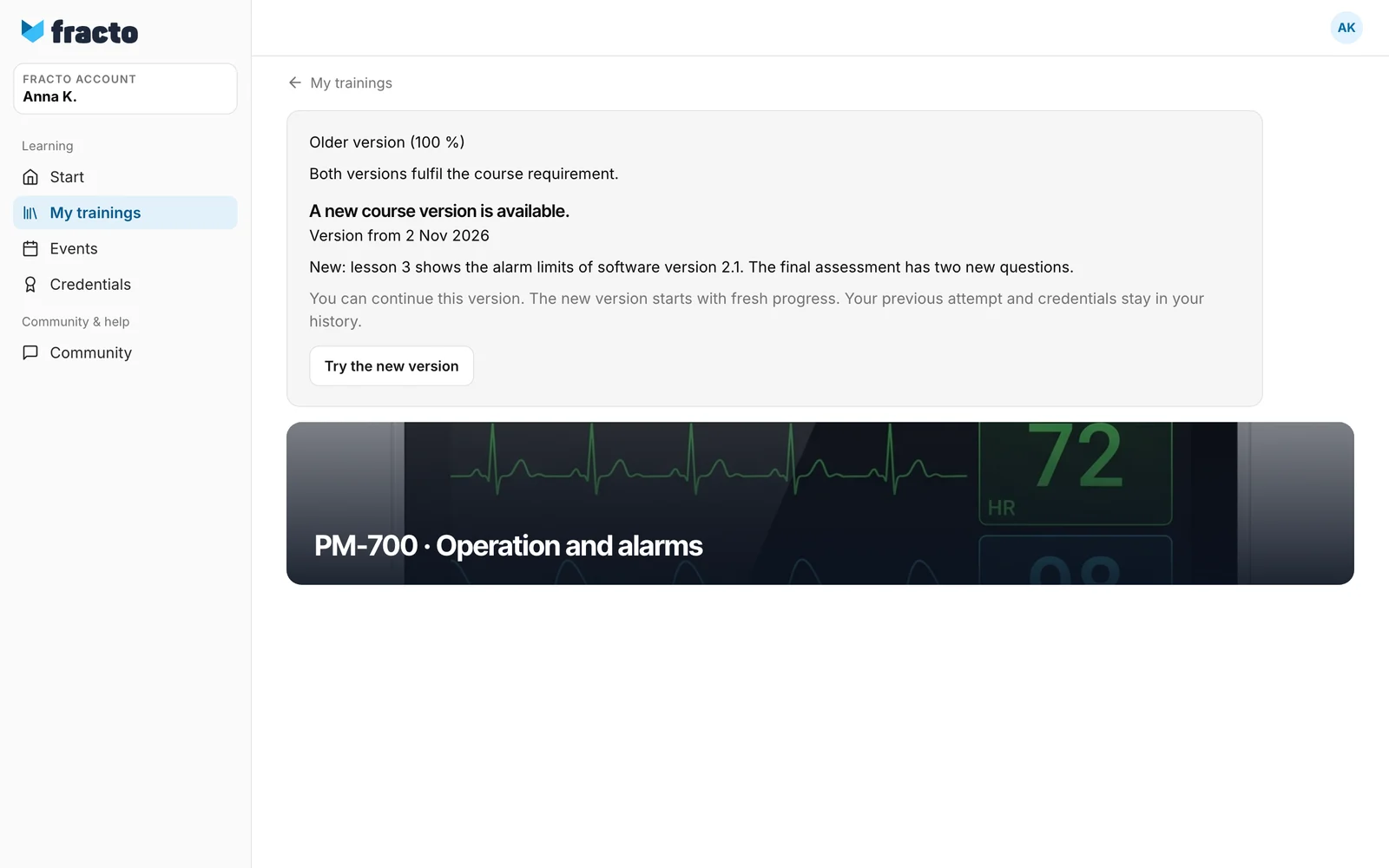
- With Try the new version and then Start with fresh progress, learners start the new version as a new attempt. Stay on this version cancels.
- Someone who has not yet started the older version does not see the card. That person goes straight into the new version.
- The earlier attempt stays under “Previous attempts”, and so do the credentials. The note “Both versions fulfil the course requirement.” appears when there is more than one published version.
Prepare the change note
The change note is a short text for the next new version.
- Open the course settings, “General” section. The field What’s new (optional) exists while the course is published. After Withdraw publication it is missing until you publish again. In the publication dialog, the link “Prepare the optional change note in course settings before translating and reviewing” leads there. After a withdrawal it leads to settings without the field.
- Write up to 500 characters.
- Save, translate and review it with the course before you publish. Changing the note counts as a change that needs a new version, not a correction.
The note is recorded with the version. It appears in the learner’s card, not in the notice to Campus leads or learners. Learners see it in their course language if a translation exists, otherwise in the course’s own language.
Checked on 6 November 2026 against the current Fracto release.
