
A separate video for each language
How to set a video of its own for a translation in Studio, remove it again and deal with it when the original video is replaced.
If a lesson has a video, each language of the course can have a video of its own, for example a dubbed version. Languages without a video of their own show the original video.
Before you start
- A translation draft exists for the language. See “Translate a course into another language”.
- You have the right to edit courses in Studio. The right is part of the Hub task Create courses. Without it you can only view the unit. You do not need AI.
- The video is online and has a link: Vimeo, YouTube or a video file at an HTTPS address. You cannot upload it here.
- It works only for video blocks that sit directly in a lesson. Videos in other blocks (for example in the title area or in a timeline) stay the same in every language.
- The original video block already has its video entered.
How to set a language video
-
Open the course, choose Languages and click Review translation next to the language. The translation editor opens (“Translation · ES”). See “Review and mark a translation as reviewed”.
-
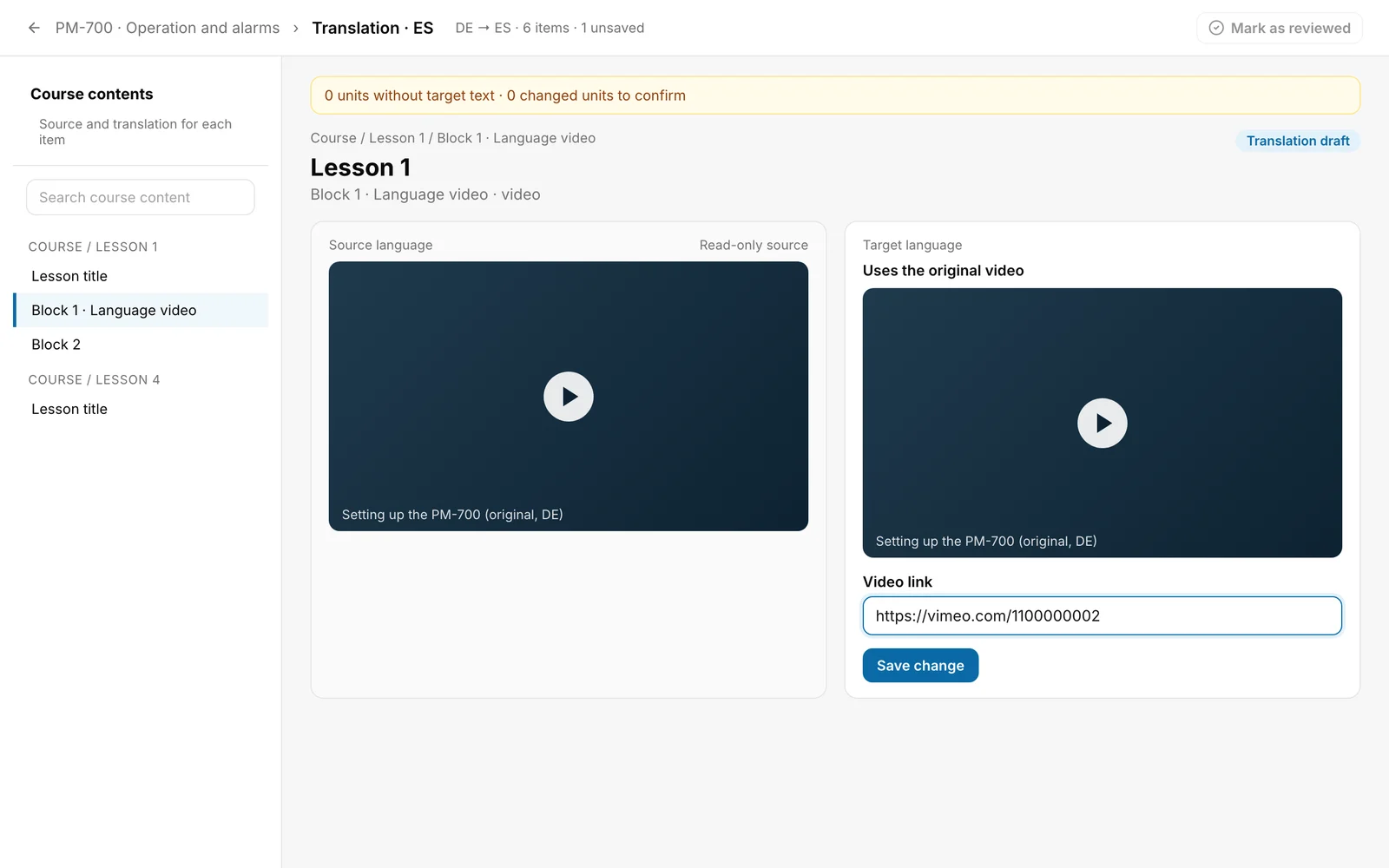
In the Course contents list choose the unit “Block 1 · Language video”. Every video block of a lesson has such a unit. On the left is the original video, read-only. On the right it says Uses the original video.
-
Under Video link enter the link of the video in this language. A Vimeo link, a YouTube link (youtu.be too) or any other HTTPS address, which then counts as a video file, is allowed.
-
Click Save change. The button is active as soon as the link differs from the saved one. After saving, the field shows the converted embed address, for example “https://player.vimeo.com/video/…” instead of your Vimeo link. That is correct.
-
If you have more videos, repeat the steps. Then click Mark as reviewed at the top.
You can tell it worked: above the target-language preview it says Language video instead of Uses the original video, and the preview shows your video. Until you save, the preview still shows the original video.
Good to know
- Only where the video comes from is replaced. Everything else comes from the original: title, Video must be watched to the end and Prevent fast-forwarding in the player. The original’s poster image does not apply to the language video.
- Every save, a video included, turns the translation back into a Translation draft. Click Mark as reviewed again afterwards.
- The video reaches learners with the next publication, and only if the language is reviewed and complete. A correction is enough for that if you changed nothing else that is protected. See “Publish a course”. Learners see it when they choose the course language on the course page or in the lesson.
- Progress and completion stay with the original video block. The AI tutor keeps answering from the knowledge base, the language video changes nothing about that. The AI translation sees text only and neither changes nor confirms a video.
- If the video block is deleted in the original, the language video goes too. Hidden lessons are not part of the publication, and neither are their videos.
Back to the original video
Choose the unit and click Use the original video. The unit reads Uses the original video again. This also resets the translation to Translation draft. Learners see the original again only with the next publication.
When the original video is replaced
If you later replace the original video in the course, the language video does not change. But the editor asks for a decision:
-
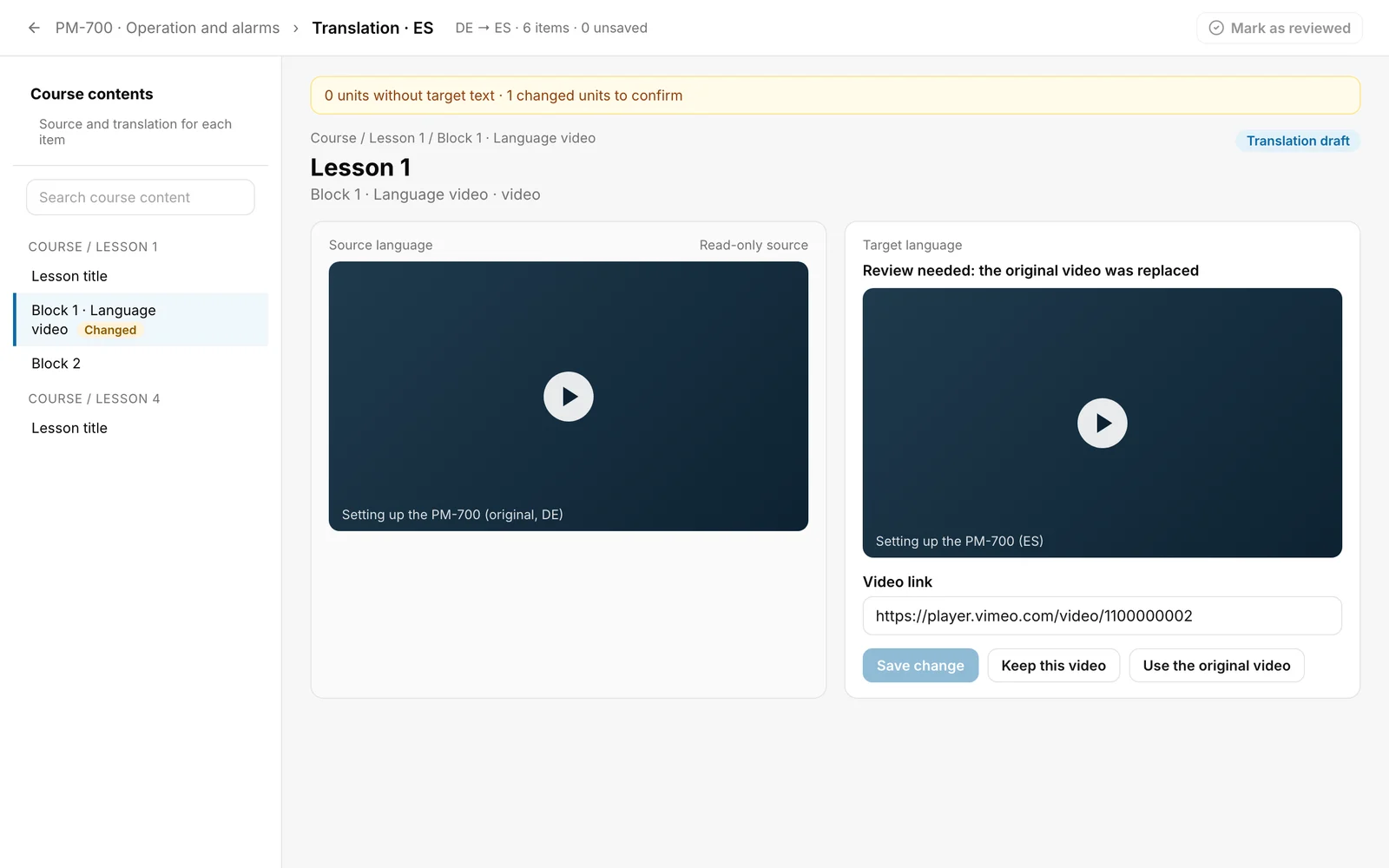
The unit is marked Changed in the list, and above the unit it reads, for example, “0 units without target text · 1 changed units to confirm”. Mark as reviewed is locked.
-
The unit says “Review needed: the original video was replaced”.
-
Click Keep this video if the language video still fits (locked while your input in the field is unsaved), or Use the original video. After that the language can be marked as reviewed again.
If it does not work
| Message | What it means |
|---|---|
| Enter a valid Vimeo, YouTube or HTTPS video link. | The link does not fit: it is not a link, does not start with https:// or is not a Vimeo or YouTube link in a valid form. Correct it. |
| The source or translation changed. Please reload. | The original or the draft changed while you worked. Reload the page. The message also appears if the original video block has no video entered yet. |
| The correction could not be saved. | Saving failed. Try again. |
Checked on 6 November 2026 against the current Fracto release.
