
Edit a lesson with blocks
How to edit a lesson in Studio: insert blocks from the block library, write texts, move, duplicate and remove blocks.
A lesson is made of blocks, for example heading, text, note or knowledge check. In the lesson editor you insert blocks, write the content and arrange everything. Changes are saved automatically.
Before you start
- You have the Create courses task in Hub. Without it you only see the lesson as a preview.
- The AI buttons (Create with AI, Text import, Edit with AI) are available with the Create courses task.
- Two people cannot edit a lesson together in real time. If someone else has the lesson open, the app warns you. Agree on who changes what.
How to edit a lesson
-
Open the course. In the Course content area, click the lesson. The Lesson editor opens.
-
To insert a block, click Insert block at the end of the lesson below the last block. In an empty lesson the button is called Add first block. Between two blocks a round plus button appears when you point at it (Insert block here). For a selected block there is also Insert block below.
-
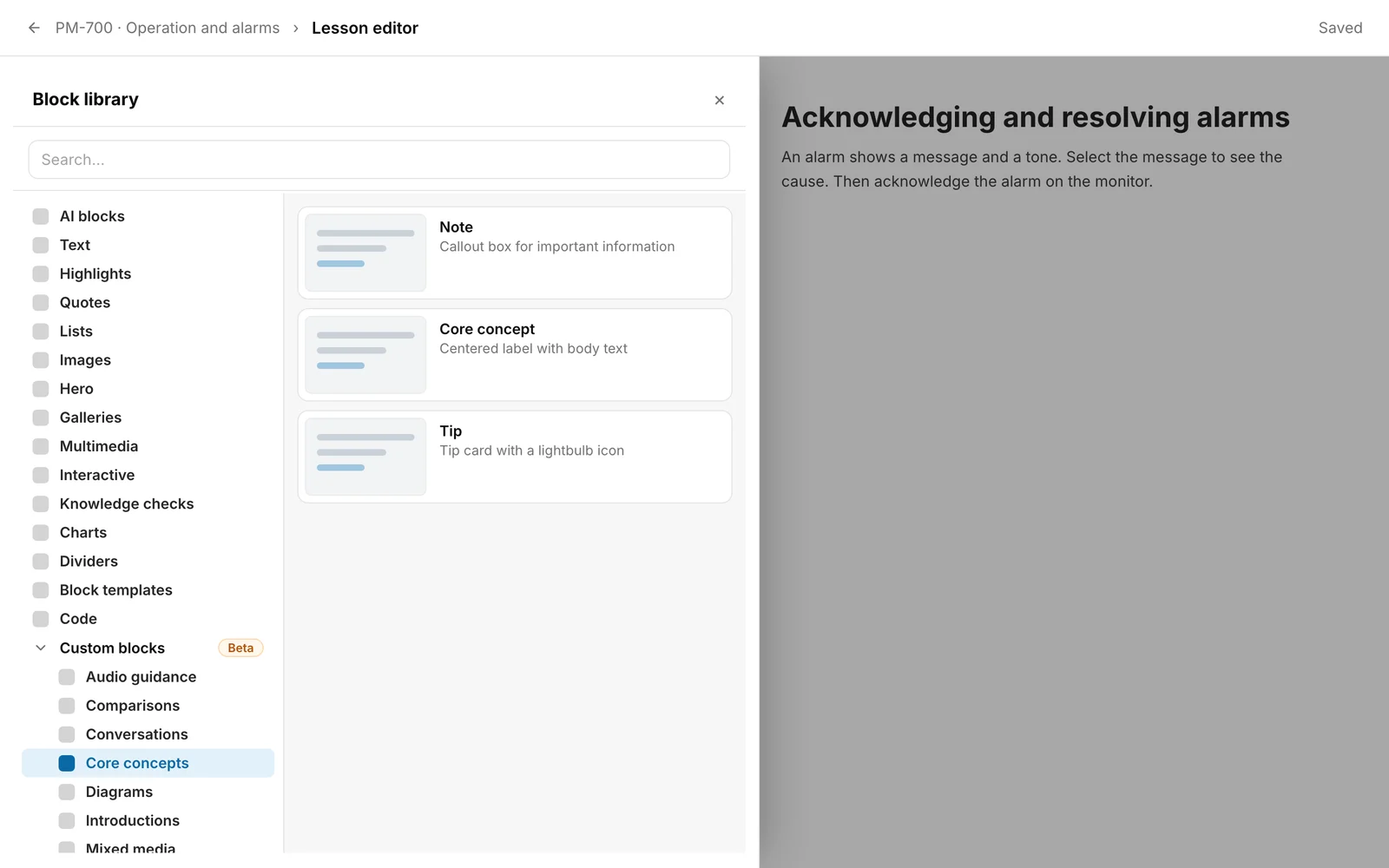
The Block library opens from the left. On a wide screen, the categories are on the left and the blocks of the chosen category on the right. At the start, the first category is chosen. On a narrow screen you first choose a category and come back with Categories (arrow pointing left). You can also type in Search…. The categories from Audio guidance to Testimonials, for example Core concepts, are under Custom blocks (Beta). Click it to expand them. If you copied a block with Copy (for another lesson), it appears at the top of the library of the target lesson as “Paste copy: …”.
-
Click the block you want, for example Tip. The library closes and the new block is in the chosen place. Write your text straight into it. If a block stays empty, the app then shows “Empty block – hidden from learners.”
-
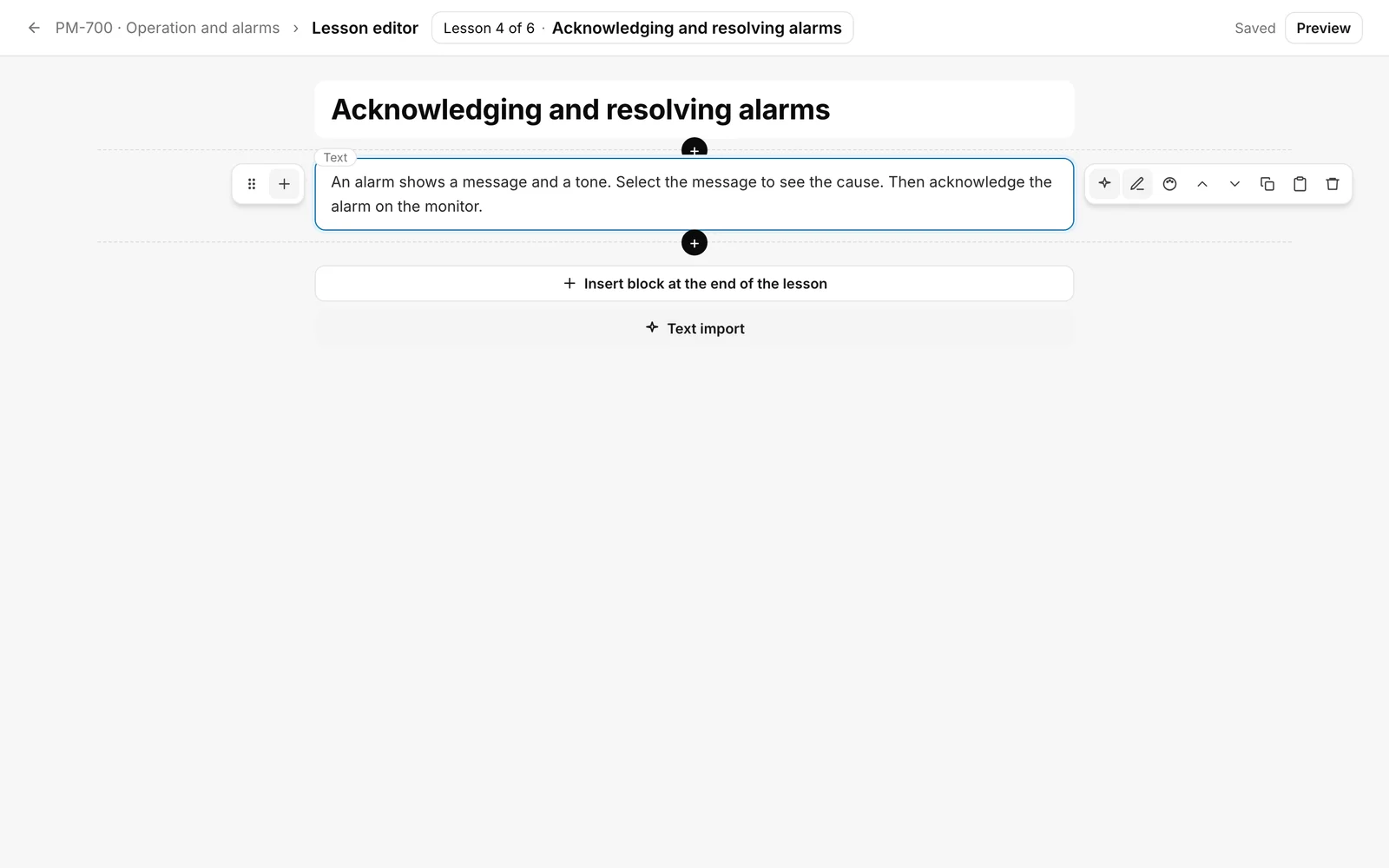
To change a block, point at it or tap it. Two bars appear. One has the handle for dragging (“Block type – move”: drag the block to another place) and Insert block below. The other has Edit (to finish: Finish editing), Style and layout, Move up, Move down, Duplicate, Copy (for another lesson) and Remove. With the right for AI, Edit with AI is added. The buttons show icons only. The names appear when you point at an icon.
-
Under Style and layout you set Background (None, Accent, Strong accent), Width (narrow up to 480 px, medium up to 620 px, wide up to 760 px, full) and Padding.
-
With Manage blocks you select several blocks and move or copy them to another lesson. In a narrow window the button is in the menu More actions. In the dialog Move or copy blocks you choose the Target lesson and the Position (Start of lesson or End of lesson).
You know it worked when the editor shows Saved at the top.
How the editor saves
You do not have to save. A moment after you stop writing, the editor saves. The status goes from Unsaved through Saving … to Saved. With Undo and Redo (Ctrl+Z or Cmd+Z, with Shift for redo) you take back changes to blocks. The shortcut does not work while the cursor is in a text field. There the text field’s own undo applies. If you switch lessons, the history starts again.
What happens afterwards
- Remove does not ask. The app first makes a backup, if that works, and shows “Block deleted.” with Undo. If the backup worked, it also says “A backup is available under Versions.” Fracto backs up the open course every 15 minutes and before every deletion. The last 20 backups are kept, for up to 14 days. Under Versions you bring a block back with Restore block (see “Versions and corrections”). For that you need the right to read versions.
- AI blocks carry the label AI. Clicking it shows the sources of the block.
- Learners only see the changes once the course is published (see “Publish a course”).
If it does not work
| Message | What it means |
|---|---|
| Save failed | The last change was not saved. Try again saves once more. |
| Another person has changed this course in the meantime, so your latest change was not saved. Copy any text you want to keep before you load the current version. | Someone changed the course in the meantime. Copy your text and choose Load current version. The page then reloads and your text is gone. |
| This lesson is also open for … right now. If you both make changes at the same time, a save can fail. Agree on who edits what. | This is a hint, not an error. Another person has the lesson open. |
| Undo did not work. You can find the backup under Versions. | Deleting a block could not be taken back. Get it from the backup. |
Checked on 6 November 2026 against the current Fracto release.
