
Choose a certificate profile for a course
How to choose in Studio which of the workspace's certificate profiles applies to a course's certificates, and what the notices about design and languages mean.
A certificate profile is a certificate of its own in the workspace, with languages, design and fields. You choose which profile applies to a course in the course settings.
Before you start
- You have the right to edit courses in Studio. The right is part of the Hub task Create courses. Without it you can only view the settings.
- Whoever has the task Administer workspace creates profiles in the Hub, under Certificates in the workspace settings. See “Manage certificate profiles”. Here you can only choose, not edit design or texts.
- The Certificate profile list appears only if the workspace has at least one profile. Archived profiles are not offered.
- Certificates come from the final assessment. A Studio course without a final assessment issues none.
How to choose the profile
-
Open the course and click Settings in the course navigation. Choose the Certificate & continuing education tab.
-
In the Certificate section, Certificate design shows the published design for the course language with version and language. The line always shows the saved state: a choice you have not saved yet changes it only after saving. Open design in Hub takes you to the Certificates area of the workspace settings in the Hub, straight to the chosen profile, otherwise to the default profile.
-
Open the Certificate profile list. The first entry is called Workspace default with the name of the default profile in brackets. It is preselected: the course then has no profile of its own and follows the workspace default. Below it are all profiles, the default profile first.
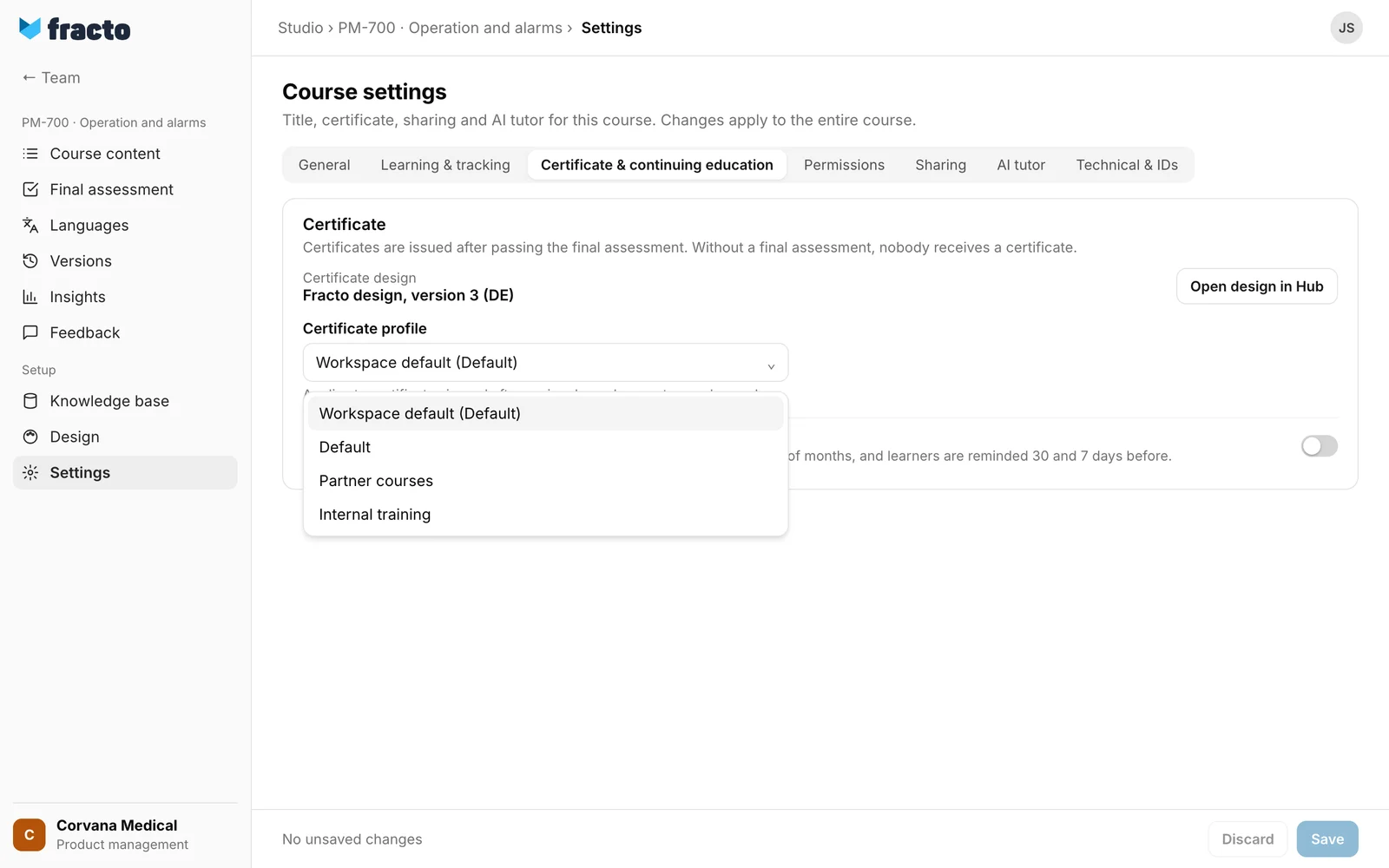
-
Choose the profile and read the notices below it (see below).
-
Click Save at the bottom.
You can tell it worked: the list shows your profile, and “Saved” appears. When you open the course again, the list still shows the choice you saved.
Notices below the list
These yellow notices are warnings, not errors. You can save anyway.
-
““Partner courses” has no published design yet. Completions wait until it is published.” The chosen profile (or the default, if you chose none) has no published design yet. Passed exams stay saved, and the certificates are issued once the design is published in the Hub.
-
“This publisher has no published certificate design yet. Passed completions are saved; certificates will be issued once the design is published.” This notice appears at the top of the section when no design is found for the course language. Certificate design then reads “No design published yet”.
-
““Partner courses” has no published text for: Spanish. Those certificates use the workspace fallback language in this profile, or wait if that is missing too.” Fracto checks the course’s source language and every language with a translation draft in the status Draft or Reviewed. If the profile has no text in one of them, the certificate uses the workspace’s fallback language, always from the same profile, never from another one.
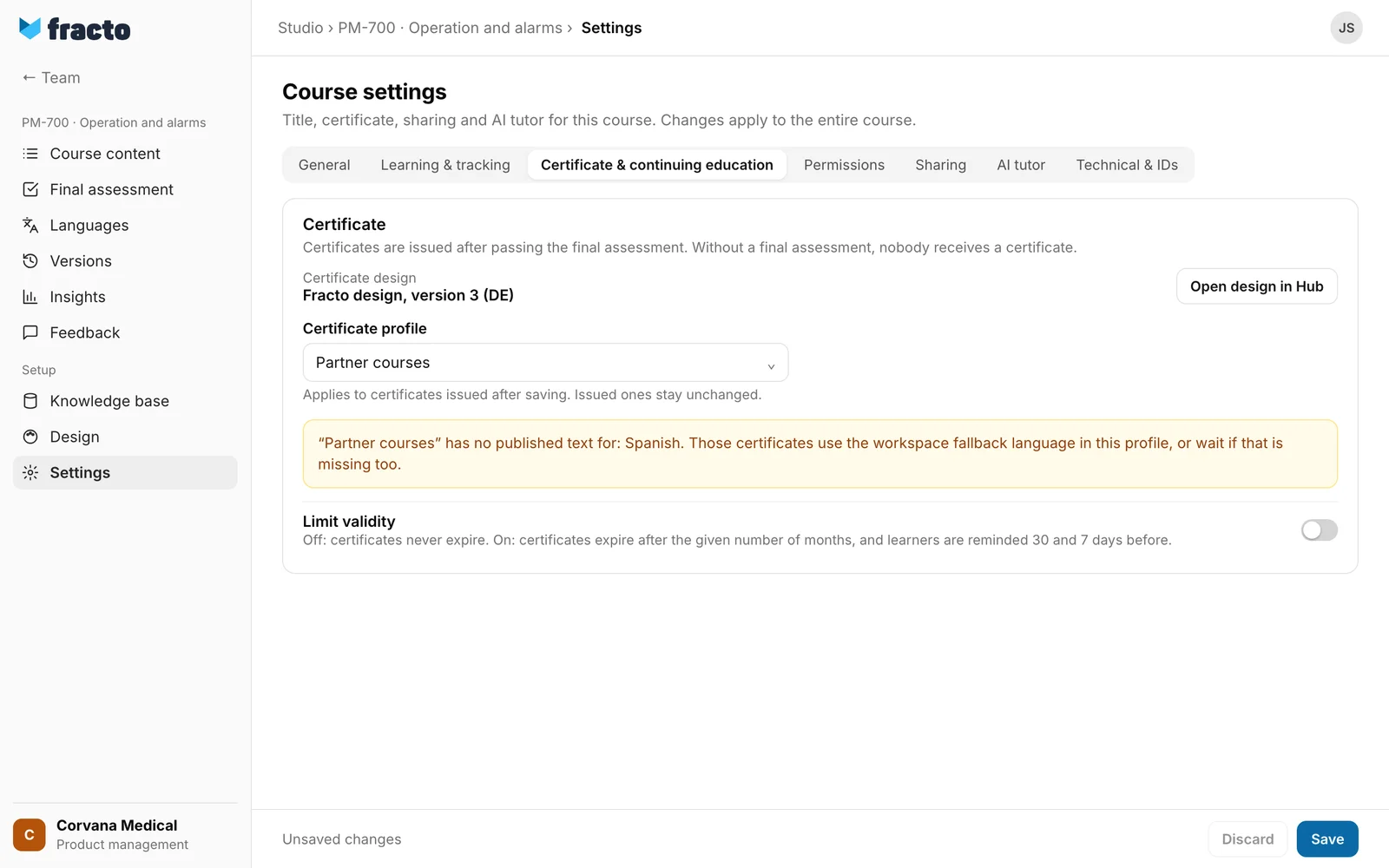
You fix the notices in the Hub, not in Studio: that is where the profile’s design or text is published. Whoever has the task Administer workspace in the Hub does that. See “Manage certificate profiles”.
What happens next
- The profile applies to certificates issued after saving. Certificates already issued stay unchanged. You do not need a new course version for this.
- If completions of this course are waiting for a missing design, Fracto triggers their issuing again after you save the profile choice.
- A profile that courses use cannot be archived in the Hub.
- The same section holds the validity of certificates (Limit validity). Like the profile, it applies to certificates issued after saving.
- For the learner’s view see “View and share credentials” in the Player.
If it does not work
| Message | What it means |
|---|---|
| This certificate profile does not exist in the course’s workspace. | The profile has been archived in the meantime or does not belong to the workspace. Reload the page and choose another one. |
| Enter a validity between 1 and 600 months. | You switched Limit validity on but entered a number outside 1 to 600 months. Correct it and save again. |
| Course settings could not be saved. | Saving failed. Try again. |
| The course changed in the meantime. Reload the latest state before saving again. | Someone changed the course while you worked. Reload the page and choose again. |
Checked on 6 November 2026 against the current Fracto release.
