
Continuing education credits on the certificate
How to enter an accredited course's credits, provider and accreditation statement in Studio, ask learners for their details and download the completion roster.
If an accrediting body has accredited your course, you print credits, provider and accreditation statement on every certificate. Learners enter their professional details once for this, and you download a completion roster for the accrediting body.
Before you start
- You have the right to edit courses in Studio. The right is part of the Hub task Create courses. Downloading the lists needs the right to export, which is part of it too.
- The accreditation is your responsibility. Fracto does not check whether an accrediting body has accredited the course. Enter only what the body has confirmed, in the wording it prescribes.
- The course needs a final assessment: “Certificates are issued after passing the final assessment. Without a final assessment, nobody receives a certificate.” See “Create a final assessment”.
- A design must be published in the Hub for the certificates. See “Choose a certificate profile for a course”.
- The details reach learners only with a newly published version.
How to enter the credits
-
Open the course and click Settings in the course navigation. Choose the Certificate & continuing education tab and scroll to Continuing education credits (CE/CPD).
-
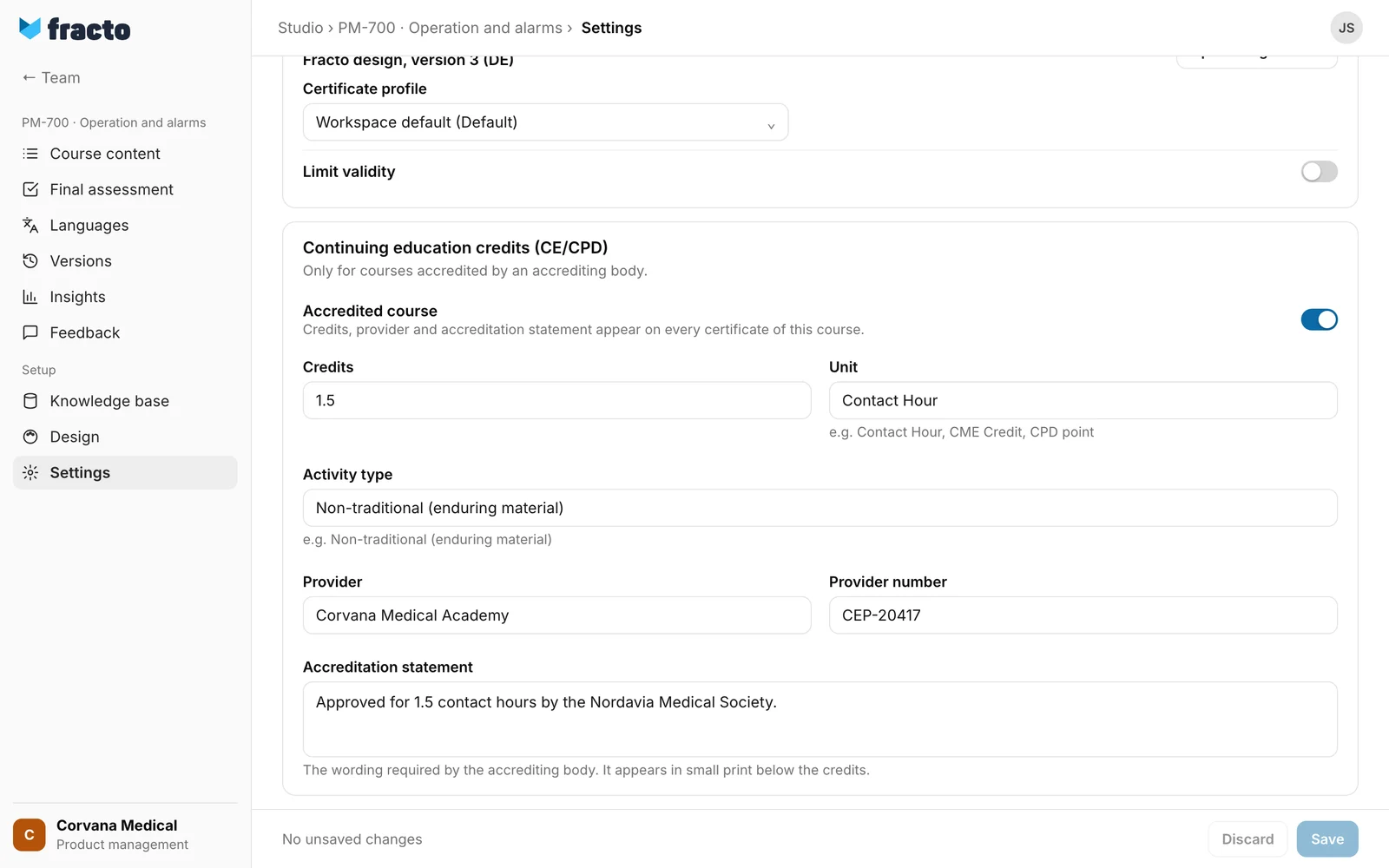
Switch Accredited course on. The fields then appear. The switch is off by default.
-
Fill in the fields:
- Credits: a number greater than 0, at most 100. A comma as decimal separator works (1,5). It contains 1 when you switch the switch on.
- Unit: required, at most 60 characters. Preset is “Contact Hour” (in a German course “Fortbildungspunkt”).
- Activity type: optional, at most 120 characters.
- Provider (at most 160 characters) and Provider number (at most 80): optional.
- Accreditation statement: optional, at most 700 characters. It appears in small print below the credits.
-
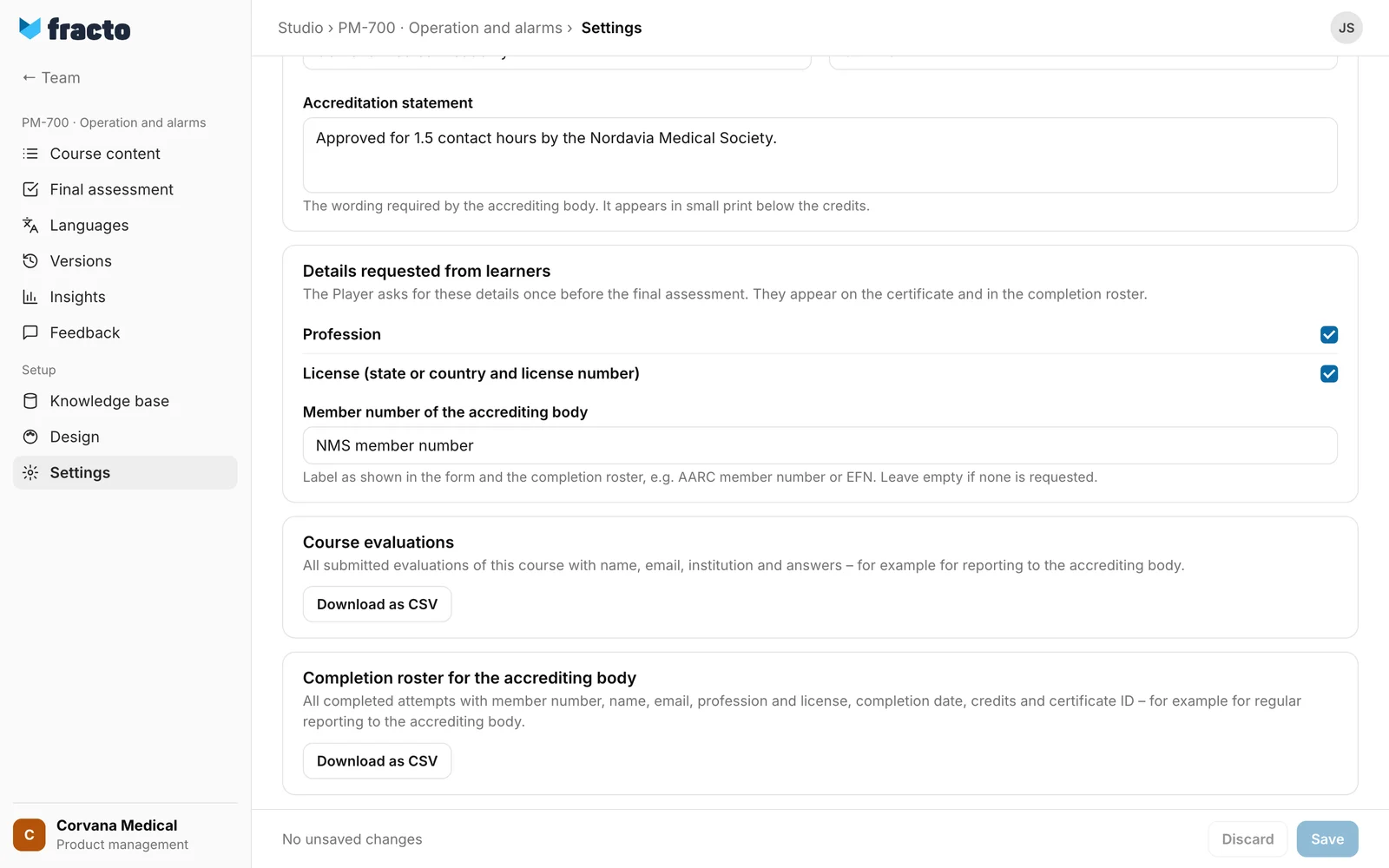
Under Details requested from learners you choose what the Player asks for: Profession is on by default, License (state or country and license number) is off. Tick License (state or country and license number) explicitly if the accrediting body asks for license details. In the Member number of the accrediting body field enter the label, for example “AARC member number” (at most 60 characters). If the field stays empty, no member number is asked for.
-
Click Save at the bottom.
-
Publish the course. Changed continuing-education settings cannot be published as a correction. The dialog mostly says “Changed continuing-education settings require a new version.”, and for an exam that was optional before “Changed grading or pass mark requires a new version.” See “Publish a course” and “Versions and corrections”.
You can tell it worked: “Saved” appears. On the Final assessment page Exam is required is on and locked.
What the certificate shows
- A line with the credits: number, unit and, if entered, the activity type, for example “1.5 Contact Hour · Non-traditional (enduring material)”. A whole number appears with one decimal place (“1.0”).
- A line with the provider, for example “Provider: Corvana Medical Academy · Provider No. CEP-20417”. The labels “Provider” and “Provider No.” are fixed and appear in English on German certificates as well.
- The accreditation statement, in small print.
- A line with the person’s details, only for the fields the course asks for: profession, “License RRT-12345 (CA)” and member number with your label.
The details come from the course version in which the person passed. Certificates already issued keep them. Fracto records the person’s details when they pass, so later changes to the person’s profile do not change the certificate.
What learners do
In an accredited course the Player shows a form before the exam, before Start assessment is possible. It asks only for what you ticked, and only for what the person still lacks. The details also apply to further courses. See “Take the final exam” and “View and share credentials”.
Download the lists
At the bottom of the Certificate & continuing education tab are two downloads, each with Download as CSV.
-
Course evaluations: all submitted evaluations of all published versions of the course. Each row has time, person, email, institution and the answers. With a before-and-after questionnaire there is one row per run, with the answers of both rounds side by side.
-
Completion roster for the accrediting body: one row per completed run of the course, across all versions. The columns are named in English: first one column per member-number label, then first_name, last_name, email, profession, license_state, license_number, organization, course, credits, completion_date and certificate_id. What is not available reads “not recorded”. Cells of other member-number columns and a missing email stay empty. The date is the day in the workspace’s time zone. Cells starting with =, +, - or @ get an apostrophe in front so spreadsheet programs do not read them as formulas.
What else applies
- With Accredited course the exam is always required. Fracto sets it to required when saving. If you switch the switch off later, the exam stays required until you make it optional again in the final assessment. See “Make the final assessment optional”.
- The notice “This publisher has no published certificate design yet. Passed completions are saved; certificates will be issued once the design is published.” is a warning, not an error.
If it does not work
| Message | What it means |
|---|---|
| Please enter valid credits (greater than 0) and a unit. | Credits is not a number, not greater than 0 or greater than 100, or Unit is empty. Correct the field and save again. |
| Course settings could not be saved. | Saving failed. One cause can be a text that is too long: Unit over 60, Activity type over 120, Provider over 160 or Provider number over 80 characters. The form does not limit these fields. Shorten it and try again. |
| The course changed in the meantime. Reload the latest state before saving again. | Someone changed the course while you worked. Reload the page and enter your change again. |
Checked on 6 November 2026 against the current Fracto release.
