
AI usage and credit
How to see AI operations and your workspace's annual AI credit in Hub, choose the spending limit, and what happens when the credit has run out.
Under AI usage you see which AI operations ran in your workspace, and on the Annual AI credit tab how much of the annual credit from your contract is left. The credit applies to one contract year. There is also a planned amount per month.
Who sees it
- The AI usage page appears for people with the Administer workspace task. The data always shows only your workspace.
- The same task changes the spending limit.
- In Hub’s account menu, the credit status is shown to everyone with work access in the workspace.
- Your contract sets the annual credit and the monthly amount, and Fracto stores them. In Hub you see them and only set the spending limit.
The “AI usage” tab
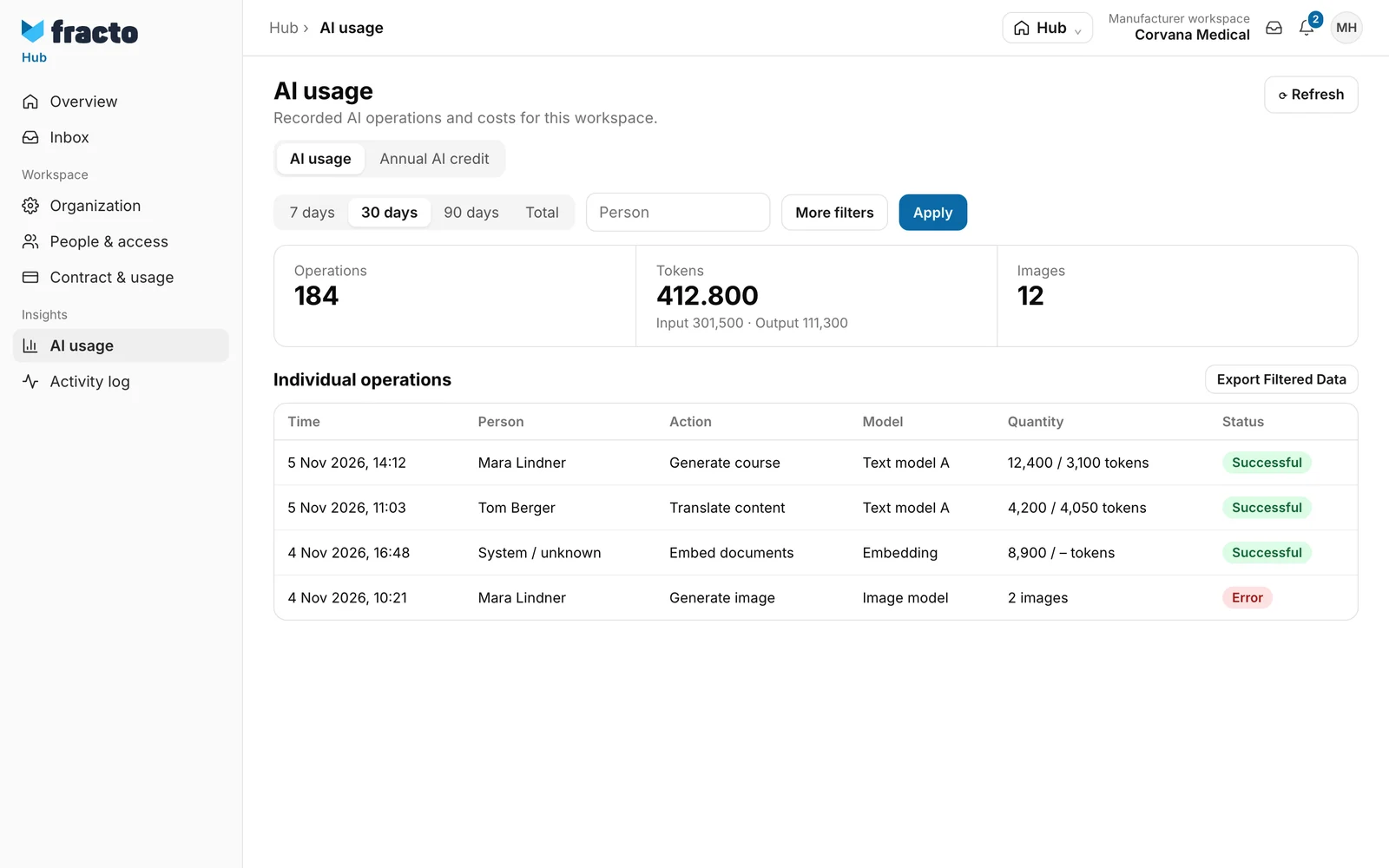
- Choose the Period (7, 30, 90 days or Total) or enter From and To. Narrow down with Person and More filters (for example action, model, provider and status). Click Apply. Reset clears the filters.
- The key figures show Operations, Tokens (with input and output) and Images. Charts and the Individual operations table follow, with time, person, action, model, quantity and status. Operations without a person appear as “System / unknown”.
- Export Filtered Data downloads the filtered table as a file ai-usage.csv.
The “Annual AI credit” tab
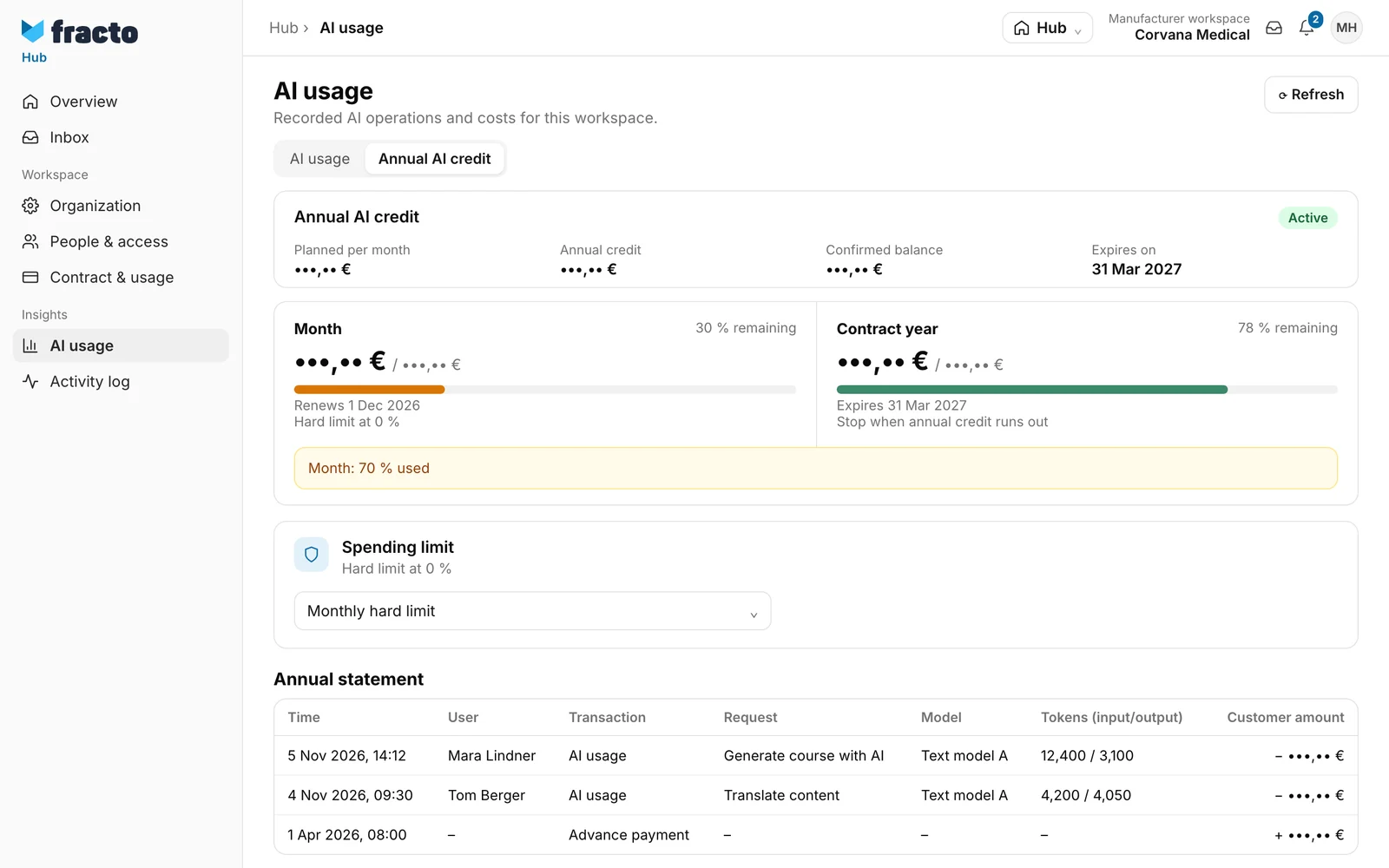
- At the top you see Planned per month, Annual credit, Confirmed balance and Expires on. Below, two bars show the balance for Month and Contract year. The month renews on the date shown, counted in your workspace’s time zone. The balance already includes open reservations.
- When 30 percent or less is left, “70 % used” appears. At 10 percent or less the notice reads “90 % used”, at 0 “planned amount fully used”, each with “Month” or “Contract year” in front.
- The Annual statement lists every booking: Advance payment, AI usage, Correction and Expiration. The table has the columns Time, User, Transaction, Request, Model, Tokens (input/output) and Customer amount.
- If it says “Contract draft – cost limits are not yet active”, the credit has not been activated yet and the limits do not apply yet. If there is none, it says “No annual AI credit has been set up for this workspace.” Once Fracto closes the contract year, it says “This contract year is closed. …” and the unused balance is recorded as expired.
- With an active credit, Fracto points out: “Some AI functions are not yet available with this credit. Available functions are measured against the displayed credit.”
The spending limit
Under Spending limit you choose what happens when the planned monthly amount is used up:
| Choice | Effect |
|---|---|
| Monthly hard limit (“Hard limit at 0 %”) | If the monthly balance no longer covers an operation, it is not run until the month renews. |
| Flexible annual credit with monthly warning (“Monthly warning, no block”) | The monthly amount only warns. AI operations continue as long as the annual credit lasts. |
In both cases: if the rest of the annual credit no longer covers an operation, it is not run (“Stop when annual credit runs out”). Anyone who then wants to use AI in Studio sees “This workspace has used up its AI credit for the contract year.” or, with the hard limit, “This workspace has used up its AI credit for this month.” If the contract year has expired or been closed and no new one is active, the message reads “No valid AI credit is currently set up for this workspace.”
The choice saves at once and applies from the next AI operation.
If it does not work
- The page shows “AI usage could not be loaded.”: Click Refresh. If it stays, try again later.
- “AI credit could not be loaded or saved.”: The credit could not be loaded or the spending limit could not be saved. Click Refresh and try again.
Checked on 6 November 2026 against the current Fracto release.
