
Import people
How to add many people to Campus at once: upload a CSV or Excel file, map the columns, check the preview and start the import.
You have a list of people as a table and want to add them to your institution’s learner list in one go. For that you import a CSV or Excel file.
Before you start
- In Campus you are a Campus manager. Only then does Learners have the Add learner button. Department leads can only view the list.
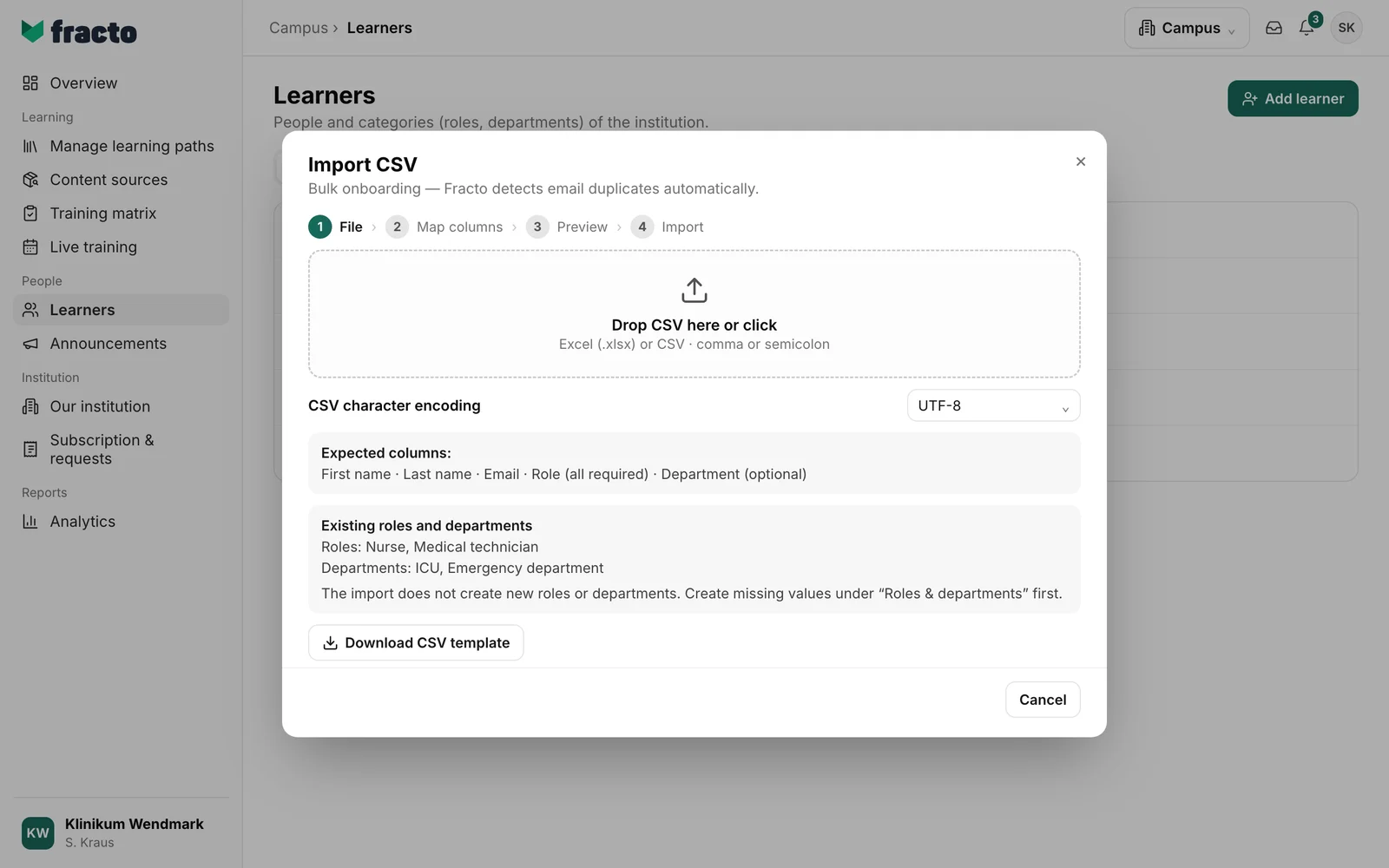
- Every person needs an active role of your institution that does not belong to a team. A department is optional, but it must be active and already created. The import does not create new roles or departments. Create missing values beforehand in Learners, under Roles & departments.
- Your file is a
.csvor.xlsxfile, at most 5 MiB, with at most 5,000 rows of people, plus the heading. The first row holds the column headings. In a CSV file, commas or semicolons separate the columns. In an Excel file, only the first worksheet counts. - The file has these columns: First name, Last name, Email and Role are required, Department is optional. You get a template in the dialog with Download CSV template (semicolon, UTF-8). It contains a sample row with “Max Muster”. Delete or overwrite it and replace the sample value in the Role column with an existing role. If there is no role yet, the dialog shows the note “Before importing, create a role for this institution and replace the sample value in the Role column.”
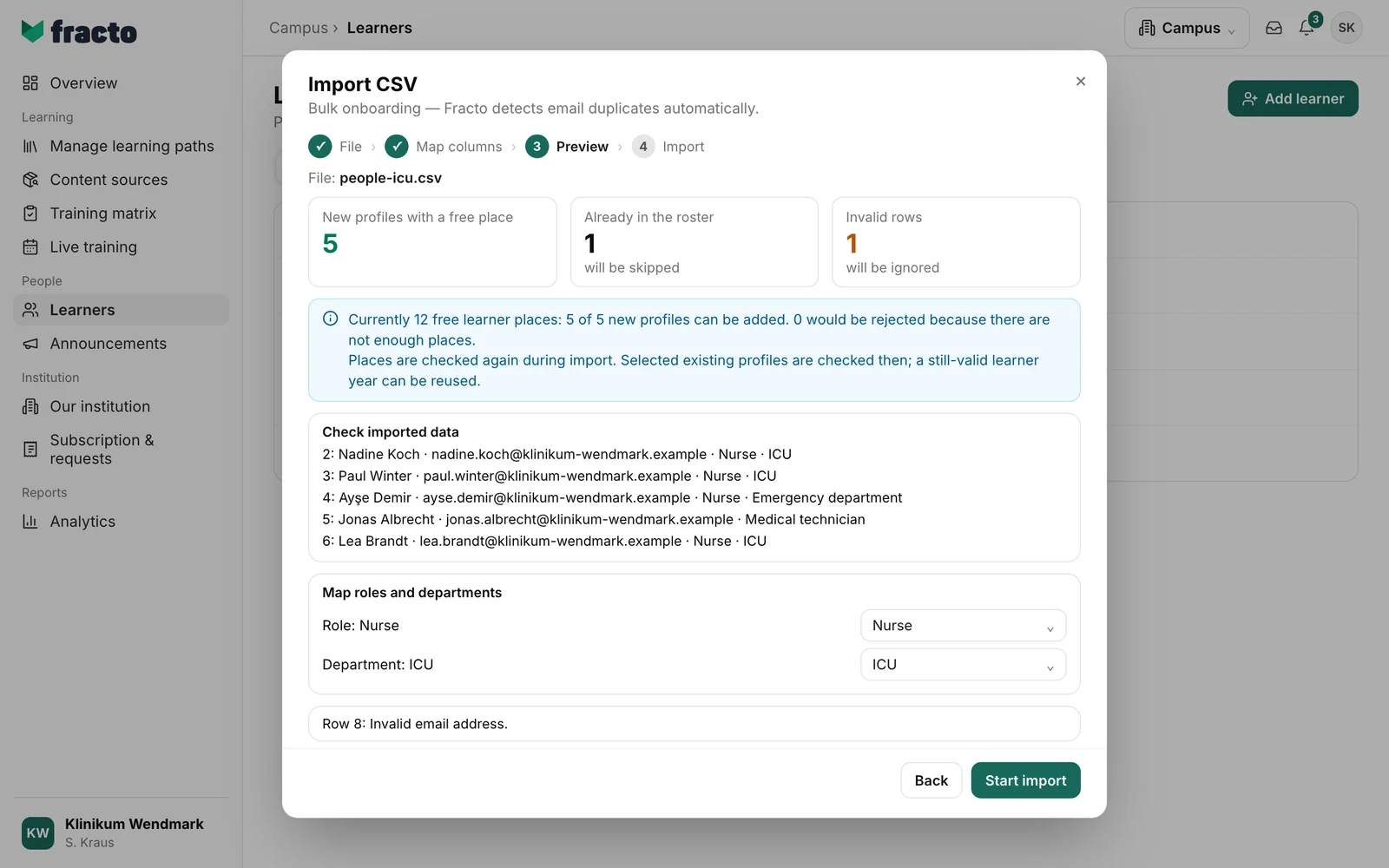
- New people need free learner places of your institution. In an institution with a quota, the preview shows how many are free. The places are checked again during the import. Selected existing profiles are checked then; a still-valid learner year can be reused. In a manufacturer’s Campus, the preview does not show this note.
Import people
-
In Campus, open Learners. Click Add learner and then Import CSV.
-
The dialog has four steps: File, Map columns, Preview and Import. If your CSV file is not saved as UTF-8, first set CSV character encoding to Windows-1252. Then drop the file on Drop CSV here or click, or click the field and choose the file. For an
.xlsxfile, the character encoding does not matter. If the file can be read, the dialog moves on by itself. -
Under Map columns, each target field is on the left and a column of your file on the right. Fracto maps columns whose name contains a matching keyword, for example “Email address” to Email or “Job role” to Role. Check the mapping and change it if needed. Each column can map to one target field only. If your file has no department, leave — not mapped —. Next only works once first name, last name, email and role are mapped.
-
The Preview reads the file and shows three numbers: New profiles with a free place, Already in the roster (these people are skipped) and Invalid rows (these rows are ignored). Below, Check imported data shows the first ten rows. Each invalid row is listed with its reason, for example “Row 8: Invalid email address.” The row number is the row in your file, and the heading counts as row 1.
-
Under Map roles and departments you see which existing role and department each value in your file is mapped to. Fracto matches by name. Upper and lower case and spaces at the edges do not matter. If a mapping is wrong, pick the right value under Choose an existing value. The preview updates by itself.
-
If someone in the file already has a Fracto profile but is not yet in your institution, they are listed under Add existing Fracto profiles to this institution. Tick them if they should be imported too. Without a tick, they are skipped.
-
Click Start import. The preview is valid for ten minutes. The button is inactive while the preview refreshes or when there is nothing to import.
How you can tell it worked: the dialog shows “5 people imported” and below it how many were skipped or rejected. After Done, the people are in Learners, on the People tab.
What happens next
- Each imported person is created in the institution with their role and, if given, their department, and uses a learner place. For existing profiles taken over, a still-valid learner year can be reused.
- If a new person has no Fracto account yet (no password and no two-factor sign-in), they get a personal invitation by email to set up their account. The invitation is valid for 30 days. Existing Fracto profiles that you import with Add existing Fracto profiles to this institution get no account invitation.
- Imported people get German as their language, so the invitation also arrives in German. The import has no language column.
- Anyone who was already in the list stays unchanged. Role and department from the file are not applied to them.
If it does not work
| Message | What it means |
|---|---|
| The CSV file cannot be read as UTF-8. Please select Windows-1252 or save it as CSV UTF-8 in Excel. | Choose Windows-1252 before you select the file, or save the file as “CSV UTF-8”. |
| The CSV file is invalid. Please use commas or semicolons as separators and correct quotation marks. | The file cannot be read as a table. Check the separators and quotation marks. |
| The file is empty or larger than 5 MiB. | Make the file smaller or split it. |
| First name is missing or too long. | The row has no first name, or it is too long. The row is ignored. |
| Last name is missing or too long. | The same for the last name. |
| The file could not be read. Choose a valid .xlsx or CSV file. | The Excel file cannot be opened. Save it again or export CSV. |
| Please upload a CSV or Excel file with the .csv or .xlsx extension. | The file has another extension. |
| Please select exactly one CSV file. | You dropped several files on the field. Choose one. |
| The CSV file contains more than 5,000 data rows. | Split the file and import the parts one after the other. |
| This file type is not supported. Please select a CSV file. | Only a file ending in .csv or .xlsx works. |
| The column mapping is invalid. First name, last name, email, and role must use different columns. | Map each required field to its own column. |
| Role ”…” must be mapped to an active role in this institution. | Your institution has no such role. Under Map roles and departments, choose an existing role, or create the role first. |
| This institution has no active role. Please create a role first. | Under Roles & departments, create a role and start the import again. |
| Department must be mapped to an active department in this institution. | The department in the file does not exist. Choose an existing one or create it first. |
| Invalid email address. | The row has no valid email address. Correct the file. |
| Email address already appears in row … of this file. | The same address is in the file twice. The second row is ignored. |
| The import preview has expired or the file has changed. Please create the preview again. | Go one step back with Back and click Next again. |
| No free learner place. The person was not added. Ask your supplier for more learner places. | There was no free place for this person during the import. In the result, Request quota lets you ask for more places. |
| CSV import permission is missing for this institution. | You lack the permission of the Campus manager role. |
| CSV import is currently unavailable. Please try again later. | A general error. Try again later. |
Checked on 6 November 2026 against the current Fracto release.
