
Quiz and feedback for a session
How to set up a quiz for a live training in Campus and read the feedback participants send after the session.
Requires: Campus Full
With a quiz, attendance at a live training only becomes a completion once the person also passes the quiz. After the session, participants can also send feedback.
Before you start
- Live training is part of Campus Full. Without Campus Full, Live training does not appear in the menu. Through a direct link the page says “This area is part of Campus Full”.
- Campus managers and lecturers can create and change a quiz. A lecturer edits the quiz of their own sessions only. For department leads the buttons in the tab are disabled.
- The session must exist. See “Create a live training”.
- Do not add a question as a test. With the first question the session follows the rule “attendance and quiz”, and that rule is never reset. If you delete all questions later, completing through the quiz is no longer possible, and attendance alone does not complete the session either.
Set up a quiz
-
In Campus, open Live training, click the session and choose the Quiz tab. If the session has no quiz yet, it says “No quiz configured”. Click Create quiz. This only opens the editor. Nothing is saved until the first question.
-
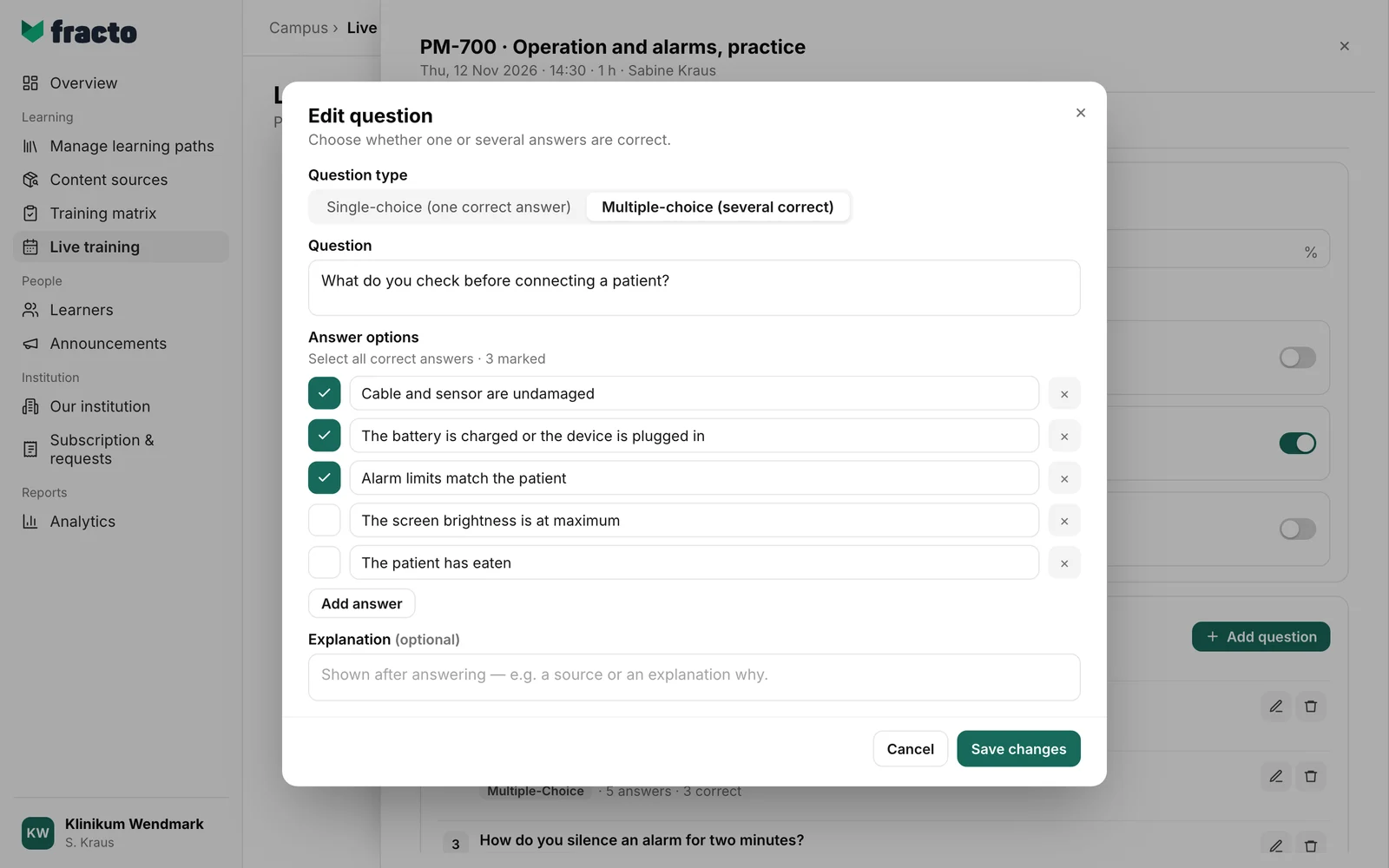
Click Add question. In the New question dialog, choose the Question type: Single-choice (one correct answer) is preselected, next to Multiple-choice (several correct). Enter the Question. Under Answer options there are four fields, and the first answer is already marked as correct. If you only type texts, answer 1 is saved as the correct one. Change the marking with the tick. Single-choice has exactly one correct answer, multiple-choice at least one. Add answer adds more fields, the cross removes one, but at least two stay. Fracto stores the Explanation (optional) with the question. The Player does not show it to learners at present.
-
The Add question button in the dialog is active only when the question has text, at least two answers are filled in and at least one is marked correct. Empty answer fields are dropped on saving. A question can have at most 1,000 characters, the explanation 2,000, an answer 500, and there can be at most 20 answers. The characters < and > are not allowed. Change a question later with the pencil, remove it with the bin. When editing, the button reads Save changes.
-
Only now, after the first question, set the Configuration. Anything you set before the first question is not saved. After that, every change is saved at once.
- Number of questions in the quiz: empty means all questions. A smaller number draws questions from the pool. The selection is fixed per person and session, so a retry brings the same questions. It cannot be larger than the number of questions.
- Pass from: percent, preset to 80. Allowed values are 1 to 100. The share of correctly answered questions is counted, rounded to whole percent. A question counts only if exactly the correct answers are ticked. There are no partial points, not even for multiple-choice.
- Random order: off. When on, Fracto shuffles the questions per person, and the order stays the same for them.
- Show result only at the end: on. In the Player, learners see the result in percent with passed or not passed after submitting. When the switch is on, “X of Y questions answered correctly” is added.
- Unlock quiz only after the full video: off. The switch is saved but has no effect in the Player at present.
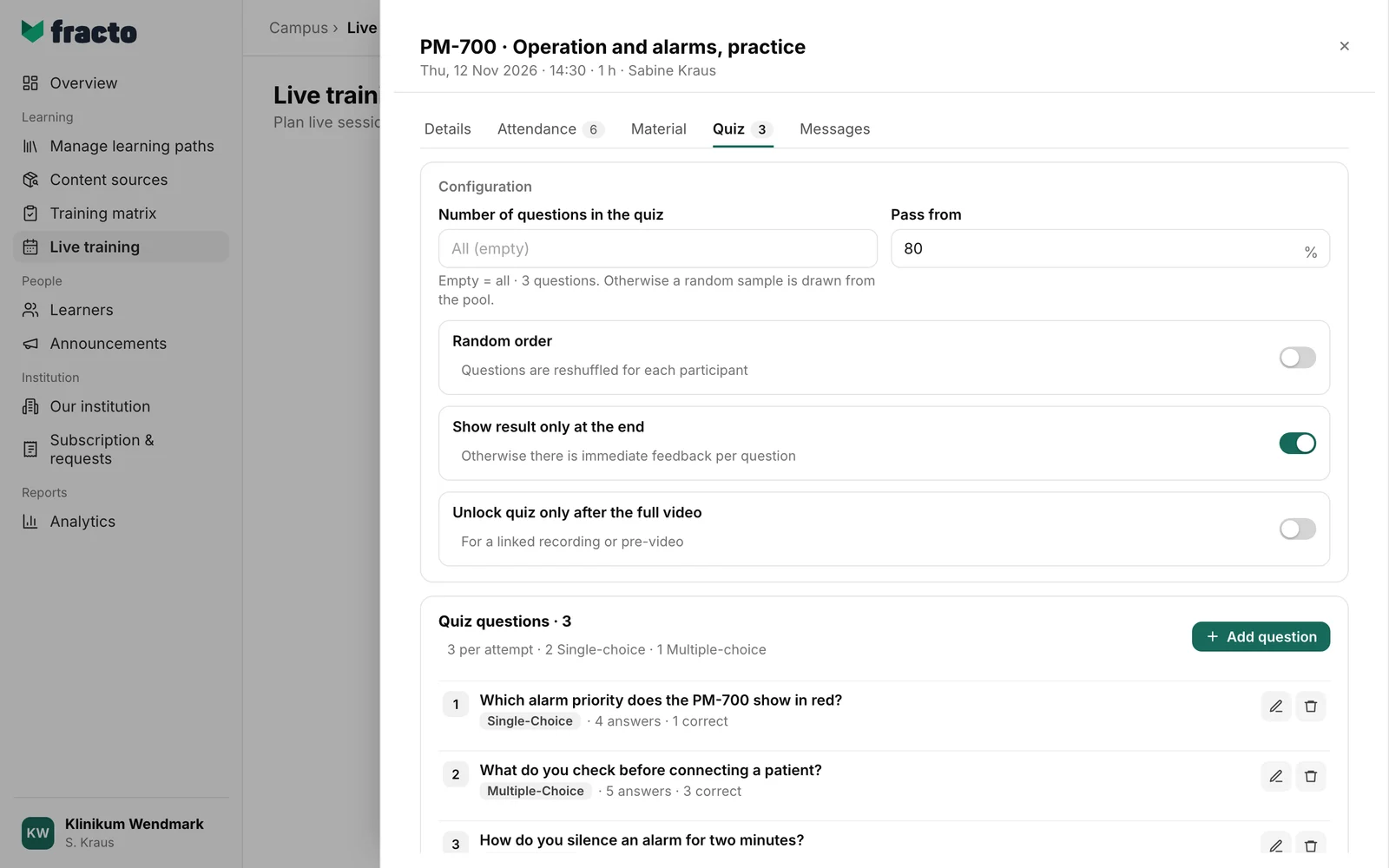
You can tell it worked: the Quiz tab shows the number of questions, and the “Quiz questions” list shows each question with its type and “4 answers · 1 correct”. Below the title it says how many questions one attempt has.
What happens next
- Learners see a Quiz tab on the session in the Player. It is missing if the session requires a training pass and the person has none.
- The quiz opens at the scheduled end of the session. If the lecturer ends the session earlier with End session, it opens at once. Until then the Player shows a note. See “Record attendance”.
- Learners can retry the quiz as often as they like. The best result counts, a later worse attempt does not take back a pass.
- A session is complete for a person when their attendance is completed and they have passed the quiz.
- A question that someone has already answered can no longer be deleted. You see “Please check the entries and event time.” You can still edit it.
Feedback on the session
- Participants see the section “Event feedback” in the Player. Feedback is possible only once the session has been closed with End session. The passing of time alone is not enough. The person must also be registered and their attendance completed. Otherwise it says: “You can give feedback after the event has ended and your full attendance has been confirmed.”
- Feedback consists of a rating from 1 to 5, a subject and a text. It can be sent once and cannot be changed or deleted afterwards. It is visible with the person’s name to the responsible lecturer and the institution leadership.
- Lecturers read it under Analytics: open the session, tab Feedback & recording. Campus managers open the Live training tab under Analytics and the session there. The feedback shows the rating, subject, text and the status Open. Reply sends an answer, Mark as resolved closes it. You can reply once per feedback. If the person can no longer be reached, it says: “The reply cannot be delivered because the person who gave this feedback can no longer be reached.”
If it does not work
| Message | What it means |
|---|---|
| Please check the entries and event time. | The change was rejected. Common reasons: a number under Number of questions in the quiz larger than the number of questions, a pass mark outside 1 to 100, text with < or >, texts that are too long, a question with answers that you tried to delete. |
| You do not have permission for this action. | Only Campus managers and lecturers can edit the quiz. |
| The event or person was not found in your area. | A lecturer tries to change the quiz of a session they do not hold. |
| The live training action failed. | A general error. Try again. |
| The reply could not be saved. Please try again. | The reply to a feedback was not saved. |
Checked on 6 November 2026 against the current Fracto release.
